

Accessibility isn’t something you add after a site is completed. It affects how visitors switch by way of a internet web page, understand content material subject matter, use menus, interact with buttons, be told text, and keep watch over the revel in to their own needs.
Divi 5 already provides shoppers additional regulate over accessibility-related details by way of its Customized Attributes system. You’ll add attributes akin to roles, labels, titles, and ARIA values immediately from the builder, which supplies Divi shoppers a stronger foundation for semantic building and assistive technology beef up.
The Accessibility Package from Divi-Modules builds on that foundation with a additional complete accessibility workflow for Divi web websites. It combines 3 plugins: Accessibility Attributes, Accessibility Tweaks, and Accessibility Sidebar.
Together, the ones apparatus will let you add accessibility attributes inside the Visual Builder, apply site-wide improvements for navigation and point of interest habits, and offers visitors front-end apparatus to keep watch over the site revel in for themselves.
The bundle is acceptable with every Divi 4 and Divi 5, making it useful for present client web sites along with new builds. At the time of writing, it’s available on the Divi Marketplace for $72 with infinite site usage, 1 three hundred and sixty five days of beef up and updates, and a 30-day money-back make sure that.
In this product highlight, we’ll walk by way of each and every plugin inside the bundle, take a look at a very powerful settings, and show how the bundle can strengthen a real Divi internet web page without rebuilding the design from scratch.
Evaluation Of The Accessibility Package deal
The Accessibility Package deal combines 3 plugins into one package:
- Accessibility Attributes: Supplies accessibility-related controls to Divi portions so that you’ll apply ARIA roles, labels, descriptions, hidden states, details, and other attributes from the Visual Builder.
- Accessibility Tweaks: Applies site-wide improvements akin to point of interest rings, keyboard navigation beef up, skip links, menu habits settings, decreased motion beef up, copy ID cleanup, and module-level accessibility tweaks.
- Accessibility Sidebar: Supplies a visitor-facing toolbar with profiles and kit for text, navigation, learning, graphics, difference, motion, visual display unit learning, and further.
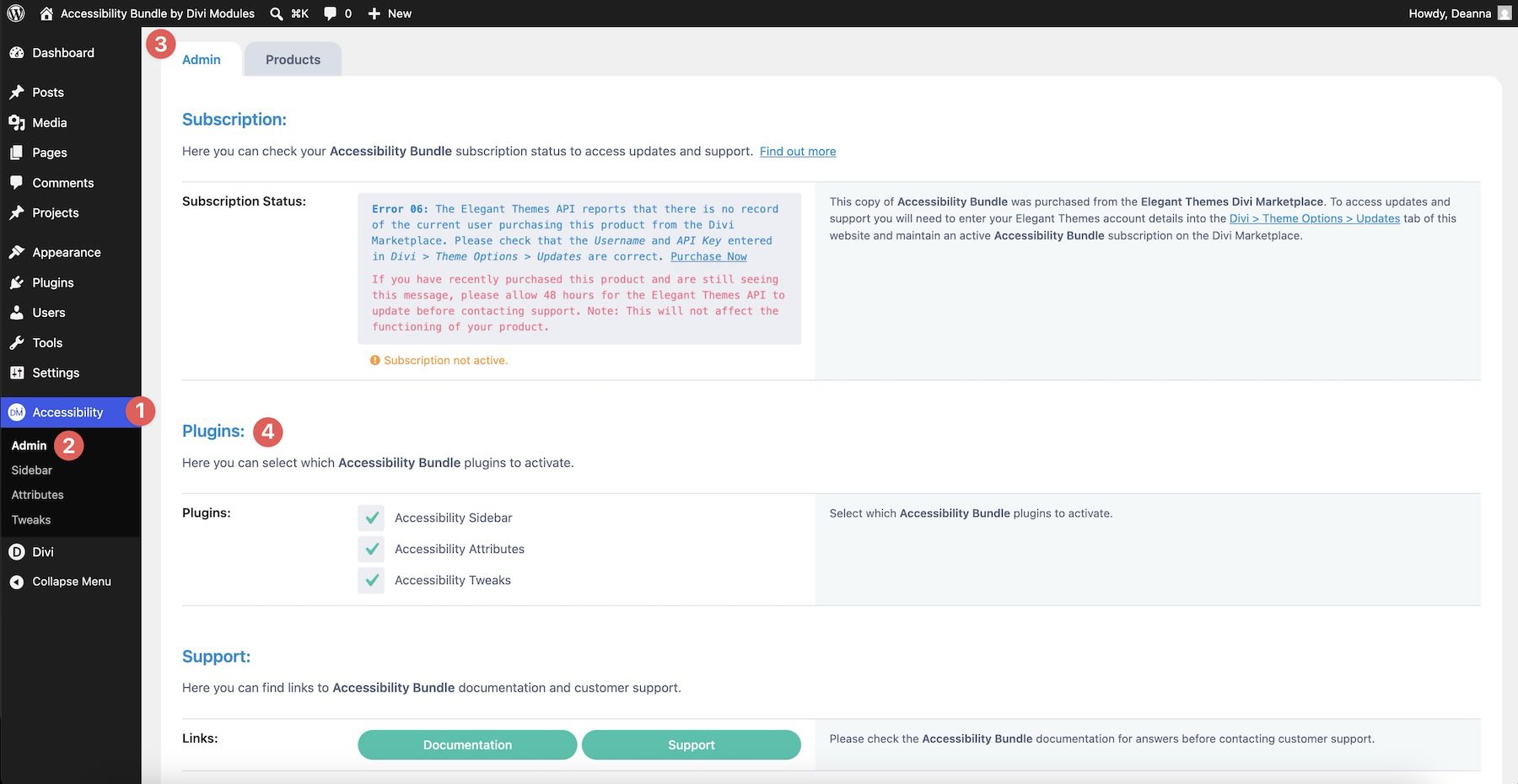
Each plugin solves a definite part of the accessibility workflow. Attributes gives you precise regulate over specific particular person portions. Tweaks handles broader website online and module habits. Sidebar provides visitors their own controls as quickly because the website online is live.
The bundle is completely appropriate with every Divi 4 and Divi 5, so that you’ll use it on older Divi web sites, provide client projects, and new Divi 5 builds.
Accessibility Attributes
Accessibility Attributes is the root of the bundle. It signifies that you’ll be able to add important accessibility attributes immediately inside of Divi, so visual display unit readers and other assistive technologies can upper understand the purpose of particular portions.
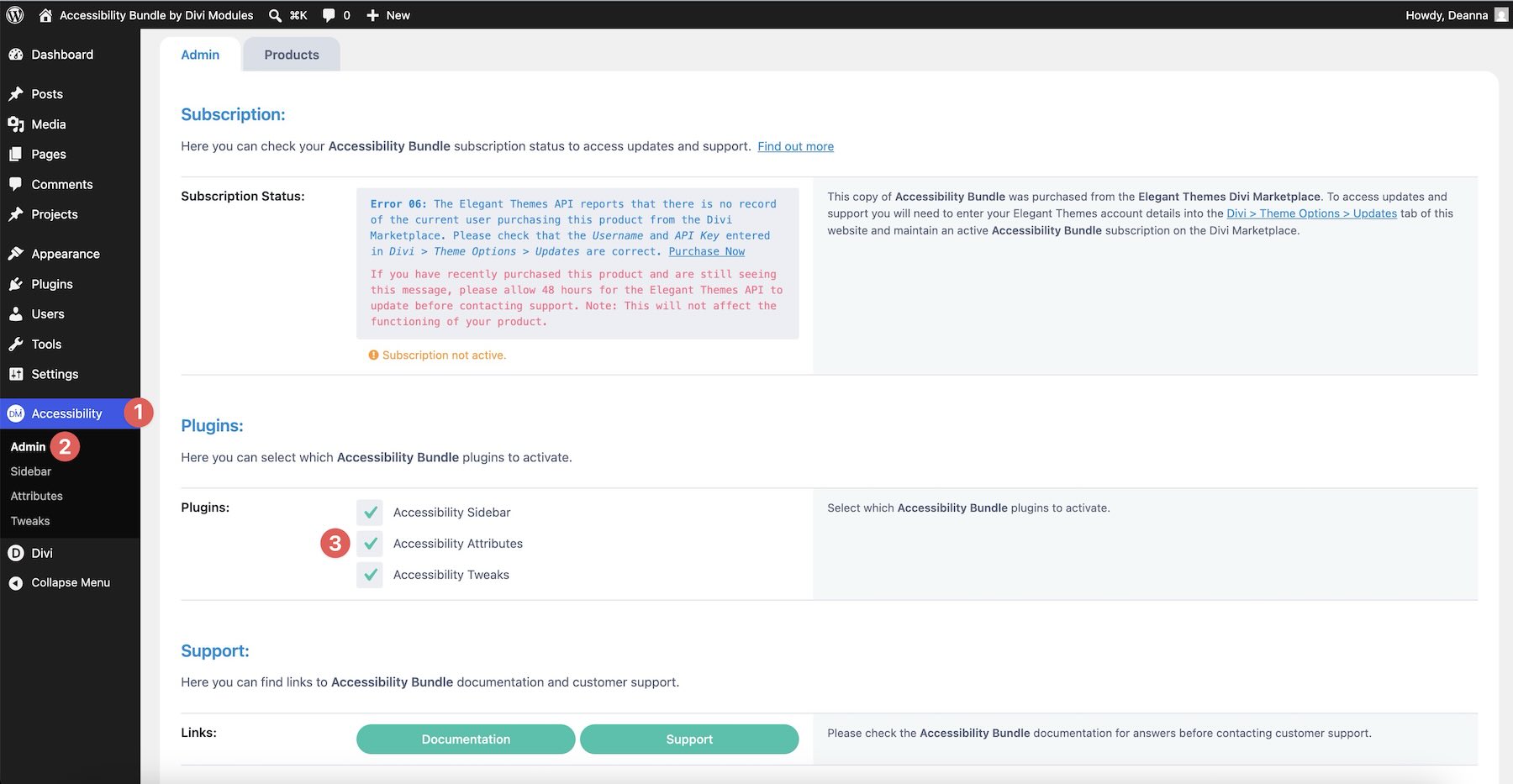
After activation, pass to Accessibility > Attributes inside the WordPress dashboard.
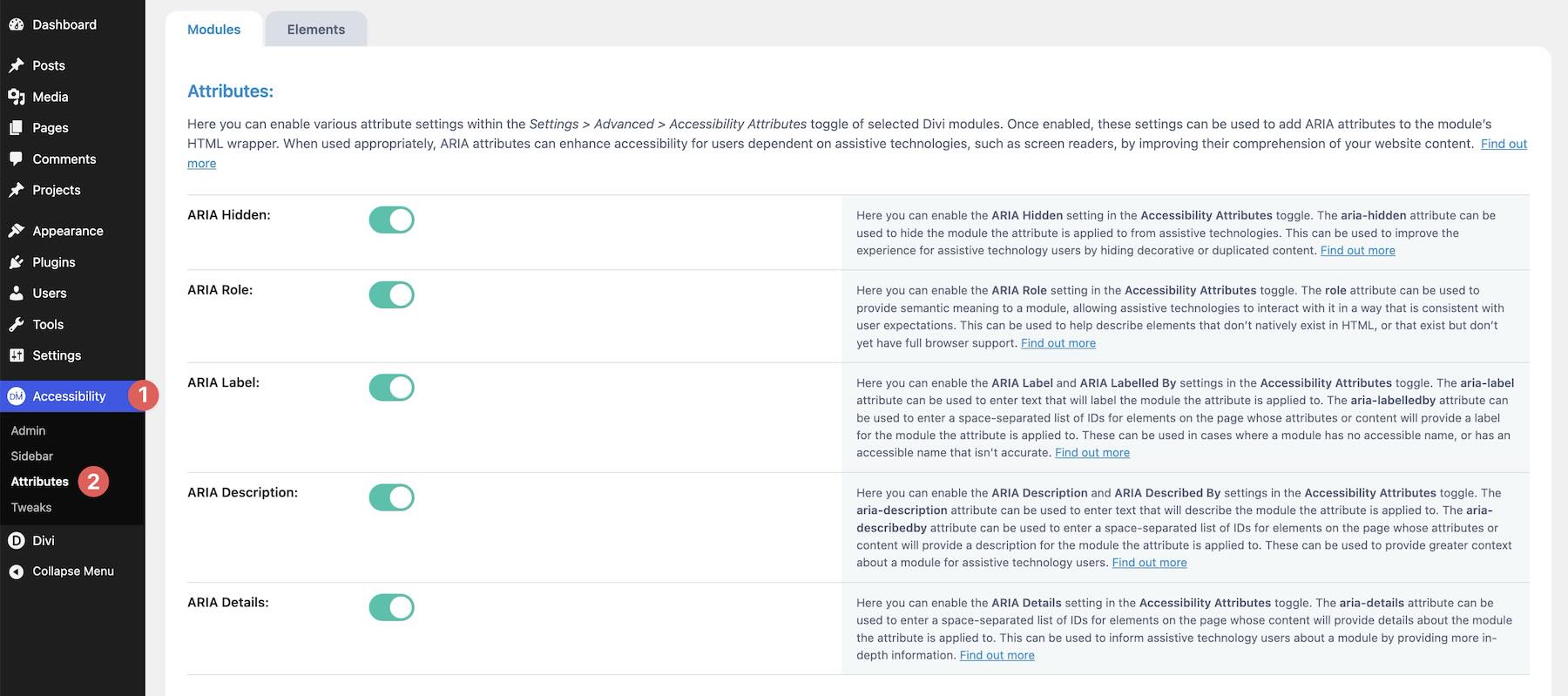
You’ll to seek out two primary tabs: Modules and Parts.
Modules Tab
The Modules tab controls which accessibility feature groups appear inside of Divi module settings.
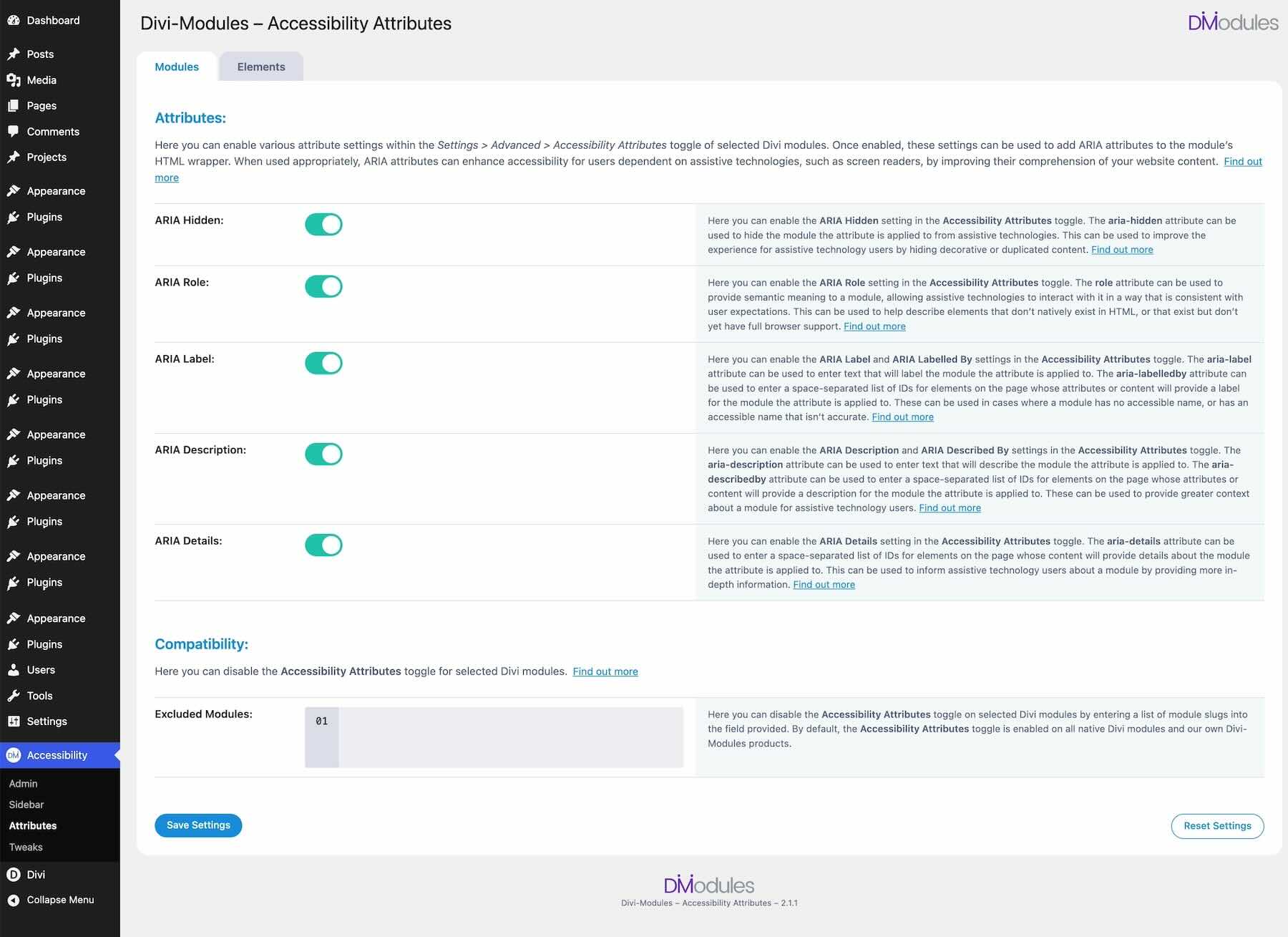
The available module feature groups include:
- ARIA Hidden: Hides decorative or repeated portions from assistive technologies once they don’t add that suggests. This turns out to be useful for icons, background-style pictures, decorative visuals, and repeated portions that may clutter the visual display unit reader revel in.
- ARIA Place: Assigns a semantic place to an element when its function isn’t obvious from the HTML on my own. As an example, you could provide an explanation for whether or not or no longer an element is showing as a button, navigation products, list, dialog, or each and every different interface development.
- ARIA Label: Supplies a short lived accessible identify for portions that want a clearer spoken label. This is specifically useful for icon-only buttons, repeated links, buttons with obscure visible text, or interactive portions where the visual design carries that signifies that visual display unit readers cannot see.
- ARIA Description: Supplies longer explanatory context when a short lived label isn’t enough. This will likely be in agreement describe difficult taking part in playing cards, repeated supplier blocks, or grouped content material subject matter that desires additional explanation.
- ARIA Details: Connects an element to additional detailed knowledge elsewhere on the internet web page. This may also be useful when a button, link, or card problems to supporting content material subject matter lower inside the structure.
There could also be a Compatibility phase where you’ll exclude particular modules by the use of slug if you do not want the Accessibility Attributes controls to look on them. This helps to keep the builder interface cleaner when positive modules shouldn’t have those possible choices.
Parts Tab
The Parts tab signifies that you’ll be able to apply no longer strange accessibility attributes across the website online the usage of CSS selectors. Instead of bettering one Divi module at a time, you’ll objective theme portions, menus, footers, third-party plugin output, or other portions that aren’t built as usual Divi modules.
The available section settings include ARIA Number one, ARIA Hidden, ARIA Link, ARIA Button, ARIA Required, and Tab Index.
The ARIA Number one phase identifies the primary content material subject matter area of the internet web page.

The ARIA Hidden settings let you hide decorative content material subject matter site-wide.
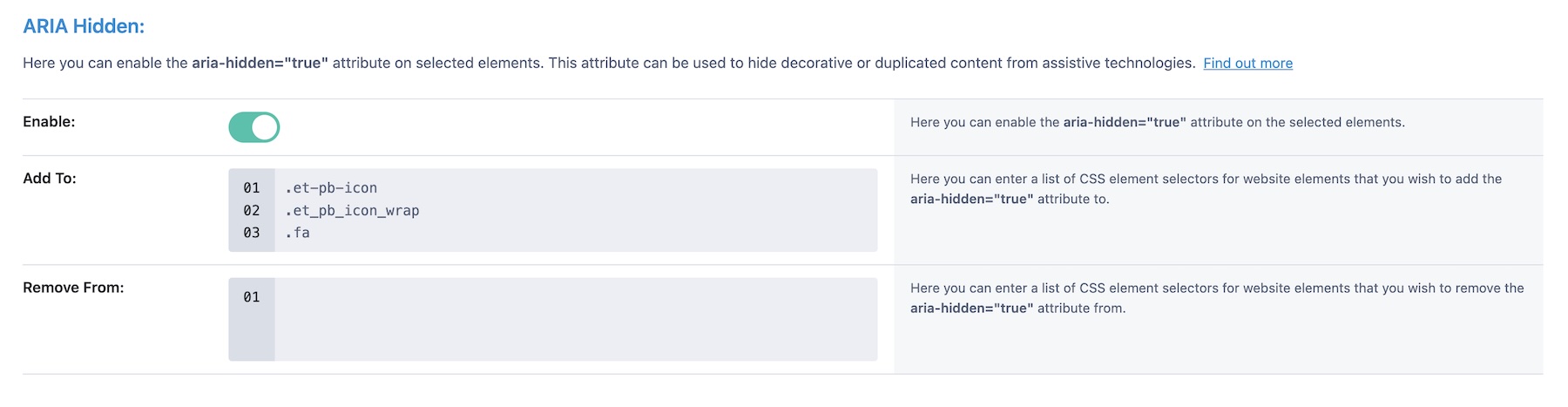
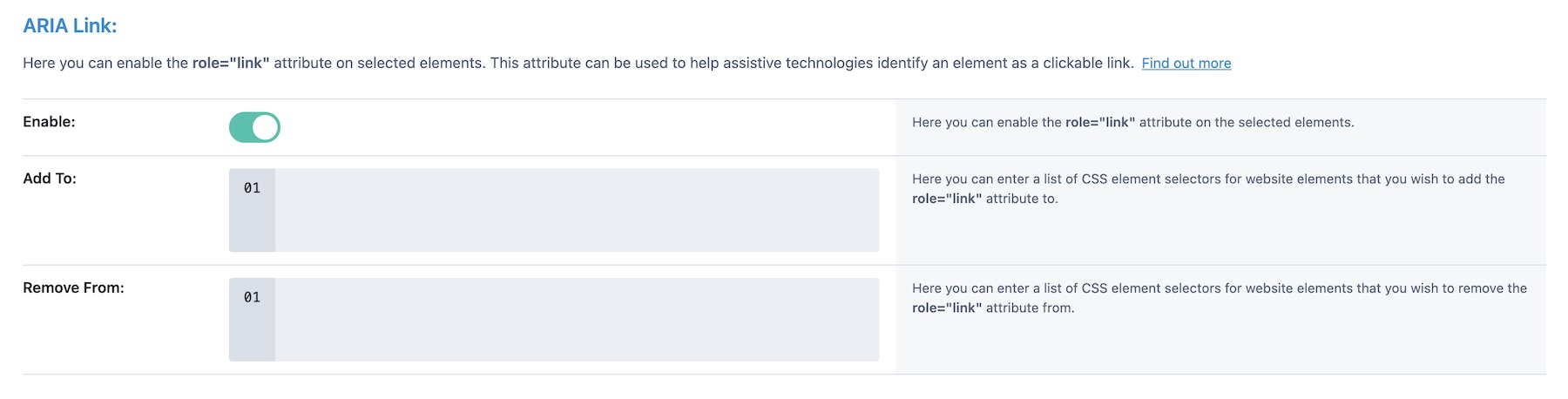
The ARIA Link risk can mark custom designed portions as links when the markup or habits needs explanation.
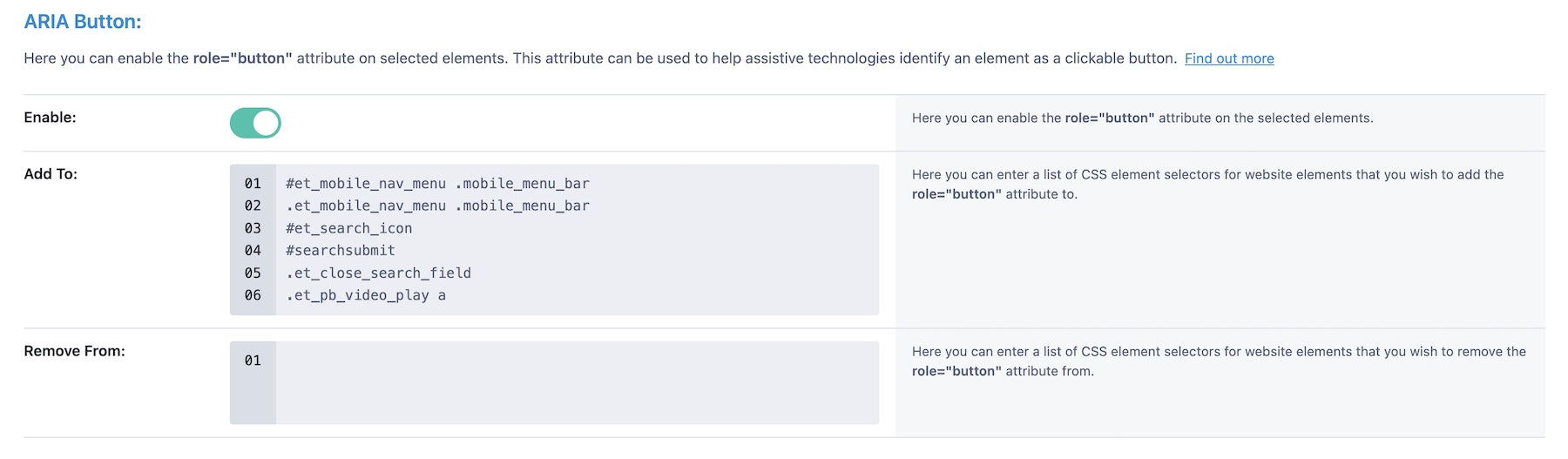
The ARIA Button risk can mark custom designed portions as buttons.
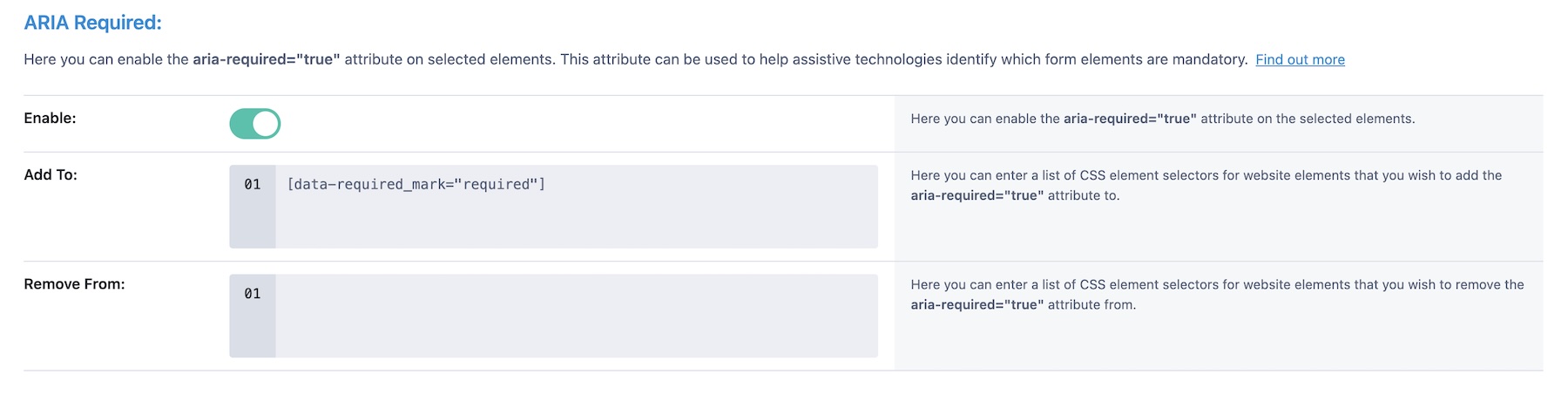
The ARIA Required atmosphere identifies required form fields.
The Tab Index atmosphere helps regulate whether or not or no longer made up our minds on portions may also be reached by way of keyboard tab navigation.
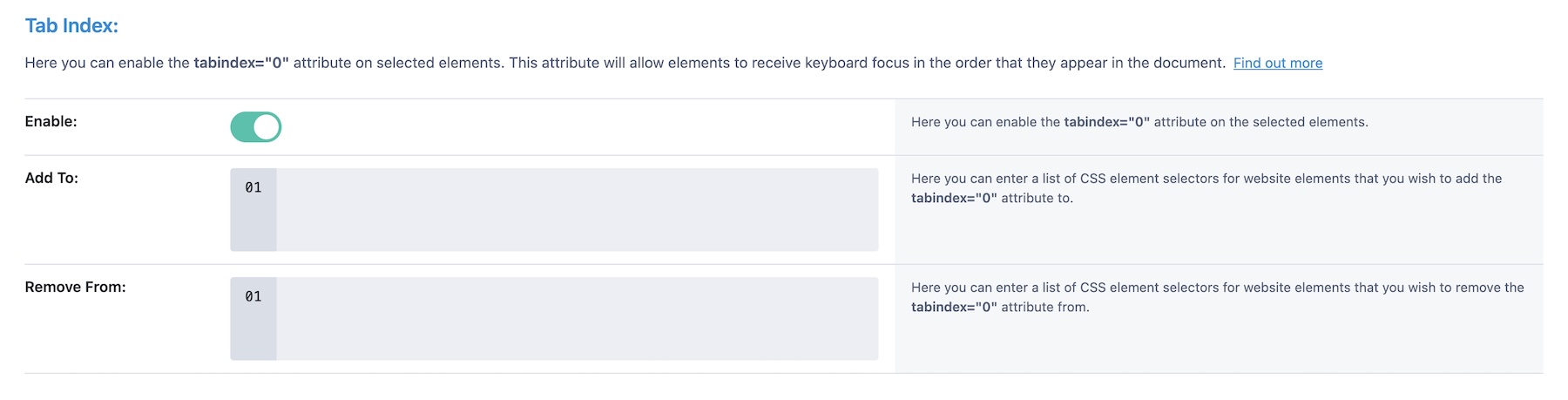
For each and every selector-based feature, you’ll define where the feature should be added and where it should be removed. This makes the Parts tab useful for huge site-level adjustments that will probably be tedious to make use of one section at a time.
Using Attributes Inside of The Visual Builder
Once configured, Divi portions reach new Accessibility Attributes groups inside the Sophisticated tab.
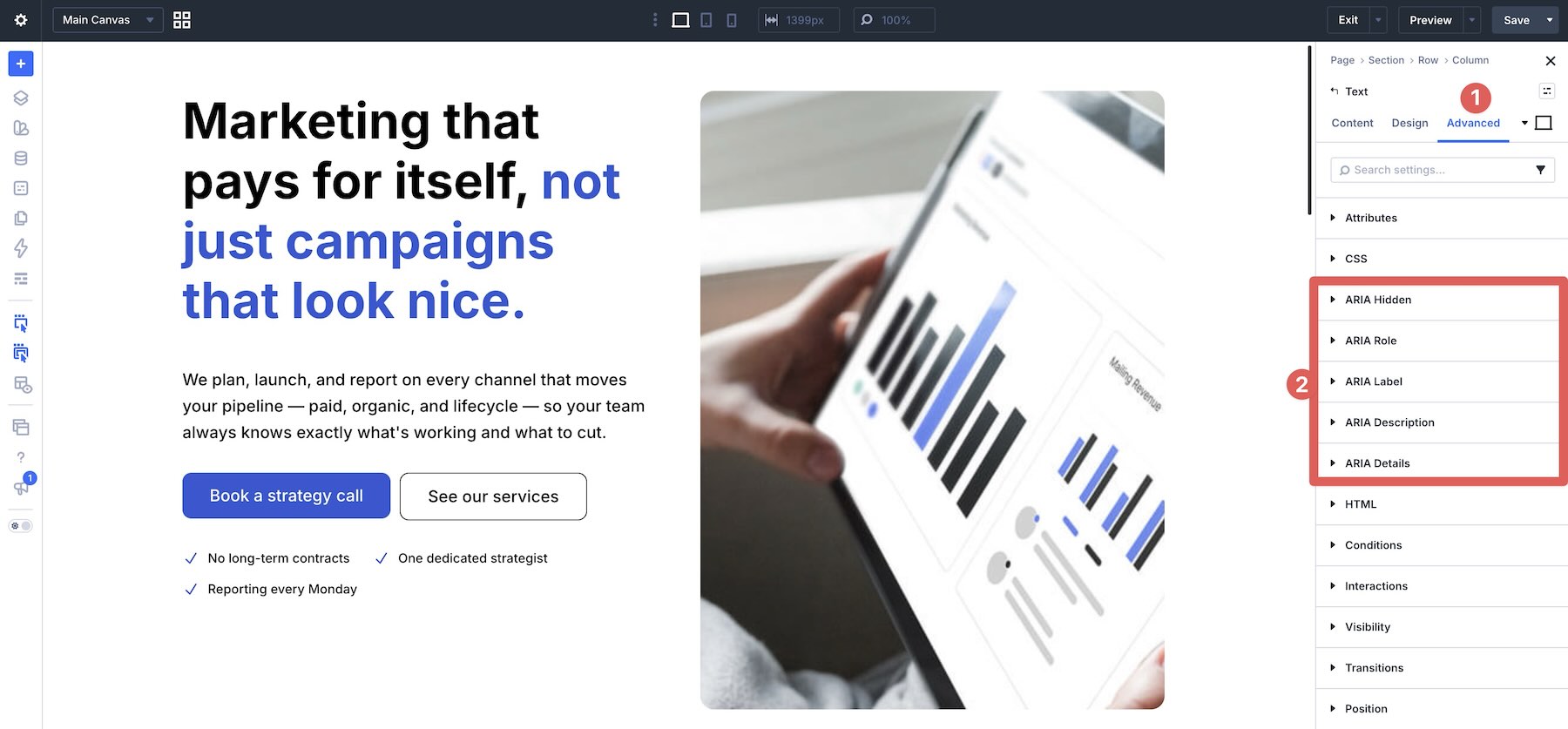
That’s the position the plugin becomes useful in every single place common Divi artwork. You’ll label an icon-only button, hide a decorative image, add a role to a custom designed interactive section, or describe a fancy card without leaving the Visual Builder.
The name of the game is to use attributes intentionally. Additional ARIA isn’t automatically upper. The aim is so that you can upload that suggests where it’s missing, remove noise where it does no longer be in agreement, and make the internet web page easier for assistive technologies to interpret.
Accessibility Tweaks
Accessibility Tweaks works quietly at a broader level. Instead of requiring you to edit every section manually, it applies improvements all through menus, links, supported modules, site habits, and point of interest states.
Pass to Accessibility > Tweaks inside the WordPress dashboard.
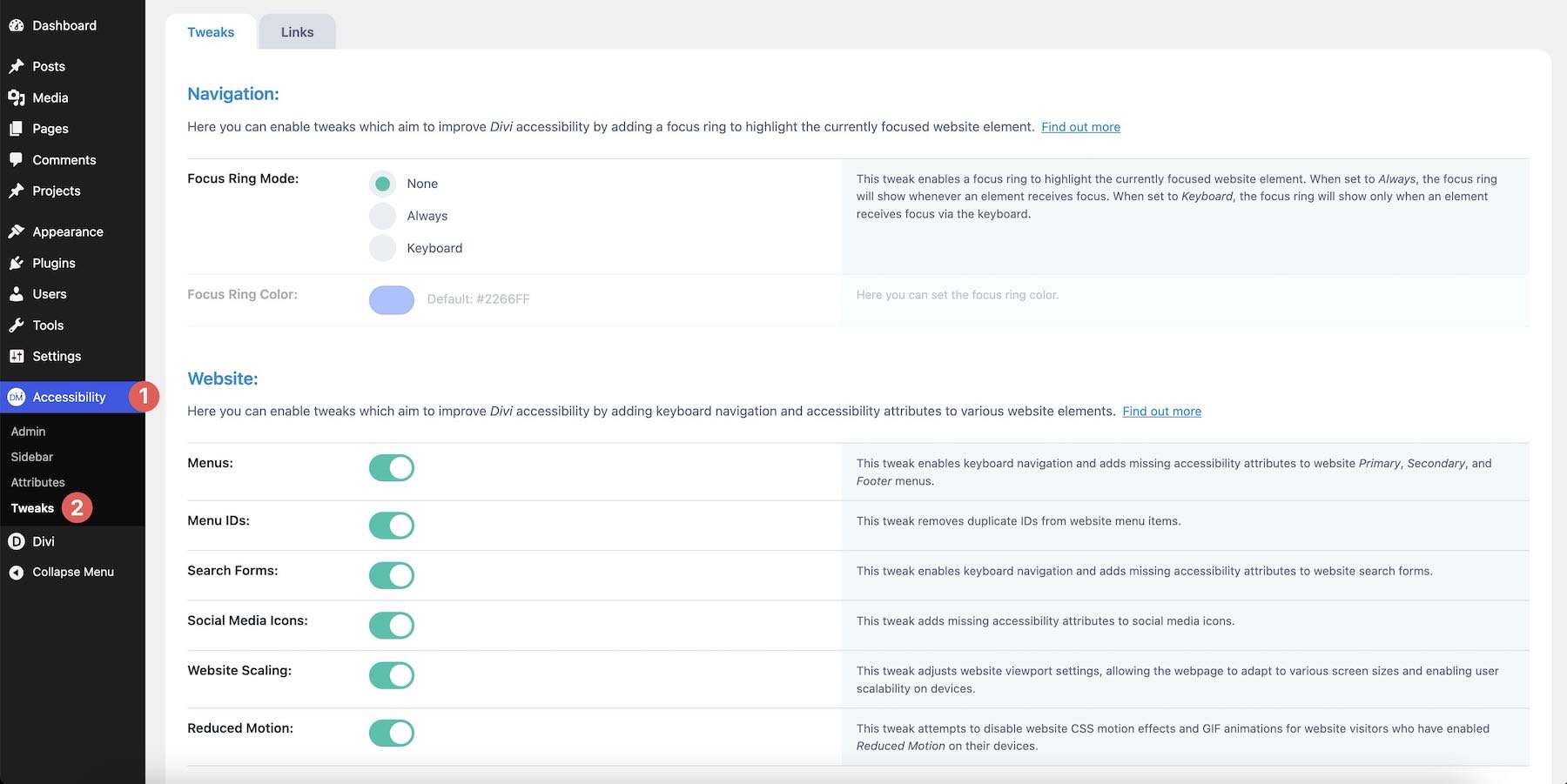
There are two primary tabs: Tweaks and Links.
Tweaks Tab
The Tweaks tab accommodates settings for navigation, site habits, supported modules, and menu habits.
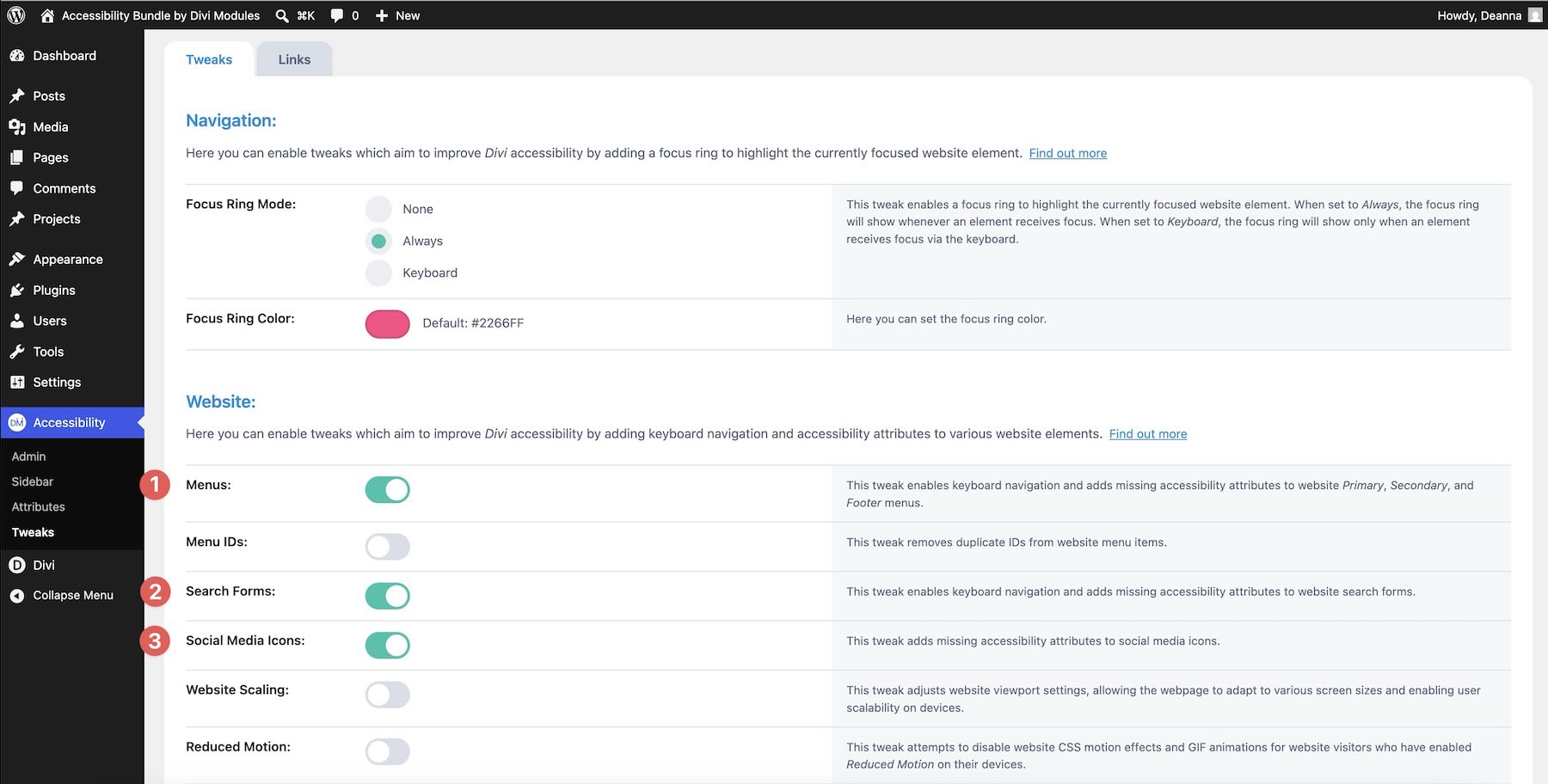
The Navigation settings let you permit a point of interest ring with customizable color and behavior.
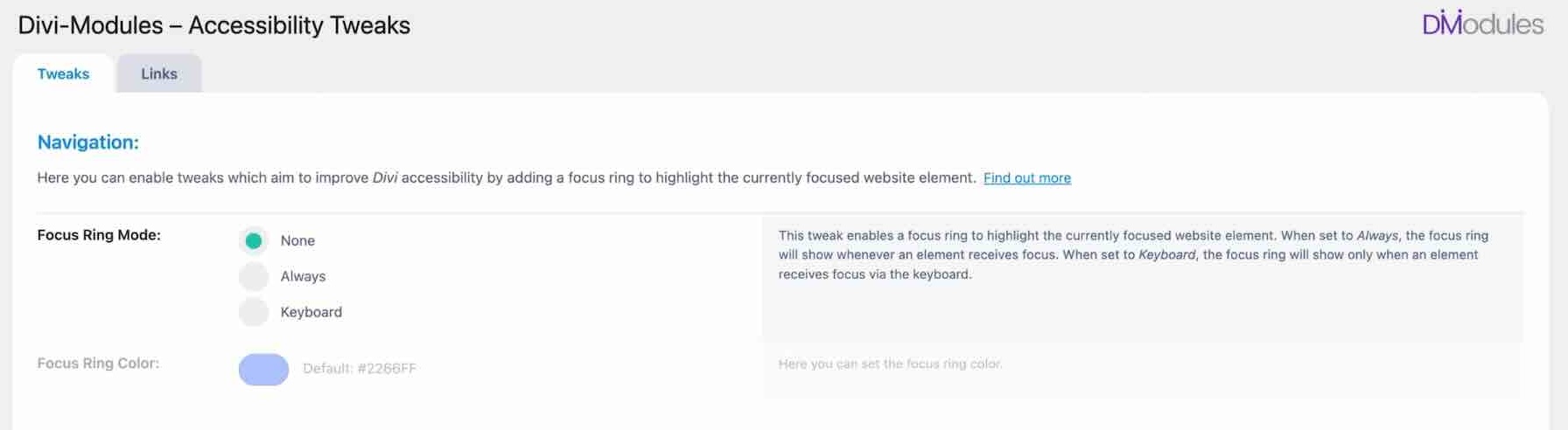
A visible point of interest ring helps keyboard shoppers see which section is at the present time vigorous. This is likely one of the most important accessibility improvements on interactive pages on account of keyboard navigation becomes frustrating when point of interest is hard to track.
You’ll style the point of interest ring so it fits the website online’s logo instead of relying on a browser default that may look inconsistent or be too subtle.
Internet web page Settings
The Internet web page settings include improvements for keyboard navigation, menu habits, search forms, social media icons, copy menu IDs, scaling, and decreased motion.
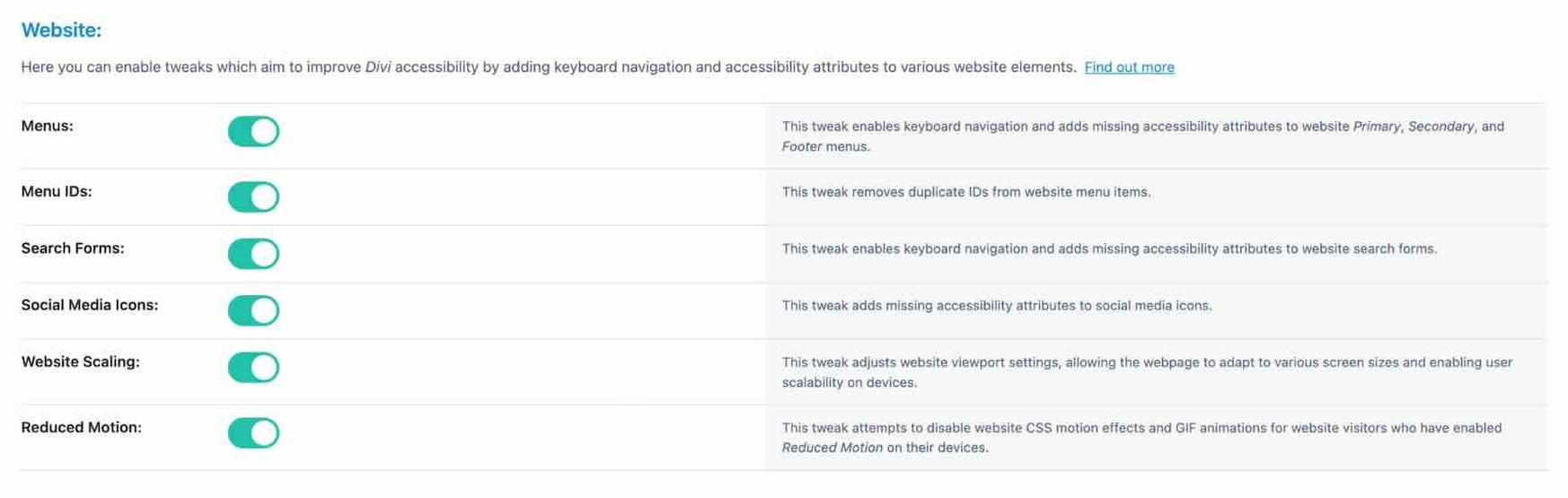
Reduced motion is especially useful on pages that use animated counters, scroll effects, moving backgrounds, GIFs, or transition-heavy sections. Visitors who prefer decreased motion should no longer want to battle by way of animation to use the internet web page conveniently.
The Internet web page phase moreover accommodates copy menu ID cleanup. Copy IDs can interfere with labels, descriptions, form controls, and ARIA relationships, so cleaning them up helps assistive technologies interpret the internet web page additional reliably.
Modules Settings
The Modules settings apply focused accessibility tweaks to supported Divi modules.
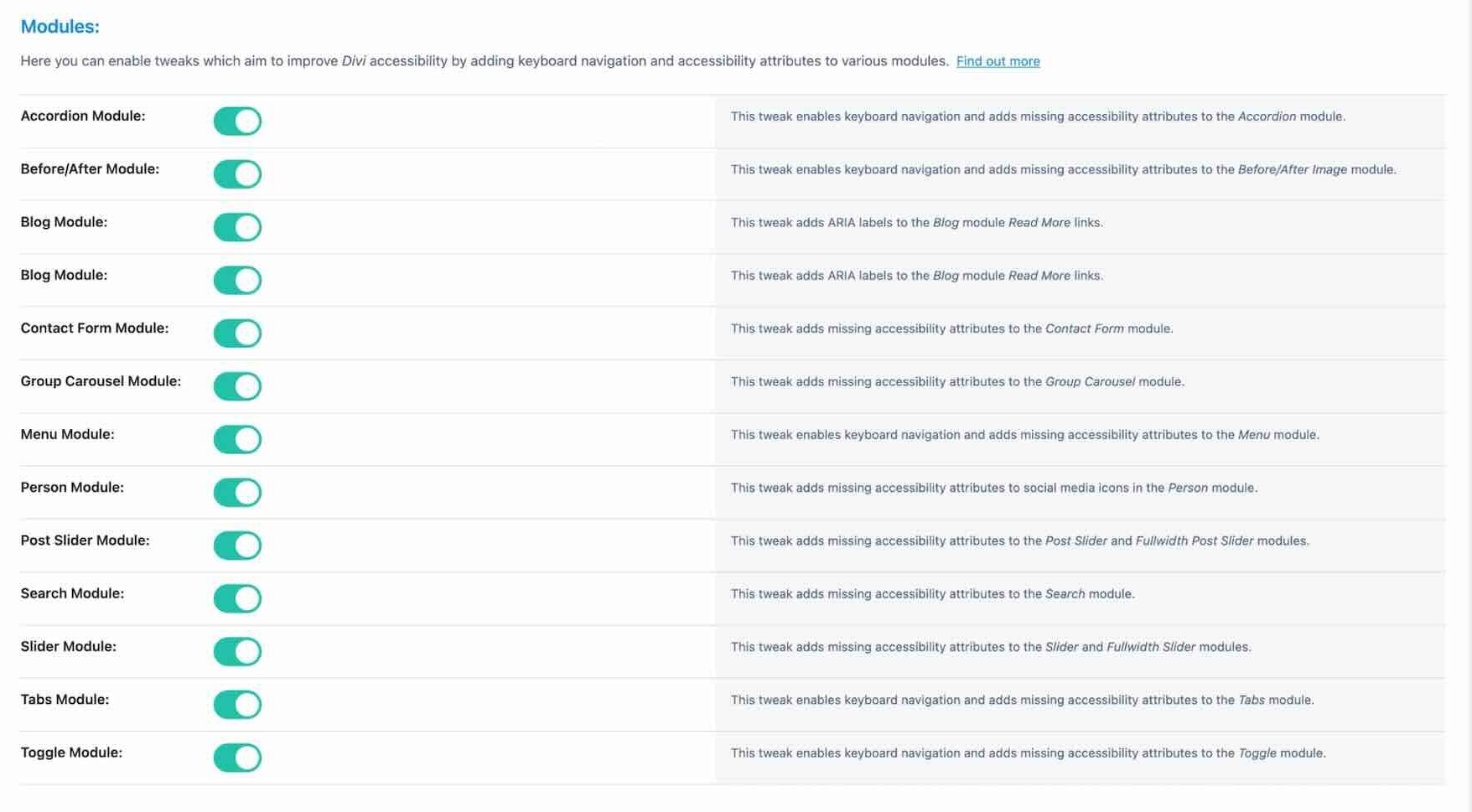
This will likely be in agreement with modules akin to Accordions, Blog, Contact Forms, Workforce Carousel, and other interactive or content-heavy modules where missing labels, ARIA states, or keyboard habits may make the revel in tougher to use.
Menu Settings
The Menu settings get a hold of additional regulate over tab navigation, arrow key habits, and submenu coping with.
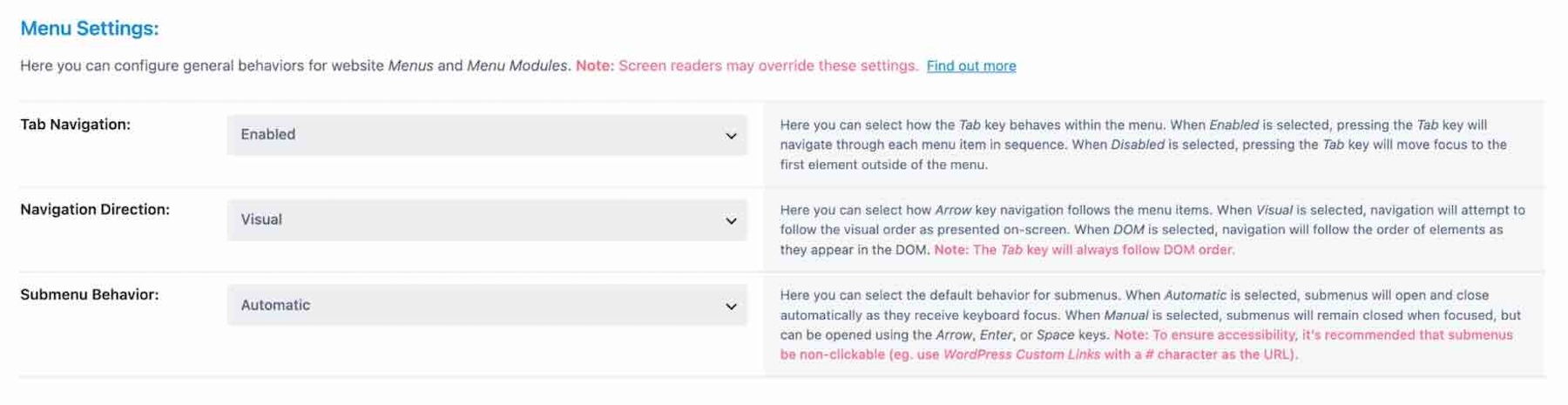
Navigation is likely one of the first places keyboard shoppers actually really feel accessibility problems. A menu that opens, closes, and moves predictably from the keyboard feels much better than one that only works simply with a mouse.
Links Tab
The Links tab handles skip links and styling.
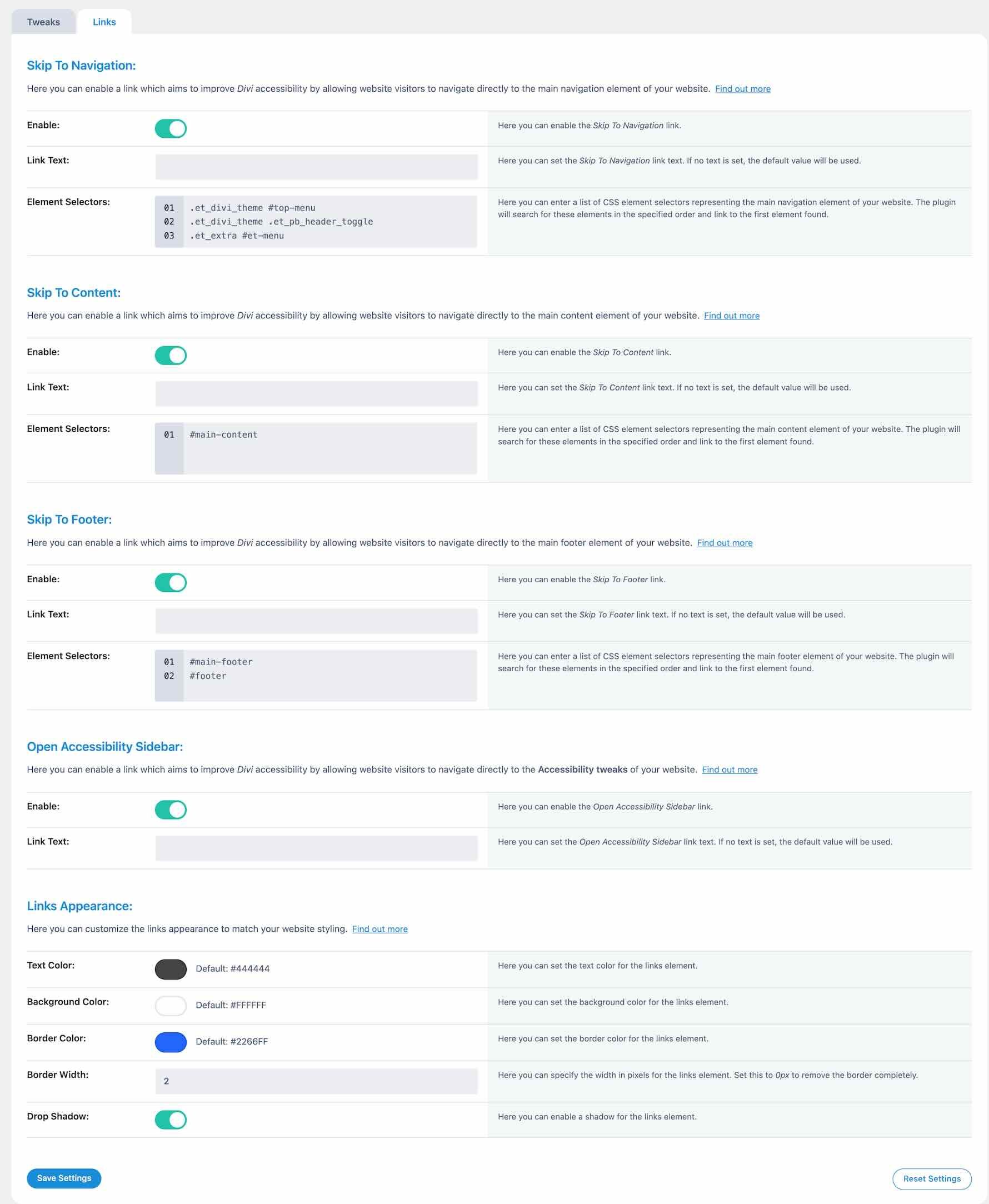
You’ll permit links akin to Skip To Navigation, Skip To Content material subject matter, and Skip To Footer. If Accessibility Sidebar is vigorous, you’ll moreover add a link that opens the sidebar.
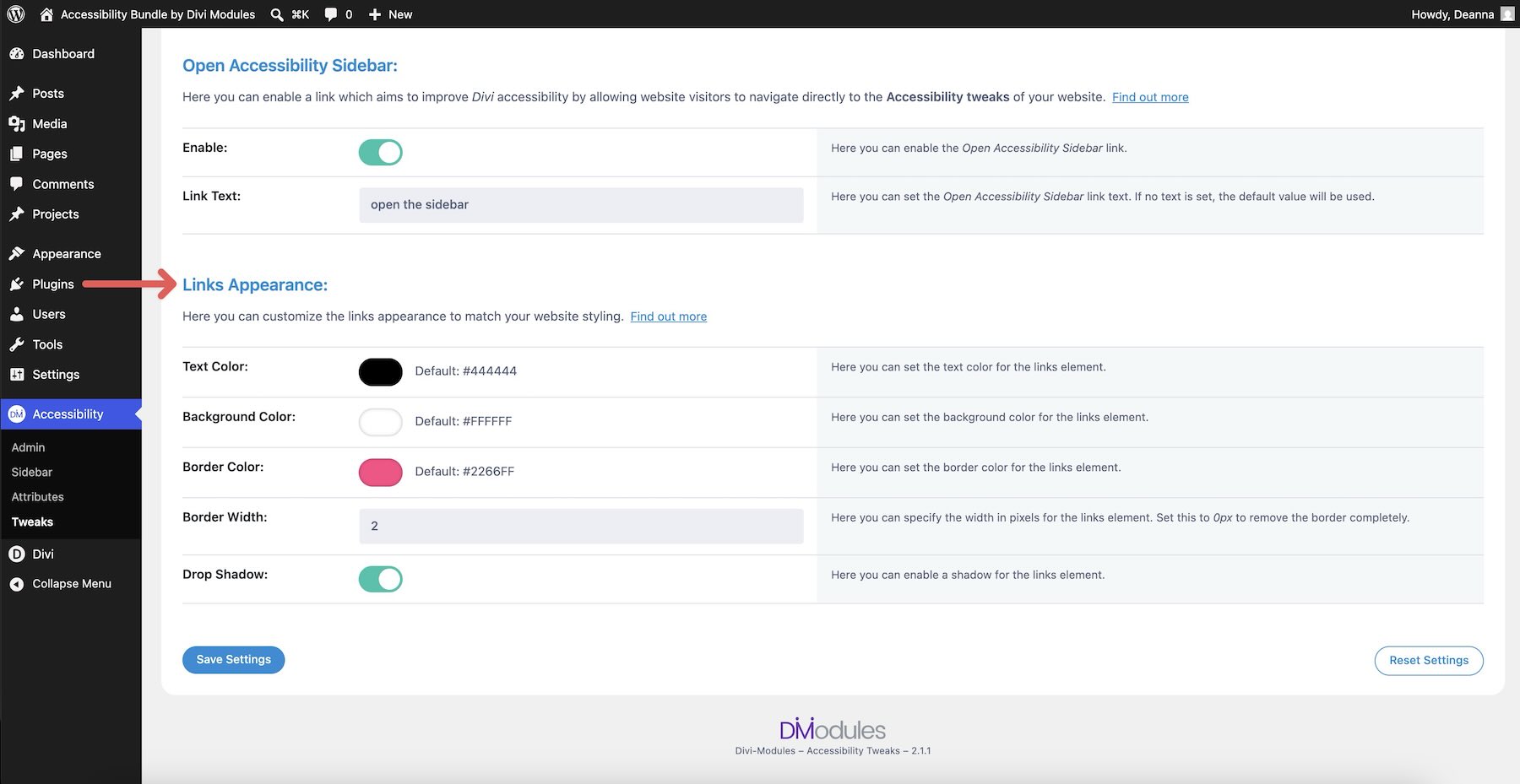
Skip links be in agreement keyboard shoppers bypass repeated areas and switch immediately to the part of the internet web page they would like. You’ll moreover style the links with colors, borders, and shadows so they look intentional when they appear on point of interest.
Utilized in mixture, the Tweaks settings can strengthen keyboard usability, point of interest visibility, menu habits, skip navigation, and module-level accessibility with very little ongoing artwork.
Accessibility Sidebar
Accessibility Sidebar is the visitor-facing part of the bundle. It supplies a front-end toolbar that we could visitors customize parts of the site revel in to better are compatible their needs.
Pass to Accessibility > Sidebar inside the WordPress dashboard.
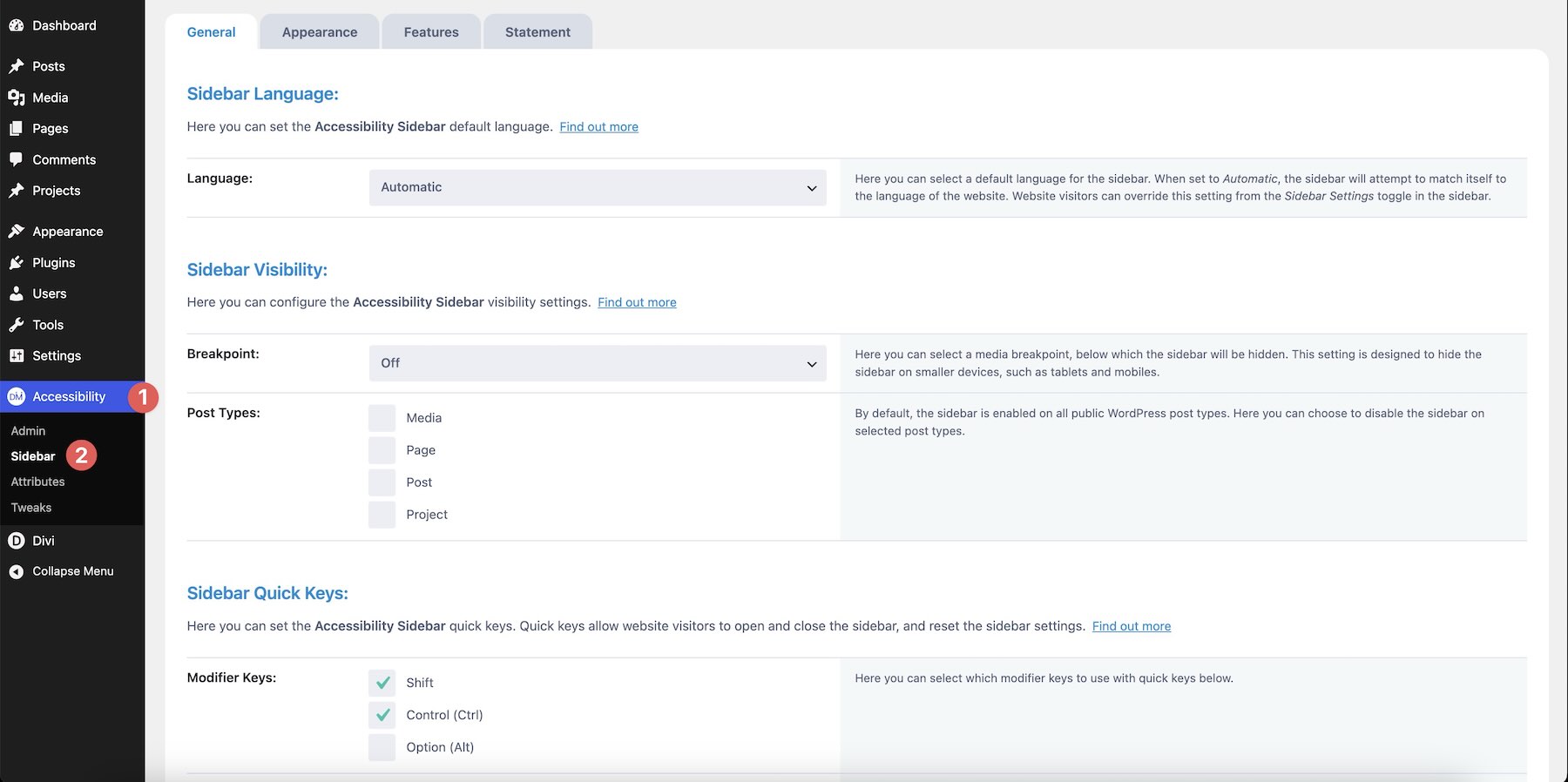
The plugin’s dashboard is split all through quite a few tabs, at the side of Commonplace, Glance, Choices, and Statement.
Commonplace Tab
The Commonplace tab controls the sidebar’s default habits.
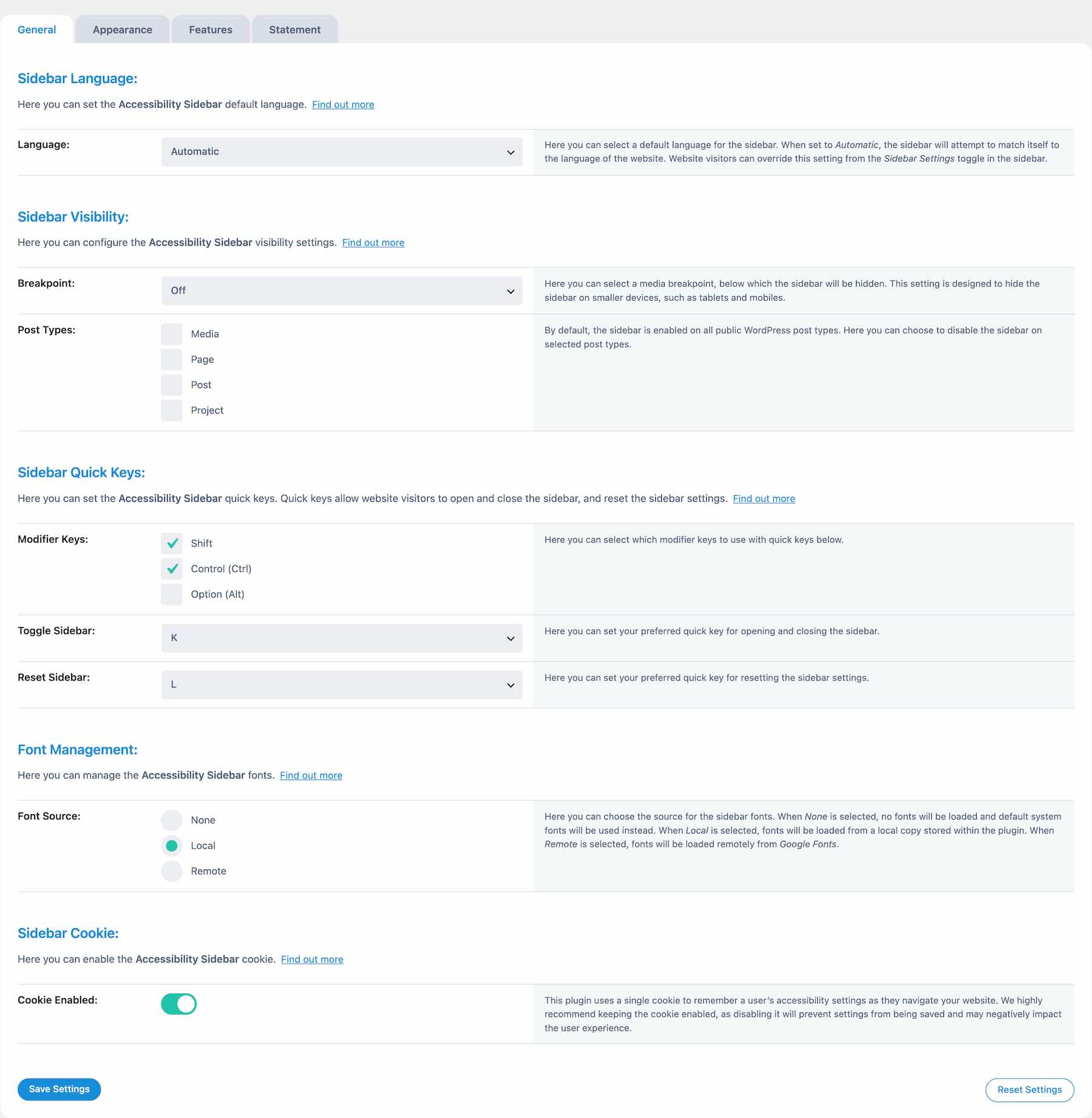
You’ll set the default language, regulate sidebar visibility, select which submit types it seems that on, configure keyboard shortcuts, organize fonts, and decide whether or not or no longer visitor preferences should be remembered.
You’ll moreover regulate whether or not or no longer the sidebar turns out on smaller presentations. That problems on account of a floating accessibility toolbar should no longer crowd cell CTAs, menus, or other important interface portions.
Glance Tab
The Glance tab controls how the sidebar and toggle button look.
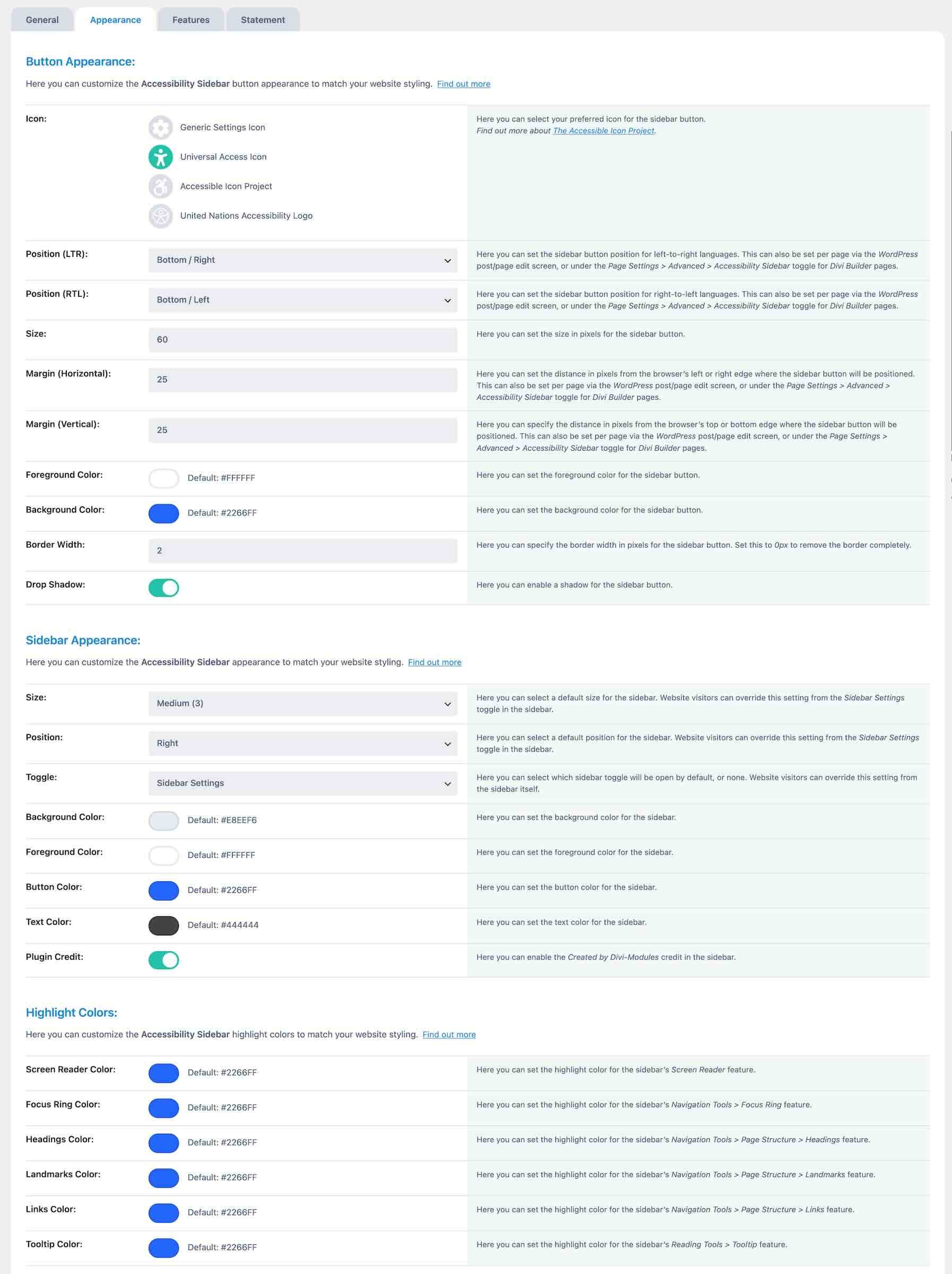
You’ll select the toggle icon, set its position and size, keep watch over colors, borders, and shadows, and customize the sidebar’s size, placement, toggle habits, and highlight colors.
This problems on account of accessibility apparatus should no longer actually really feel like an afterthought. A styled toggle button that uses the website online’s non-public visual language is a lot more more likely to actually really feel like part of the design.
Choices Tab
The Choices tab controls the visitor-facing apparatus available inside the sidebar.
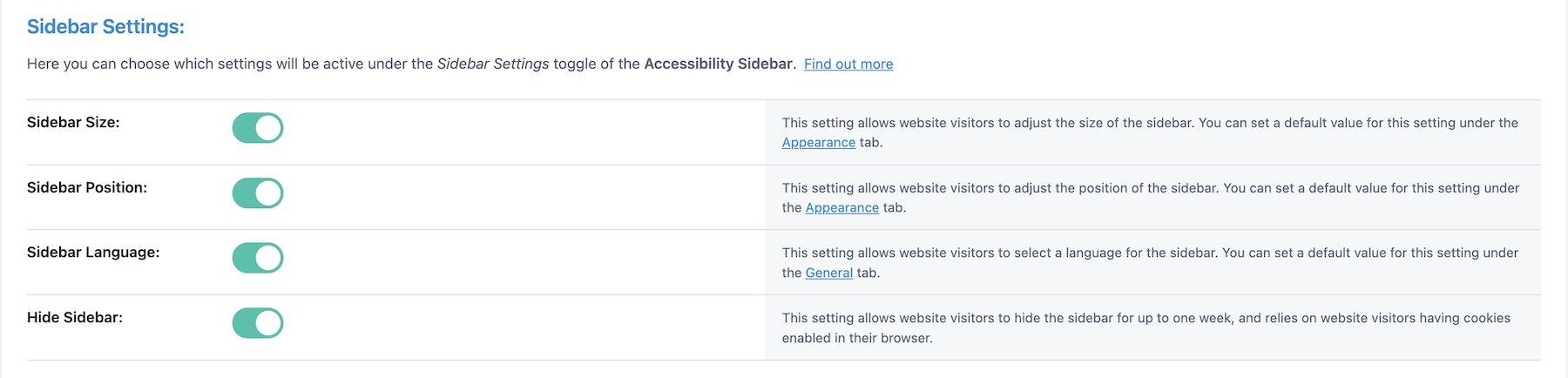
The available feature groups include Accessibility Profiles, Show Reader, Navigation Apparatus, Finding out Apparatus, Text Apparatus, Graphics Apparatus, and Accessibility Statement possible choices.
Accessibility Profiles
Accessibility Profiles give visitors a starting point in step with no longer strange needs.
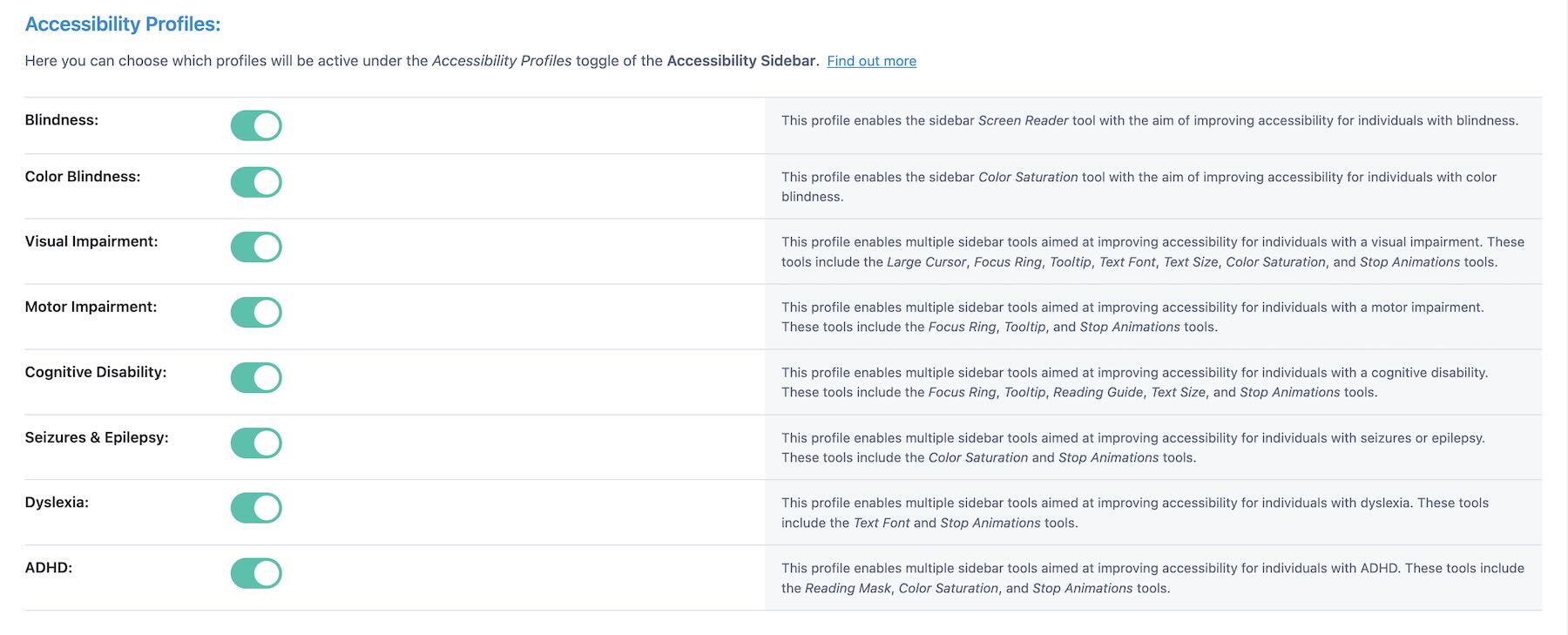
Profiles include possible choices for Blindness, Color Blindness, Visual Impairment, Motor Impairment, Cognitive Disability, Seizures and Epilepsy, Dyslexia, and ADHD.
Profiles are helpful on account of visitors will have to no longer need to clutch every specific particular person device prior to creating the website online additional relaxed for them. They are able to select a profile first, then keep watch over specific particular person apparatus shortly.
Show Reader Instrument
The Show Reader device converts on-page text to speech.
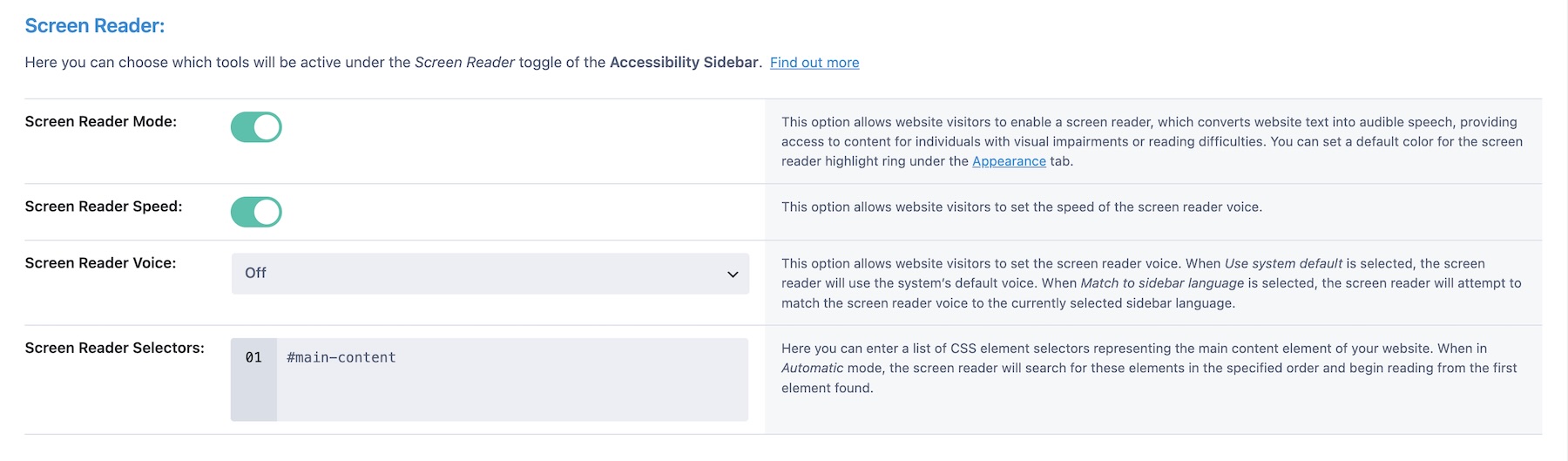
You’ll configure defaults akin to learning tempo, voice, and starting content material subject matter selectors. This provides visitors differently to consume internet web page content material subject matter when learning visually is difficult or tiring.
Navigation Apparatus include possible choices akin to Large Cursor, Focus Ring, and Internet web page Development.
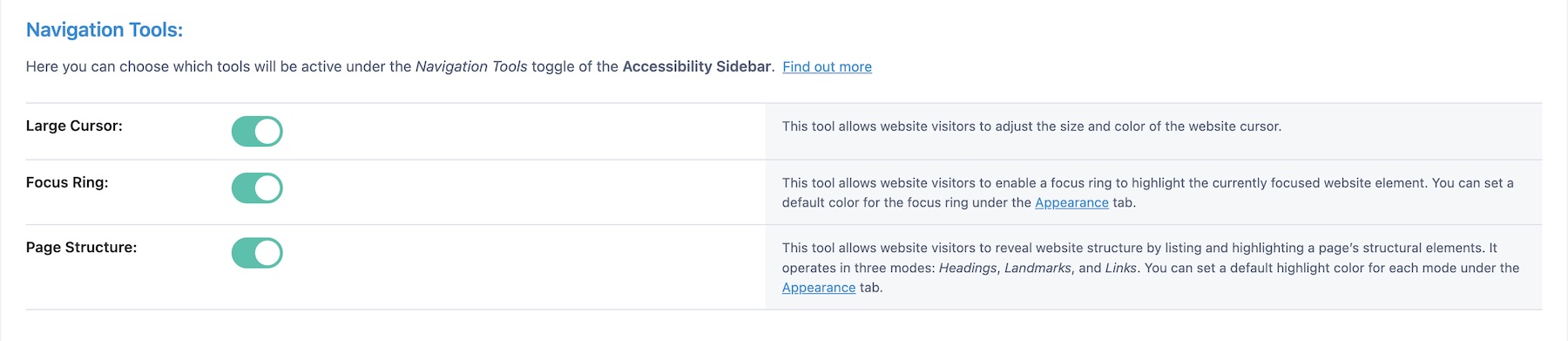
The ones apparatus be in agreement visitors in finding the cursor, observe point of interest, and understand the development of the internet web page. Internet web page Development is especially helpful on longer pages because it may give visitors a clearer overview of headings, landmarks, and links.
Finding out Apparatus
Finding out Apparatus include Tooltip, Finding out Knowledge, and Finding out Mask.
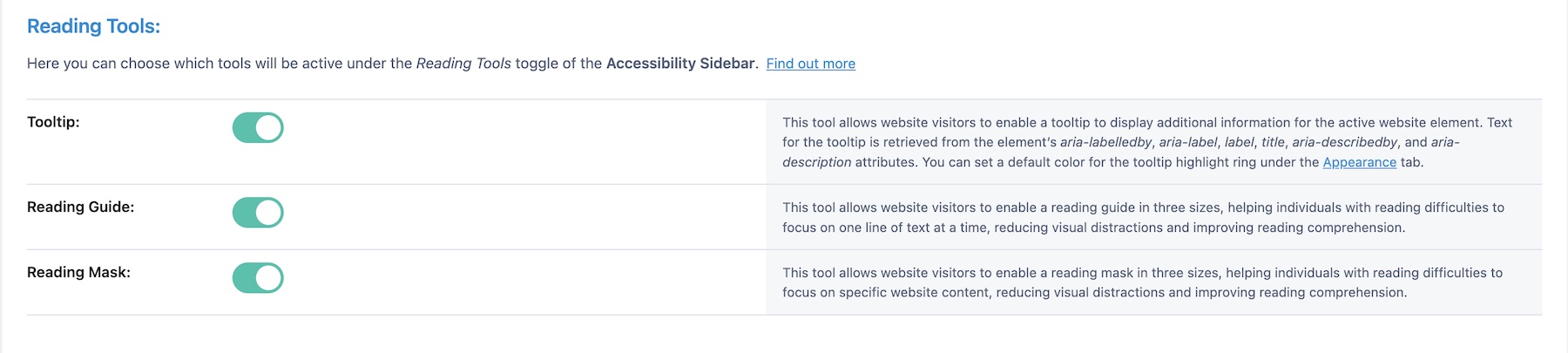
The ones apparatus can be in agreement visitors point of interest on one line or phase of content material subject matter at a time. That can be useful on supplier pages, pricing pages, long blog posts, documentation pages, or any structure where dense text is part of the revel in.
Text Apparatus
Text Apparatus let visitors keep watch over the text font, size, line top, spacing, and alignment.
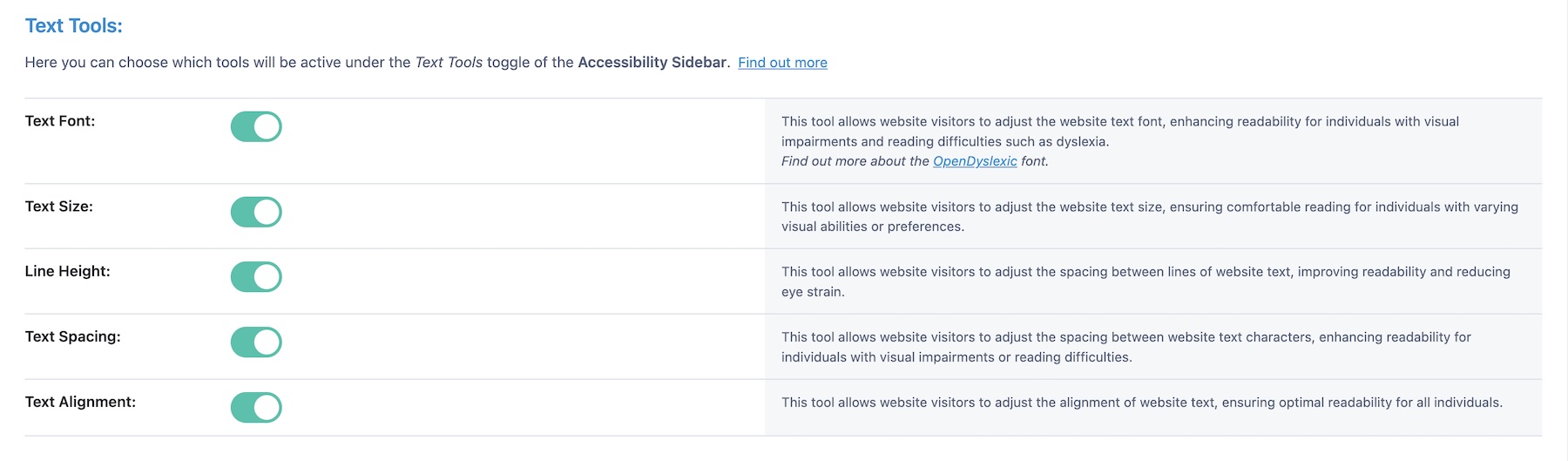
The ones controls may make dense pages easier to be informed without requiring visitors to zoom all of the browser or use external apparatus.
Graphics Apparatus
Graphics Apparatus let visitors keep watch over color saturation and difference, hide pictures, and save you different forms of animation, at the side of Divi animations, GIFs, CSS animations, and transitions.
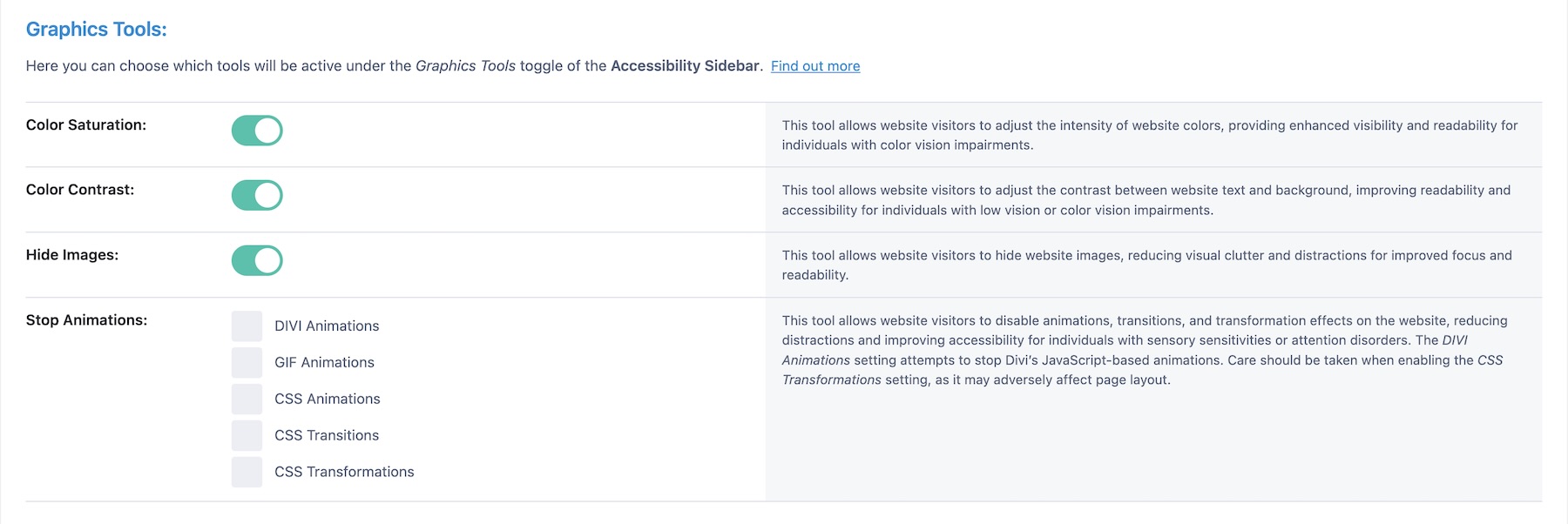
The ones controls are useful for visitors with sensory sensitivities, color vision deficiencies, motion sensitivity, or drawback learning low-contrast sections.
Accessibility Statement
The sidebar can also include an accessibility statement or link to a faithful accessibility statement internet web page.

The Statement tab gives you a faithful place to keep watch over that content material subject matter.
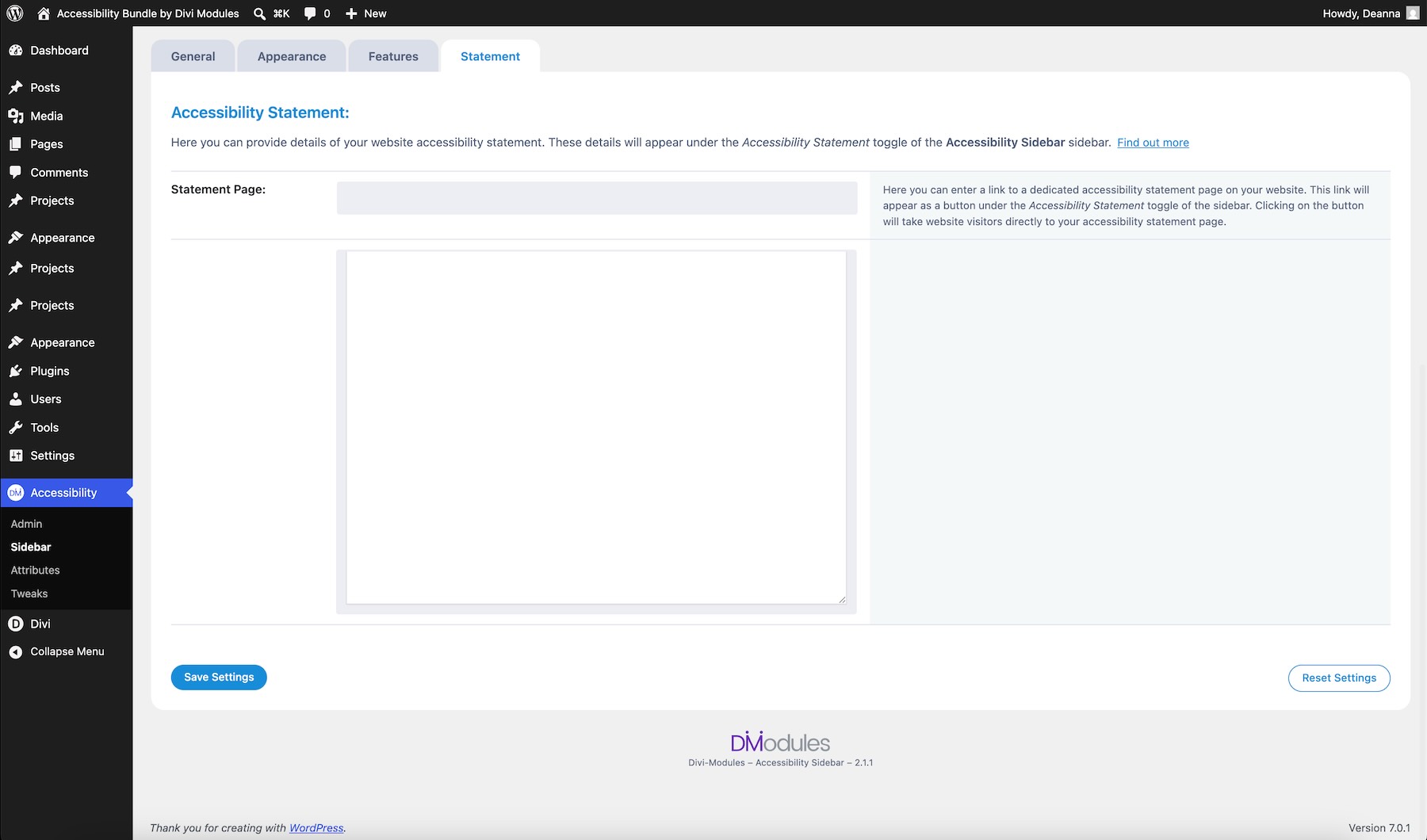
An accessibility statement can show visitors where to look out accessibility knowledge, learn to contact the website online owner about obstacles, and what steps the website online is taking to strengthen get right to use.
Applying The Accessibility Package deal To A Divi Internet web page
Now let’s take a look at how the bundle works on a real Divi internet web page.
The example internet web page is a promoting corporate homepage with a hero phase, calls to movement, a stats bar, supplier taking part in playing cards, testimonials, and pricing tiers. This kind of internet web page has quite a few accessibility needs: clear button labels, decorative visuals that are supposed to no longer be offered, usable keyboard navigation, decreased motion beef up, skip links, and visitor controls for learning and difference.
Step 1: Add Because of this With Accessibility Attributes
With Accessibility Attributes vigorous, Divi portions reach new ARIA groups inside the Sophisticated tab.
Previous to together with attributes, decide where they in fact be in agreement. You don’t need to fill out every risk on every module.
Use attributes where they add exact price:
- ARIA Place: Use when the section’s function isn’t clear from the HTML on my own.
- ARIA Label: Use for buttons, icons, or links that want a clearer accessible identify.
- ARIA Description: Use when a card, phase, or repeated section needs additional context.
- ARIA Hidden: Use for decorative or duplicated content material subject matter that are supposed to no longer be offered.
- ARIA Details: Use when an element should be hooked as much as deeper knowledge elsewhere on the internet web page.
A good workflow is first of all interactive portions, then evaluate repeated taking part in playing cards, decorative icons, image modules, and sophisticated sections.
Together with ARIA Place And Label Attributes
Get began with a hero CTA button. Open the Button module and enlarge ARIA Place. Throughout the ARIA Place: Sort dropdown, make a choice Widget Place.
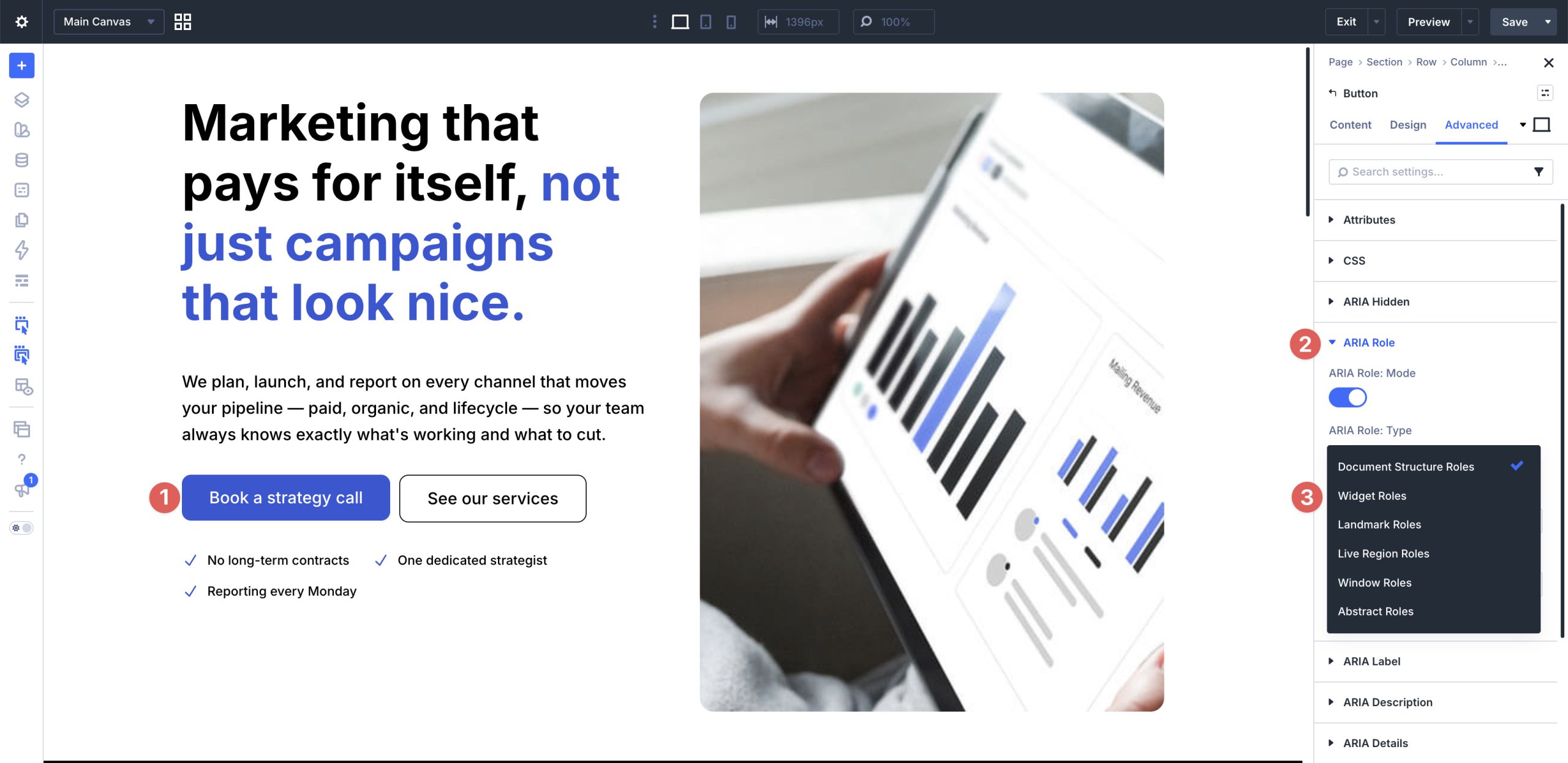
Then select the right place price. For this example, make a choice Button.
Next, enlarge ARIA Label and add a clear label, akin to Information a free method title with our crew.
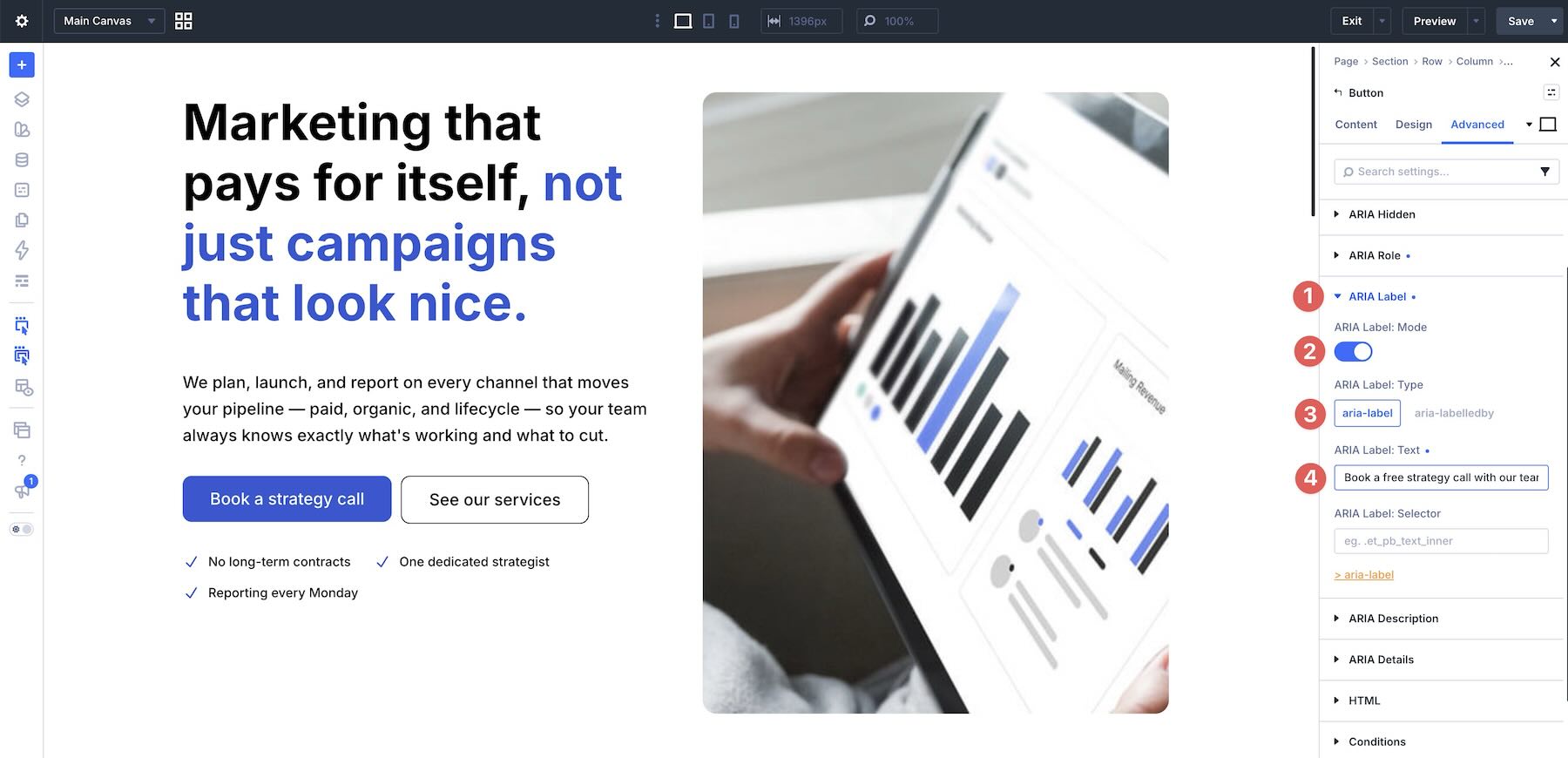
The visible button text could also be transient, on the other hand the ARIA Label may give assistive technologies a clearer description of the movement. This is specifically useful when a internet web page has a couple of CTAs with identical visible labels.
Together with ARIA Description Attributes
For supplier taking part in playing cards, add an summary at the Column or Workforce level when that container wraps all the card.
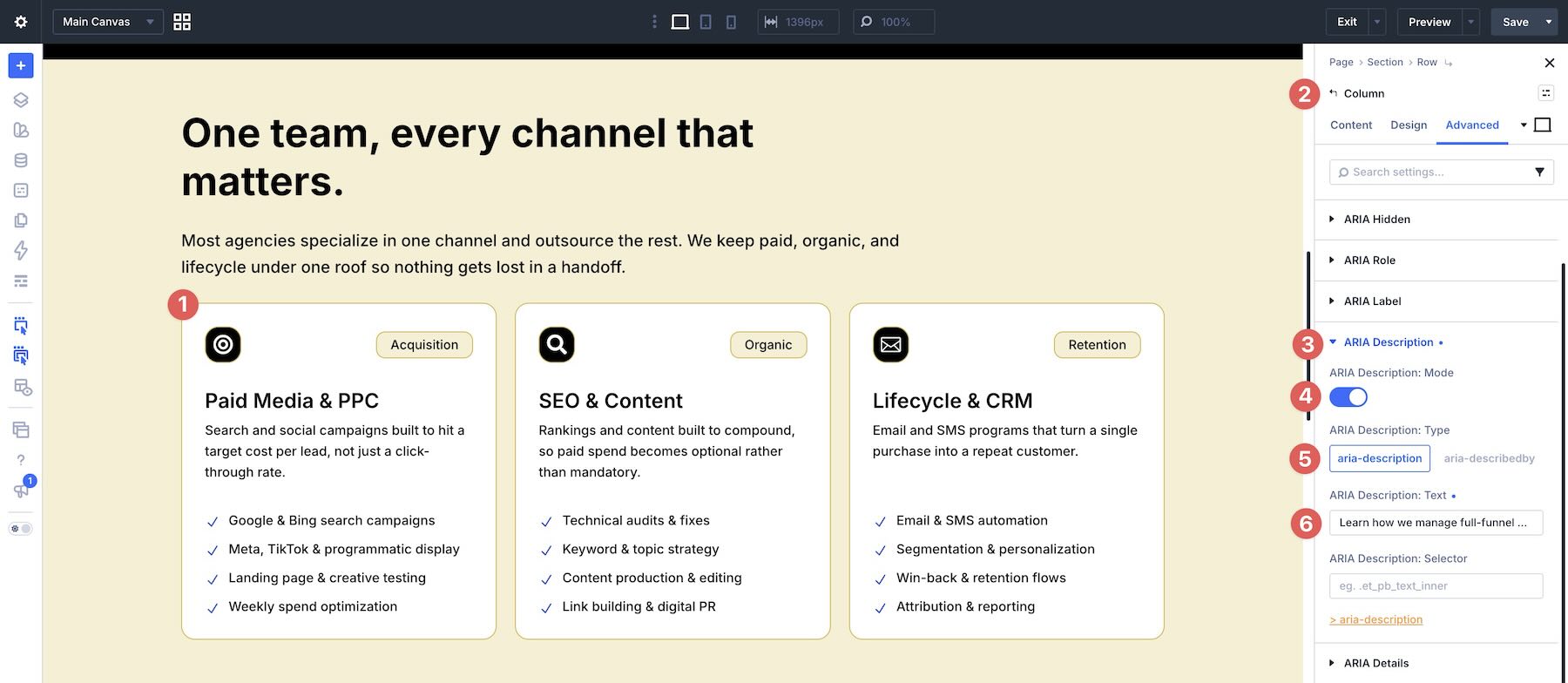
A temporary description can summarize what all the card offers. That is ceaselessly additional useful than forcing visual display unit reader shoppers to interpret quite a few separate inside modules without context.
As an example, a paid selling card might use an summary akin to Find out how we organize full-funnel paid campaigns with weekly optimization.
Together with ARIA Hidden Attributes
For decorative icons or pictures, use ARIA Hidden when the section does no longer add vital knowledge.
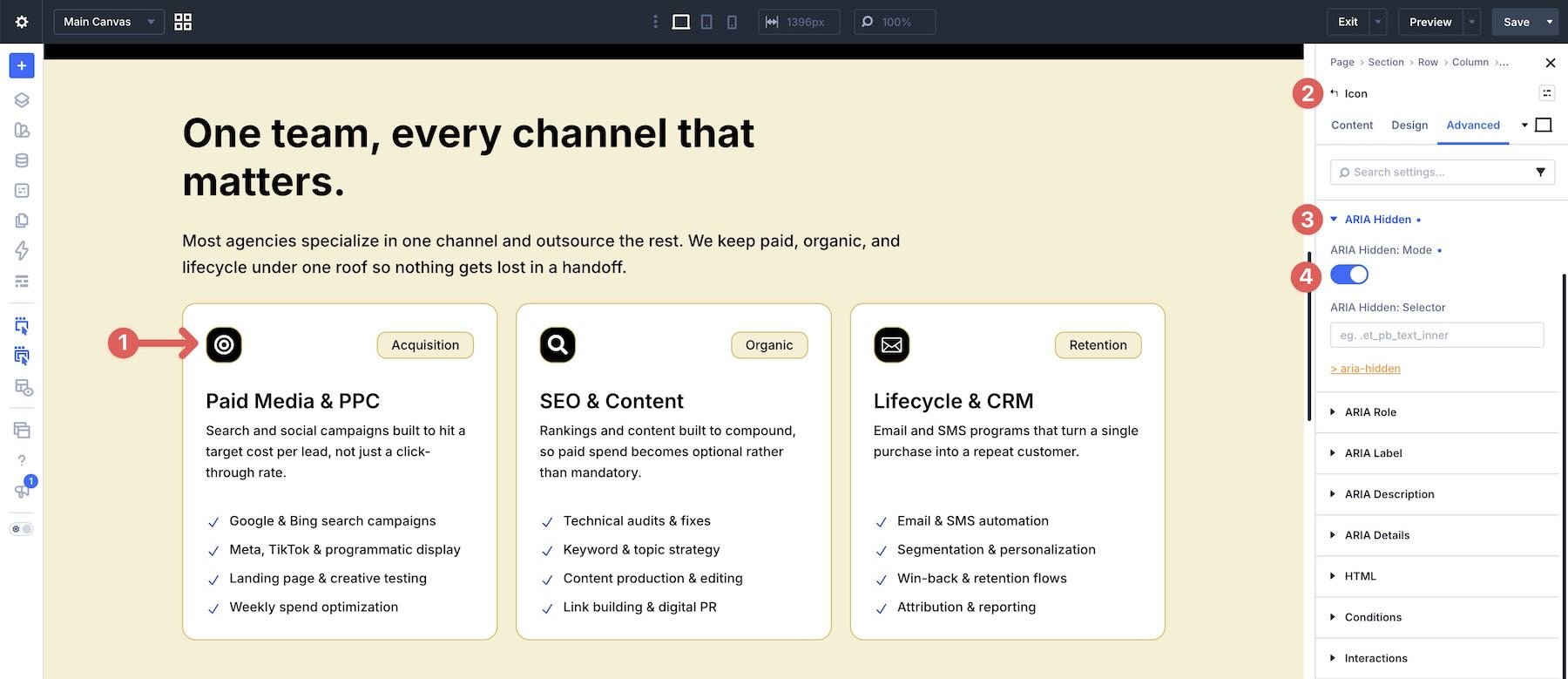
If an icon is just visual and repeats knowledge already provided by the use of the heading or text, hiding it should most likely scale back noise for visual display unit reader shoppers.
The equivalent can apply to decorative pictures.
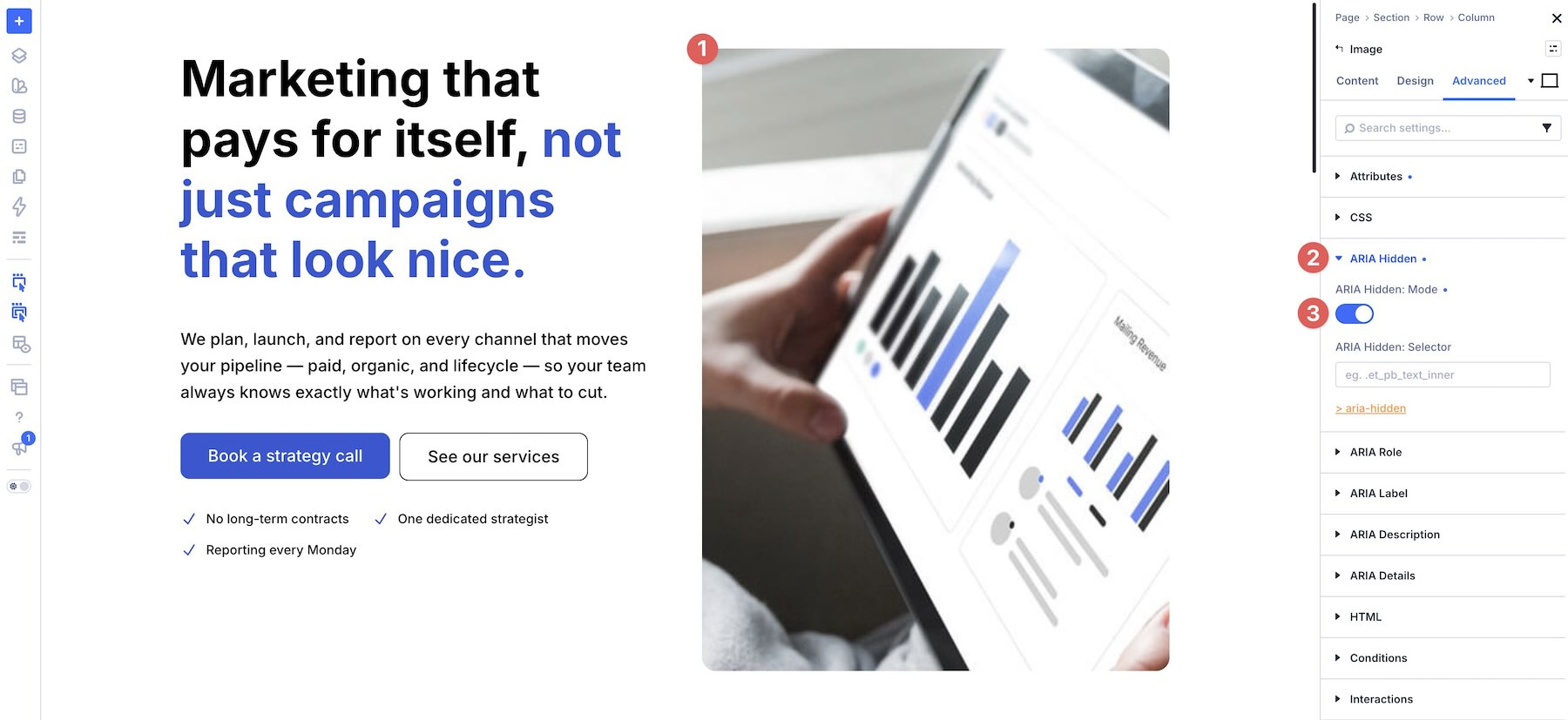
Use this somewhat. If an image communicates knowledge, identifies a product, explains an concept, or is helping the internet web page’s that suggests, it should no longer be hidden. If it is purely decorative and repeats knowledge already available inside the text, hiding it should most likely make the revel in cleaner.
Together with ARIA Details Attributes
ARIA Details can connect an element to additional detailed knowledge elsewhere on the internet web page.
As an example, if a See our products and services and merchandise button scrolls to the products and services and merchandise phase, first give the products and services and merchandise phase a unique CSS ID by way of Divi’s Attributes settings.
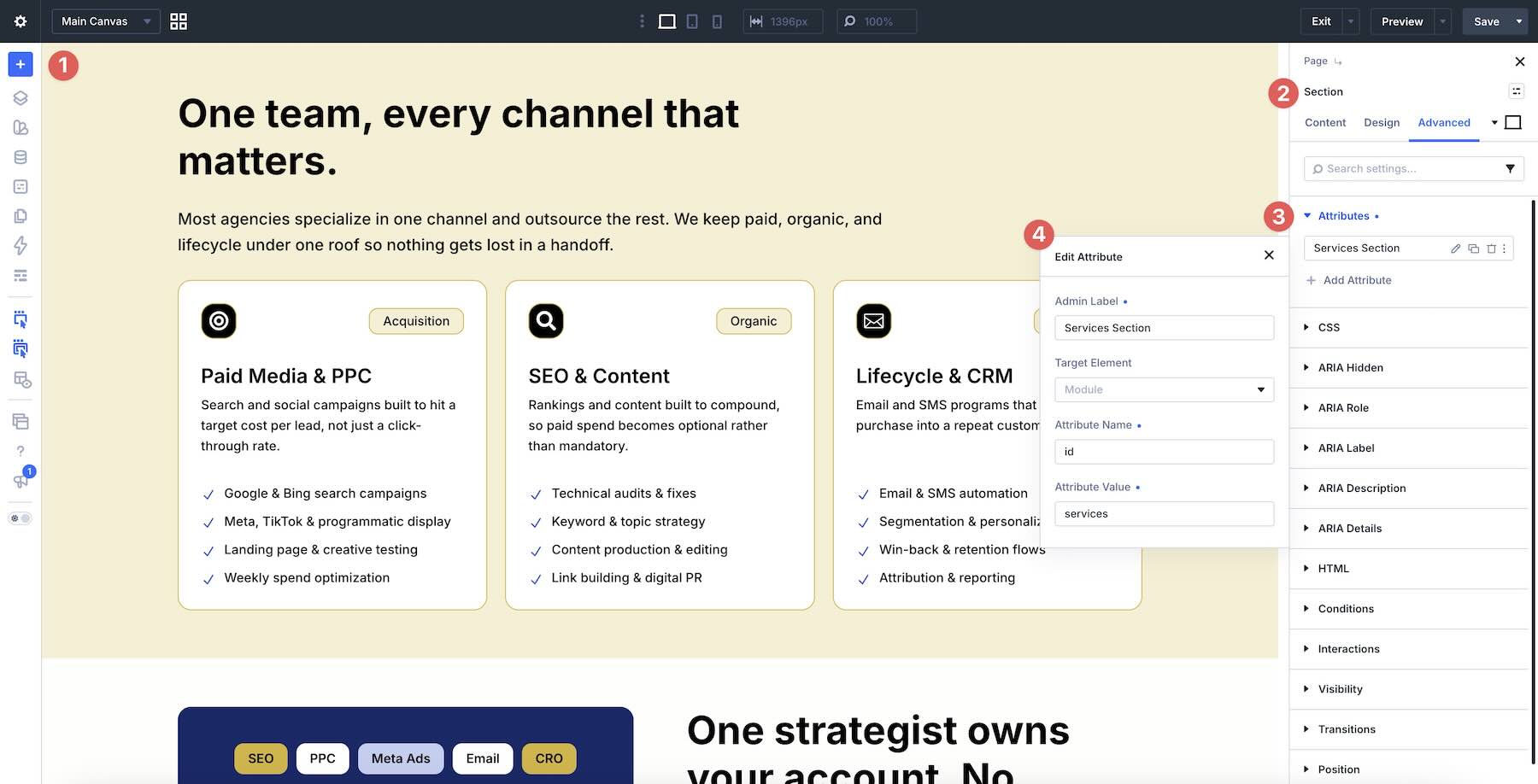
Then open the button settings, enlarge ARIA Details, and enter that ID.
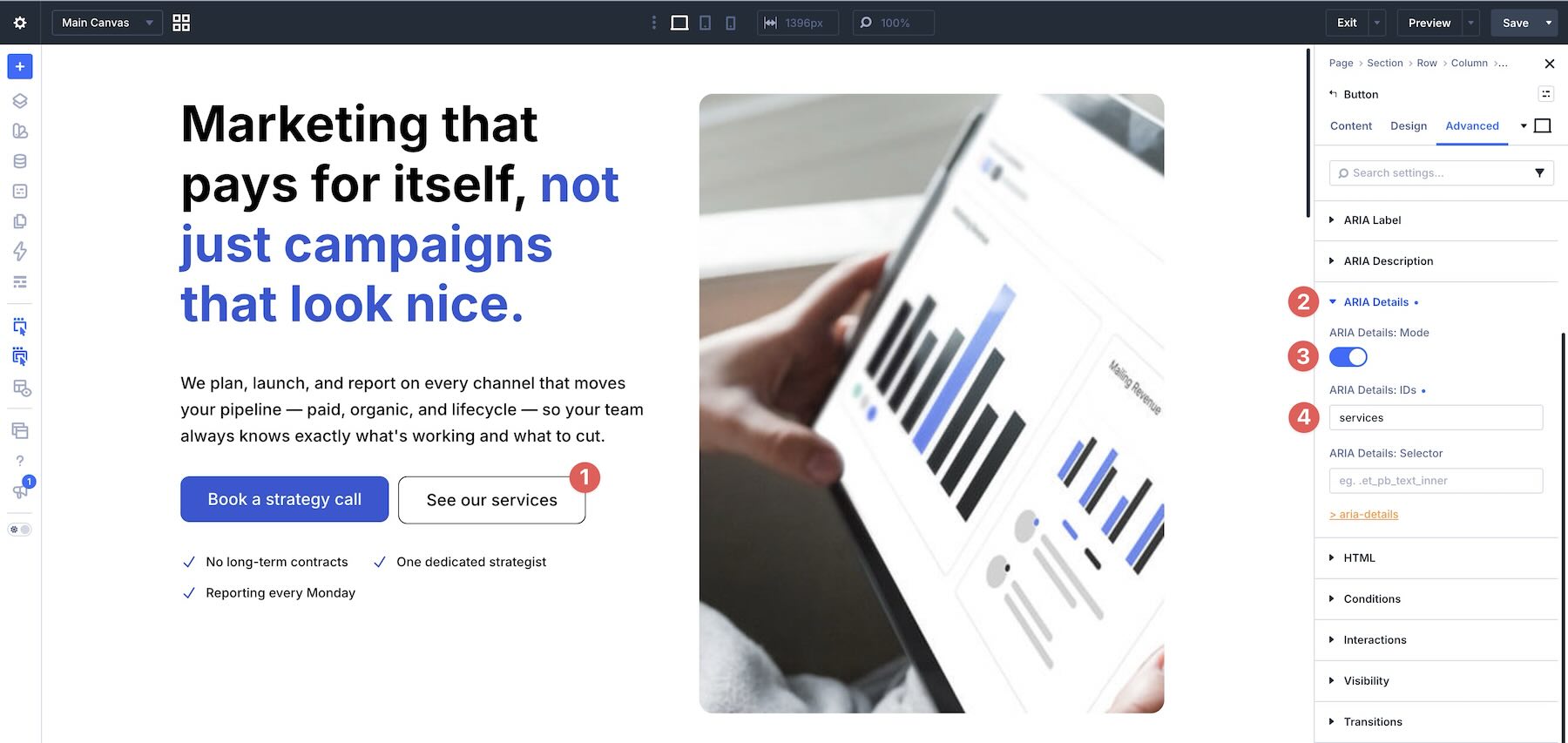
This creates a courting between the button and the phase it problems to, giving assistive technologies additional context in regards to the position the movement leads.
Accessibility Attributes works section by the use of section. Accessibility Tweaks handles broader internet web page and website online habits.
Activate Accessibility Tweaks inside the Accessibility Package deal settings, then pass to Accessibility > Tweaks.
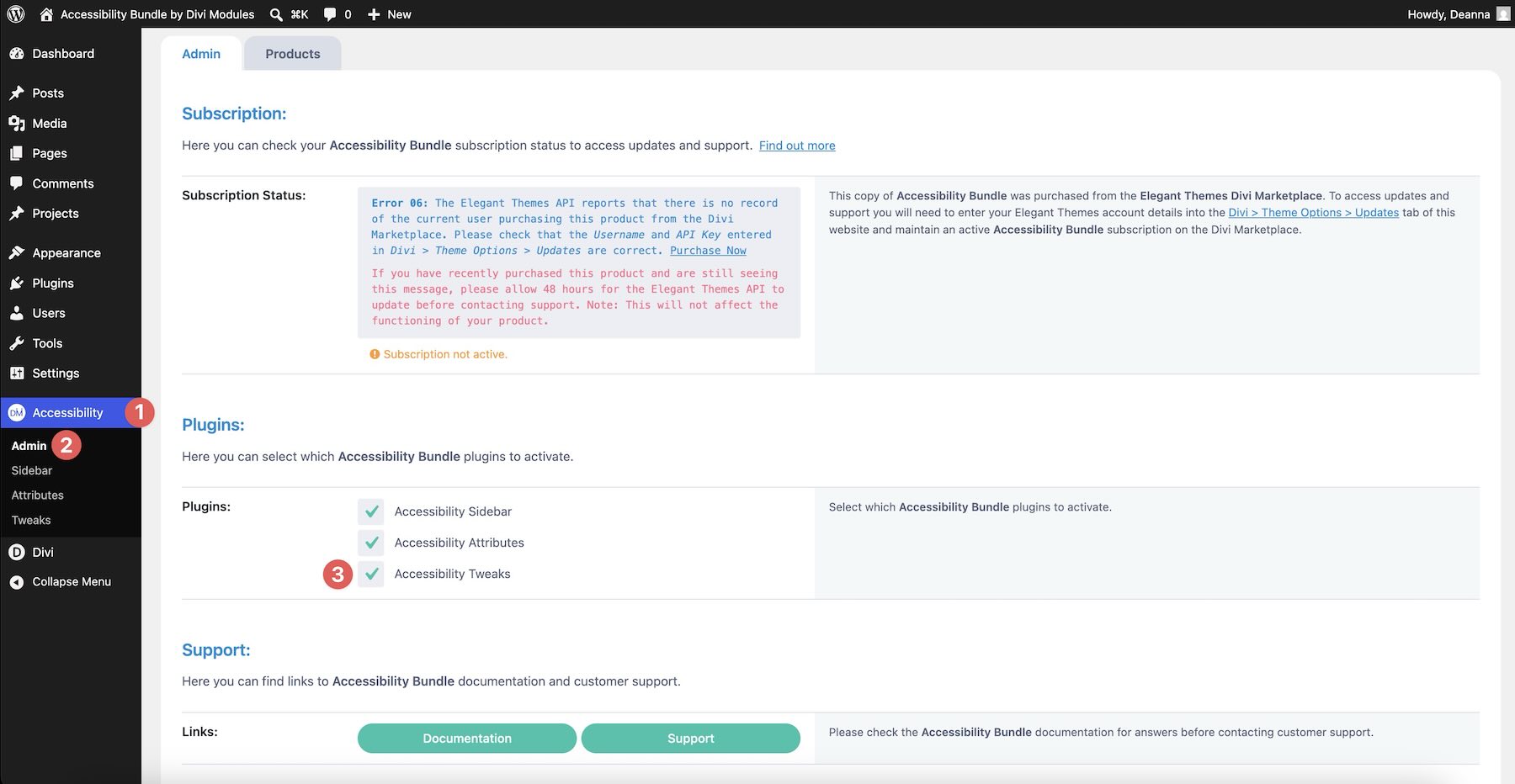
You don’t need to configure every atmosphere straight away. Get began with the improvements that make the biggest difference on the internet web page.
Setting Up The Focus Ring
Throughout the Navigation settings, permit the Focus Ring and select a color that matches the website online’s palette.
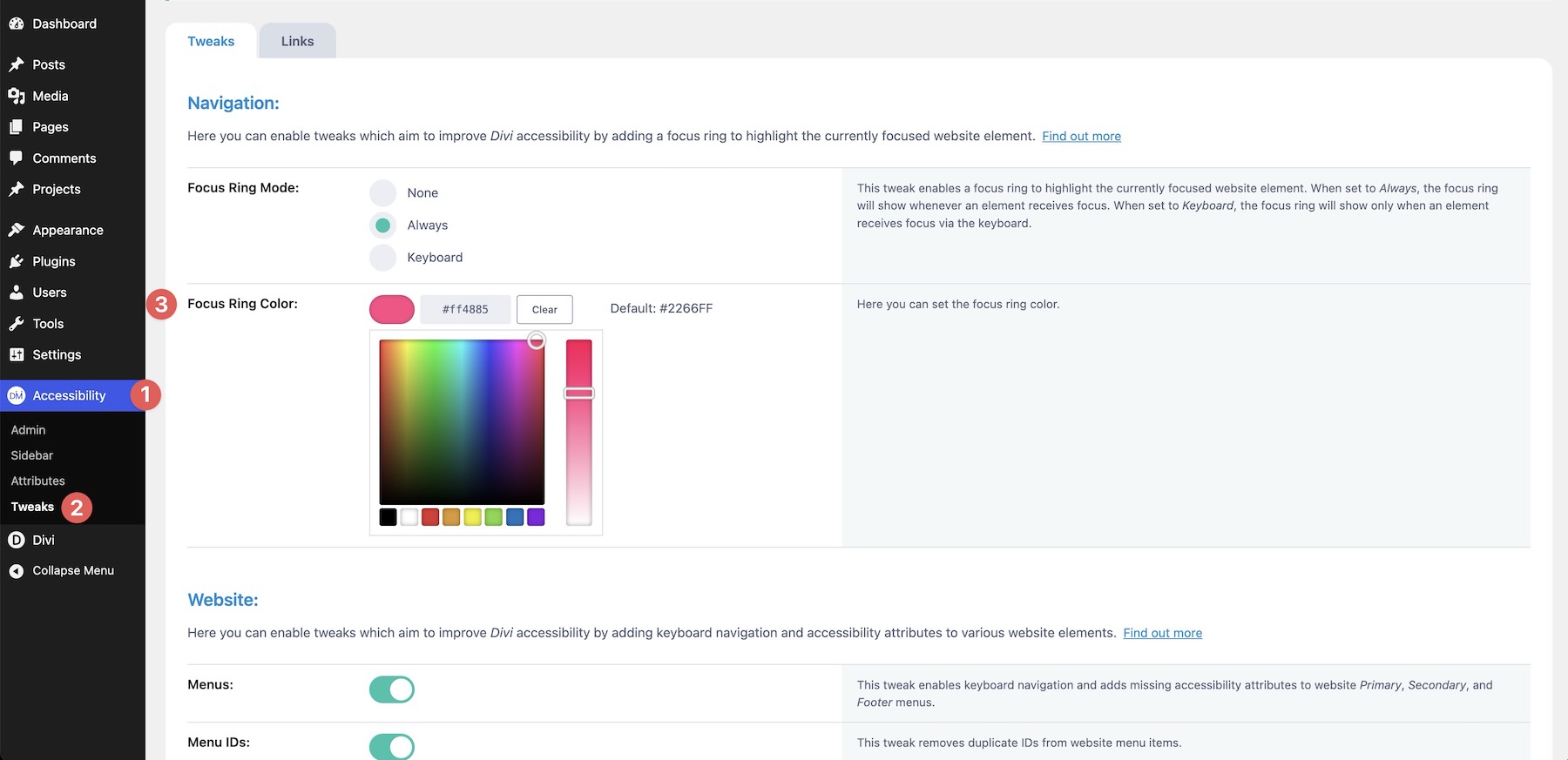
With the Focus Ring enabled, tabbing all through the hero buttons clearly outlines each and every vigorous section. You’ll moreover select how the ring behaves, corresponding as to whether or no longer it seems that for keyboard navigation only.
This small atmosphere can have a large impact on account of keyboard shoppers want a visible method to know where they’re on the internet web page.
Enabling Internet page-Large Improvements
Next, switch to the Internet web page settings.
Turn on keyboard navigation improvements for menus, search forms, and social icons when your website online uses those portions. That is serving to no longer strange interface pieces answer additional predictably to keyboard input.
This phase could also be where Reduced Motion lives.
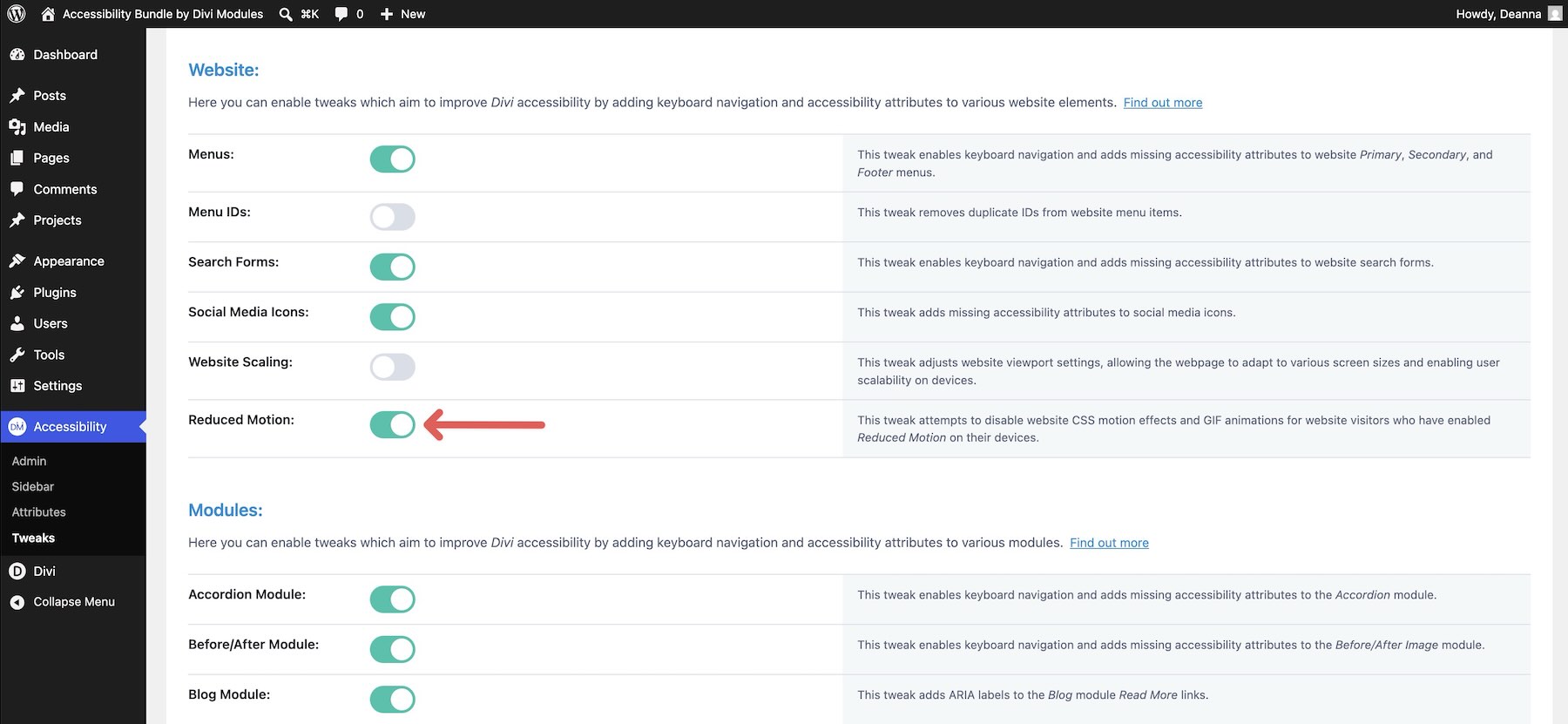
On a promoting internet web page, counters, supplier taking part in playing cards, and scroll animations can add polish. Then again for visitors with motion sensitivity, a substantial amount of animation may make a internet web page uncomfortable. Reduced Motion we could the internet web page acknowledge visitors who prefer a lot much less motion.
The Internet web page settings moreover include copy menu ID cleanup.
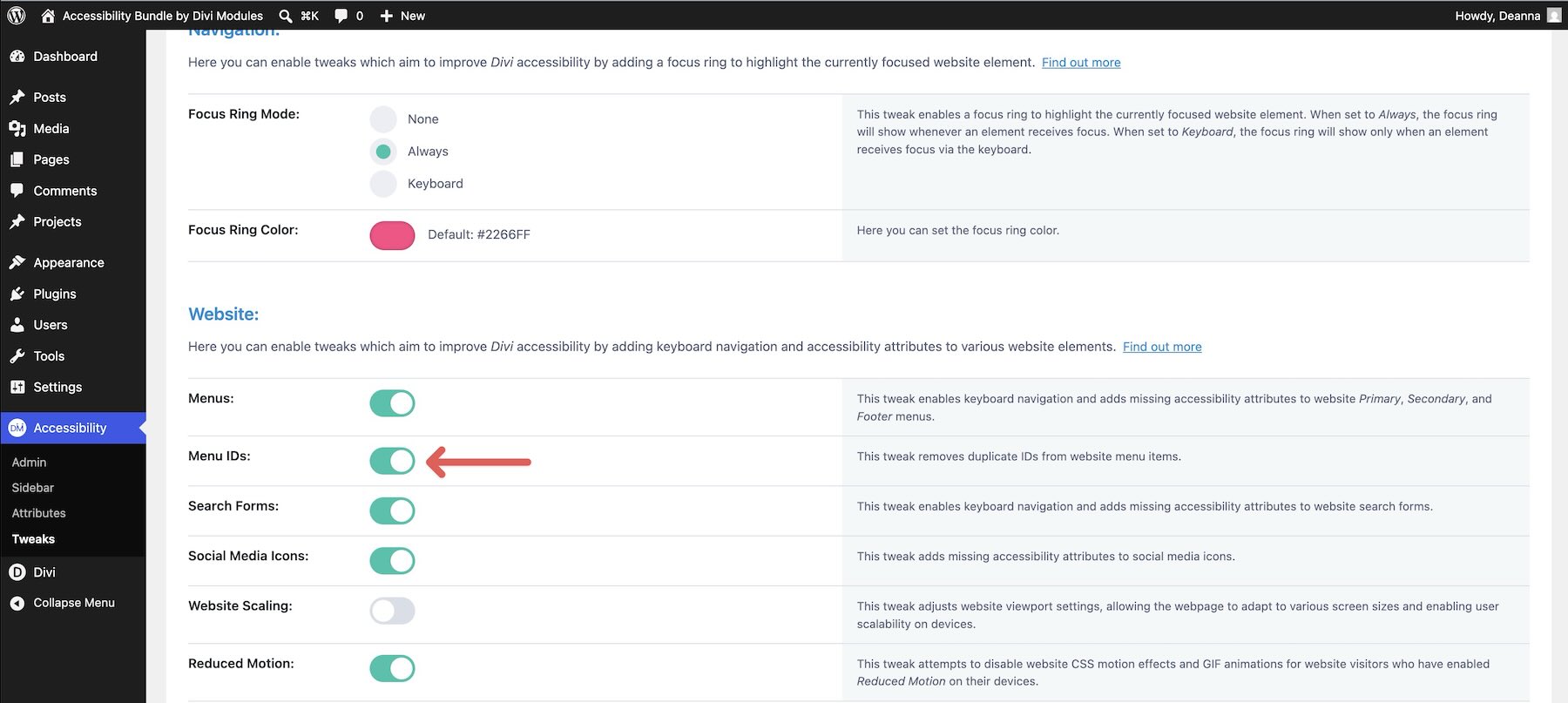
Copy IDs can create issues when assistive technologies rely on unique IDs to connect labels, descriptions, and controls. Cleaning them up helps prevent difficult or wrong relationships.
Fixing Native Modules Routinely
The Modules tab applies supported fixes to Divi modules.
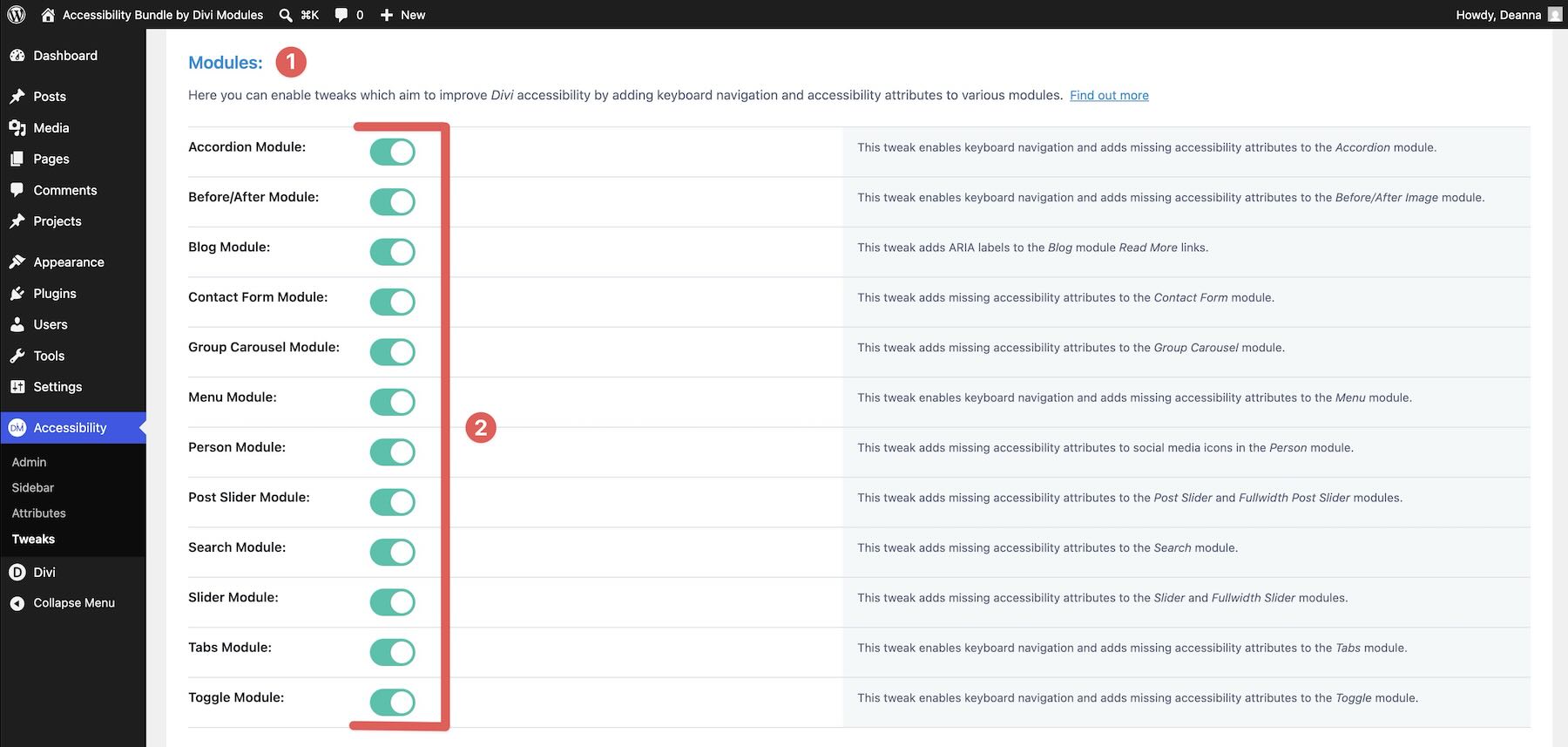
This turns out to be useful on pages that use interactive modules akin to accordions, tabs, sliders, testimonials, or contact forms. If the internet web page grows later, module-level tweaks can be in agreement keep no longer strange interactive patterns additional usable without requiring a separate setup for every instance.
Refining Menu Conduct
If the internet web page accommodates navigation, use the Menu settings to fine-tune tab order, arrow key habits, and submenu coping with.
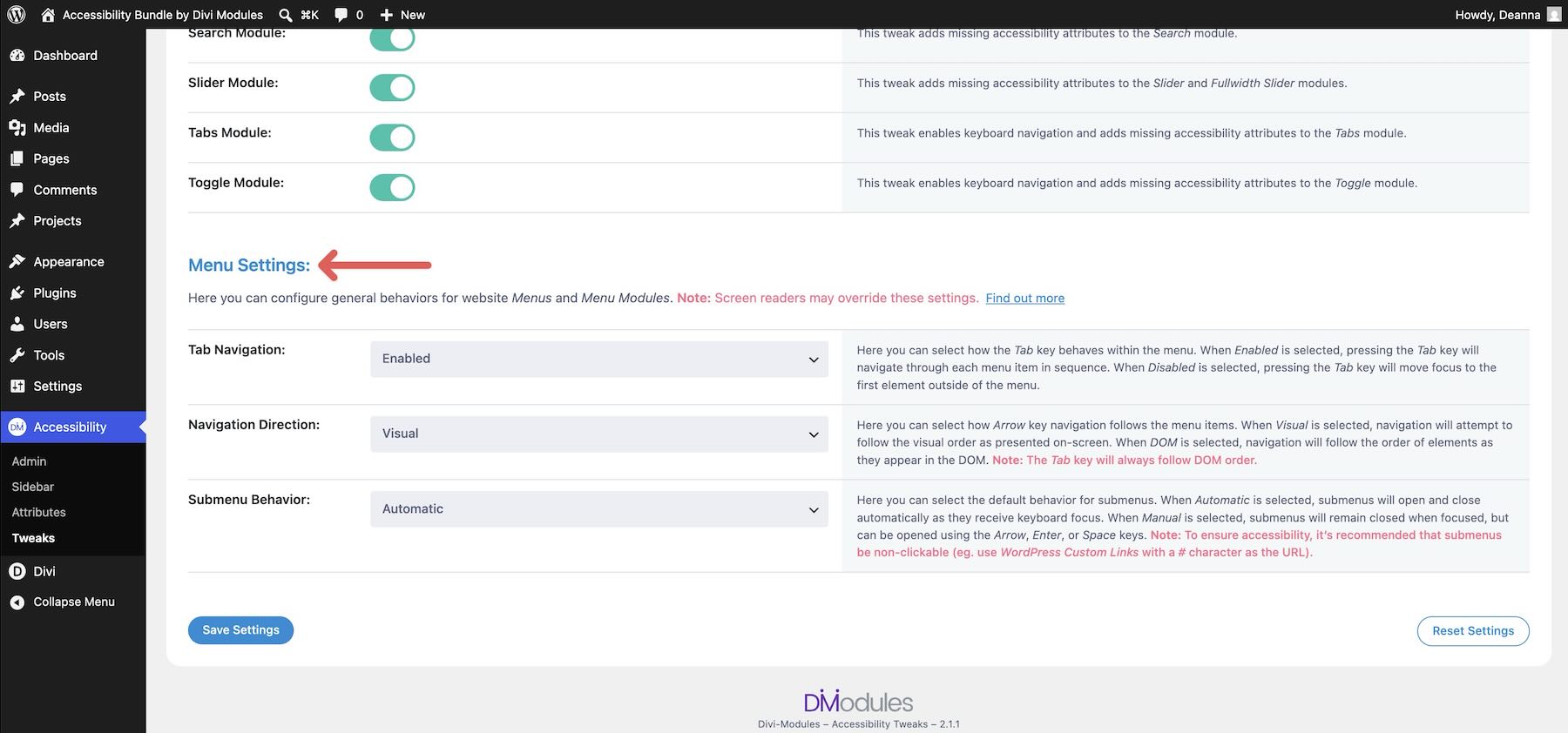
As an example, you’ll keep watch over how dropdown submenus open, how arrow keys behave, and the way in which menus close. Those details would possibly actually really feel small visually, on the other hand they make navigation much more predictable for keyboard shoppers.
Together with Skip Links
After all, open the Links tab and make allowance the skip links your structure needs, akin to Skip To Content material subject matter and Skip To Navigation.
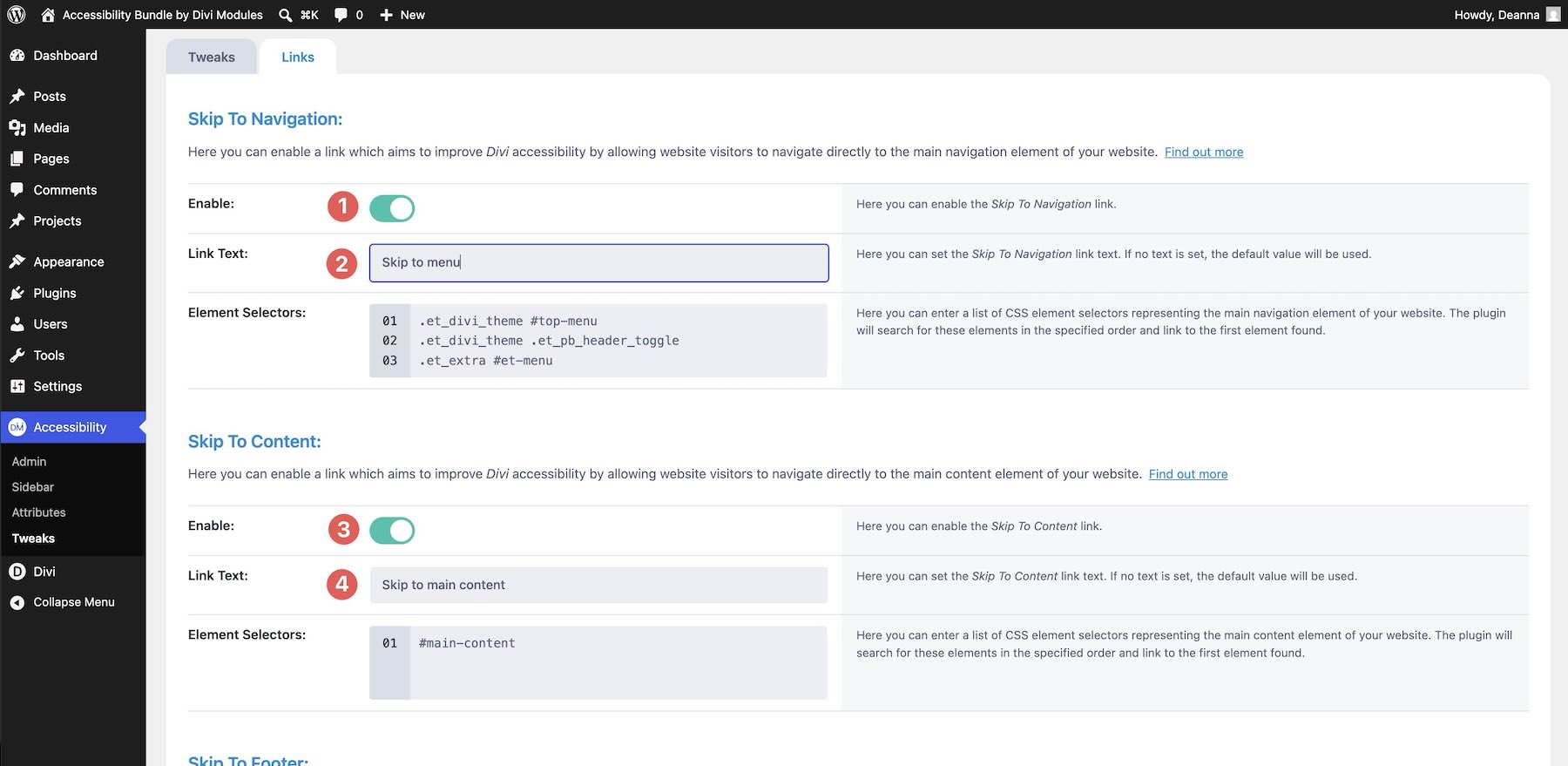
Use transient, clear labels akin to Skip to primary content material subject matter. You’ll set skip links to look on point of interest so that they don’t change the internet web page’s seek for mouse shoppers, while however giving keyboard shoppers a handy guide a rough method to bypass repeated areas.
Style the link background, border, and shadow so the skip link appears to be intentional when it seems that.
Step 3: Empower Visitors With Accessibility Sidebar
The final plugin provides regulate immediately to visitors. Instead of making every accessibility decision for them, the Sidebar we could visitors select the adjustments that be in agreement them use the website online.
Allow Accessibility Sidebar inside the Accessibility Package deal settings.
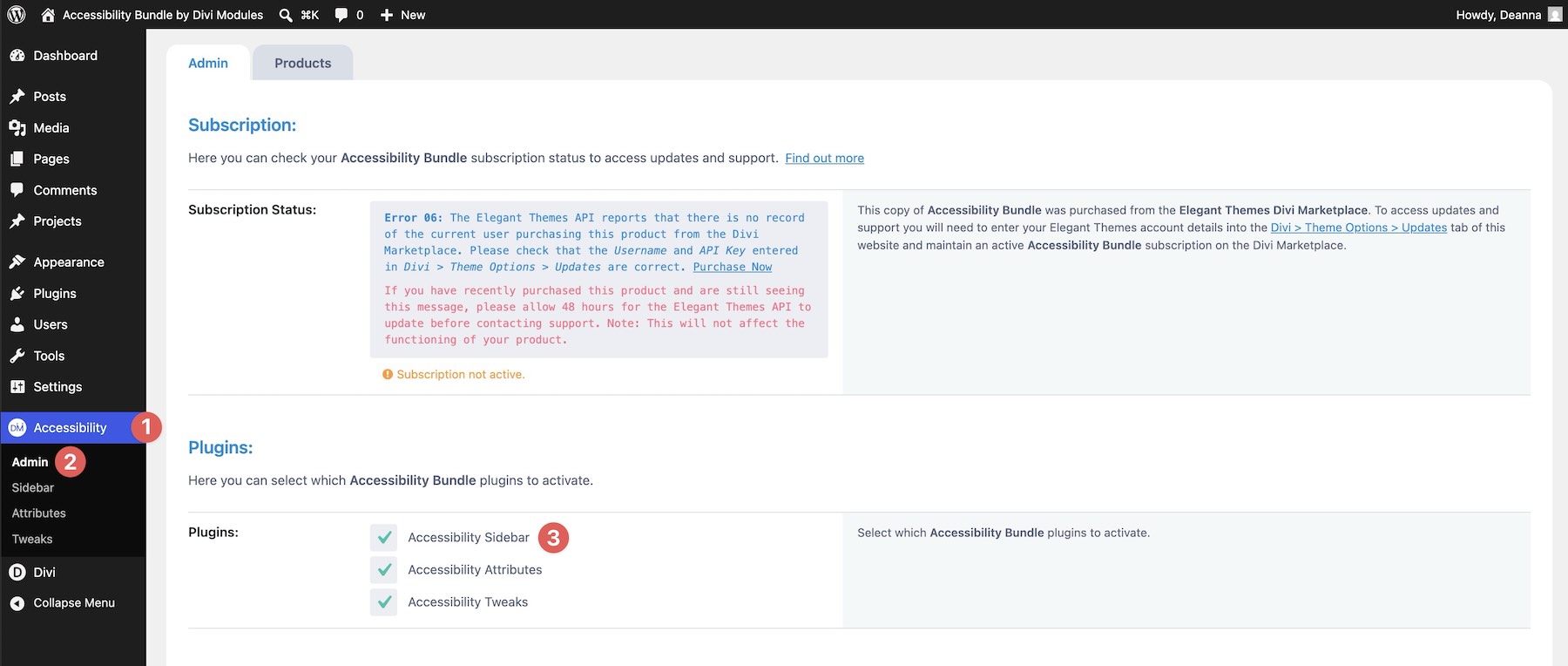
Configuring Sidebar Settings
Get began with the sidebar’s not unusual habits. Visitors can configure the sidebar’s size and web site, and also you’ll set defaults akin to language, visibility, and where the sidebar turns out.
That is serving to keep the sidebar from interfering with important internet web page portions akin to CTAs, trademarks, or fixed navigation.
Choosing Accessibility Profiles
In Accessibility > Sidebar > Choices, get began with the ready-made Accessibility Profiles.

For a text-heavy promoting internet web page, profiles akin to Visual Impairment, Motor Impairment, Dyslexia, and Cognitive Disability may give visitors a useful position to start out. Enabling a profile activates linked apparatus, so visitors don’t need to know which particular atmosphere they would like previous to they begin.
Visitors can then keep watch over specific particular person apparatus further or hide the sidebar when they shouldn’t have it.
Layering In Explicit particular person Apparatus
Profiles are useful, on the other hand specific particular person apparatus give visitors additional precise regulate. Allow the Show Reader device for text-to-speech learning.
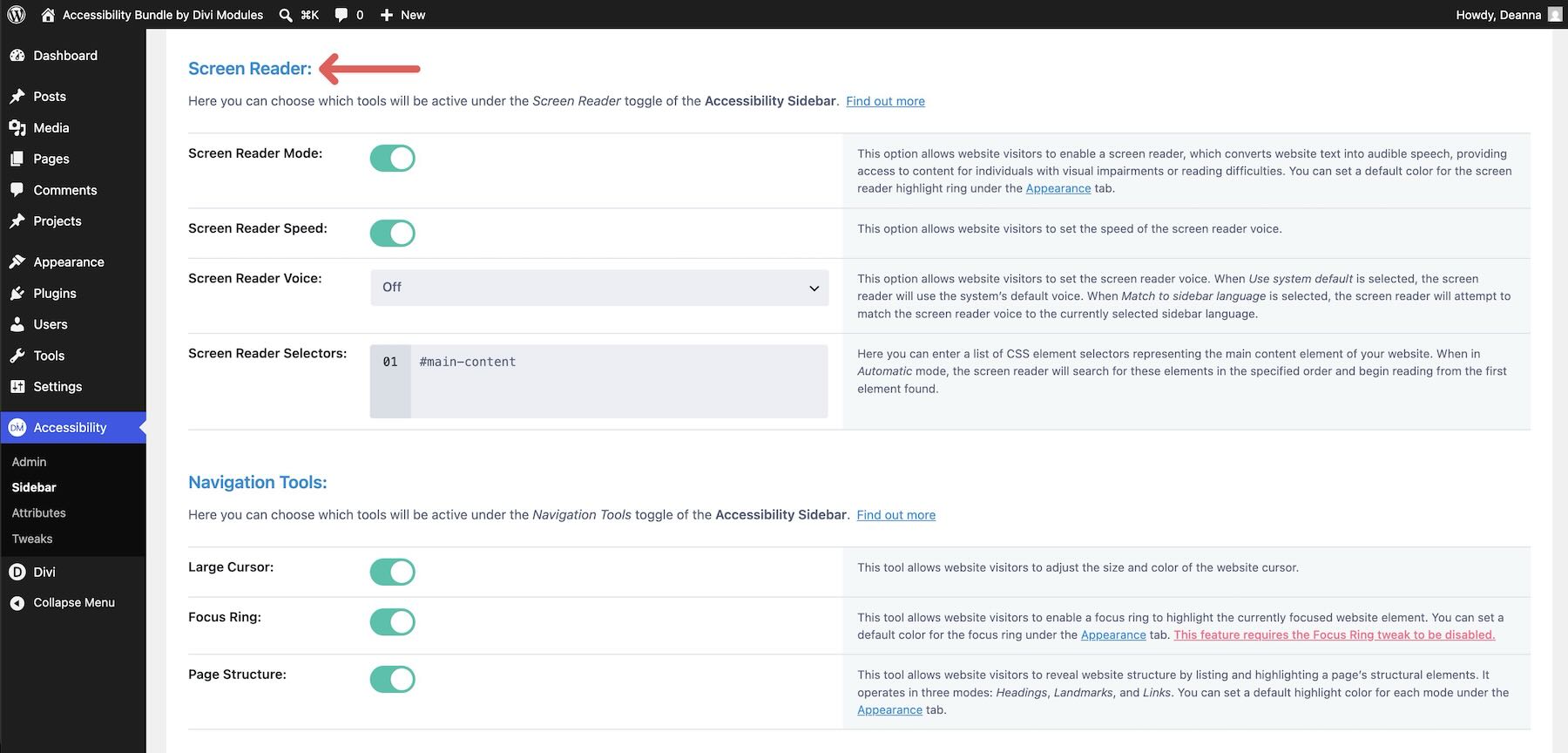
On a promoting internet web page, this may also be useful for longer testimonial quotes, supplier descriptions, or pricing details.
Allow Navigation Apparatus akin to Large Cursor, Focus Ring, and Internet web page Development.
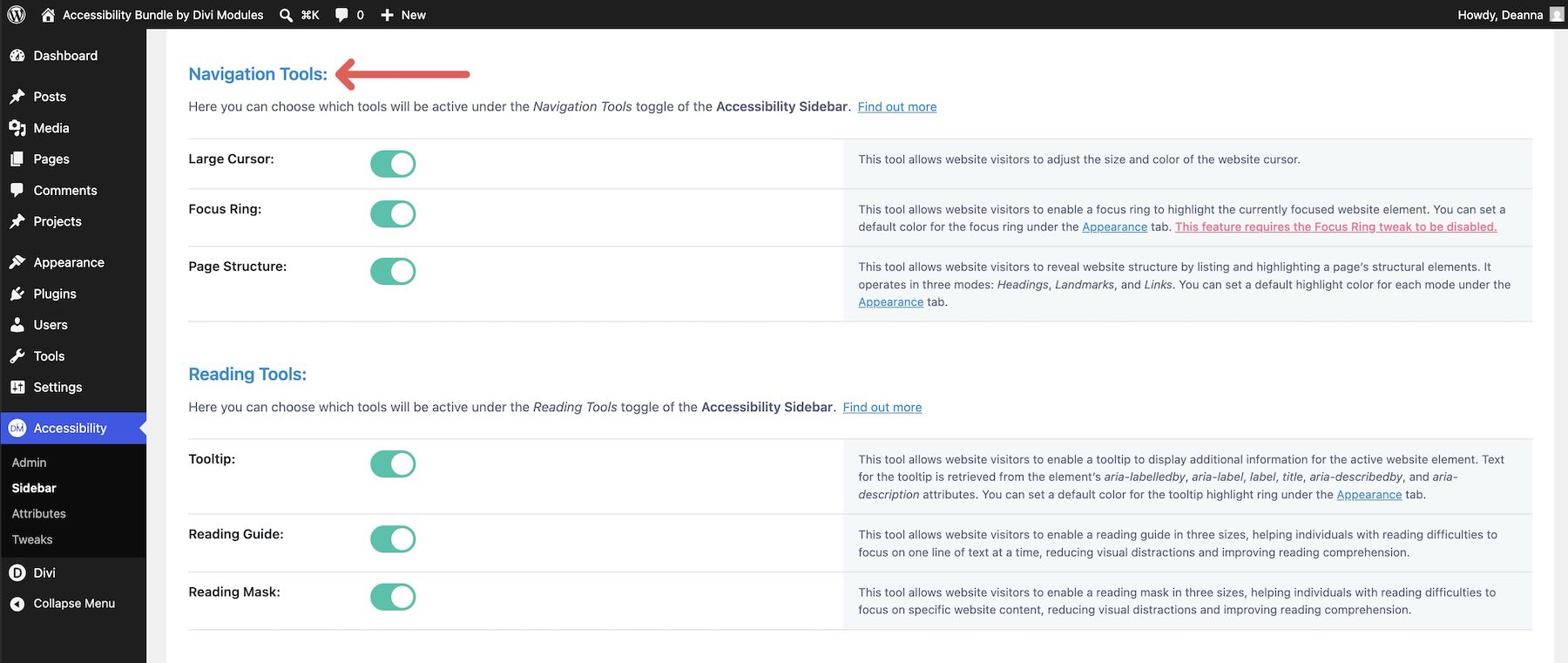
Large Cursor may make the pointer easier to track. Internet web page Development may give visitors a navigable outline of headings, landmarks, and links, helping them leap to sections akin to pricing or testimonials without scanning all the internet web page.
Allow Finding out Apparatus akin to Tooltip, Finding out Knowledge, and Finding out Mask.
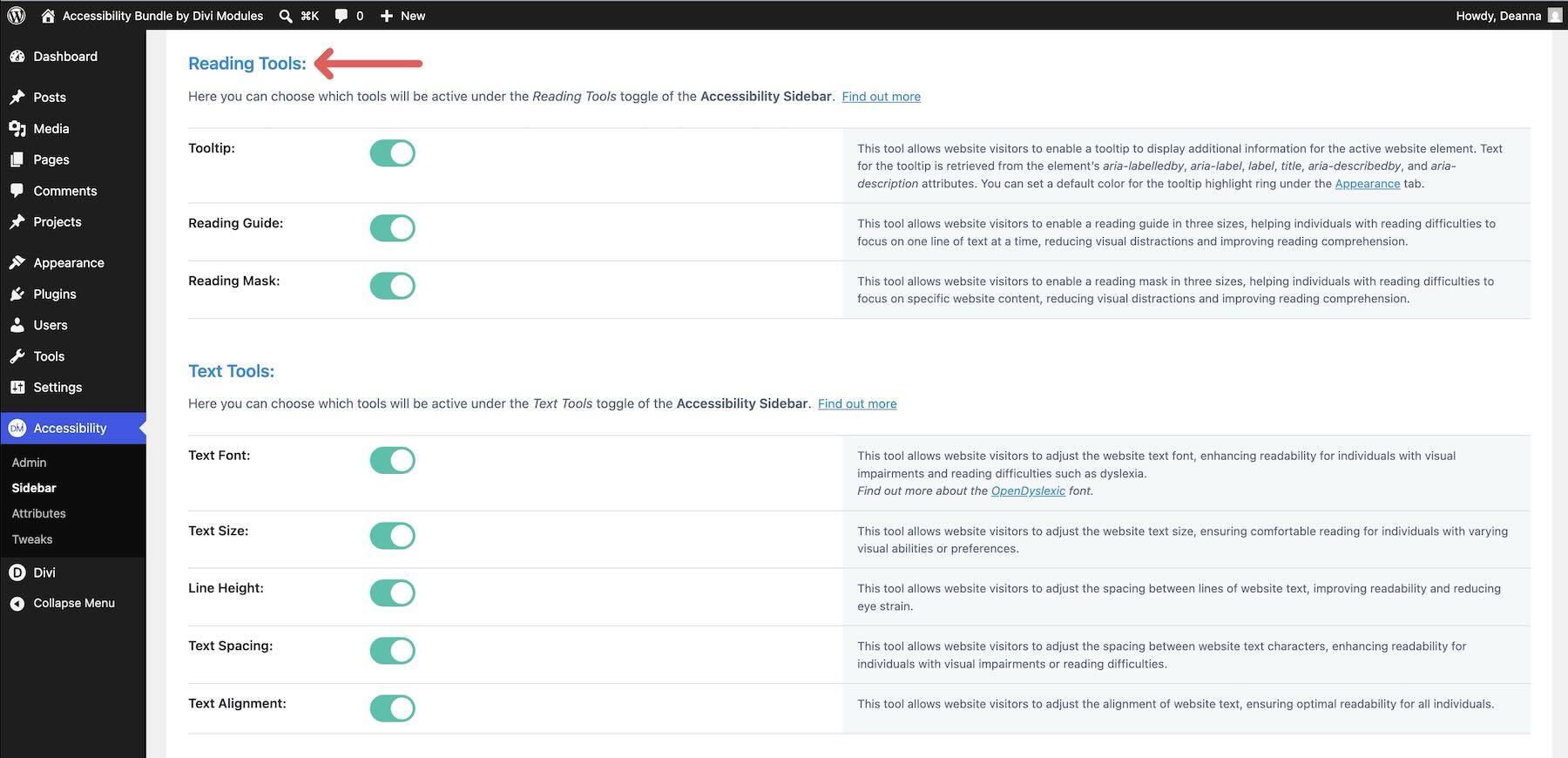
The ones apparatus be in agreement visitors point of interest on one line or phase of the internet web page at a time, which may also be useful on text-heavy supplier pages, pricing tables, documentation pages, or long landing pages.
Allow Text Apparatus so visitors can keep watch over text font, size, line top, spacing, and alignment.
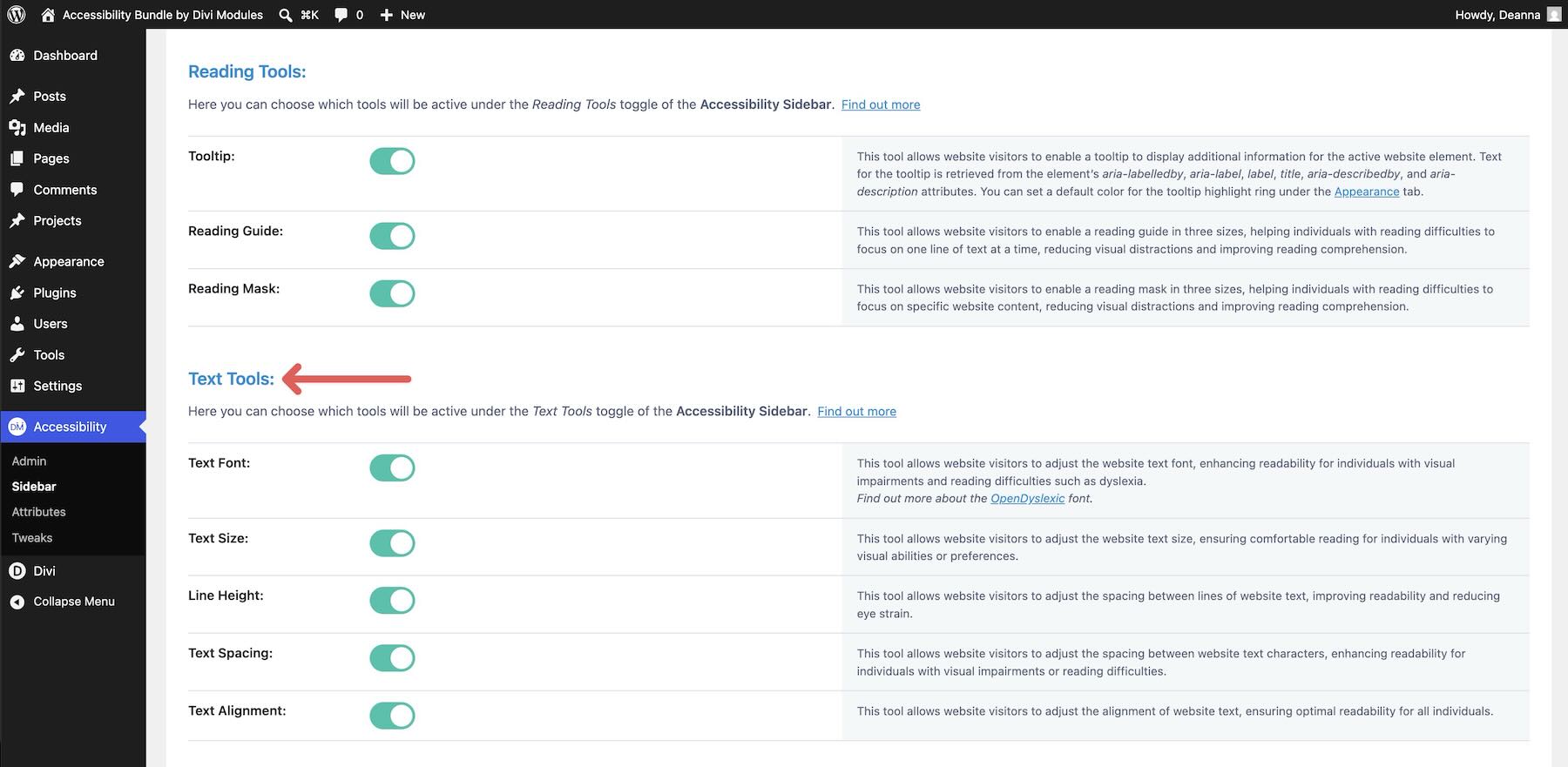
For dense pricing tables, supplier descriptions, or blog content material subject matter, the ones controls may make learning additional relaxed without requiring visitors to zoom all the browser.
Allow Graphics Apparatus for saturation, difference, image visibility, and animation regulate.
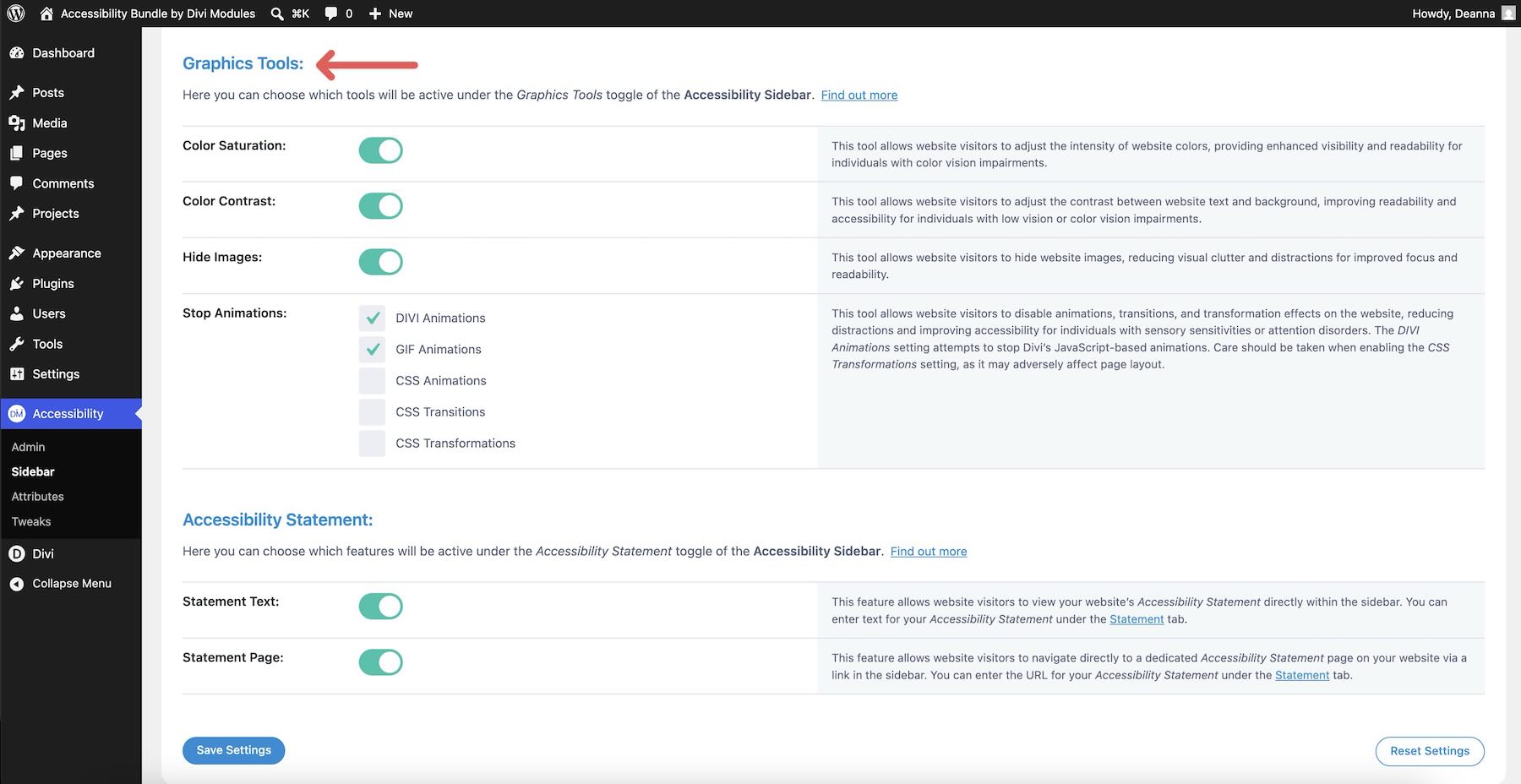
The ones apparatus can be in agreement visitors who need stronger difference, lower visual intensity, fewer animations, or a lot much less image-heavy browsing.
Matching The Sidebar To Your Emblem
Open the Glance tab to style the sidebar, toggle button, position, size, icon, and highlight colors.
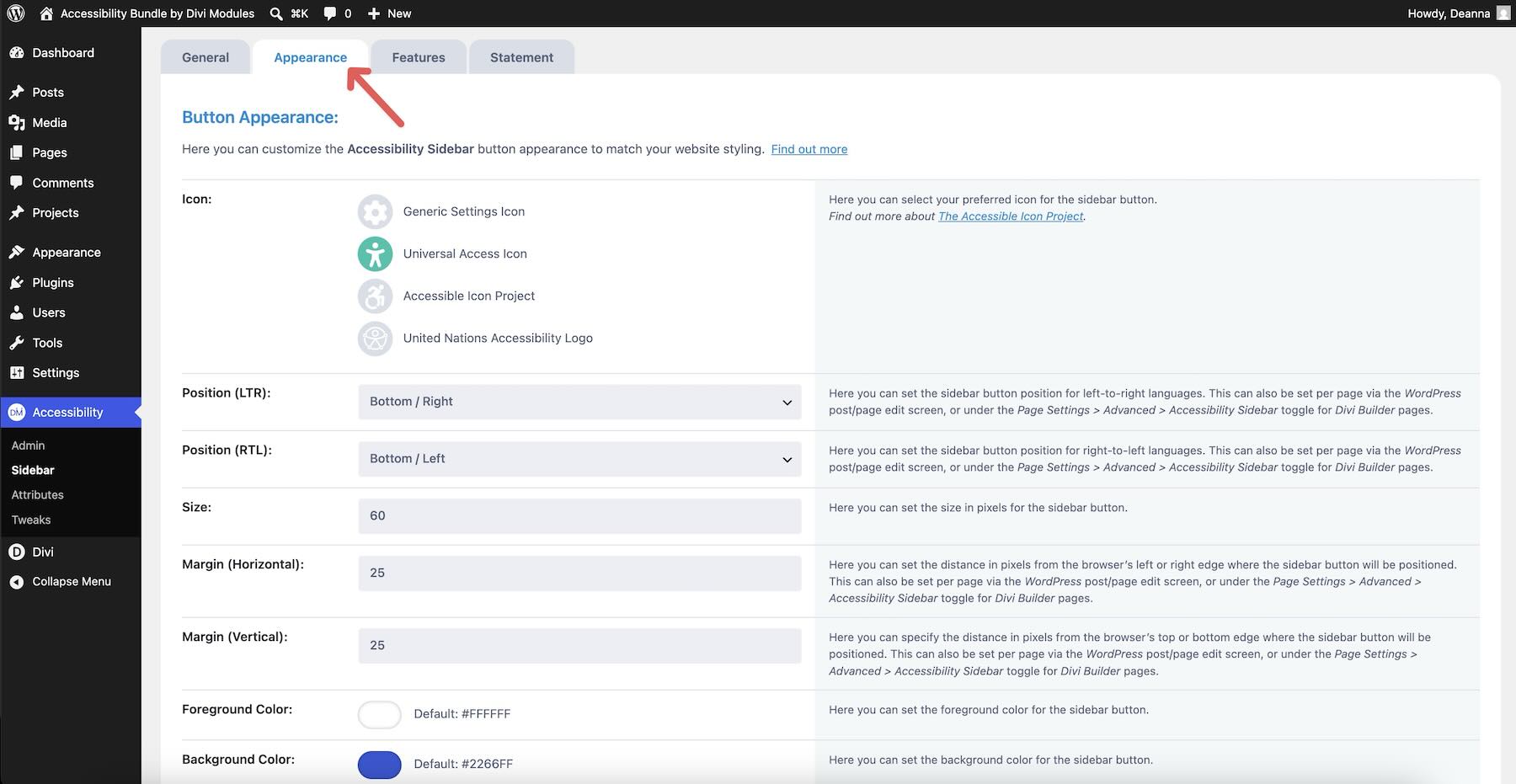
A well-styled toggle button tucked into the corner of the website online can actually really feel like a natural part of the interface instead of a plugin bolted onto the design.
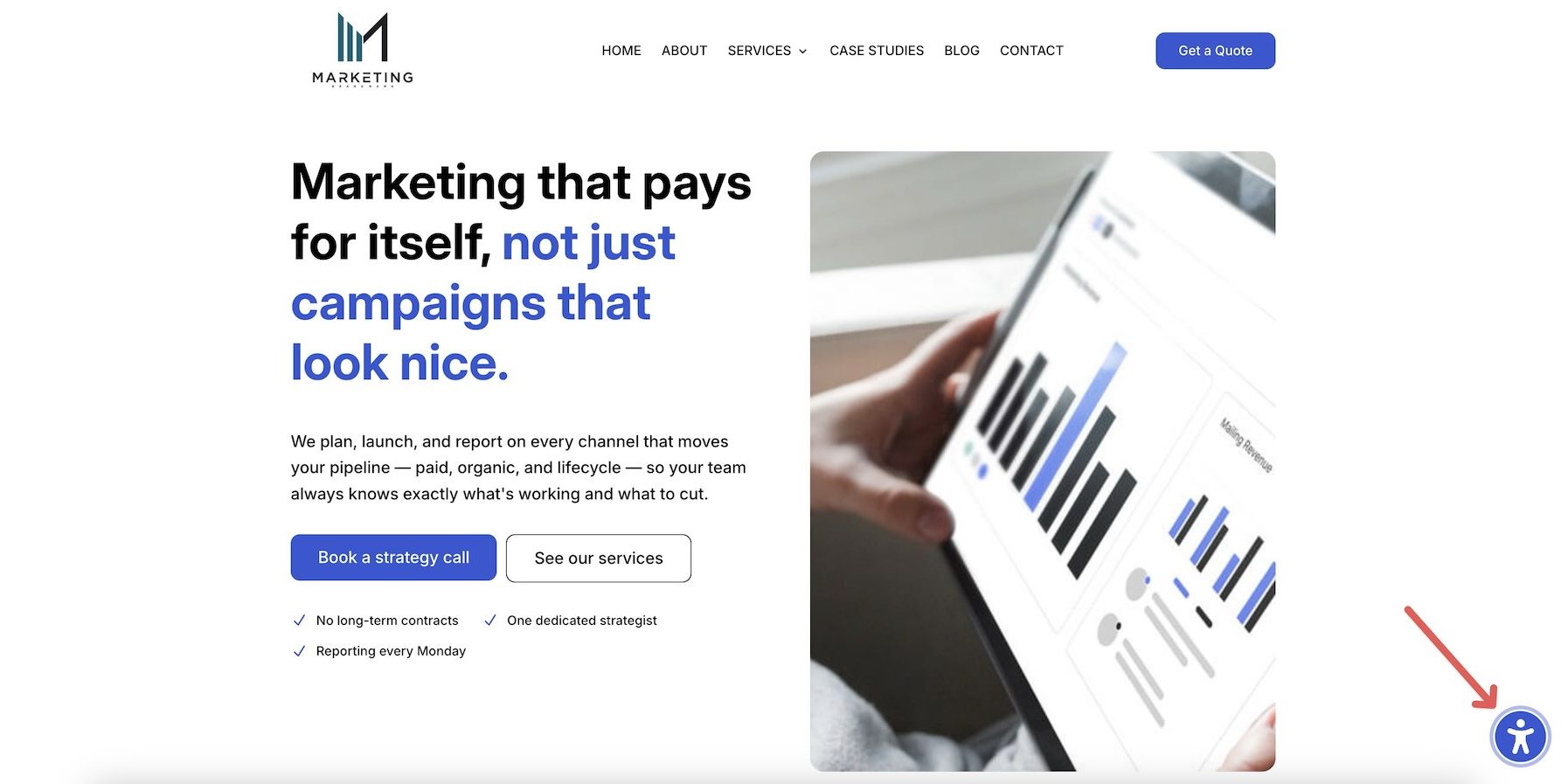
Most visitors would possibly not at all open the Sidebar. Then again for visitors who need higher text, stronger difference, decreased motion, line-by-line learning be in agreement, or a clearer internet web page building, those controls may make the website online much more simple to use.
Who The Accessibility Package deal Is For
The Accessibility Package deal is a sturdy are compatible for Divi shoppers who want a additional structured method to strengthen accessibility without managing quite a few unrelated apparatus.
It’s specifically useful for:
- Freelancers and companies who assemble client web websites and want repeatable accessibility apparatus all through projects.
- Internet web page householders who want to strengthen usability without writing custom designed code for every accessibility enhancement.
- Firms and organizations with content-heavy pages, supplier pages, pricing tables, forms, and navigation patterns that need upper usability.
- Divi 4 shoppers who want accessibility apparatus for present web sites.
- Divi 5 shoppers who want to enlarge on Divi’s built-in Custom designed Attributes workflow.
- Teams managing a couple of web sites who want a consistent accessibility setup they can apply again and again.
The bundle does no longer trade wary design, semantic building, content material subject matter evaluate, accessibility checking out, or prison guidance when compliance problems. But it surely provides Divi shoppers a practical toolkit for improving many no longer strange accessibility gaps from one ecosystem.
Make Accessibility Easier In Divi
The Accessibility Package brings 3 accessibility-focused plugins into one workflow.
Accessibility Attributes helps you add that suggests to express Divi portions. Accessibility Tweaks improves navigation, point of interest habits, skip links, menu habits, and supported modules at a broader level. Accessibility Sidebar provides visitors front-end apparatus to keep watch over the site for their own needs.
For the reason that bundle is acceptable with every Divi 4 and Divi 5, you’ll use it on present web sites along with new builds. It moreover pairs successfully with Divi 5’s Custom designed Attributes system, supplying you with every native feature regulate and a additional specialized accessibility toolkit.
For those who assemble Divi web websites for consumers, run a content-heavy website online, organize an ecommerce store, or simply want your pages to artwork upper for additonal visitors, the Accessibility Package deal is worth exploring.
Get the Accessibility Package from the Divi Marketplace and get began building Divi web websites which can be easier for additonal visitors to use.
The submit Divi Product Spotlight: Accessibility Package appeared first on Sublime Subject matters Weblog.



0 Comments