

A background behind a few words can trade the emphasis of an entire section. In this loose pack, you’ll get 6 Text With Background Designs for Divi 5, combining bold typography, contrasting color, and supporting imagery to offer your message a clear focal point.
The ones styled sections artwork as starting problems for fit announcements, workshop pages, creative portfolios, advertising and marketing marketing campaign landing pages, and promotional content material subject material. Import a design, change the development copy and imagery, and adapt the colors for your internet web page.
Divi 5 moreover will give you room to increase the designs further. Its Composable Settings can help you permit additional styling controls for module sub-elements, at the side of backgrounds, borders, spacing, and transforms. That flexibility turns out to be useful when you wish to have to refine the relationship between text and its surrounding design.
Preview
Proper right here’s a check out the six Text With Background Designs included throughout the pack. The download is further down the post.
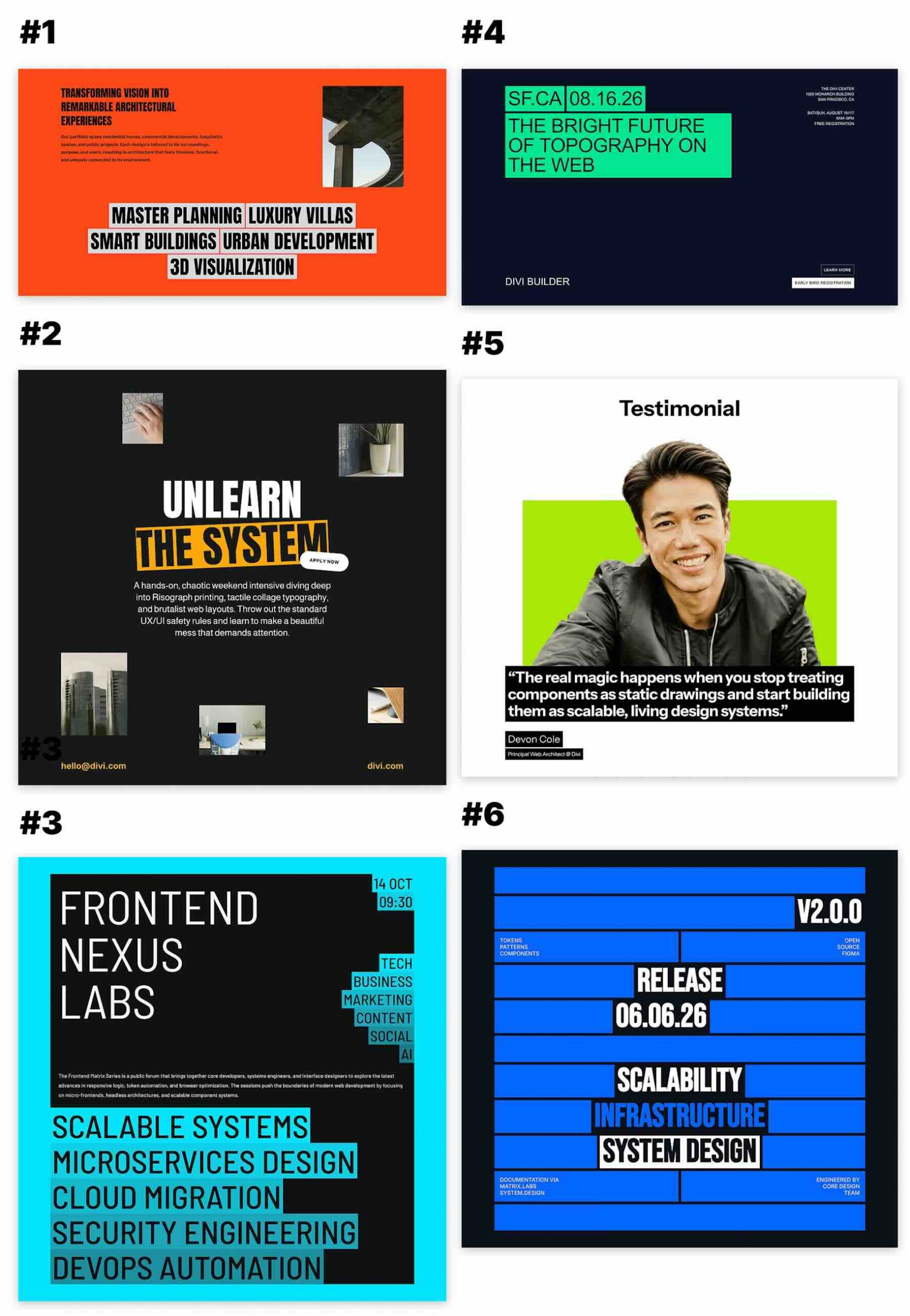
The collection uses background color as part of the typography. A compact highlight can emphasize one phrase, while stacked strips can turn plenty of traces into a larger graphic composition. Supporting images, labels, and buttons give the text context without having the equivalent treatment in all places.
Download 6 Text With Background Designs For Divi 5
Get all six styled sections at no cost. Download the ZIP file, unzip it on your pc, and import the included JSON data into your Divi Library.

What’s Built-in (7 Exports)
Throughout the Styled folder, you’ll to find six individual section exports and one mixed export containing the entire collection.
- Styled – Text with Background Section 1.json
- Styled – Text with Background Section 2.json
- Styled – Text with Background Section 3.json
- Styled – Text with Background Section 4.json
- Styled – Text with Background Section 5.json
- Styled – Text with Background Section 6.json
- Styled – Text with Background Sections (All).json
Make a choice an individual file whilst you easiest need one design, or use the mixed file to usher in the entire collection. The ones are styled starting problems, with example typography, colors, imagery, and spacing already in place.

A Closer Look At The Designs
The previews show how the equivalent idea can serve various kinds of content material subject material. Background color can draw attention to a single phrase or get ready a some distance denser section of text.
A Highlighted Headline With Supporting Imagery
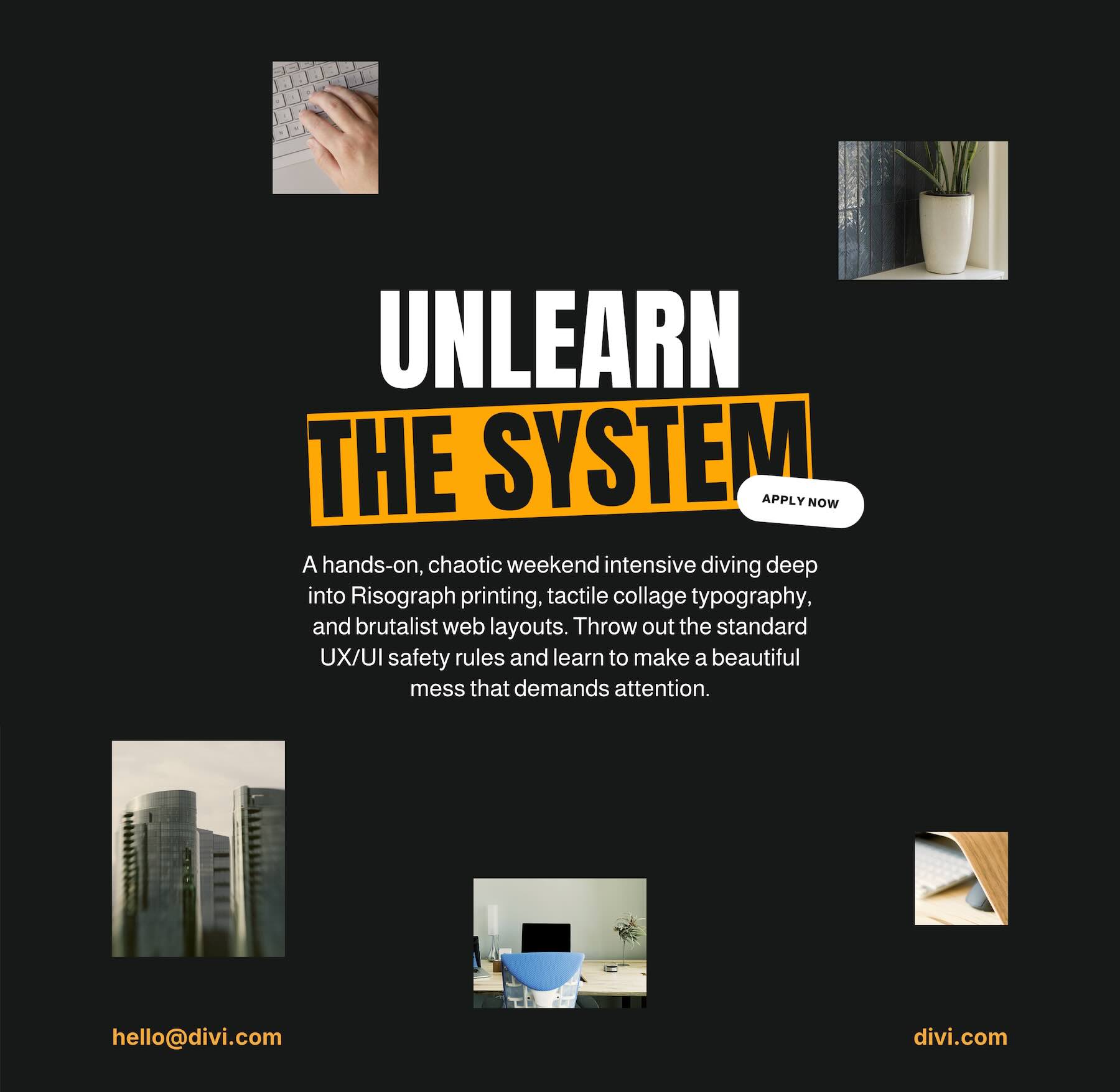
In Section 2, the dark background supplies the focused headline room to stand out. White text introduces the message, while an orange highlight and a slight tilt emphasize the words below it. Small pictures sit down down spherical the main content material subject material, and an overlapping button supplies another point of interest.
This implies suits a workshop, creative fit, or advertising and marketing marketing campaign with a short lived central message. Keep the highlighted phrase concise so its shape remains a formidable part of the composition.
Stacked Text With Contrasting Backgrounds
Section 3 takes a further graphic method. Cyan surrounds a gloomy central panel, with compact date and matter labels along the correct side. Better traces of text on the subject of the bottom sit down down on cyan backgrounds of quite a lot of lengths, making the words and their backgrounds be informed as a attached affiliation.
This treatment works neatly for fit problems, areas of revel in, or a short lived file of services and products and merchandise. The street lengths contribute to the design, so review the entire shape when converting the development wording.

How To Use The Text With Background Designs
Keep your unzipped download folder to hand. We’ll import a design, add it to a internet web page, and customize the text, colors, and supporting content material subject material.
1. Import Sections Into The Divi Library
On your WordPress dashboard, pass to Divi > Divi Library. Click on on Import & Export at the top of the show.

Throughout the import modal, open the Import tab and click on on Make a choice Document. Make a choice some of the individual Styled – Text with Background Section JSON data, or make a selection Styled – Text with Background Sections (All).json for the entire collection.
Click on on Import Divi Builder Layouts and sit up for the import to finish. Make a choice the JSON file itself reasonably than the ZIP archive.

2. Add A Section To Your Internet web page
Open a internet web page throughout the Visual Builder and add a brand spanking new section where you wish to have the design to look. Make a choice Add From Library, select the imported design you wish to have to use, and click on on Use This Section.
The section provides the start composition, at the side of its example content material subject material and styling. Review how it sits beside the encircling sections quicker than changing individual sides. A brilliant text treatment would most likely need more space spherical it when placed on an already busy internet web page.
3. Alternate The Text And Links
Get began with the main headline. Make a choice the element containing the text and open its content material subject material settings, then change the development wording with your own message.
Keep the present formatting while making your first text changes. Some compositions separate words or traces into different sides, so artwork by way of each visible text element reasonably than converting all the section in an instant. Use the Layers panel if overlapping sides are difficult to select on the canvas.
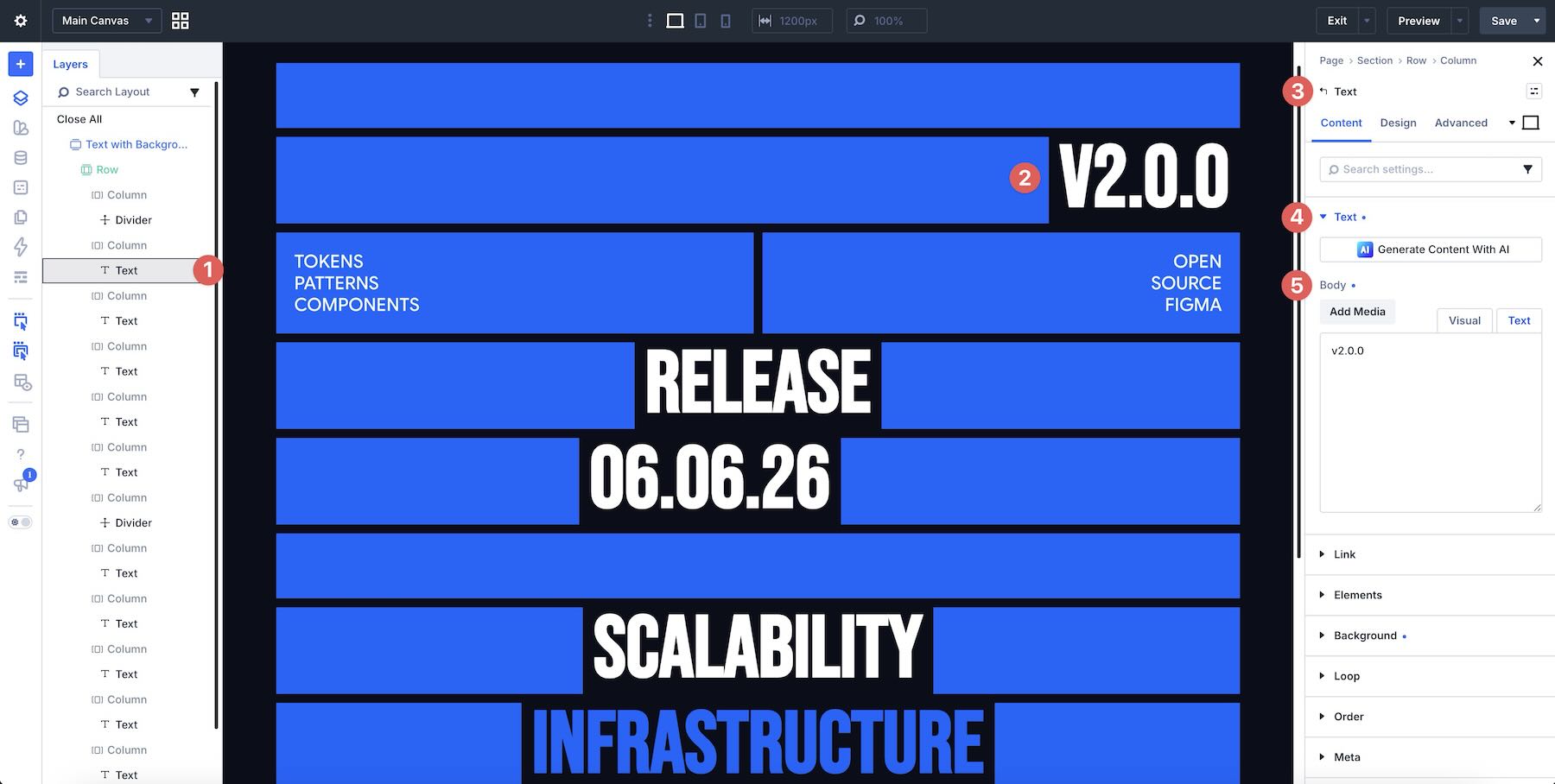
Exchange the supporting paragraphs, dates, matter labels, and make contact with details as neatly. If the design includes a button or similar text, change each and every the label and its holiday spot so visitors reach the proper internet web page.
After updating the copy, check the street breaks. A longer headline can trade the width of a focus, push a button misplaced, or regulate the stepped type of stacked text. Refine the wording quicker than reducing the type size simply to make it fit.
4. Keep watch over Text And Background Colors
Make a choice a text and background pairing that fits your brand. You’ll be capable to retain the original palette or change the accent colors while holding the equivalent visual hierarchy.
Make a choice the element dressed in the background you wish to have to change. Check out that element’s present background settings reasonably than changing the section background thru default. The section backdrop, a text highlight, and a supporting panel would most likely belong to different parts of the structure.
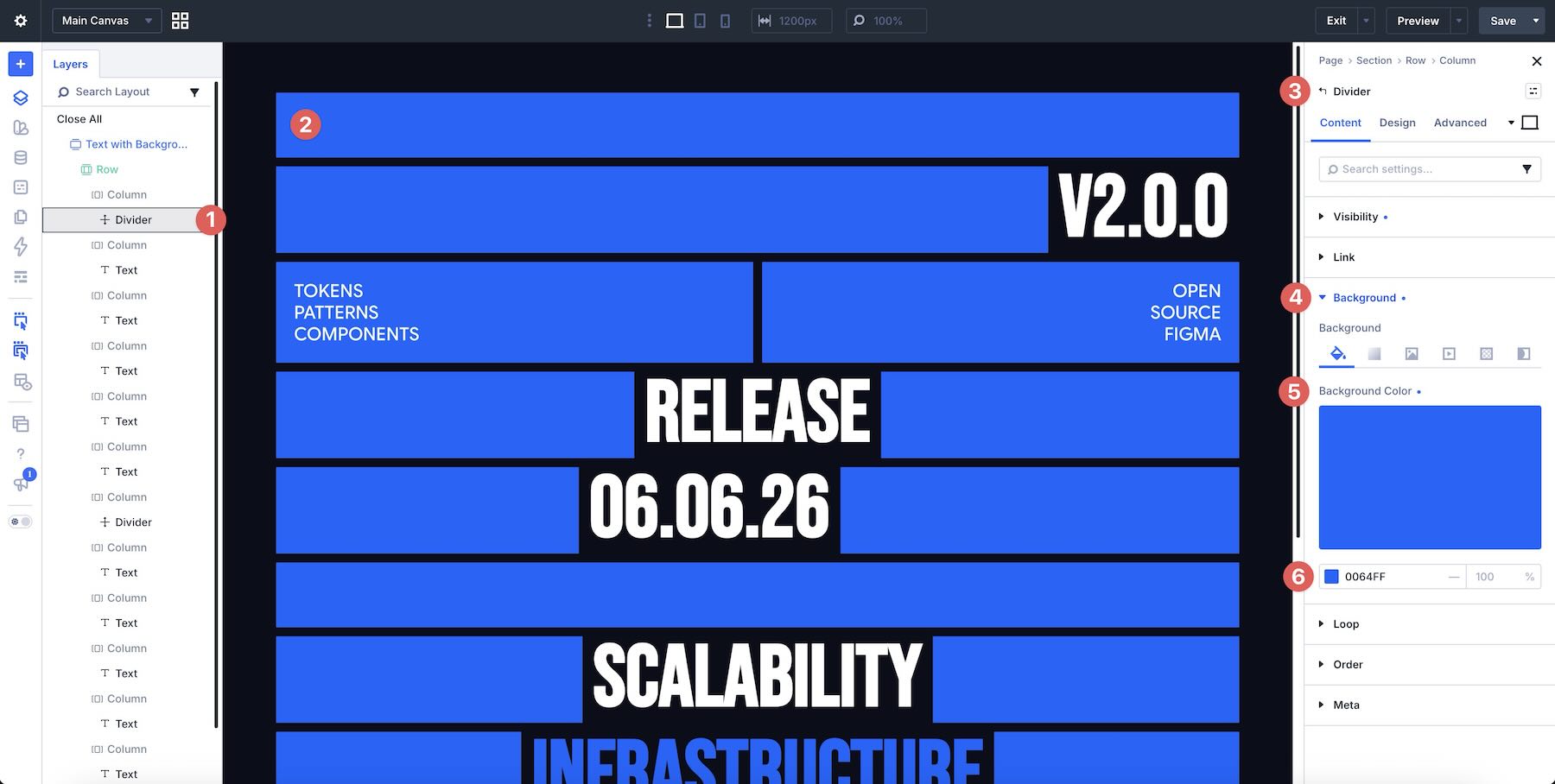
When styling a module sub-element, Composable Settings may make additional controls available. Hover over its risk workforce, click on on Toggle Possible choices, and make allowance the settings you need. Use this when extending the design, while keeping any present formatting in control of the imported have an effect on.
If you want to reuse a palette all through your web site, save the colors as Design Variables and assign them to the similar fields. Updating a variable then changes the fields hooked as much as it.
5. Alternate Supporting Images
For designs that include photos, change the examples with images related for your message. Open the similar image or background settings and make a selection a change from the Media Library.

Keep each image’s serve as in ideas. Small supporting pictures will have to keep recognizable at their displayed size, while a larger portrait or focal image needs enough resolution and room spherical its matter. Review vegetation after converting the pictures. Handle the stableness between imagery and typography so the supporting visuals don’t compete with the main highlighted text.
6. Refine Typography, Spacing, And Overlap
Keep watch over the font, text size, line height, and letter spacing to suit your copy. A unique typeface can trade the period and height of each line despite the fact that the font size stays the equivalent.
Then review the spacing around the text. Padding controls the distance inside of an element’s background, while margins keep an eye on its separation from neighboring sides. Make small adjustments and check all the section after each trade.
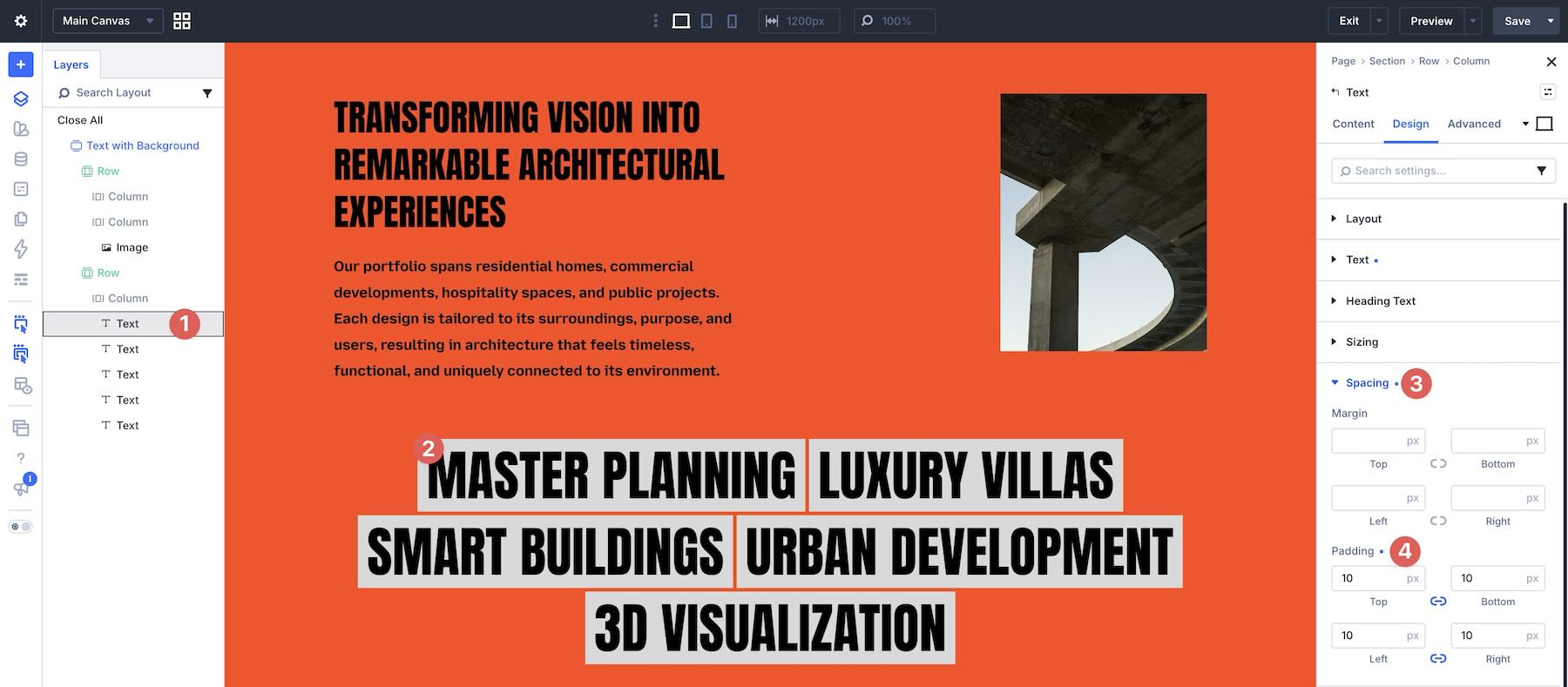
For designs with tilted text, overlapping buttons, or offset images, keep enough clearance for each word and link to stick readable. The overlap will have to enhance the focal point reasonably than cover the most important wisdom.
For those who’re pleased with the outcome, save your customized section to the Divi Library for reuse on other pages.
7. Check out The Design On Smaller Presentations
Review the section on desktop, tablet, and speak to. Huge text and tightly fitted backgrounds can trade noticeably when the available width becomes smaller.
Check out headline wrapping, the type of each highlight, button placement, image order, and any intentional overlaps. Reduce text sizes or spacing where sought after, and simplify decorative positioning if it interferes with the message.
Preview the internet web page outside the builder as neatly. Ensure the text remains readable, links are easy to select, and no element causes unwanted horizontal scrolling.
Guidelines For Environment friendly Text With Background Designs
Essentially the most tough results come from a clear message and a deliberate courting between the words and the shapes behind them.
Highlight The Most Vital Words
Make a choice the phrase visitors will have to perceive first. Giving each sentence the equivalent background treatment can flatten the hierarchy, so let supporting copy use a more effective style where possible.
Write For The Shape
A short lived phrase suits a compact highlight. A series of transient traces can create a stepped composition. Write with those shapes in ideas, then again keep the wording natural and easy to seize.
Steer clear of forcing awkward line breaks merely to check the development. Adapt the structure for your message when very important.
Keep Difference Clear
Check out the honor between the letters and the background immediately behind them. Glossy colors alone don’t be sure readability. Review smaller labels and button text as moderately as the main headline.
Give The Typography Room
Go away enough room spherical highlighted text for its shape to be visible. Supporting images and buttons can overlap selectively, then again they will have to not obscure the words or make the learning order unclear.
Repeat A Few Styling Imaginable alternatives
Use a continuing accent color, font pairing, or spacing way to connect the section with the rest of your internet web page. You’ll be capable to stay the design’s persona while converting the development palette and imagery with your own.
Get began Building In Divi 5 In this day and age!
The ones six Text With Background Designs come up with ready-styled sections for messages that deserve further visual emphasis. Import a favorite, change the copy and imagery, and adjust the typography and colors to suit your undertaking.
From a highlighted fit headline to a graphic file of services and products and merchandise, use the collection as a kick off point for your next internet web page in Divi 5.
The post 6 Textual content With Background Designs For Divi 5 (Loose Obtain!) appeared first on Chic Subject matters Weblog.




0 Comments