

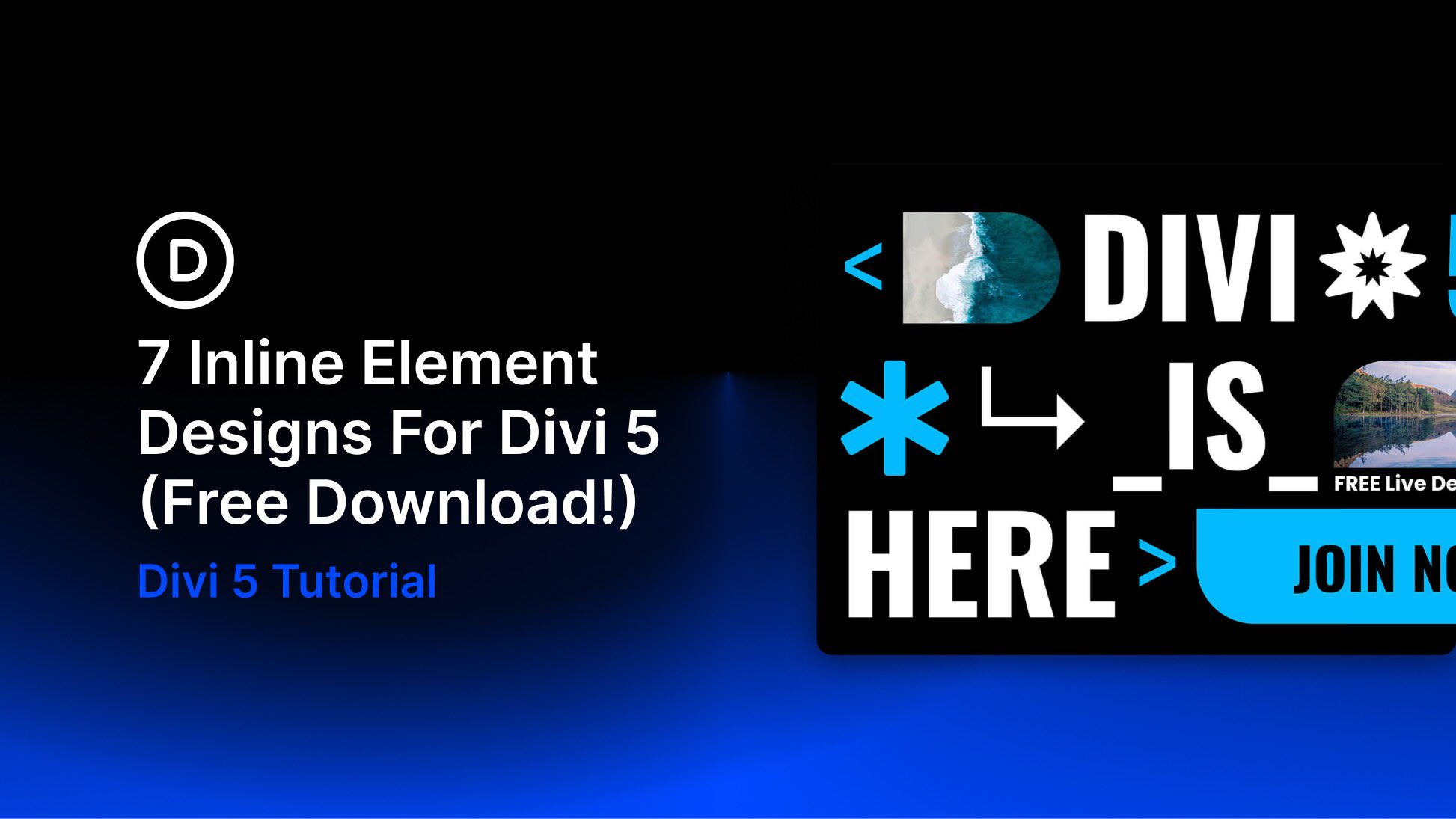
Divi 5 makes it simple so as to add daring, attention-grabbing design main points with out overcomplicating your format. On this unfastened pack, you’ll get 7 Inline Part Designs created for hero sections, promo blocks, featured bulletins, CTA spaces, and different content material that advantages from ornamental shapes, trendy textual content therapies, and layered visible accents. Drop one into any web page, change the content material, and also you’re in a position to move.
Preview
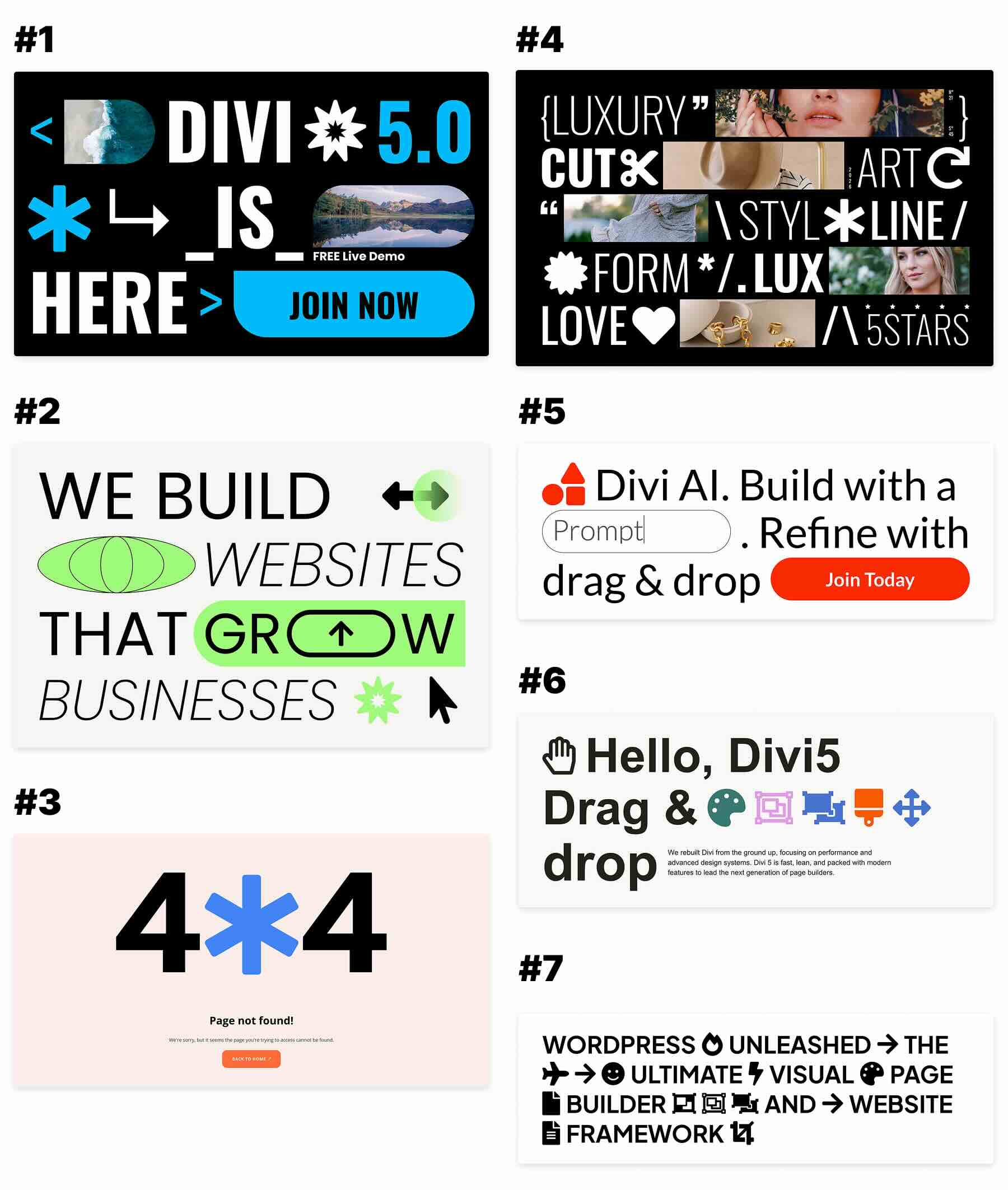
Right here’s a snappy take a look at the 7 Inline Part Designs incorporated within the pack. The obtain is additional down the put up.
Subscribe To Our Youtube Channel
Obtain 7 Inline Part Designs For Divi 5
Get all 7 designs at no cost. Import them into your Divi Library and upload them to any web page within the Visible Builder.
@media most effective display screen and ( max-width: 767px ) {.et_bloom .et_bloom_optin_1 .carrot_edge.et_bloom_form_right .et_bloom_form_content:sooner than { border-top-color: #ffffff !necessary; border-left-color: clear !necessary; }.et_bloom .et_bloom_optin_1 .carrot_edge.et_bloom_form_left .et_bloom_form_content:after { border-bottom-color: #ffffff !necessary; border-left-color: clear !necessary; }
}.et_bloom .et_bloom_optin_1 .et_bloom_form_content button { background-color: #f92c8b !necessary; } .et_bloom .et_bloom_optin_1 .et_bloom_form_content .et_bloom_fields i { shade: #f92c8b !necessary; } .et_bloom .et_bloom_optin_1 .et_bloom_form_content .et_bloom_custom_field_radio i:sooner than { background: #f92c8b !necessary; } .et_bloom .et_bloom_optin_1 .et_bloom_border_solid { border-color: #f7f9fb !necessary } .et_bloom .et_bloom_optin_1 .et_bloom_form_content button { background-color: #f92c8b !necessary; } .et_bloom .et_bloom_optin_1 .et_bloom_form_container h2, .et_bloom .et_bloom_optin_1 .et_bloom_form_container h2 span, .et_bloom .et_bloom_optin_1 .et_bloom_form_container h2 sturdy { font-family: “Open Sans”, Helvetica, Arial, Lucida, sans-serif; }.et_bloom .et_bloom_optin_1 .et_bloom_form_container p, .et_bloom .et_bloom_optin_1 .et_bloom_form_container p span, .et_bloom .et_bloom_optin_1 .et_bloom_form_container p sturdy, .et_bloom .et_bloom_optin_1 .et_bloom_form_container shape enter, .et_bloom .et_bloom_optin_1 .et_bloom_form_container shape button span { font-family: “Open Sans”, Helvetica, Arial, Lucida, sans-serif; } p.et_bloom_popup_input { padding-bottom: 0 !necessary;}

Obtain For Loose
Sign up for the Divi Publication and we will be able to electronic mail you a replica of without equal Divi Touchdown Web page Format Pack, plus lots of alternative wonderful and unfastened Divi assets, guidelines and methods. Observe alongside and you’re going to be a Divi grasp very quickly. In case you are already subscribed merely kind to your electronic mail deal with beneath and click on obtain to get entry to the format pack.
You’ve got effectively subscribed. Please test your electronic mail deal with to substantiate your subscription and get get entry to to unfastened weekly Divi format packs!
What’s Integrated (8 Exports)
After you obtain and unzip the record, you’ll in finding 7 styled Inline Part Segment exports, plus 1 record containing all designs.
Styled – Inline Parts Segment 1 to 7 (7) → Seven totally styled inline component phase layouts with daring typography, ornamental shapes, icons, and accessory graphics that you’ll be able to use as-is or customise.
Styled – Inline Part Sections (All) → Imports all 7 designs into your Divi Library immediately.

How To Use The Inline Part Designs
Stay your obtain folder to hand. We’ll import the information, upload a bit to a web page, after which change the content material.
1. Import Sections Into The Divi Library
Move to Divi → Divi Library. Click on Import & Export on the height of the display screen.
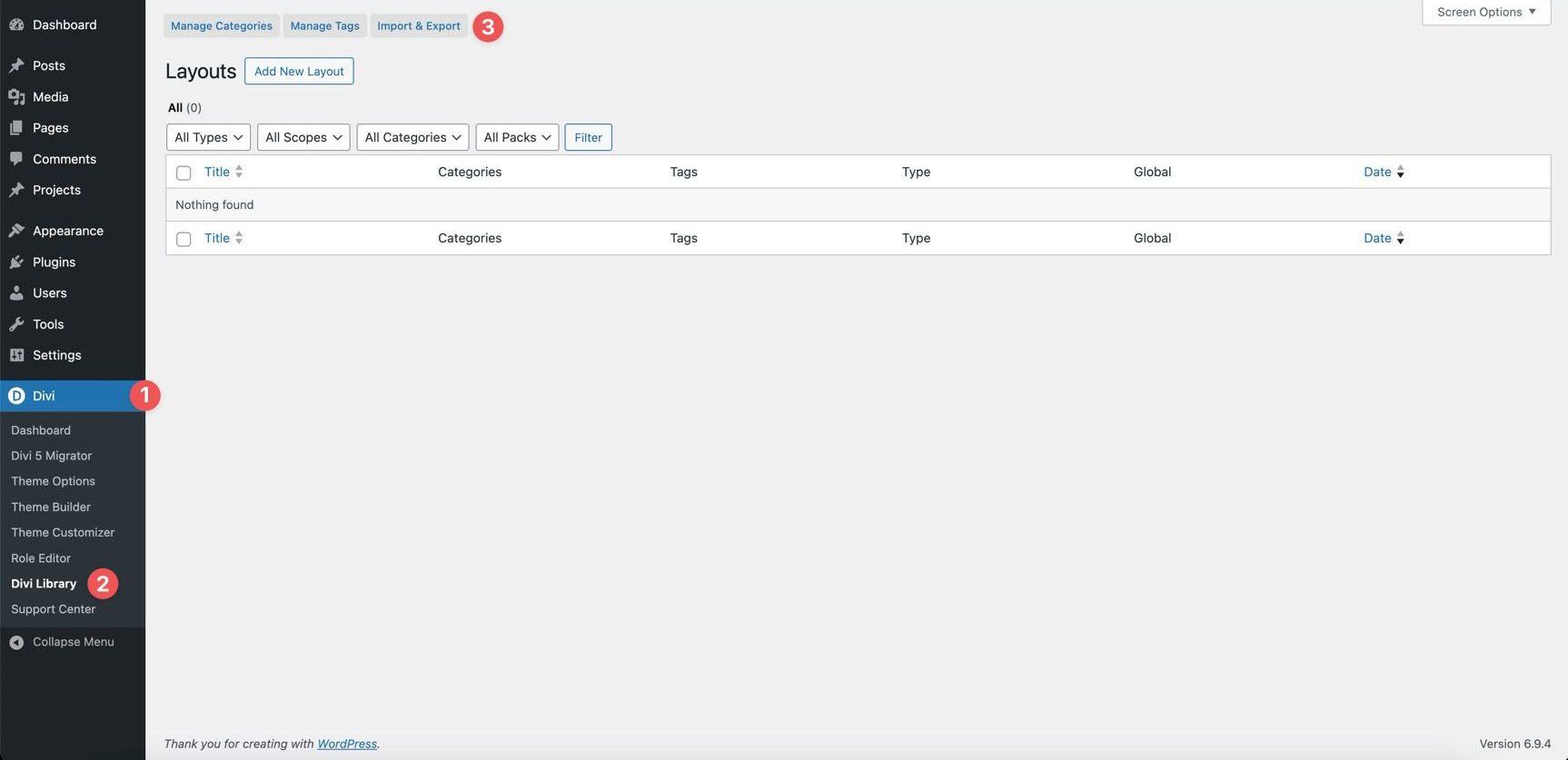
Within the Import & Export Layouts modal, transfer to the Import tab, then click on Select Report and make a choice your JSON record.

Select any Inline Part Segment JSON you’d like to make use of, then click on Import Divi Builder Layouts.

2. Upload An Inline Part Design To Any Web page
Open a web page within the Visible Builder and upload a brand new Segment.

Within the Insert Segment modal, click on Upload From Library and make a choice an Inline Part Segment format.

In any case, click on Use This Segment.

3. Switch The Content material
As soon as the phase is at the web page, changing the placeholder content material takes just a few clicks. Get started by way of updating the heading, supporting reproduction, buttons, and hyperlinks so the phase fits your message. Then change any placeholder icons, shapes, or photographs with your individual belongings as wanted.

As a result of those inline component layouts use ornamental graphics and text-based accents, it’s absolute best to switch one merchandise at a time and preview the outcome as you move. This is helping keep the steadiness between textual content, spacing, and visible element.

When you’d love to simplify or extend a design, reproduction or take away the prevailing modules as an alternative of rebuilding the phase from scratch. That’s the best way to keep spacing, alignment, and visible rhythm.
4. Regulate Kinds (Non-compulsory)
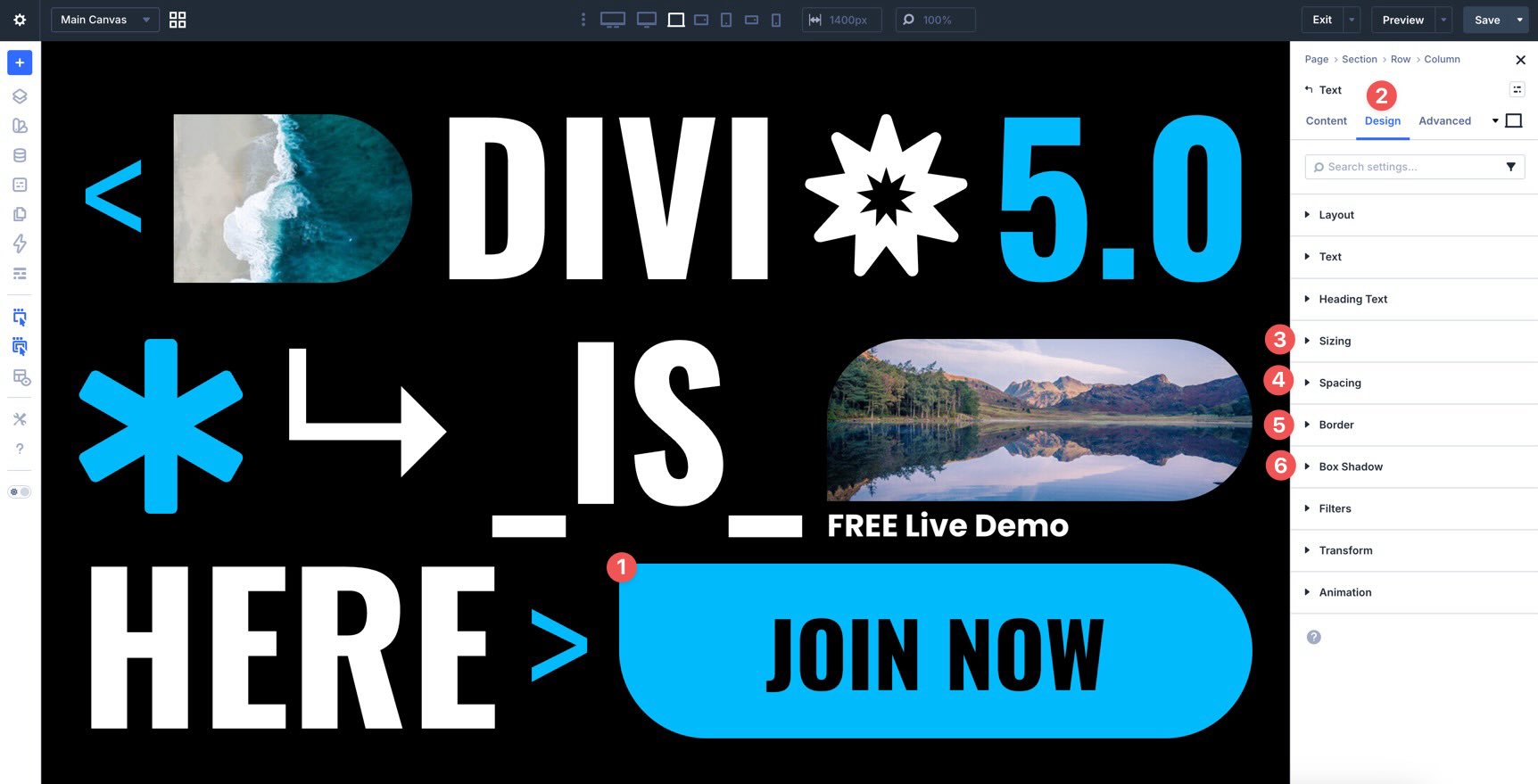
Those inline component designs are already styled, so you’ll be able to use them in an instant or refine them to raised fit your logo. Replace typography, colours, spacing, borders, shadows, icons, and ornamental shapes as wanted the use of the settings within the Design tab.
To switch typography, open any Textual content or Heading module and move to the Design tab. Enlarge the related textual content settings to regulate Font, Font Weight, Textual content Alignment, Textual content Colour, and different styling choices.
To refine the visible accents, open the row, crew, or module that controls the ornamental component, and use the Design tab to tweak Background, Border Width, Border Colour, Border Radius, Field Shadow, Sizing, and Spacing.
In case your model makes use of arrows, icons, outlines, badges, circles, or different ornamental inline graphics, stay the ones relationships in thoughts as you resize or change them so the format nonetheless feels intentional.

Use Divi’s responsive enhancing equipment to regulate spacing, alignment, and stacking habits on smaller monitors so the composition stays balanced throughout gadgets.
Guidelines For Efficient Inline Part Designs
Inline component designs paintings absolute best when the accents fortify the content material as an alternative of distracting from it. Use those fast tricks to stay the sections daring, balanced, and efficient.
Use Ornamental Parts To Toughen The Message
Shapes, arrows, badges, and icons must enhance the headline or name to motion, no longer compete with it. Let the textual content keep number one whilst the ornamental main points information the attention during the design.

Stay The Visible Language Constant
If one phase makes use of defined shapes, daring icons, and vibrant accessory colours, the encompassing parts must really feel like a part of the similar gadget. Consistency is helping the design really feel polished and intentional.

Make The Headline Simple To Scan
Those designs continuously use expressive typography and layered accents, so readability issues. Stay the heading readable at a look and ensure ornamental items don’t overpower the message.
Use Accessory Colour Strategically
A robust accessory shade can lend a hand key phrases, shapes, and calls to motion stand out. Use it deliberately so the phase feels lively with out turning into visually noisy.

Test The Format On Cell
Ornamental inline parts can shift noticeably on smaller monitors. Evaluate each and every phase on pill and contact perspectives to verify the textual content remains transparent and the accents nonetheless really feel neatly positioned.
Get started Construction In Divi 5 Lately!
Those 7 Inline Part Designs come up with a quick method so as to add daring, polished visible passion to hero sections, CTA blocks, promotions, bulletins, and extra. Switch the content material, stay the styling or adapt it on your logo, and also you’ll have a standout phase in a position in mins with Divi 5‘s Visible Builder.
The put up 7 Inline Element Designs For Divi 5 (Free Download!) gave the impression first on Elegant Themes Blog.




0 Comments