

Building a survey in WordPress is discreet, on the other hand designing one who will provide you with actionable data is a novel story. Most surveys give unnecessary results on account of they aren’t horny enough to get honest, detailed answers from visitors.
I’ve found out that one of the vital most simple tactics to fix this is thru growing interactive surveys that adapt in your shoppers in real-time. And thru using AI to build your forms, you’ll skip the annoying information setup and pay attention to asking the precise questions
In my enjoy, using interactive portions like conditional just right judgment and conversational layouts can boost your of entirety fees. This makes sure to procure the exhausting data you want to increase what you are promoting as a substitute of merely smartly mannered feedback.
In this article, I will show you simple how one can use WPForms and its AI choices to create interactive surveys in WordPress. I’ll show you exactly simple how one can set this up so that you’ll get began getting upper insights from your target audience in recent times.

Rapid Summary: Create smarter surveys using WPForms AI to generate questions and conditional just right judgment to personalize the patron enjoy. This data displays you simple how one can organize conversational layouts and visual reporting to boost engagement and obtain actionable insights.
Listed below are the themes I will duvet in this article:
- Why Create Interactive Surveys in WordPress?
- What You Want to Get Began (Loose vs. Professional)
- The usage of AI to Construct an Interactive Survey Urged
- Including Sensible Common sense for a Personalised Enjoy
- Publishing Your Interactive Survey
- Inspecting Your Information with Interactive Experiences
- Bonus: How you can Scale back Shape Abandonment
- Continuously Requested Questions About WordPress Surveys
- Further Sources for Making improvements to Your Surveys
Why Create Interactive Surveys in WordPress?
Growing interactive surveys in WordPress is one of the best tactics to get honest feedback from your visitors.
Static forms can perpetually in reality really feel long and uninteresting, which causes many people to go away forward of they finish.
Interactive surveys transparent up this drawback thru adapting in your shoppers in real-time.
This personal touch significantly improves your of entirety fees:
- Upper Engagement: Shoppers are a lot more prone to whole a kind that feels personalized and conversational.
- Higher Prime quality Data: You’ll use specialized fields like Likert Scales to get further proper rankings than a simple ‘Certain’ or ‘No’.
- Shorter Forms: By means of using conditional just right judgment, you absolute best show questions that are associated with each specific shopper.
- Professional Insights: Choices like NPS permit you to observe purchaser loyalty using the identical necessities as huge producers.
Plus, interactive surveys will can help you make upper alternatives in your internet web page. Instead of guessing what your target audience wishes, it’s essential to have exhausting data to steer your next steps.
Very best of all, using AI to generate the ones forms reduces your setup time from hours to kind of 15 minutes. It means that you can focal point on the objective of your data rather than the mechanics of the builder.
What You Need to Get Started (Free vs. Skilled)
WPForms is the most efficient drag-and-drop form builder for WordPress. It’s serving to you create interactive surveys using AI, conditional just right judgment, and conversational layouts to increase of entirety fees and obtain actionable data.
You’ll get began building your first WordPress survey using the unfastened model of WPForms. However, if you want to create in truth interactive surveys with visual data reports, you’ll need WPForms Professional.
While the free plugin means that you can use the AI form builder, the specialized survey fields, reporting apparatus, and the ‘Conversational Bureaucracy‘ addon are all most sensible magnificence choices that require WPForms Skilled. This addon makes your surveys in reality really feel further like a one-on-one chat.
To get started, you’ll first want to arrange and switch at the WPForms plugin. If you want to have have the same opinion, you’ll see our data on easy methods to set up a WordPress plugin.
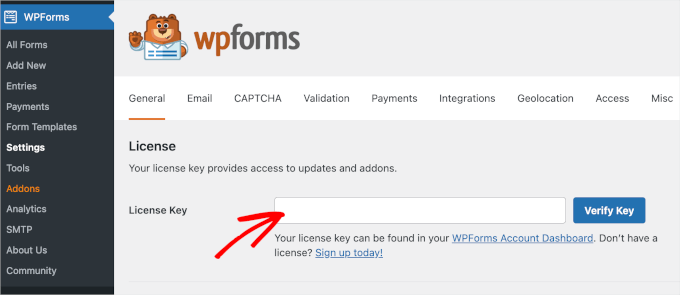
As quickly because the plugin is vigorous, you must read about your license. You’ll do this thru going to WPForms » Settings and entering your license key to disencumber the Skilled choices.
Next, you’ll want to arrange the survey apparatus.
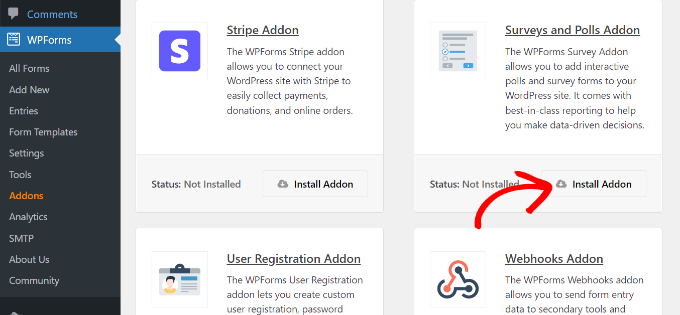
You’ll do this manually thru navigating to WPForms » Addons to go looking out and arrange the ‘Surveys and Polls’ addon.
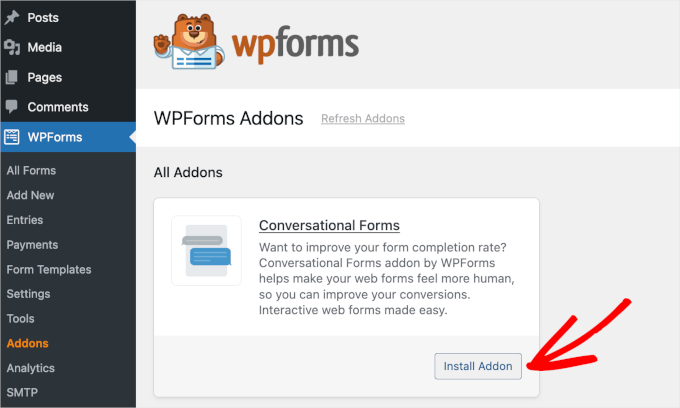
When you’re there, I moreover extraordinarily recommend finding the ‘Conversational Bureaucracy‘ addon and clicking ‘Arrange Addon’.
That’s the explicit tool that can permit you to turn your standard survey proper right into a full-screen, interactive layout.
Once the ones steps are complete, your internet web page is in a position to handle just right, interactive surveys. You’ll now get began building your first form using AI.
Professional Tip: When you get began amassing survey data from shoppers, you should change your Privateness Coverage web page. It is very important let your visitors know exactly how you utilize their wisdom to stay compliant with privacy laws like GDPR.
Using AI to Assemble an Interactive Survey Advised
Now that you simply’ve the precise apparatus installed, you’re able to start out building your first survey. To start out, navigate to WPForms » Add New Form in your WordPress dashboard.
You’re going to see the form builder show with quite a few template alternatives. Instead of choosing a pre-made template, click on at the ‘Generate With AI’ button to open the AI assistant.

That’s the position you’ll use an inventive recommended to provide an explanation for exactly what you want. I’ve found out that asking the AI to include specific interactive fields, like a Likert Scale or an NPS box, will provide you with a much more professional finish end result.
For this example, you’ll enter a recommended like:
Create a conversational purchaser survey for a coffee retailer. Include a Likert Scale for atmosphere, a Internet Promoter Score field, and a Paragraph Text field asking 'Please provide an explanation for your low ranking'.

The AI will then process your request and assemble a draft of the form for you.
It will robotically make a selection the most efficient field varieties and even organize the standard 0-10 ranking in your loyalty questions.
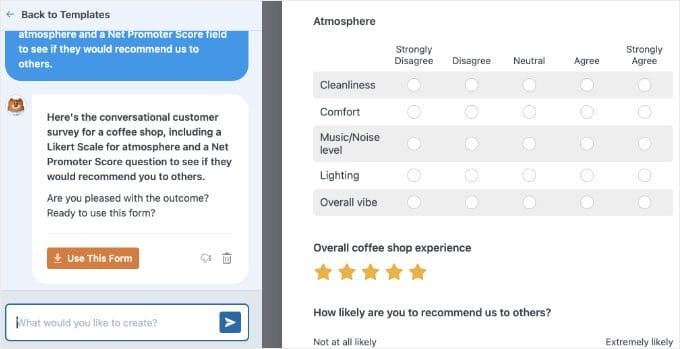
After the AI finishes, you’ll see a preview of your new survey. If you want to make changes, you’ll use the chat recommended to ask the AI to keep an eye on it.
For example, you’ll ask it to ‘add a newsletter optin checkbox’ or even ‘translate this whole form into Spanish.’
Bear in mind: AI refinements absolute best art work all over the place this vigorous preview session. On every occasion you leave this show, the chat session closes.
Once you’re proud of the preview, simply click on at the ‘Use This Form’ button. This may occasionally once in a while open the average WPForms drag-and-drop builder.
From proper right here, we all the time recommend double-checking the fields to make sure the questions fit your brand voice and the ranking scales are configured exactly how you want them.
Together with Good Commonplace sense for a Personalized Revel in
Once your fields are in place, you’ll make your survey interactive thru using conditional good judgment. It is a difficult feature that allows you to show or disguise sure questions in keeping with a buyer’s previous answers.
That is without doubt one of the most simple tactics to stick your forms transient and comparable. Instead of asking every purchaser the identical questions, you’ll make a selection to only show a feedback box to any individual who gave a low well-known individual ranking.
To set this up, you’ll first need to choose a field throughout the form builder. For our example, I will click on on on the ‘Please provide an explanation for your low ranking’ text field.
Bear in mind: If the AI didn’t create this exact field for you, simply drag a ‘Paragraph Text’ field from the left menu onto your form, click on on on it, and change the label.
Next, take a look on the left-hand panel underneath ‘Field Alternatives’ and click on on on the ‘Good Commonplace sense’ tab. You’re going to see a toggle to ‘Allow Conditional Commonplace sense’ that you simply’ll click on directly to turn on.
Now you’ll create a simple rule to keep an eye on when this field turns out. For example, you’ll tell the plugin to show this box only if a decided on ranking isn’t as much as 3 stars. That is generally a ranking like ‘Coffee Prime quality’ from the earlier AI recommended.

This small alternate makes sure your survey feels personalized and interactive for every buyer. It prevents people from feeling overwhelmed thru questions that don’t apply to their enjoy.
Skilled Tip: You’ll if truth be told ask the AI to prepare your conditional just right judgment for you all over the place the arrival step. For example, take a look at together with ‘absolute best show the feedback box if the ranking is 2 stars or a lot much less’ in your initial recommended.
While it is a great time-saver, I however extraordinarily recommend checking the ‘Good Commonplace sense’ tab manually using the steps beneath to make sure the principles are exactly how you want them.
You’ll repeat this process for any other fields you want to hide. It’s serving to you assemble a greater survey that absolute best collects the most important data from your target audience.
Previous than transferring on, it is a good thought to click on at the ‘Preview’ button on the most efficient of the builder to test your just right judgment and make sure the hidden fields appear correctly.
In the end, to supply your survey that true one-on-one chat in reality really feel, go to Settings » Conversational Forms throughout the form builder and check the sphere to ‘Allow Conversational Form Mode’.

This may occasionally once in a while convert your survey proper right into a distraction-free, interactive internet web page. From proper right here, you’ll customize your internet web page colors, add a customized emblem, and even add a percentage-based building bar.
Most importantly, you’ll see a ‘Permalink’ field. That’s the position you’ll create a clean, custom designed URL in your survey (like yoursite.com/feedback). You’ll wish to copy this link in your clipboard so that you’ll share it in conjunction with your visitors later.

Professional Tip: I love to counsel showing a ‘Thumb Check out’ in your conversational survey. The ones layouts use full-screen interaction. So, you should open the live preview in your phone to make sure the buttons and text are easy to tap and skim on a small show.
For a complete walkthrough of the ones design settings, check out our trustworthy data on easy methods to create conversational paperwork in WordPress.
Previous than you place up your form and get began amassing data, you want to make sure that survey reporting is enabled. While the AI builder perpetually turns this on for you robotically, it’s all the time a good idea to double-check.
Throughout the form builder, simply go to Settings » Surveys and Polls. From proper right here, make sure the sphere next to the ‘Allow Survey Reporting’ preference is checked, and then click on on ‘Save’.

Publishing Your Interactive Survey
Once you’re happy in conjunction with your questions and just right just right judgment, it’s time to make your survey live.
Don’t forget to click on at the ‘Save’ button on the most efficient of the form builder forward of exiting.

Risk 1: Proportion Your Conversational Survey Link (Recommended)
For individuals who followed my recommendation to allow Conversational Forms mode, your survey is robotically revealed to the trustworthy, full-screen permalink you created earlier.
On account of it is a standalone landing internet web page, it’ll not robotically appear in your internet web page menu. To get people to take your survey, it is very important manually proportion that hyperlink.
You’ll paste it into your e mail newsletter, share it in your social media accounts, or link to it from a ‘Take Our Survey’ button in your homepage.
Risk 2: Embed the Survey on an Present Internet web page
Alternatively, it’s possible you’ll want to place your survey in an instant inside of an provide blog put up or contact internet web page. If you choose the program, the survey will use a regular inline layout as a substitute of the full-screen conversational mode.
To try this, simply open the put up or internet web page where you want the survey to appear.
Then click on at the ‘+’ add block button and search for ‘WPForms’. Add the block in your internet web page, and make a selection your new AI survey from the dropdown menu.

On every occasion you hit ‘Publish’ or ‘Exchange’ in your internet web page, your inline interactive survey might be live.
Related: You’ll learn how to alternate the colors, styling, or manually together with different field varieties in your form in our whole data on easy methods to create a survey in WordPress.
Analyzing Your Data with Interactive Studies
After your survey has been live for a while, you’ll wish to see the results.
To try this, go to WPForms » All Forms in your WordPress dashboard and hover your mouse over your survey.

You’re going to see a link for ‘Survey Results’ that you simply’ll click on directly to open a brand spanking new show.
That’s the position the plugin turns your raw data into interactive charts and graphs.
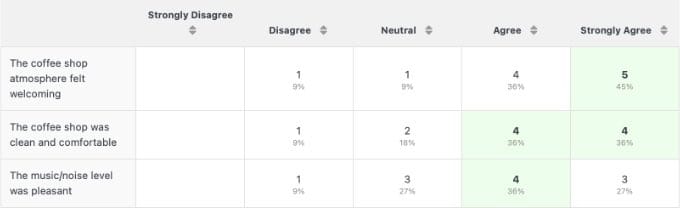
Instead of taking a look at a longer checklist of text, you’ll see your feedback in vibrant pie charts or bar graphs. This makes it much more simple to spot characteristics in your purchaser behavior at a glance.
If you want to alternate how a decided on chart appears to be, you’ll simply click on at the chart icons on the most efficient of each explicit individual graph.
You’ll briefly switch between other forms, like pie charts or bar graphs. That is serving to you to find the one who is best so as to be informed.
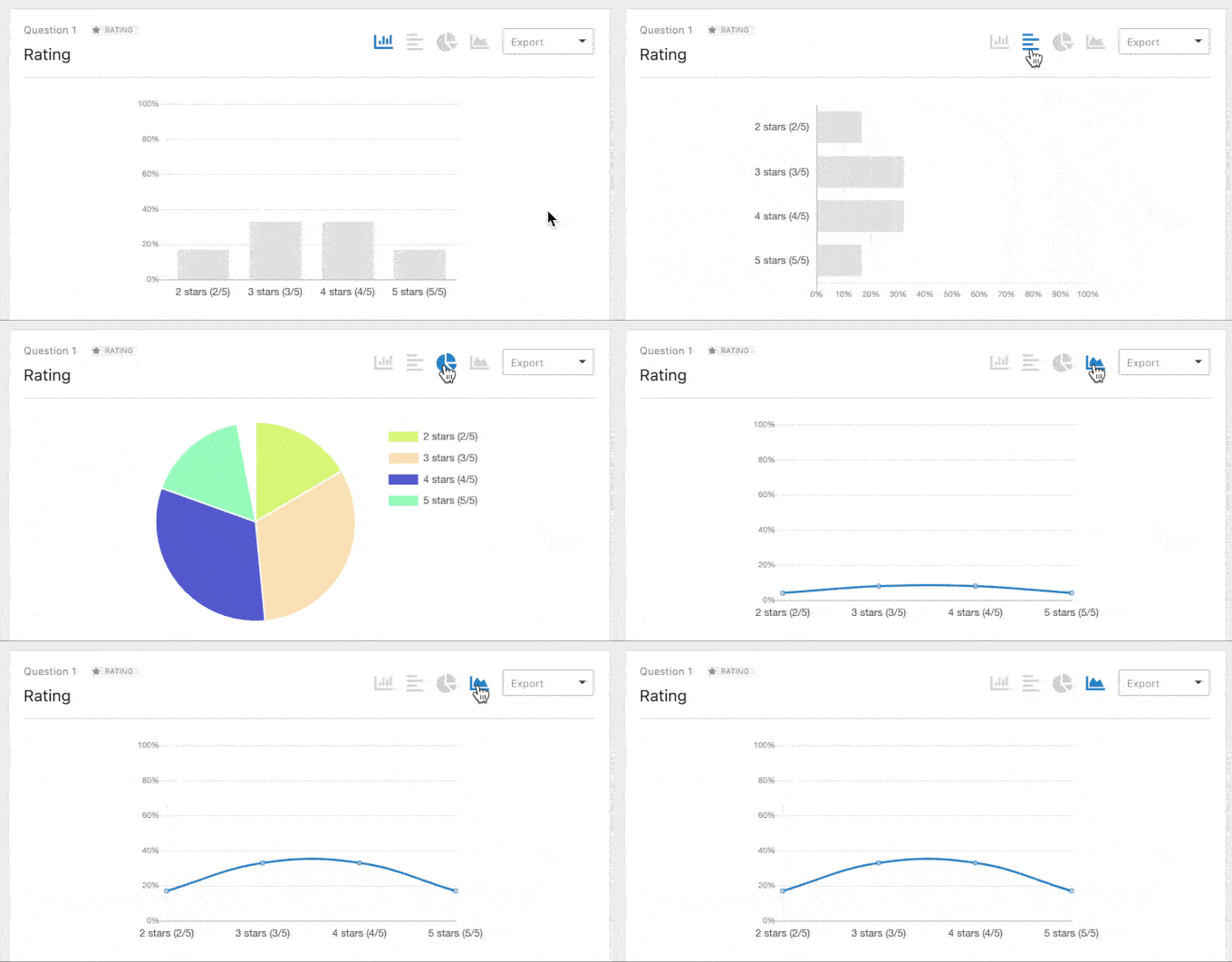
One of the best problems about this feature is that it in reality works in your earlier data. This means when you had a kind working forward of you place within the survey apparatus, the plugin can however generate interactive reports for those older entries.
You’ll moreover share the ones results in conjunction with your workforce or consumers. There’s an ‘Export’ button that allows you to save explicit individual charts as PDF data or images in your reports.
Bonus: How you’ll Reduce Form Abandonment
If you want to get even upper results from your interactive surveys, I love to counsel tracking where your visitors stop filling out your forms. That is serving to you decide which questions might be too difficult or sophisticated in your target audience.
If you are interested in improving your of entirety fees, you’ll see our data on easy methods to monitor and scale back shape abandonment in WordPress. This may occasionally once in a while show you exactly simple how one can clutch partial entries in order that you certainly not lose treasured feedback over again.
Ceaselessly Asked Questions About WordPress Surveys
I’ve helped many readers organize their first WordPress surveys. I perpetually concentrate similar questions about one of the vital most simple tactics to handle data and interactive choices. Listed below are one of the vital most not unusual questions about using AI and WPForms to collect feedback in your internet web page.
Can I create an interactive survey totally free?
You’ll create a fundamental survey with the unfastened model of WPForms, on the other hand you’ll desire a Skilled license to get entry to the interactive reporting and complex just right just right judgment choices.
While the free AI builder permit you to development your questions, the specialized visual charts and ‘Conversational Bureaucracy‘ are part of the highest magnificence addon.
Are my visitors’ survey answers shared with the AI?
No, your visitors’ answers are certainly not spotted or collected throughout the AI. The WPForms AI tool is absolute best vigorous throughout the backend that will help you design the form’s layout and questions.
Once your survey is live, all shopper responses are collected usually and safely stored in an instant in your non-public WordPress database.
Can I add images to my survey imaginable alternatives?
Certain, you’ll add images in your survey imaginable alternatives to lead them to further interactive and visual in your visitors. If you find yourself improving a multiple-choice field, you’ll simply toggle on the ‘Use Image Imaginable alternatives’ manner so as to add your own footage for each answer.
How do I show real-time results to my shoppers?
You’ll show real-time results in your shoppers thru turning your survey proper right into a poll. By means of enabling the ‘Ballot Effects’ feature in your form settings, visitors will see an interactive chart showing how other people have voted when they publish their answer.
Is there a limit to what choice of responses I can get?
No, there’s no limit to the selection of survey responses you’ll achieve when using WPForms in your internet web page. No longer like many various third-party survey platforms, you non-public your data and can achieve as many entries as your web web webhosting server can handle.
Additional Resources for Bettering Your Surveys
I’m hoping this text helped you learn how to use AI to create interactive surveys.
After you have your interactive survey working, it’s essential to want to uncover further tactics to use that data to increase your internet web page:
- How you can Monitor and Scale back Shape Abandonment in WordPress – Learn how to clutch partial entries when people stop filling out your survey midway.
- How you can Create a WordPress Ballot (Step through Step) – For individuals who absolute best desire a single interactive question, a poll generally is a faster preference in your visitors.
- How you can Create Conversational Bureaucracy in WordPress – This data displays you simple how one can turn any long survey proper right into a one-question-at-a-time enjoy.
- The Final Information to The usage of WordPress Bureaucracy – This is our complete information for the entire thing you’ll do with forms in your internet web page.
- How you can Create an Interactive Popup Survey – If you want to have your survey to slide in on the bottom of the show as a substitute of sitting on a static internet web page, the program using the UserFeedback plugin is a brilliant variety.
For individuals who liked this text, then please subscribe to our YouTube Channel for WordPress video tutorials. You’ll moreover to find us on Twitter and Fb.
The put up Fail to remember Uninteresting Bureaucracy: How you can Construct Interactive WordPress Surveys with AI first appeared on WPBeginner.




0 Comments