

Sometimes a reusable phase needs more than a singular heading or button label. One internet web page would in all probability desire a workshop schedule, while any other needs a booking form. You proceed to want the encircling design to look consistent and change from one place.
Slots in Divi 5 provide an area for those different layouts inside the an identical Phase. Keep the shared building and design connected, then assemble the content material subject material each instance needs inside its Slot.
We’ll turn a workshop phase correct right into a Phase, add a Slot to its suitable column, and use that area for a schedule in one instance and a booking form in any other.

What Are Slots In Divi 5?
A Slot is a container inside a Phase that holds content material subject material belonging to an individual instance. The Phase defines where the Slot goes inside the shared construction. Each instance defines the modules situated inside it.
An instance is a use of the Phase on a internet web page. Its provide is the saved style that controls the shared building and settings.
A Slot can come with a singular choice of modules in each instance. You’ll use headings and Groups to build a schedule in one instance, then use a type or any other affiliation of modules in a 2d instance. The encompassing Phase stays connected to its provide.
We introduced Slots alongside Portions in our Parts and Slots unencumber. Portions care for the reusable design; Slots provide room for local layouts inside it.
It’s serving to to think about the Are compatible in two parts:
- The container: Its place inside the Phase and its shared design are configured inside the provide.
- The contents: The modules inside it belong to the instance you could be improving.
For instance, a Slot can occupy the correct column of each workshop phase, while the schedule or booking construction situated inside it can be different on each internet web page. In our example, an area Body of workers provides the white card around the schedule.

Slots vs Editable Phase Settings
Editable Phase settings are useful when the module building stays the an identical. A reusable Button module can keep its design while allowing a singular label and link. A testimonial can keep its affiliation while allowing a singular quote and creator.
Use a Slot when the modules themselves want to business. A schedule, a type, and a video construction are more than different values within the an identical fields. They come with different portions and may need different arrangements.
The two approaches can art work together. A Phase can expose a heading for local improving and include a Slot for a larger area of custom designed content material subject material. Make a choice the amount of freedom that matches the purpose of the phase.
For the workshop, editable settings may well be enough if each instance used the an identical 3 schedule items with different events and titles. A Slot becomes useful when one instance needs those schedule items and a few different needs form fields. You’ll business the contents without creating a separate provide for all the phase.
What Changes All the way through Instances?
Where you make a change determines its scope. In our example, the shared introduction sits outside the Slot, while the white card Body of workers and its modules sit down inside it.
Edit the Phase provide to interchange shared portions:
- Workshop introduction: Changing this article inside the provide updates the introduction in connected circumstances.
- Slot position and container spacing: Changing the ones settings inside the provide updates the shared Slot container all the way through connected circumstances.
Edit the modules inside an instance’s Slot to interchange local content material subject material:
- A schedule products’s time or identify: Edit its local Text or Heading module to change that instance’s schedule.
- The schedule’s module affiliation: Change its local modules with a type or any other construction to change that instance without converting the shared phase.
- The white card’s background: Edit the Body of workers inside the Slot to change that local card. Each copied Body of workers has its non-public settings, so any other card’s background stays unchanged.
Forward of You Get began
Use a Divi 5 arrange that includes Portions and Slots, and open a internet web page inside the Visual Builder. You’ll observe along side a two-column phase of your own; matching our illustration isn’t required to learn the serve as.
Click on at the stacked-layers Layers icon inside the left builder sidebar. Make larger the arrows beside Section, Row, and Column to appear their children. Make a selection a layer to open its settings, and right-click it to get admission to actions identical to Reproduction or Replica. Our information to including and organizing parts explains the ones controls in the event that they’re unfamiliar.
A Section contains the entire workshop construction. Its Row arranges two Columns. A Staff inside the correct Column assists in keeping the card’s modules and styling together. We’ll save the Section as a Phase, then put that Body of workers inside a Slot.
Download And Import The Starter Construction
Download the starter construction to use along side the workshop design. It contains an bizarre workshop Section and its schedule card, with out a Portions or Slots. You’ll create those connections all the way through the learning.

- Create a blank observe internet web page and open it inside the Divi Visual Builder.
- Open the Internet web page Menu and make a selection Import to open the internet web page’s Import & Export window.
Make a selection the starter file and configure the import on your blank observe internet web page:
- Click on on Make a choice Report and choose slots-starter-layout.json.
- Leave Change Present Content material subject material checked. Leave Download Backup, Import Presets, Import Portions, and Import To New Canvas unchecked.
- Click on on Import Construction. When the workshop phase turns out, save the internet web page with the top-right builder Save button.
This file uses the internet web page’s import controls. You don’t want to import it all through the Divi Library. Use a blank internet web page for change import. To stay an provide design, export a backup first or allow Import To New Canvas for a separate canvas.
After importing, open Layers and try the correct Column’s complete schedule Body of workers. Keep it in place until step 1 asks you to duplicate it.
Our Example: A Creative Workshop Section
For this walkthrough, we’re starting with a workshop phase already built using native Divi modules. It uses a cream background, charcoal text, and burnt orange accents. At this degree, it’s an bizarre phase on the internet web page. We haven’t saved it as a Phase or added a Slot however.
For those who imported the starter, its building and styling are already in place. Be told this phase to identify the elements, then continue to step 1. To arrange your own starting construction, add a Section and a two-column Row. Inside the left Column, add a Heading and Text module for the workshop introduction. In the correct Column, open Content material subject material > Portions > Add Part and make a selection Body of workers. Make a selection that Body of workers and use its non-public Content material subject material > Portions > Add Part controls so that you could upload a Heading, introductory Text, and Button.
Between the introduction and Button, add a nested Body of workers for the schedule items. Within it, use 3 Groups containing a time Text module, a Heading, and a short lived Text description. Apply the white background, padding, and rounded corners to the outer card Body of workers. This will give you a complete card to duplicate later. Use your own spacing and colors; avoid a troublesome and rapid card peak.
Our finished starting phase contains one Row with two columns:
- The left column: A workshop introduction with the heading Small rooms. Massive ideas., supporting text, and an outline geometric illustration. That’s the content material subject material we want to share all the way through circumstances.
- The right column: A white schedule card built inside a Body of workers. It contains an introduction, 3 timed categories, and a button. That’s the global we’ll change with a Slot so each instance can use a singular construction.
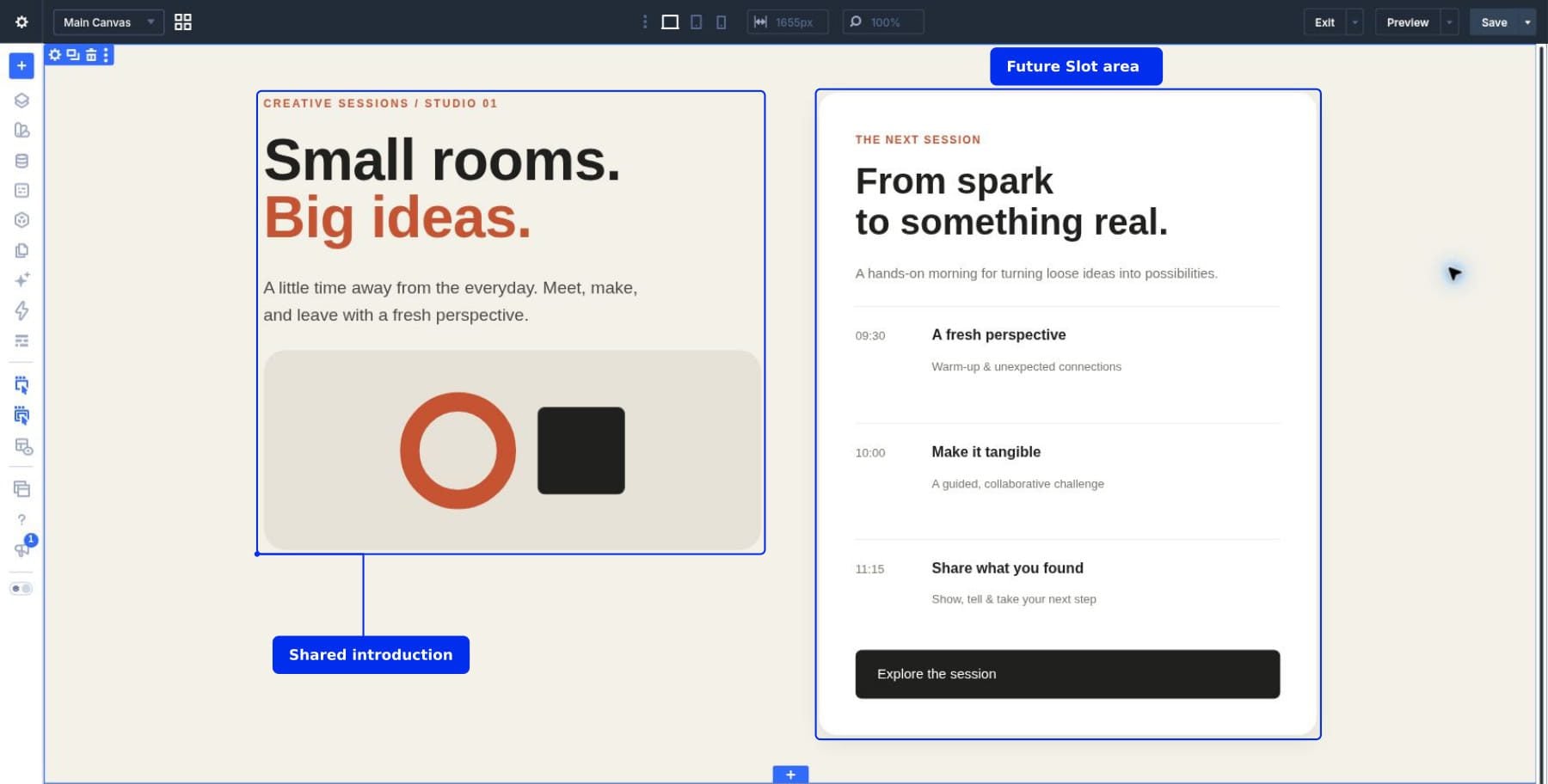
You don’t want to reproduce our design exactly. To use along, create a two-column phase with an introduction on the left and a Body of workers containing a lot of modules on the suitable. A Heading, Text, and Button module inside that Body of workers are enough to turn the process.
A Body of workers is a container that holds other modules together. Keep the right-hand content material subject material inside one outer Body of workers. In our example, this Body of workers moreover provides the schedule card’s white background, rounded corners, and padding. Grouping the content material subject material shall we us reproduction all the card and later place it inside the Slot without rebuilding its modules or styling.
Open Layers view and building up the phase to check its building. The schedule Body of workers should appear inside the correct column, with its introduction, session Groups, and button nested beneath it. Make larger the inner Groups to try their Heading and Text modules.

We’ll turn the entire phase correct right into a Phase named Creative Workshop, then change the schedule Body of workers in its shared provide with a Slot named Session Content material subject material. In any case, we’ll place the schedule inside one instance’s Slot and create a booking form inside any other.
How To Add A Slot To A Phase
1. Reproduction The Content material subject material You’ll Switch Into The Slot
Forward of creating the Phase, find the correct Column in Layers and building up its children. Right kind-click the outer Body of workers that contains the entire white card and make a selection Reproduction. This uses Divi’s section clipboard, which retail outlets the construction and settings; copying the card’s visible text is a singular movement.
Reproduction the outer card Body of workers to stay its nested modules and styling together. Copying an individual heading would leave out the rest of the card; copying the Column would include the dad or mum container we want to keep in place.

Leave the original Body of workers in place for now. We’ll remove it from the shared Phase provide after saving the phase, then paste the copied Body of workers into the internet web page instance’s Slot. Avoid copying any other section in between, so the schedule Body of workers stays available to stay.
2. Save The Section As A Phase
A Phase is a reusable section connected to a shared provide. Saving our complete phase as a Phase will let us reuse its surrounding design and change that design from one place.
Right kind-click the outer Section and make a selection Save To Library. Identify it Creative Workshop, allow Save As Phase, and click on on Save To Library.
Save all the Section so the Phase incorporates the introduction and illustration alongside its two-column construction. Saving only the schedule Body of workers would exclude those shared portions.
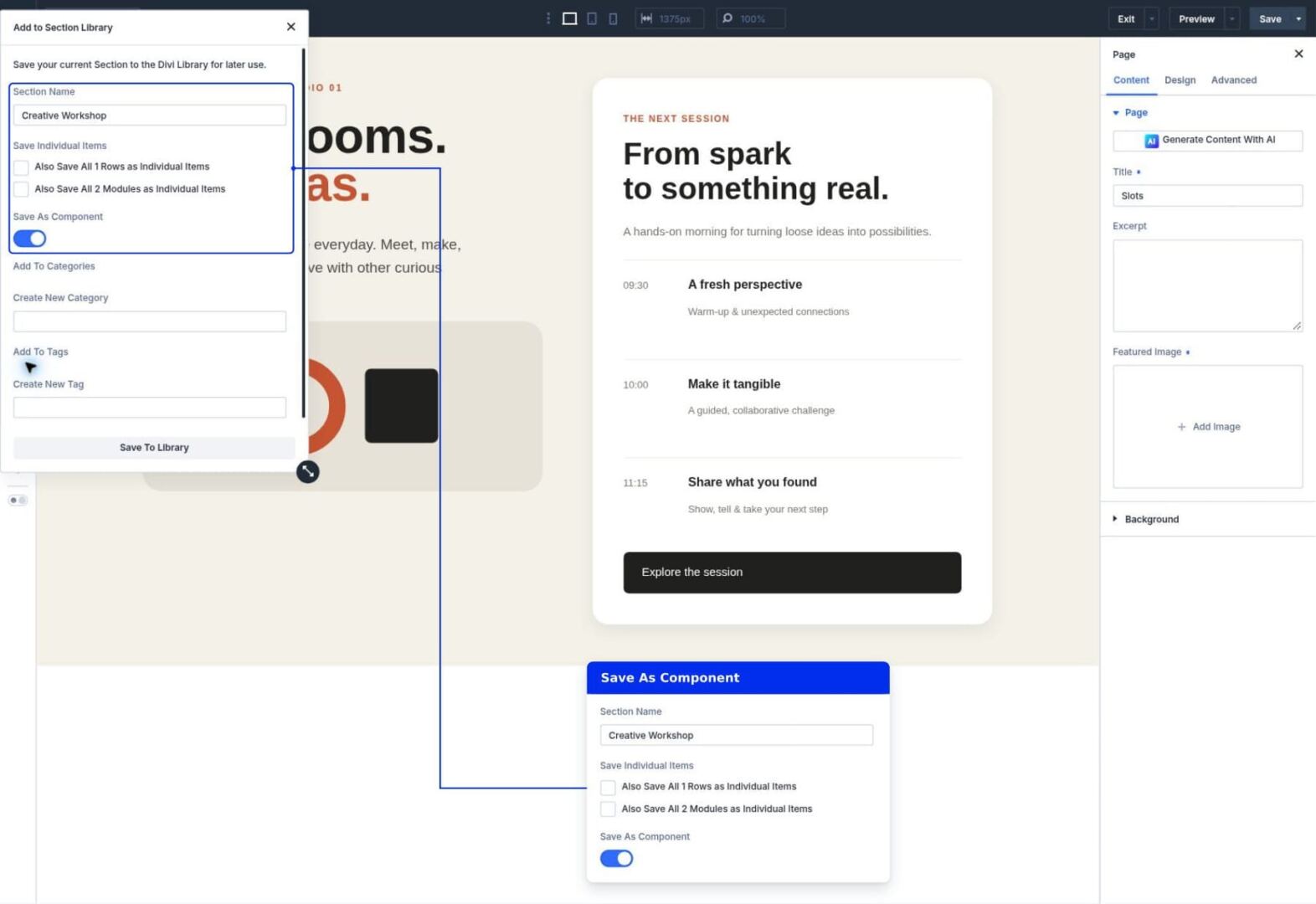
The phase on the internet web page is now an instance connected to the saved Phase provide. It however contains the original schedule Body of workers. Next, we’ll change that Body of workers inside the provide with a Slot.
Make a selection the connected Section in Layers to open its settings. Click on at the Phase menu beside the section identify at the peak of the settings panel, then make a selection Edit Phase. This opens the provision, where you define the common building and the Slot’s position.
Provide improving incorporates Phase Settings and bottom Save and Cancel controls, alongside the Content material subject material, Design, and Advanced tabs. Crimson styling identifies connected portions in each and every provide and instance contexts, so take a look at those provide controls to verify where you could be working.
Changes made correct right here have an effect on connected circumstances, so keep the introduction and illustration in place while getting able the correct column for local content material subject material. When you select any other section in Layers, take a look at whether or not or now not the provision controls keep visible. Within the match that they do, continue improving the provision. Differently, make a selection Edit Phase for the selected section. Saving and confirming a provide change returns you to instance improving; reopen the provision when any other shared business is sought after.

4. Add The Slot In The Right kind Column
With the entire card already copied, choose its dad or mum suitable Column in Layers. If Phase Settings and the bottom Save and Cancel controls are however visible, continue in that provide context. Differently, open the Column’s Phase menu and make a selection Edit Phase. Underneath Content material subject material > Portions, find the outer card Body of workers and click on on its trash icon. Remove the Body of workers from this provide child file; keep the dad or mum Column in place to hold the Slot. Taking out only a nested session products would leave the remaining card inside the shared construction.
Stay in the correct Column’s provide settings and click on on Add Part within the an identical Portions file. Search for Slot inside the module picker and choose it. The Slot should appear immediately beneath that Column in Layers. Save and make sure the provision change previous to changing its label.

Make a selection the new Are compatible in Layers and make a selection Edit Phase to open its provide settings. Underneath Content material subject material > Meta > Part Label, identify it Session Content material subject material. This identifies its function in Layers. The shared provide now contains an empty Are compatible in the correct column.
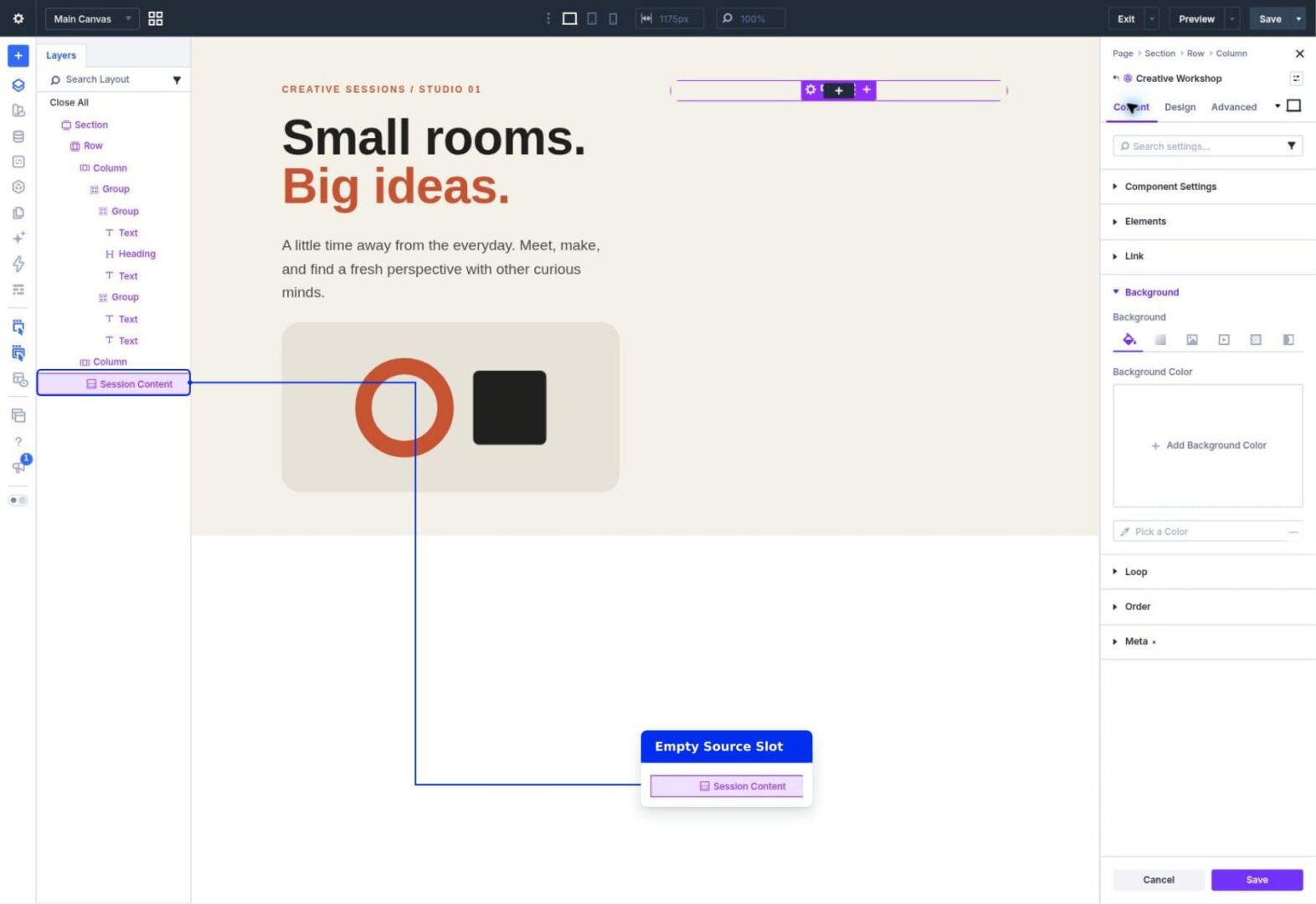
The Slot can give shared container styling, while its local modules can have their own design. For this walkthrough, the copied schedule Body of workers already provides the white background, rounded corners, and inside of spacing. Keep that Body of workers inside the Slot reasonably than rebuilding those varieties on each schedule module.
Keep content material subject material peak automatic. A schedule and a type can have different lengths, so a troublesome and rapid peak can move away unnecessary space or squeeze the local content material subject material.
Decide Where The Card Styling Belongs
There are two useful ways to style this area:
- Style the shared Slot container: Put the background, border radius, and padding on the Slot when each instance should have the an identical card treatment.
- Style an area Body of workers inside the Slot: Put those settings on an internal Body of workers when each local construction needs keep watch over over its non-public card.
Our example assists in keeping the Slot transparent with 0 padding and uses an area Body of workers for the white card. This preserves the original schedule design after we paste it once more. The booking card starts with the an identical copied varieties, alternatively each Body of workers’s background can also be edited independently.
Avoid applying the an identical padding to each and every the Slot and its internal Body of workers. Those values add together and can move away too little room for form fields on smaller displays.
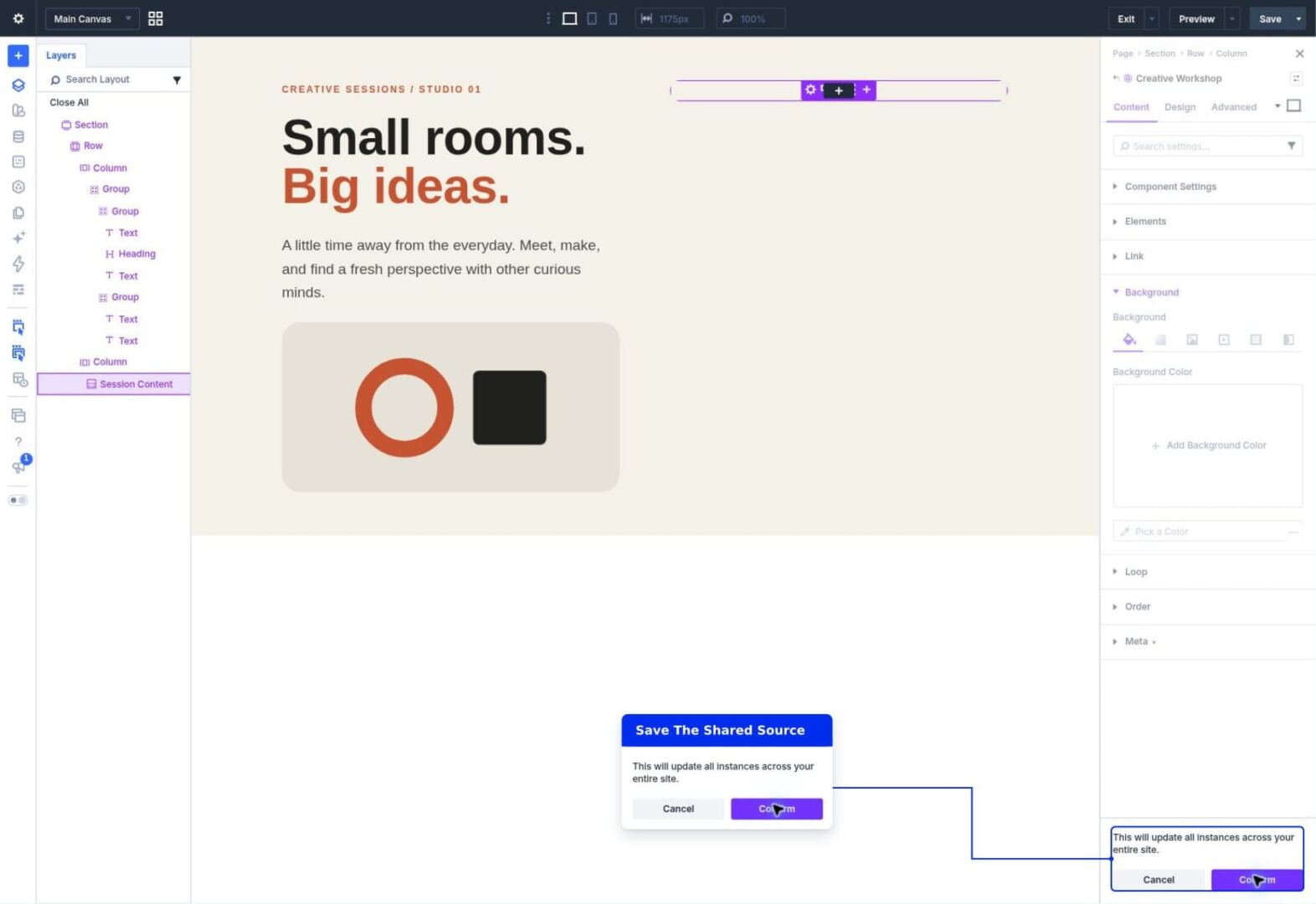
Click on on Save at the bottom of the Phase settings and make sure the change to its circumstances. Close the provision settings with the X at the peak suitable. In Layers, choose Session Content material subject material beneath the internet web page’s Section over again.
The Slot may show a message that each one its settings are managed at the Phase stage. That is expected in this example: its container remains shared, while the modules you add inside it’ll be local. Use those child modules’ settings to edit their content material subject material and design.
The Slot’s child content material subject material is local. Assemble it inside the internet web page instance; the provision defines the Slot’s container and position. A newly added Slot provides an empty area for the instance’s modules inside the builder. Add local content material subject material to turn a card in that area on the front end.
The dad or mum column and phase spacing keep in place when a Slot is empty. If an instance leaves that area empty, evaluate the entire phase and change its surrounding construction as sought after.
6. Assemble The Local Agenda
After leaving provide improving, right-click Session Content material subject material in Layers and make a selection Paste Body of workers. Its copied headings, text, nested Groups, and Button now form this case’s local content material subject material.
If Paste Body of workers is unavailable because of any other section modified the copied construction, rebuild the card inside the empty Slot using its Add Part keep watch over. Add the outer Body of workers first, then insert its child modules by the use of that Body of workers’s Content material subject material > Portions settings.
Our schedule incorporates 3 session items:
- 09:30: A modern perspective. Warmth-up & unexpected connections.
- 10:00: Make it tangible. A guided, collaborative downside.
- 11:15: Share what you came upon. Show, tell & take your next step.
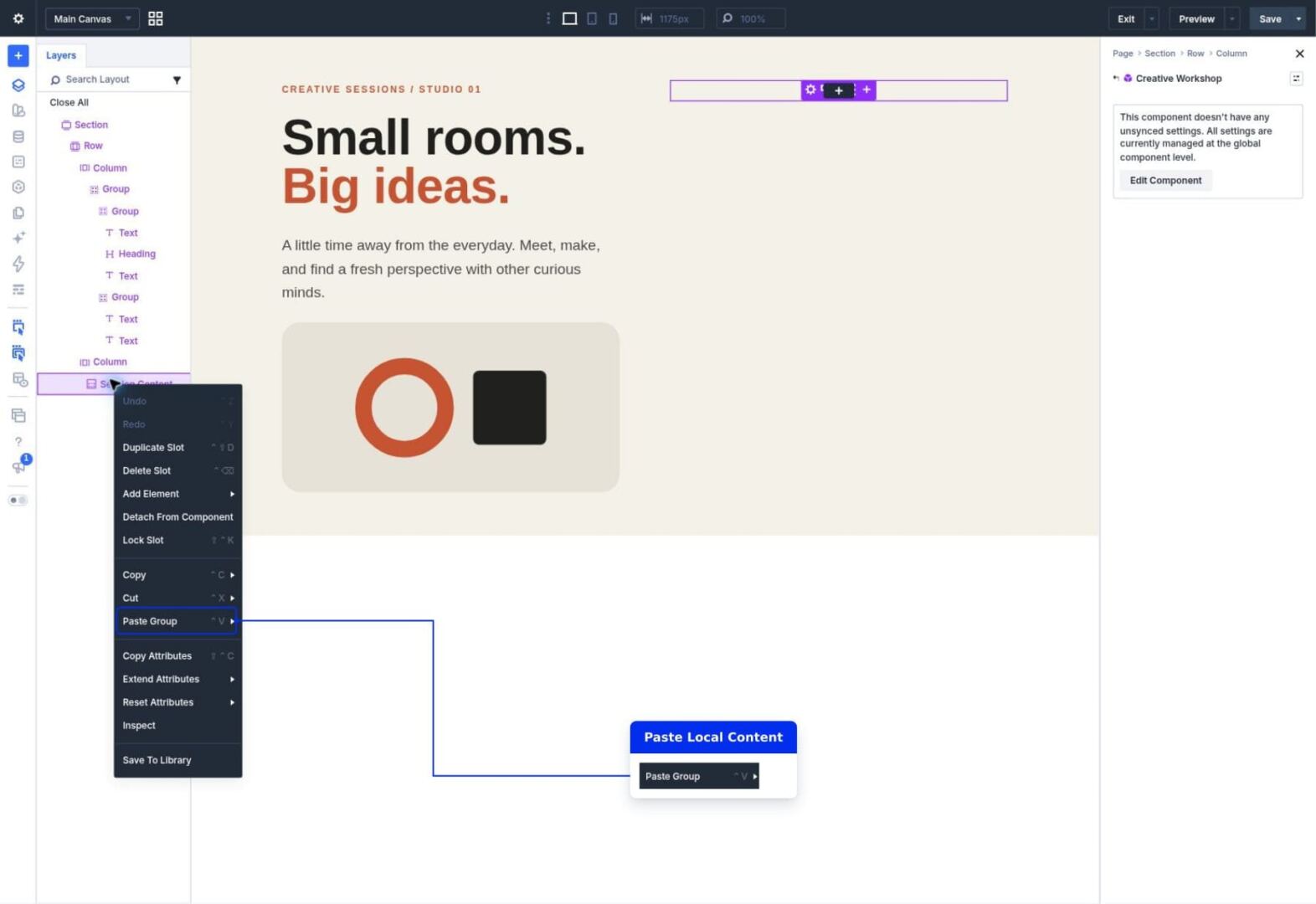
Use Layers view to check that the pasted Body of workers turns out beneath Session Content material subject material. Make larger it to try the schedule’s nested modules. If it sort of feels that beside the Slot underneath the correct Column, it’s outside the local content material subject material area.

Click on on the net web page Save button inside the top-right builder bar to retain its local construction. The bottom Save button used earlier updates the Phase provide; the top internet web page Save assists in keeping this internet web page’s instance content material subject material and construction.
Use A Different Construction In Another Instance
With provide improving closed, right-click the outer connected Section in Layers and make a selection Replica. Replica all of the workshop Section, no longer its Slot or an internal Body of workers. The new phase is a 2d instance of the an identical provide on the internet web page.
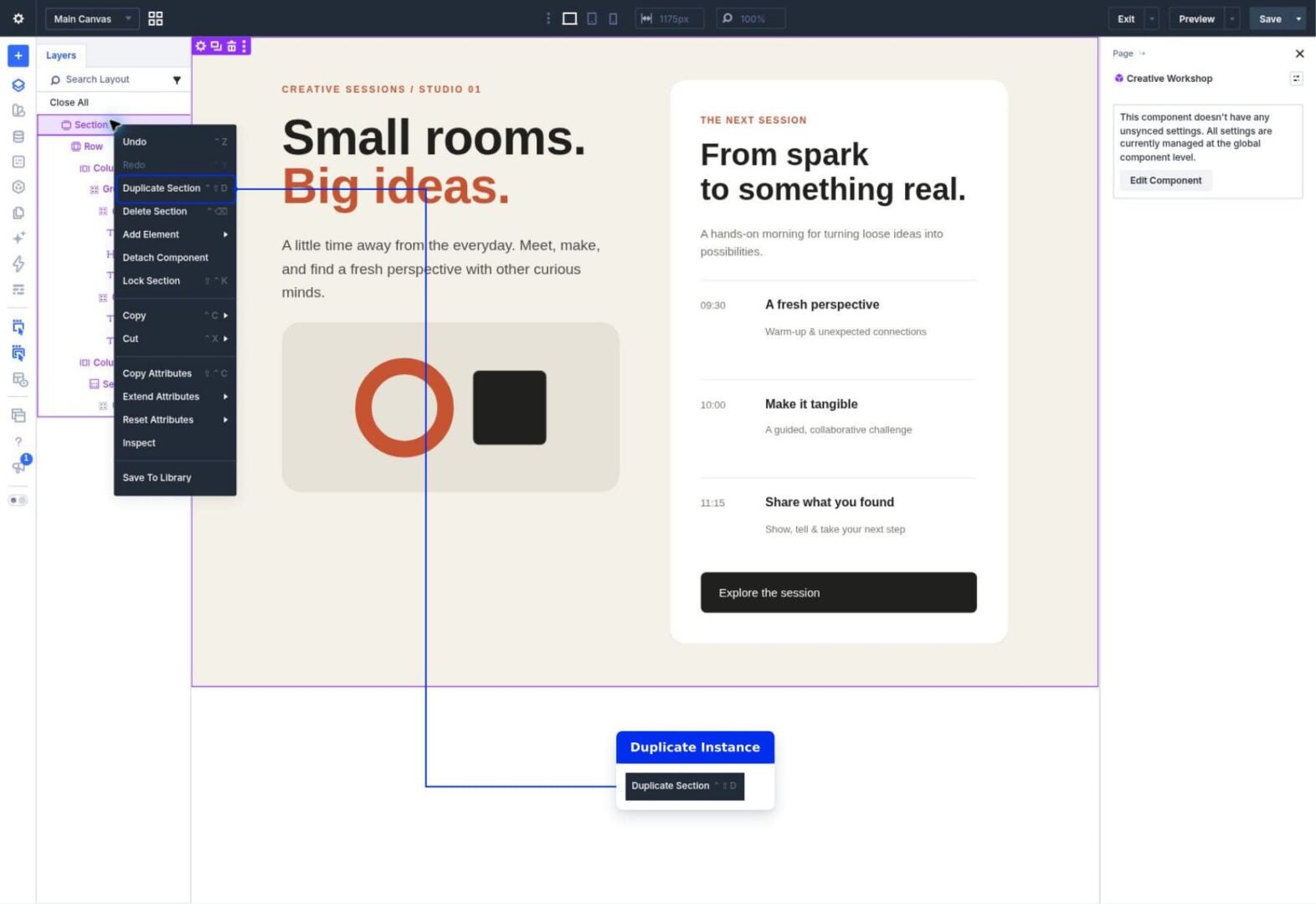
Duplication copies the instance’s provide local Slot content material subject material. Open the second instance’s Session Content material subject material Slot and change the copied schedule construction with the modules sought after for booking. The main instance remains a schedule.
In Layers, find Session Content material subject material beneath the second Section and building up its outer white card Body of workers. Keep that Body of workers and its introductory modules. Right kind-click its nested schedule Body of workers and make a selection Delete, then delete the original Button module. Make a selection the local Heading and Text modules to change their contents. Exchange the local heading to There’s a seat along side your identify on it. and the description to Join our next studio session. Leave your details and we’ll send the invitation.
Change the removed schedule modules with an area Contact Form in the second Slot’s local construction. Our example uses Identify and Piece of email fields with a Save my seat button.
To arrange the booking form:
- Make a selection the outer local card Body of workers beneath the second Session Content material subject material Slot. Open Content material subject material > Portions > Add Part, search for Contact Form, and choose it.
- Open the new Contact Form’s Content material subject material > Portions file. Click on at the trash icon beside Message, leaving Identify and Piece of email Deal with.
- Make larger the form’s Content material subject material > Text settings and change Post Button to Save my seat.
- Return to Content material subject material > Portions and click on at the pencil icon beside Identify. This opens that exact Field‘s settings.
- Inside the Field settings, open Design > Sizing > Column Elegance and make a selection 100% from the picker. The selected value presentations as Fullwidth. This puts Identify on its own line.
- Use the Contact Form breadcrumb at the peak to return to the form. Open the Piece of email Deal with field with its pencil icon and practice the an identical Fullwidth setting.

The pencil opens the Field editor, where Design > Sizing contains the Column Elegance setting confirmed beneath. Apply Fullwidth to each field individually.

Leave the form’s Construction Style set to its default Flex so Column Elegance controls its field widths. Our shape box widths information covers other arrangements and device-specific widths.
The main instance assists in keeping its schedule. You could have two local layouts inside of of 1 shared phase design. Click on at the top-right internet web page Save to retain the new local form. Forward of using it on a are living internet web page, open the Contact Form’s Content material subject material > Piece of email settings and enter its recipient care for. Evaluate the great fortune message and unsolicited mail protection, then test submission and provide. The Touch Shape documentation explains those settings. Proper right here, it demonstrates a singular local module affiliation.
In Layers, choose the introduction Text module outside Session Content material subject material. Open that module’s Phase menu and make a selection Edit Phase, then open Content material subject material > Text > Body. This edits the shared introduction. Our example uses A little bit time transparent of the regularly. Meet, make, and move away with a modern perspective.
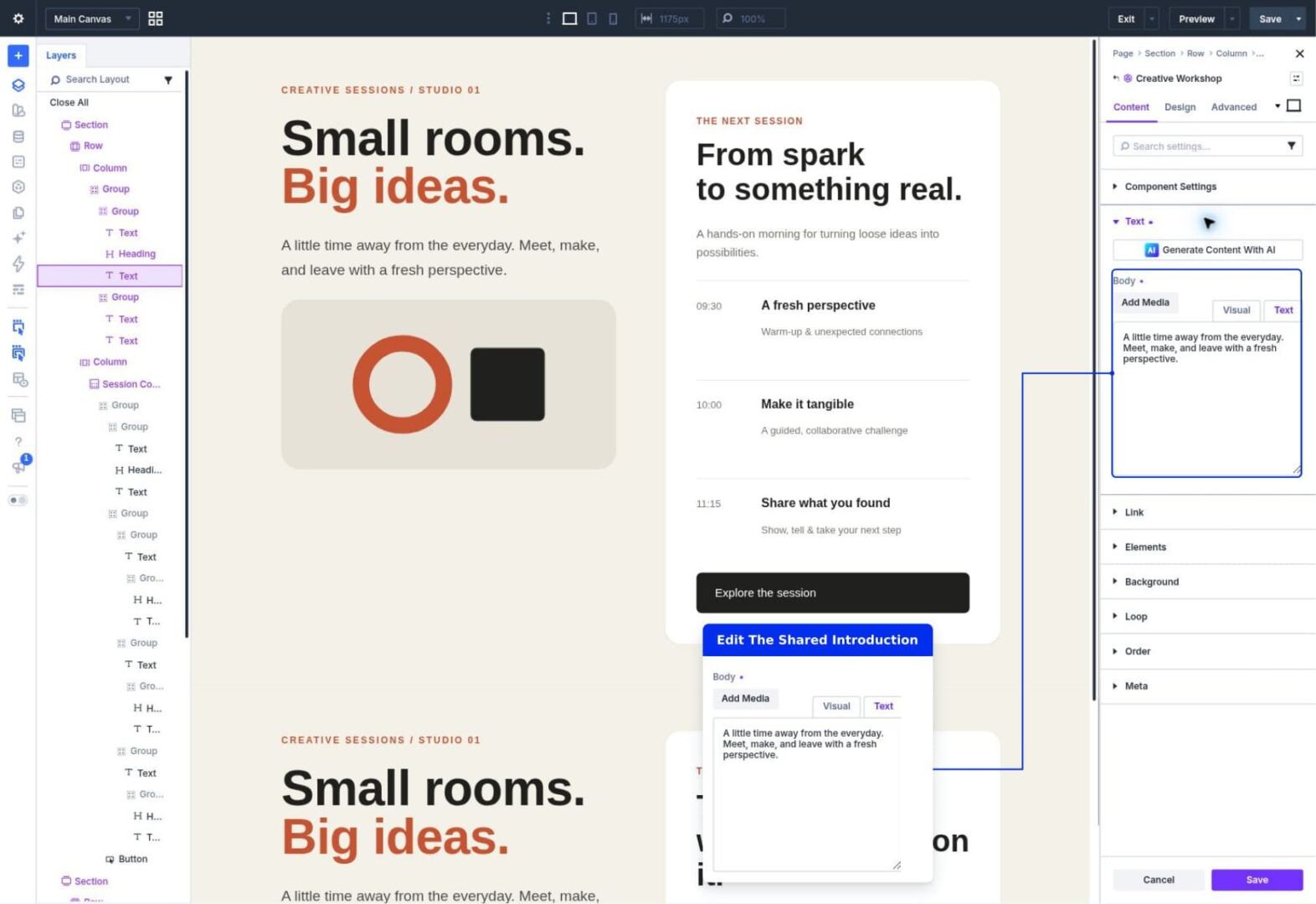
Every circumstances now display that introduction while keeping up their different local content material subject material: the main has its schedule, and the second has its booking form.
Click on at the flooring Phase Save button and make sure This will change all circumstances all the way through all of your web page. Close provide settings with the X, then click on at the top-right internet web page Save to retain its local layouts. Our saved example assists in keeping the up to the moment introduction and its different Slot contents.

If you want to business the design of a module inside one Slot, edit that local module. Changing the shared Slot container and changing a heading inside its contents are different operations.
Check Each Construction On Smaller Displays
Use the tablet and phone icons inside the peak builder bar to preview each gadget construction. Responsive settings for the shared phase and Slot container provide the common foundation. The local modules however need their own evaluate.
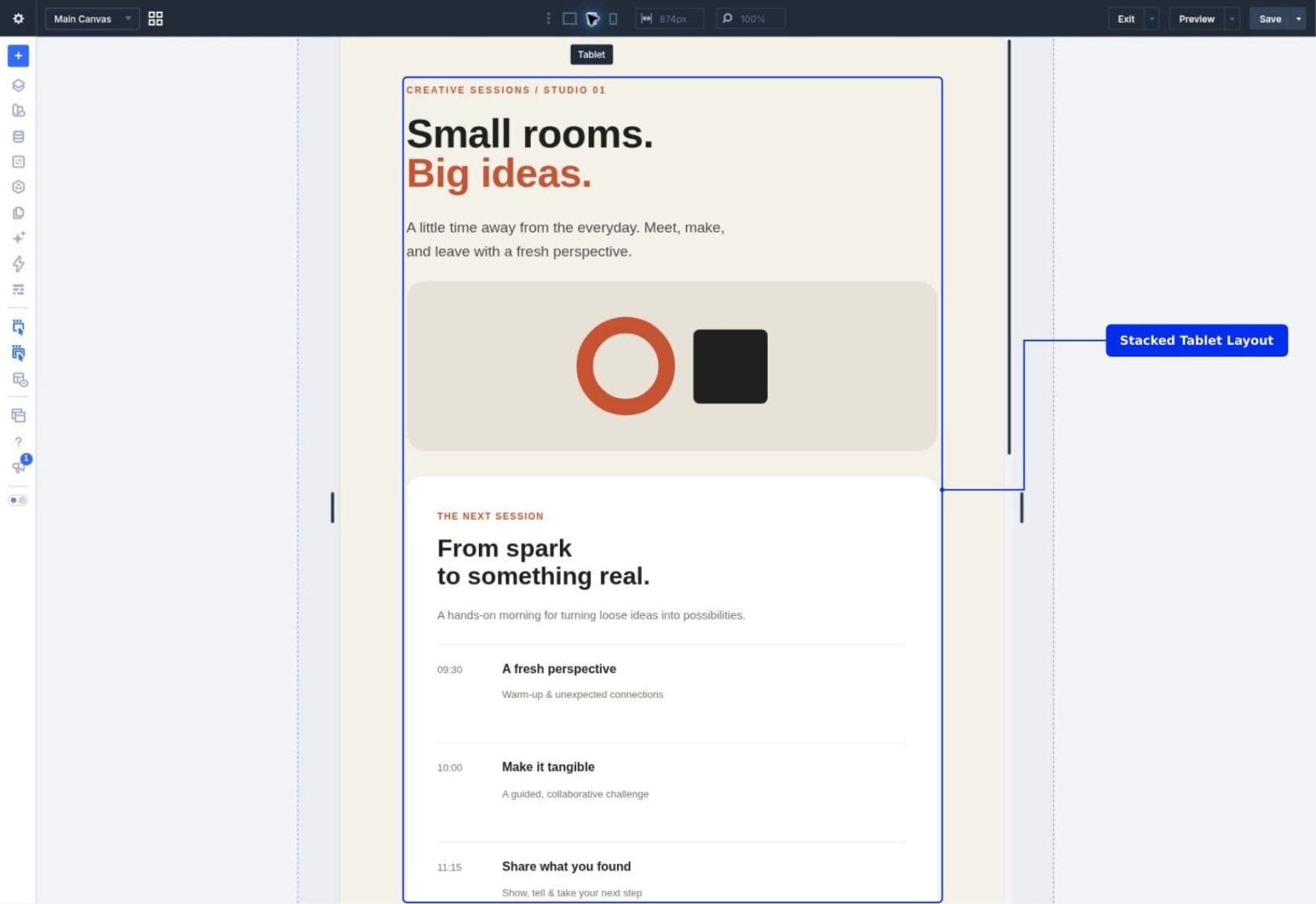
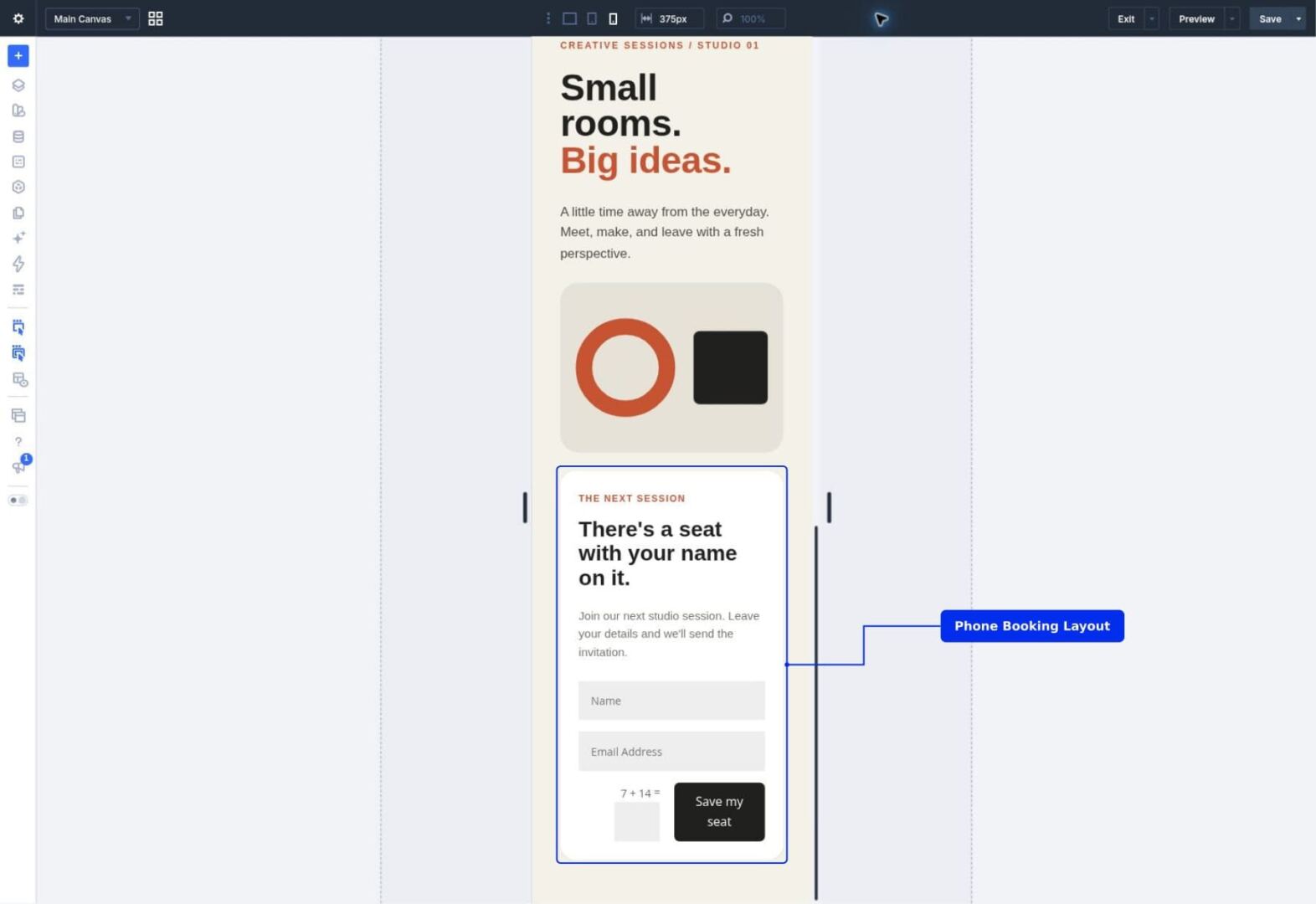
Our workshop stacks the introduction above the Are compatible in its 874px tablet preview and 375px mobile phone preview. The phase’s responsive construction settings keep watch over that affiliation. Check the modules inside each Slot too, since their content material subject material and widths can differ.
The booking form sought after an area adjustment: its distinctive half-width fields clipped the Piece of email placeholder throughout the mobile phone card. Setting each and every fields to finish width made Identify and Piece of email clear at 375px. The button text wraps throughout the card without extending outside it.
The schedule moreover needs a mobile phone adjustment. Its side-by-side time and session details can overflow the slender card. Stack those two portions inside each session row on phones:
- Make a selection the builder’s Phone preview at 375px.
- Inside the first instance’s Session Content material subject material Slot, building up the local schedule card and its nested schedule Body of workers. Make a selection the main session-row Body of workers containing a time Text module and an internal Body of workers for the session heading and description. Edit this local Body of workers immediately.
- Open Design > Construction, keep Construction Style set to Flex, and change the phone Construction Trail to Column. Leave desktop and tablet at Row.
- Repeat the phone-only business for the other two session-row Groups, then use the top-right internet web page Save button to retain the ones local responsive settings.
Check each variation. A schedule’s slender time column and a type’s fields produce other needs despite the fact that they share the an identical outer container. Seek for text wrapping, crowded controls, and horizontal overflow. Cut back padding and typography where appropriate and let each local construction make a decision its non-public peak.
When Will have to You Use Slots?
Slots art work well when a repeated design needs a defined area for flexible content material subject material:
- Event sections: Use the an identical introduction with a schedule, registration form, or recording.
- Service sections: Pair a relentless supplier assessment with a gallery, enquiry form, or detailed file.
- Advertising marketing campaign sections: Keep the encircling design while changing the promotional content material subject material and its module affiliation.
- Helpful useful resource sections: Reuse a shared presentation while each instance contains different supporting media.
If only the text or image needs to vary inside a troublesome and rapid affiliation, editable Phase settings could also be enough. Add a Slot when you want to make room for a singular construction.
Now not bizarre Questions About Slots
Why Can’t I To find Slot In The Module Picker?
Slot insertion depends upon context. Make a selection a dad or mum that accepts nested Body of workers content material subject material, identical to the correct Column inside our Phase. Check for Phase Settings and the bottom provide Save and Cancel controls. Within the match that they aren’t visible, make a selection Edit Phase for that Column. Then open Content material subject material > Portions > Add Part and search for Slot.
Slots can’t be nested inside other Slots or used as Carousel slides. Use Groups to prepare the modules inside a Slot, and add separate Slots to the shared provide when you need additional impartial content material subject material areas.
Will A New Instance Include My Agenda?
The schedule belongs to the internet web page instance, not to the provision Slot. Hanging a modern instance of the Phase will give you its shared design and an empty Slot to fill. Duplicating the populated internet web page instance copies its local schedule, which is why our 2d example started with the an identical card and session items.
Duplicating a Slot inside the Phase provide is any other operation: it creates a brand spanking new empty Slot. It does no longer reproduction each internet web page’s provide local content material subject material into that new area. Make a choice the operation in line with whether or not or now not you want any other instance of the design or any other content material subject material area throughout the design.
Can One Phase Have Multiple Slots?
Certain. Each Slot provides an impartial area for instance content material subject material. A workshop Phase will have one Slot for the primary session details and a few different for supporting assets. Identify them by way of function so it’s clear where each construction belongs.
Keep the shared building useful. If with reference to the whole thing needs to vary, consider whether or not or now not a smaller Phase may well be easier to deal with. Slots art work highest when the encircling design however provides an important common foundation.
Can A Slot Contain Another Phase?
Certain, supplied the nesting does no longer create a spherical relationship. For instance, an area booking construction might include a reusable call-to-action Phase alongside its form. That nested Phase assists in keeping its non-public connection to its provide, although its placement is part of this case’s Slot content material subject material.
Local Slot content material subject material because of this reality does no longer indicate each section inside it’ll must be independently styled. You’ll combine local modules with nested Portions and reusable styling tools, choosing the proper scope for each phase.
Does Renaming A Slot Change Its Content material subject material?
Changing its Part Label changes the way in which you determine the Slot inside the builder. Its local content material subject material is expounded to the Slot itself, reasonably than that display label, so renaming it does no longer turn it into a brand spanking new content material subject material area.
Taking out a Slot from the shared provide has a wider have an effect on: it removes that area from connected circumstances. Forward of removing one, stay any local content material subject material you proceed to need elsewhere.
Keep Local Modules Visually Consistent
You’ll use Presets and Design Variables to coordinate the styling of your local modules. Our knowledge to the usage of Design Variables with Presets explains how those reusable styling tools have compatibility together.
For instance, the schedule and booking layouts can use the an identical heading and button Presets while containing different modules. This allows you to reuse their visual treatment without expecting a copied local Body of workers to behave like a shared Phase.
Assemble Further Flexible Portions With Slots
Slots will let you keep a reusable design while giving each instance room for the modules it needs. In our workshop example, one shared phase can support a schedule and a singular booking construction without requiring separate assets for the encircling design.
Get began with one Phase, one Slot, and two meaningfully different layouts. That will give you a clear approach to uncover how shared design and local content material subject material art work together in Divi.
The publish Exploring Slots For Parts In Divi 5 seemed first on Chic Subject matters Weblog.



0 Comments