


You’ve clicked right into a module to modify some textual content. Now you want to edit the only subsequent to it, so that you shut the settings and click on into the neighboring module. You then repeat the method for the 3rd module in that row.
Every edit calls for opening settings, making adjustments, remaining out, and discovering your subsequent goal. Divi 5 rethinks this workflow fully, providing you with extra tactics to transport thru your content material that really feel herbal and stay your momentum going. And with the newest unlock, the ones navigation enhancements now lengthen past person components to web page control, previewing, and faster get right of entry to to page-level controls. Let’s take a look at what’s modified.
See Your Complete Web page Construction At A Look
Sections stack up, rows multiply, and ahead of lengthy, you’re scrolling throughout the canvas simply to search out one module buried 3 ranges deep. Divi 5 tackles this with a collection of visible gear within the left toolbar, each and every providing a special approach to learn your web page construction with out shedding your house. Right here’s what they do and when to make use of them.
The Layers Panel
The Layers panel offers you a nested record of each component in your web page. Sections, rows, columns, and modules all display up so as, indented to mirror how they sit down inside of each and every different. Open it from the left toolbar and your whole web page construction seems in a single panel, no scrolling throughout the canvas wanted.

On pages with so much occurring, this will pay off speedy. Say you constructed a piece with nested rows and a module workforce buried inside of a column. Discovering that module by means of clicking round at the canvas takes time. Within the Layers panel, you notice it in an instant, click on it, and its settings open at the correct. You didn’t have to the touch the canvas in any respect.
You’ll additionally cave in and enlarge boxes without delay within the panel, which assists in keeping issues tidy when your record will get lengthy. On a web page with 40 or 50 modules, that by myself saves a stunning period of time.
Wireframe Mode
Wireframe mode strips your web page again to its naked construction. Colours, pictures, fonts, and results all disappear. What’s left is a flat define of your sections, rows, columns, and modules, each and every one proven as a classified block. To find it within the left toolbar, correct subsequent to the opposite navigation gear.
Pages with heavy backgrounds, overlapping components, or full-width imagery may also be laborious to learn temporarily. You lose observe of the place issues get started and finish. Switching to wireframe mode cuts out that noise so that you’re taking a look at format, not anything else.

Reordering sections or catching structural issues takes a fragment of the time.
There’s additionally a case for the use of it ahead of you taste anything else. Construct your construction first in wireframe mode, get the hierarchy correct, then get started including visuals. Selections about content material waft are clearer when there’s no completed design distracting you from them.
Divi veterans will acknowledge this. It carried over from Divi 4 and nonetheless does what it has at all times performed smartly.
X-Ray Mode And Motion Icon Modes
X-Ray mode attracts a visual border round each component in your web page. Sections, rows, columns, and modules all get defined without delay. It’s a quick approach to see how your format is if truth be told stacked when backgrounds and full-width pictures make the limits laborious to identify. Toggle it from the left toolbar, and it remains on till you flip it off.

The Motion Icon modes sit down close by in the similar toolbar. Motion Icons on Hover controls whether or not edit, replica, delete, and transfer icons seem whilst you hover over a module. Flip it on, and the controls display up correct at the component. Flip it off, and the canvas remains cleaner, which some designers favor when reviewing a format with out by accident triggering one thing.

Guardian Motion Icons on Hover works the similar approach, however for guardian boxes, that means sections and rows. With it on, soaring a module too can floor controls for its guardian boxes. That issues maximum when you want to behave on a row and considered one of its kid modules in the similar modifying move, with out clicking from side to side between them.

Shifting Between Guardian And Kid Parts Straight away
You’re inside of a module, settings open, and the guardian row wishes a snappy adjustment. Otherwise you’re modifying a piece and wish to leap directly into a kid module with out remaining out and clicking again into the canvas. Divi 5 assists in keeping you correct the place you’re and allows you to transfer throughout the hierarchy with out breaking stride. Right here’s the way it works.
Breadcrumbs
On the most sensible of the settings panel, a breadcrumb path presentations precisely the place you’re: Web page, Phase, Row, Column, Module. Every point is clickable. Choose the Row label, and the row settings load in an instant, no canvas clicking wanted. It’s a small factor that saves numerous back-and-forth on pages with deep nesting.

Content material Drill Down
Going up is straightforward. Happening used to imply remaining settings and clicking each and every kid component in flip. The Content Drill Down menu, discovered on the finish of the breadcrumb path, provides the lacking part of that workflow by means of letting you step downward into kid components out of your present variety.

That implies you’ll be able to transfer from a piece right into a row, then right into a column, then right into a module with out chickening out of the settings panel. On layouts with nested buildings, that saves numerous needless clicking and is helping you keep orientated the entire time.
Divi 5 additionally allows you to transfer thru your content material tree with the keyboard. Left and correct shuttle between folks and kids. Up and down transfer between adjoining components inside of the similar container.
That’s price calling out as greater than a hidden shortcut. Mixed with breadcrumbs and Content material Drill Down, arrow key navigation offers you an entire approach to stroll your web page hierarchy with out depending on exact canvas clicks. On dense layouts, that may be the quickest and maximum correct approach to goal the precise component you wish to have.
Clicking Your Method To Quicker Edits
Numerous construct time disappears between edits. You in finding a component, open its settings, shut out, scroll to the following one, and repeat. Divi 5 addresses this with a collection of gear that shrink the space between seeing one thing and converting it, whether or not you’re tweaking one module or making the similar replace throughout fifty. Right here’s what each and every one does.
The Fast Movements Menu
Proper-click any segment, row, or module in Divi 5, and a context menu seems with the movements you achieve for many. Replica kinds, paste kinds, replica, delete, and upload new modules. It all, correct there, with out touching the settings panel.

Taste copying is the place this turns into in truth helpful. Say you hung out getting a button module taking a look precisely correct: customized colours, explicit padding, a specific font weight. As a substitute of recreating that manually on each different button, you right-click, reproduction the way, then paste it onto each and every goal component. Ten seconds of labor fairly than ten mins.
It additionally reduces panel switching. Movements that used to imply opening settings, scrolling to the proper choice, confirming, and shutting out now take a unmarried click on from the canvas. For repetitive duties throughout a web page with many modules, that relief in steps provides up speedy.
The menu works on all 3 container ranges, so that you’re now not restricted to modules. Proper-clicking a row or segment presentations the similar shortcut choices for the ones components, too.
Bulk Enhancing With The Inspector, Lengthen Attributes, And To find And Change
The Fast Movements menu handles unmarried components smartly. However pages with 30 or 40 modules want a larger way. Divi 5 offers you 3 gear for that: the Inspector, To find And Change, and Lengthen Attributes.
The Inspector is your audit device. Open it on any component, and it collects design values throughout your variety so you’ll be able to spot inconsistency quicker. Colours, fonts, spacing, presets, and different changed values turn out to be more uncomplicated to study after they aren’t scattered throughout a couple of tabs. It’s a robust place to begin whilst you’re operating on a web page you didn’t construct or haven’t touched in months.
Find And Replace is extra surgical. what wishes converting, say a hex colour, spacing price, or font environment, and you wish to have each example of it changed inside of a designated scope. Proper-click the sphere, input your alternative, set your scope, and run it. The entire thing takes about ten seconds, even throughout dozens of modules.
Extend Attributes flips the path. As a substitute of looking for present values, you’re pushing new ones out. Taste one component precisely the best way you wish to have it, then lengthen the ones kinds, content material values, presets, or different attributes to matching components throughout your web page. Get one CTA button correct and mirror it far and wide with no need to the touch each and every one by means of hand.
The 3 gear quilt quite a lot of modifying eventualities, and we put in combination a full breakdown of when to use each one.
Getting To Puts Quicker With Speculative Preloading
Many of the wait time you are feeling in a web page builder occurs on the transition issues. Opening the builder, switching pages, stepping again out to the entrance finish, the ones seconds stack up throughout a complete day of labor. Divi 5 tackles this with Speculative Prerendering, and the payoff is straightforward to note.
It really works by means of the use of most probably navigation intent as a sign. As a vacation spot turns into much more likely, Divi can preload or prerender it so the following view feels a lot quicker by the point you click on.
This is applicable to coming into and exiting the builder, and in addition to gear just like the Command Middle whilst you’re navigating to some other vacation spot inside of your website online.
Speculative Prerendering is on by means of default. If server useful resource utilization is a priority, you’ll be able to flip it off below Builder Settings within the left sidebar.

Value realizing: the Hypothesis API lately works in Chromium-based browsers similar to Chrome, Edge, and Opera. Safari and Firefox have now not carried out it but, so customers on the ones browsers received’t see the ease for now.
Settings Seek And Filtering
Divi modules are filled with settings, and Settings Search & Filtering offers you a quicker approach to get to precisely what you want. A seek bar on the most sensible of the settings panel allows you to kind any key phrase and leap directly to matching choices, no tab switching or scrolling required.
The filter out choices move additional. You’ll filter out by means of settings kind, similar to colours, sizes, font households, or font weights. The changed filter out is especially helpful: it presentations simplest the settings you’ve already modified, so that you get a blank view of precisely what’s been touched.
That’s price so much whilst you’re operating on a format any person else constructed.
Getting Issues Accomplished With Command Middle
The Command Center is a keyboard-first approach to do absolutely anything in Divi 5. Get right of entry to it from the left toolbar or press Cmd+Okay, kind a command, and run it. Including components, opening modals, leaping to a selected settings choice workforce, switching view modes, and navigating to some other web page in your website online all run thru the similar enter.
The place it will get particularly helpful is command queuing. Dangle Cmd+Go back to stack instructions with out executing them but. Sort blurb > workforce > button *2, upload a preset to the queue, then press Input. Divi builds all the nested construction with the preset carried out in a single move, no clicking throughout the module library or settings panel required.
The “:” operator assists in keeping the record manageable because it grows. Sort “:modal” and the consequences filter out to modal instructions simplest, so that you get to the proper one with out scrolling previous equivalent names.
Arrange Pages And Preview With out Leaving The Builder
You’re mid-build, the whole thing’s clicking, after which one thing on the website online point wishes consideration. So that you go out. By the point you’re again throughout the builder, the momentum is long gone. Divi 5 assists in keeping extra of the ones duties in the similar position you’re already operating. Right here’s what that appears like:
Introducing The Web page Supervisor
Switching between the builder and the WordPress dashboard to control pages breaks your focus each time. The Page Manager fixes that by means of placing your web page record without delay inside of Divi 5, obtainable from the left sidebar with out leaving the builder.
Including, opening, duplicating, deleting, or leaping to some other web page takes a few clicks from that panel as an alternative of a complete commute throughout the dashboard.
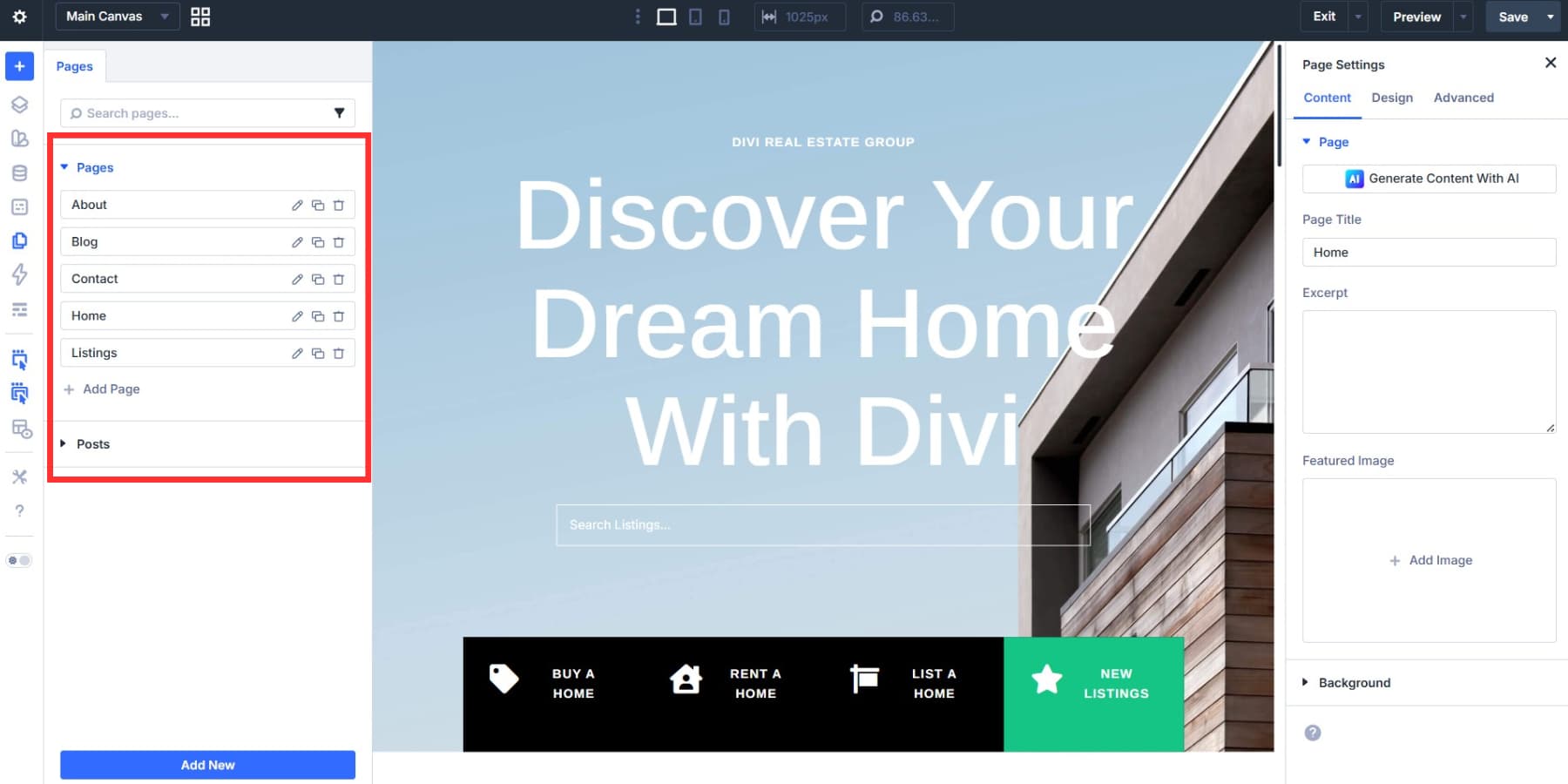
There’s additionally a seek bar on the most sensible, so on a website online with 20 or 30 pages, you’re now not scrolling thru a protracted record to search out the proper one.
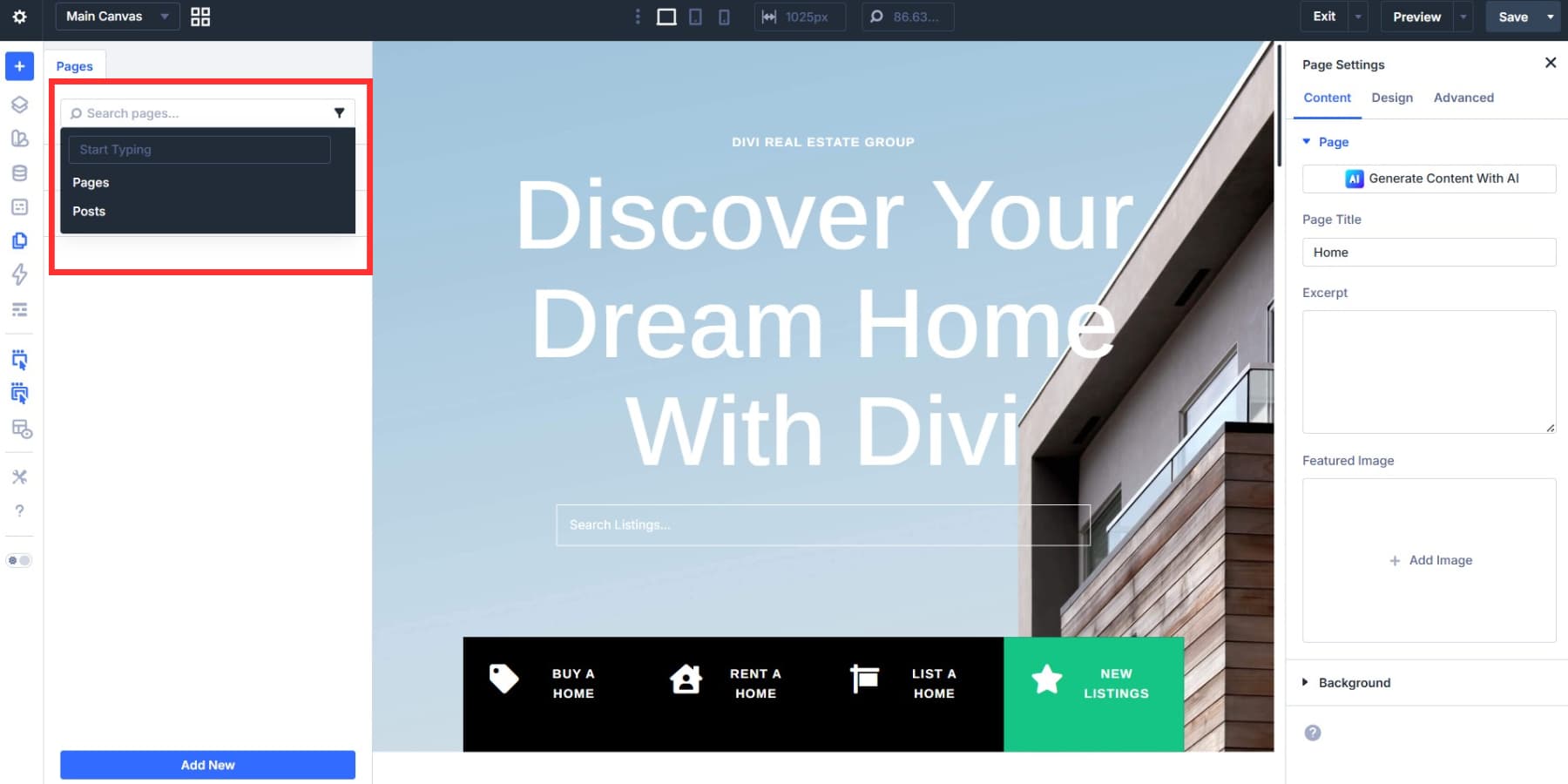
For any individual development multi-page websites, this issues greater than it would sound. The outdated workflow supposed shedding your house, looking forward to the dashboard to load, then discovering your long ago into the builder. Now that detour is long gone. You end a web page and transfer directly to the following one whilst staying in the similar operating surroundings.
The All New Preview Mode
Maximum developers make you open a brand new tab or load a complete front-end preview to peer how your web page if truth be told appears to be like with out the builder UI. Divi 5’s Preview Mode skips all of that. Click on Preview within the most sensible bar, and each UI component disappears: the sidebar, the toolbar, the settings panel, it all, leaving simply your web page the best way a customer would see it.

Getting again into edit mode takes a keystroke or a click on. On Mac, Divi helps Cmd+Length, and the builder additionally exposes the identical shortcut within the UI for different programs. That’s speedy sufficient to test your paintings after small adjustments with out breaking your waft.
The dropdown subsequent to Preview additionally allows you to generate a WordPress preview hyperlink, providing you with a front-end view of your web page out of doors the builder when you wish to have to percentage or check out it that approach.

New Best Bar Choices
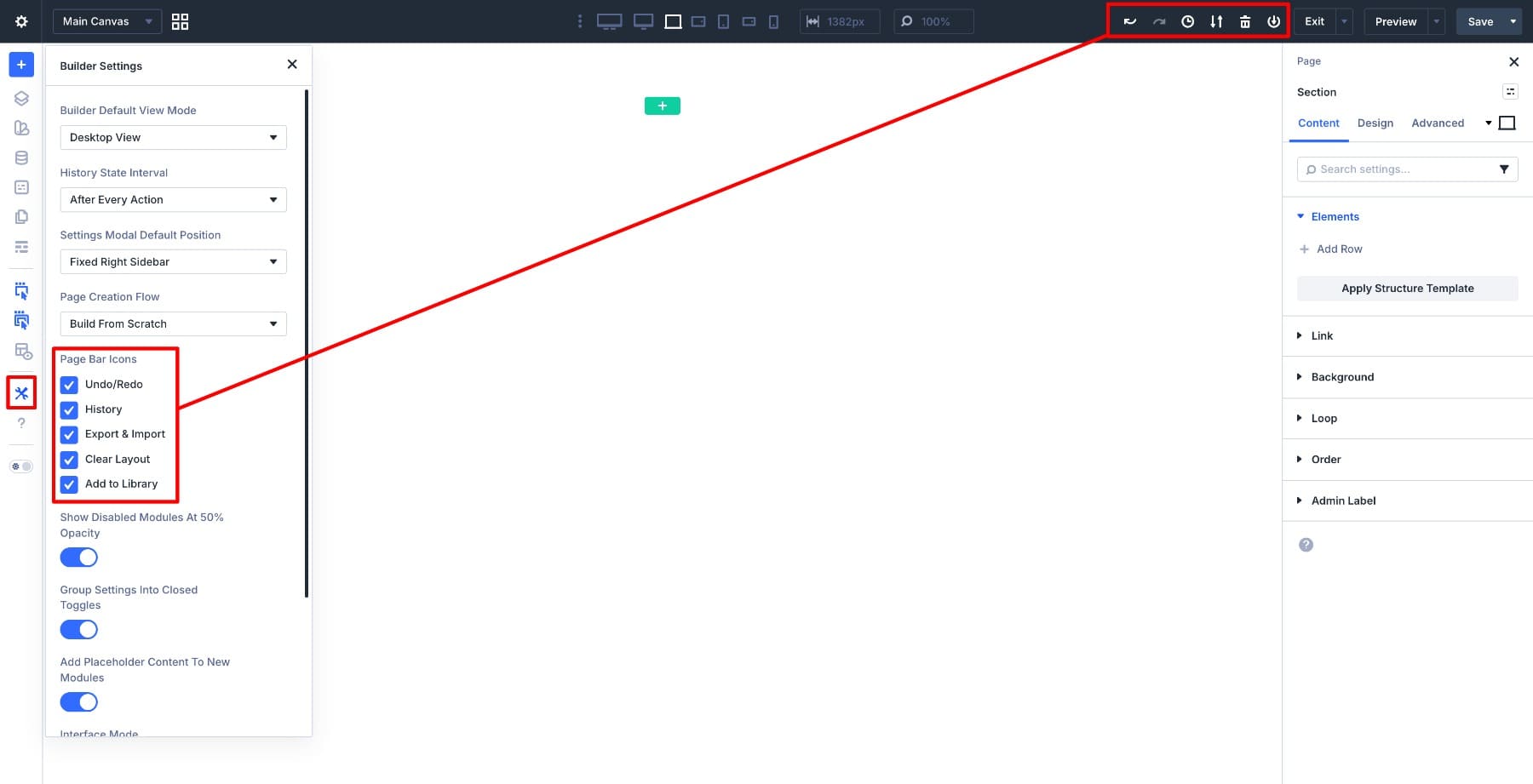
You’ll additionally understand that the highest bar appears to be like other. Divi 5 now makes use of a consolidated page-level menu that gathers web page controls into one position, making the ones movements more uncomplicated to search out and decreasing litter around the interface.
That menu additionally exposes keyboard shortcuts for core movements, which is helping you be told them naturally as you’re employed. And for those who’re bouncing between a couple of pages throughout a construct, the lately opened pages record offers you a snappy long ago with out digging thru menus or reopening the dashboard.
Should you favor the older glance, you’re now not locked in. You’ll repair visual icons throughout the web page settings panel and conceal those you don’t use. So even this new most sensible bar setup is constructed round the similar concept as the remainder of Divi 5’s navigation gear: quicker get right of entry to with much less friction, however nonetheless below your regulate.
Get started Construction In Divi 5 These days!
Quicker builds don’t come from operating more difficult. They arrive from a builder that prevents combating you at each flip. Divi 5 cuts out the friction that used to wreck your focus a dozen occasions in keeping with web page.
In Divi 5, the Layers panel, wireframe view, X-Ray mode, breadcrumbs, Content material Drill Down, and keyboard navigation all show you how to perceive your format and transfer thru it exactly. The Fast Movements menu, Inspector, To find And Change, Lengthen Attributes, and Settings Seek & Filtering make edits quicker whenever you get the place you’re going. And now, with Web page Supervisor, Preview Mode, and the brand new most sensible bar choices, that very same philosophy extends to the web page point too.
It all provides as much as a noticeably smoother approach to construct. You spend much less time searching, remaining panels, switching contexts, and reopening pages, and extra time designing. Get Divi 5 as of late and spot the adaptation in your subsequent mission.
The publish Effectively Navigate Content in Divi 5 (New Shortcuts & Content Drill-Down) gave the impression first on Elegant Themes Blog.




0 Comments