


Divi Notes helps to keep a evaluate request attached to the a part of the web page it considerations. We will be able to establish a heading that wishes consideration, assign the paintings, and stay the follow-up dialog beside that component within the Visual Builder.
We’ll paintings thru a web page evaluate from the primary observe to a finished dialogue, together with the right way to to find assigned paintings and reopen a job. The instance makes use of headline wrapping and occasion particulars, however the similar procedure works on your personal web page content material and format comments.
How Divi Notes Suits Into A Web page Evaluate
Notes is a part of the Divi 5 modifying workflow. Each and every observe identifies its goal component and holds the request, project, and dialog about that job. Notes keep throughout the builder and are to be had to approved web site editors.
Our instance web page has a big headline, occasion particulars, and a contrasting program segment. We use a Design observe for headline wrapping, a Content material observe for checking the pattern occasion particulars, and an Accessibility observe for program legibility. Those are separate evaluate duties: finishing the headline test doesn’t whole the content material or accessibility assessments.
1. Get ready The Web page For Evaluate
Give The Goal Modules Descriptive Labels
Open your web page within the Visible Builder and find a module you need to check in Layers. Double-click its layer to open the settings, then move to Content material > Meta > Part Label. Give the module a label that identifies its objective, such because the headline or occasion particulars. The editor-facing label identifies the objective in Layers and the observe’s component picker.

Save The Web page Prior to Including Comments
Shut the module settings and click on Save within the builder’s most sensible bar. Stay up for saving to complete prior to including comments, particularly when you’ve got simply added modules or modified their labels. Beginning with a stored web page offers the evaluate an outlined format to confer with; you’ll then save once more as you’re employed in the course of the notes.

2. Create A Be aware On The Related Part
Open The Notes Panel
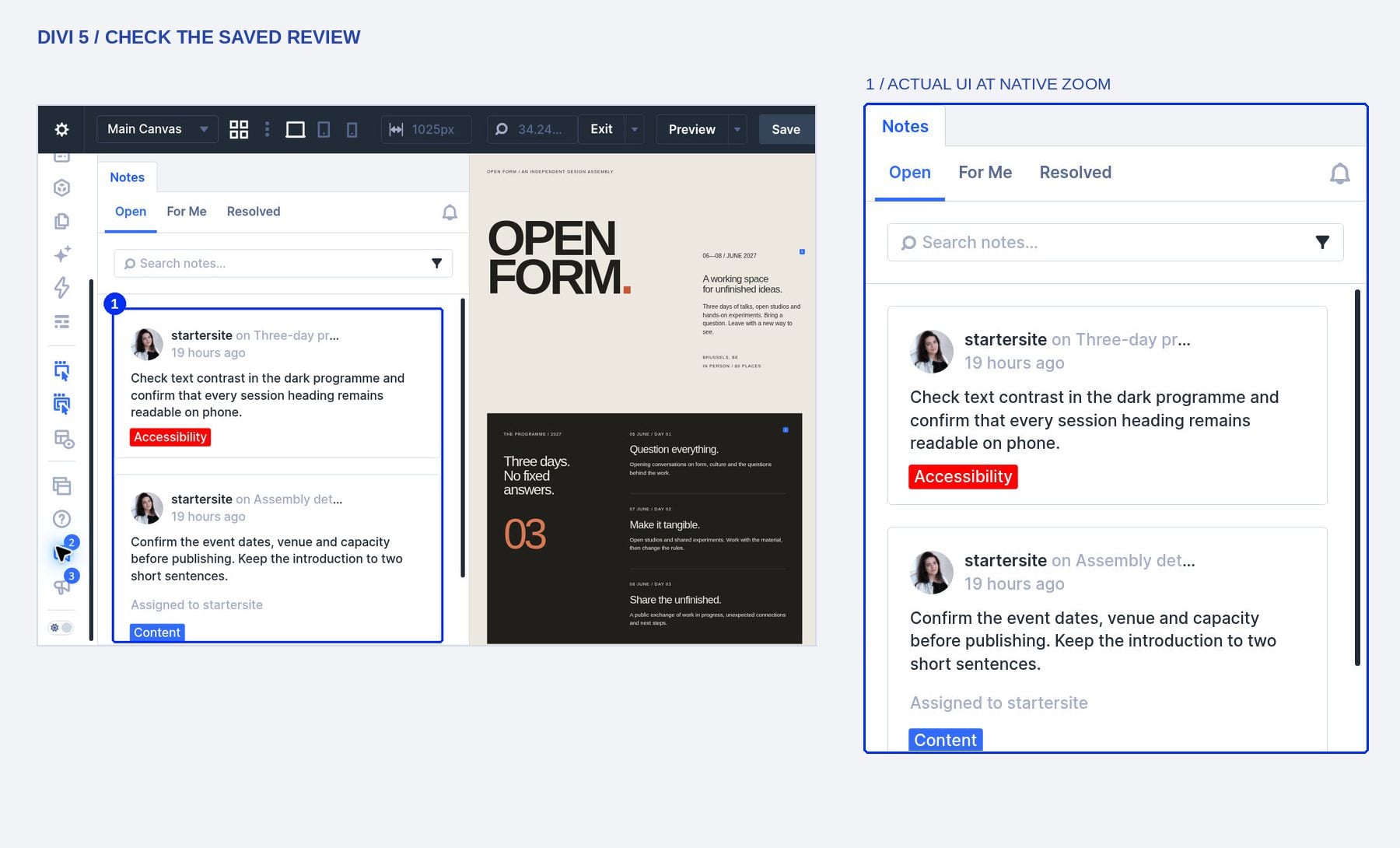
Click on the Notes icon within the builder sidebar to open the panel. Its Open view lists unresolved comments, whilst For Me gathers open notes assigned to you or citing you. The Resolved view helps to keep finished discussions to be had for reference. Get started in Open so you’ll see the place the brand new request will seem after you put up it.

Make a choice The Part The Be aware Refers To
Click on Upload Be aware on the backside of the panel, then open the Part box. Use the picker’s seek to search out the module through its label and make a selection the matching consequence. Take a look at each the component kind and its label prior to proceeding: the observe will have to confer with the module that accommodates the content material below evaluate.
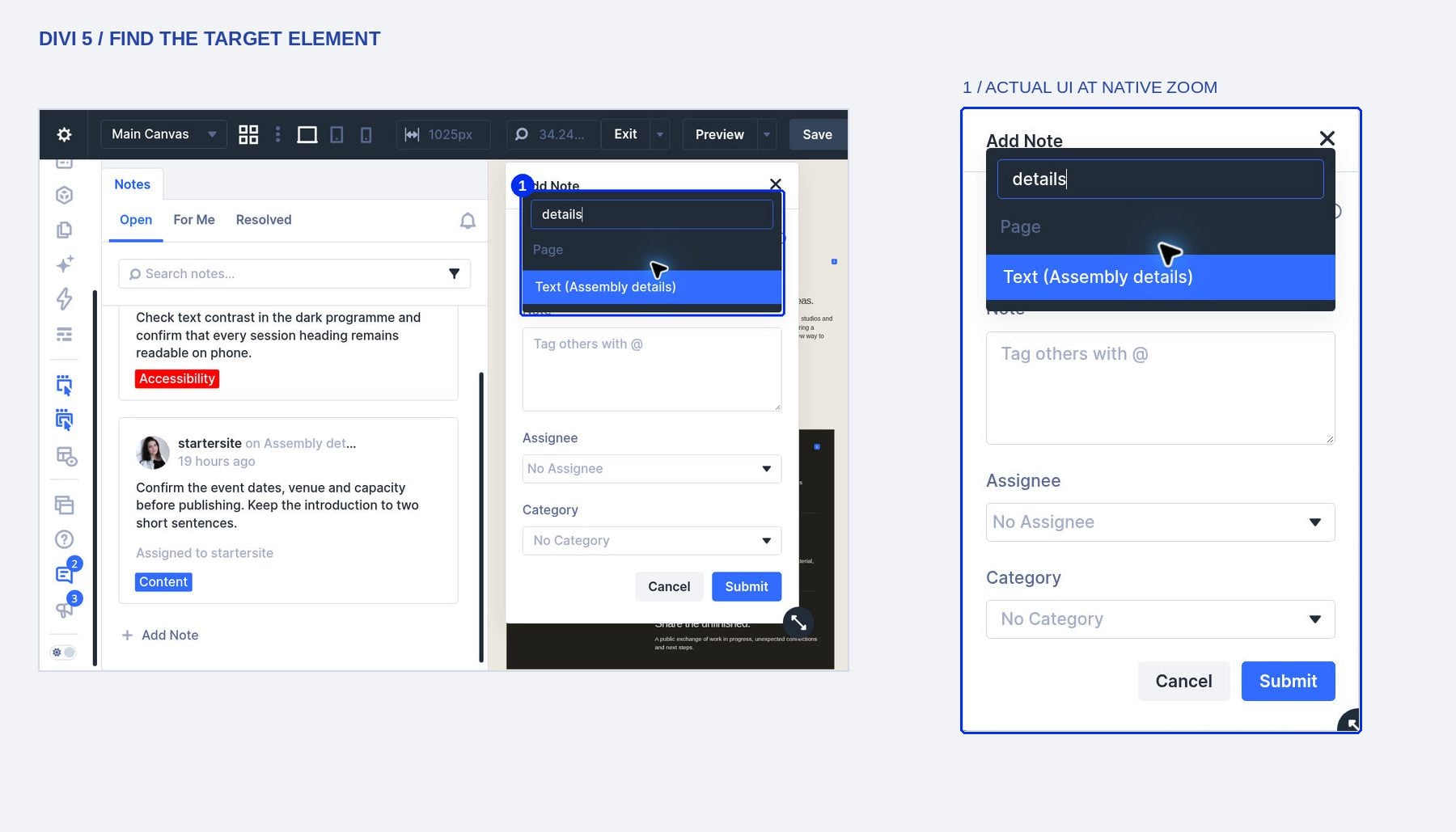
Write Comments Any person Can Act On
Input the request within the Be aware box. Establish what wishes consideration and what the reviewer will have to test or alternate. For a heading, that may imply checking the way it wraps on a telephone; for occasion particulars, it will imply confirming dates and venue news prior to publishing. Stay unrelated requests in separate notes so one job will also be finished with out remaining any other that also wishes paintings.

Assign The Activity
Open the Assignee box and make a selection the eligible web site person accountable for the request. Go away it unassigned if duty has now not been determined but. On this instance, the reviewer account is to be had within the picker; your website’s possible choices rely on its person accounts and their get admission to. An project additionally makes the open job to be had thru that particular person’s For Me view.
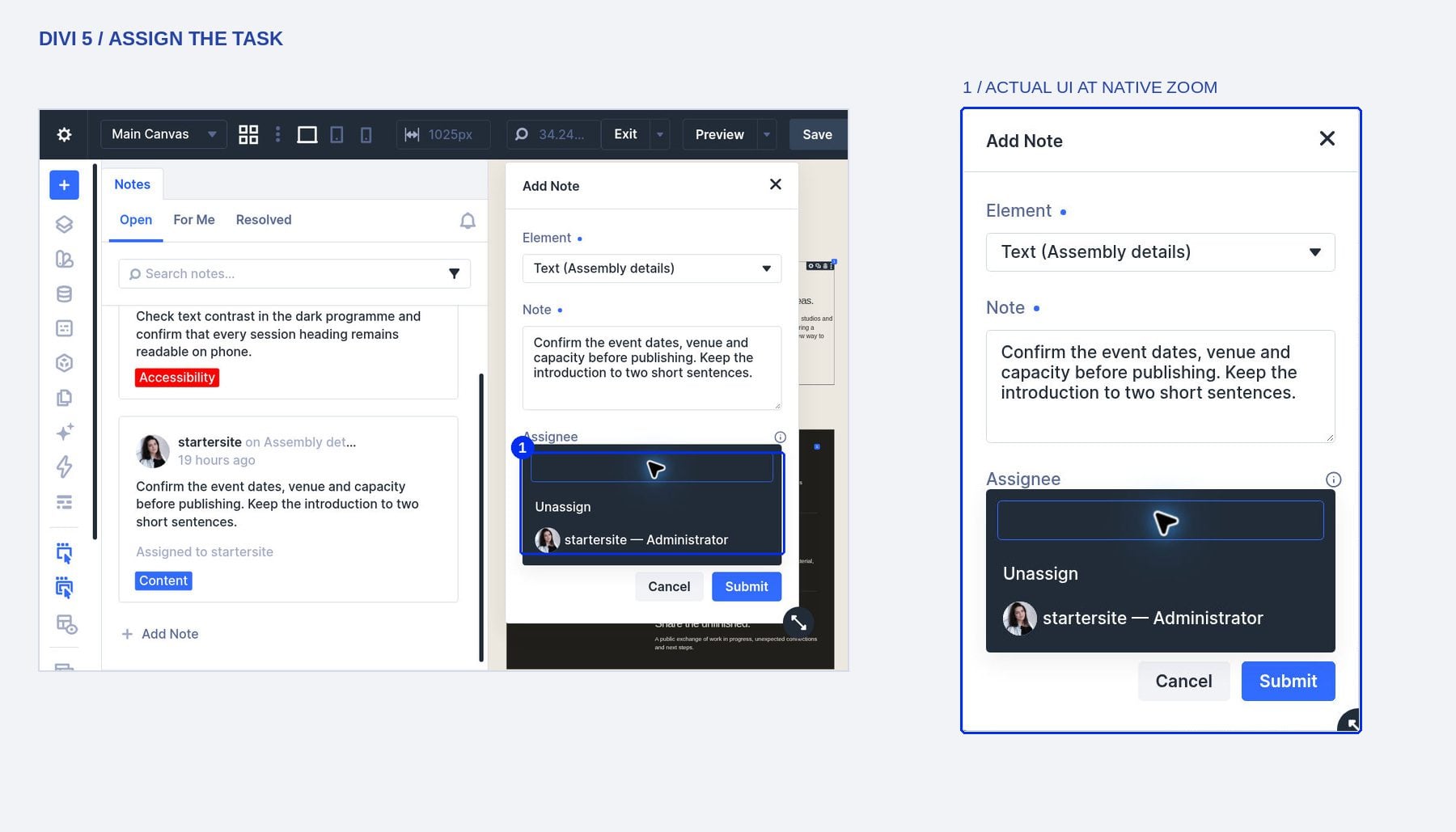
Select A Class
Open Class and make a selection the label that describes the request. The menu comprises Design, Content material, Building, Accessibility, and Query. We use Content material for the event-information test since the request is set checking the reproduction. The class offers the observe a recognizable label within the queue and shall we us clear out identical paintings in combination later.
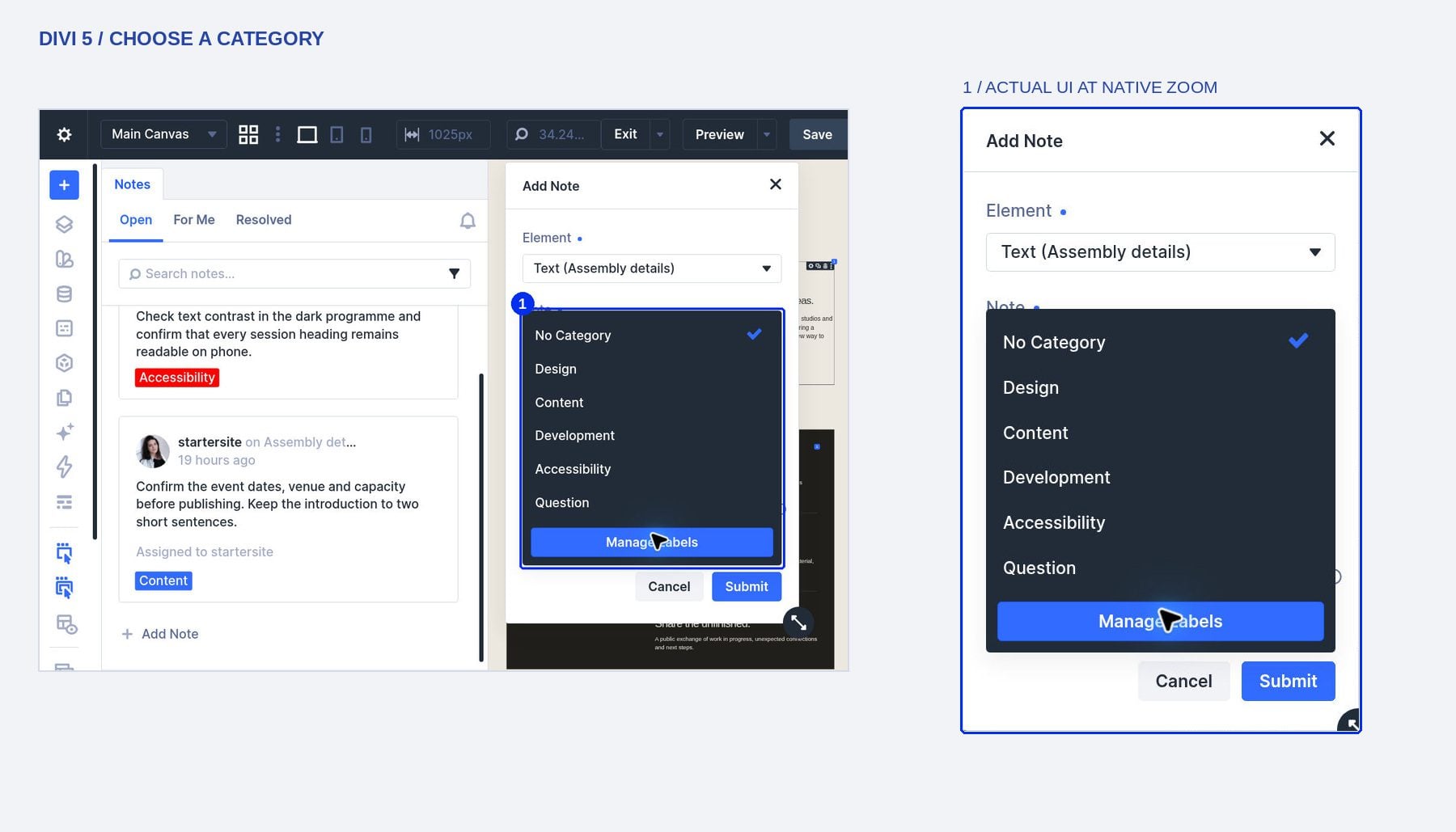
Evaluate The Shape And Post
Prior to clicking Post, test that the chosen component fits the request and that the assignee and class are suitable. Post the observe as soon as the ones particulars are right kind. It turns into a stored dialogue within the Notes panel, the place different approved editors can learn the request and reply. The shape underneath displays the finished fields prior to submission.

Use Layers As An Choice Beginning Level
When you have already got the objective module in view, you’ll get started from Layers as a substitute. Proper-click the module’s layer and make a selection Upload Be aware, scrolling throughout the context menu if vital. Then test the component decided on within the observe shape and whole the similar fields. Use both path to create the observe as soon as.

3. Evaluate And Replace An Current Dialogue
Open The Stored Be aware
Make a choice the observe’s card within the Notes panel to open its dialogue. Learn the unique request prior to making a metamorphosis, and test the component identify on the most sensible of the thread. The dialogue displays the duty’s project and class along its messages, so you’ll ascertain each what wishes doing and the place the comments belongs.
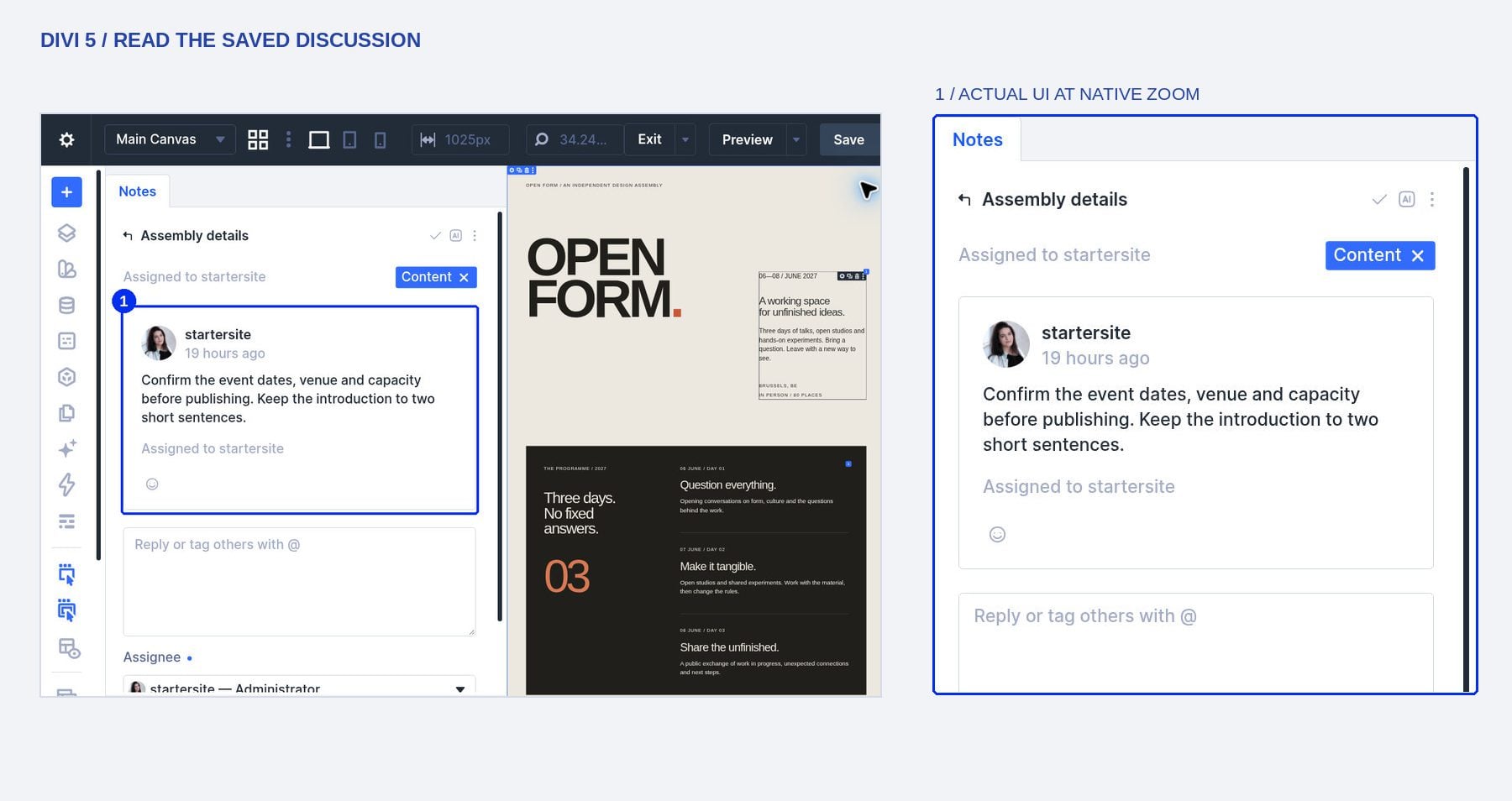
Explain Your Authentic Message
If your individual request wishes rationalization, make a selection Edit message at the message you need to switch. Replace its wording within the editable box, then use the message’s Save button to devote the edit. Select Cancel to stay the present wording. Enhancing corrects the unique request; use a answer when you need so as to add a follow-up reaction as a substitute.

In finding The Part Or Proportion The Dialogue Hyperlink
Open Be aware movements from the thread’s three-dot menu. Select Move To Part when you wish to have to find the related a part of the web page, or make a selection Reproduction Hyperlink to procure an immediate dialogue hyperlink for any other approved editor. The hyperlink supplies a direction again to the dialog; it does now not grant get admission to to anyone who can’t edit the related web page.

After the use of Move To Part, test the chosen space at the canvas towards the request you learn. In our instance, the Content material observe issues to the module containing the development particulars. This provides us some way to go back to the related content material whilst conserving the dialogue to be had within the Notes panel.

4. Answer, Unravel, And Reopen Comments
Answer Whilst The Activity Is Nonetheless Open
Input your reaction within the answer box underneath the dialogue. Use Answer to put up a query or development replace whilst conserving the duty open. For a content material test, that would imply requesting affirmation prior to approving the main points. The drafted reaction underneath illustrates that scenario: soliciting for affirmation does now not imply the content material has already been verified.

Unravel With A Answer After Finishing The Paintings
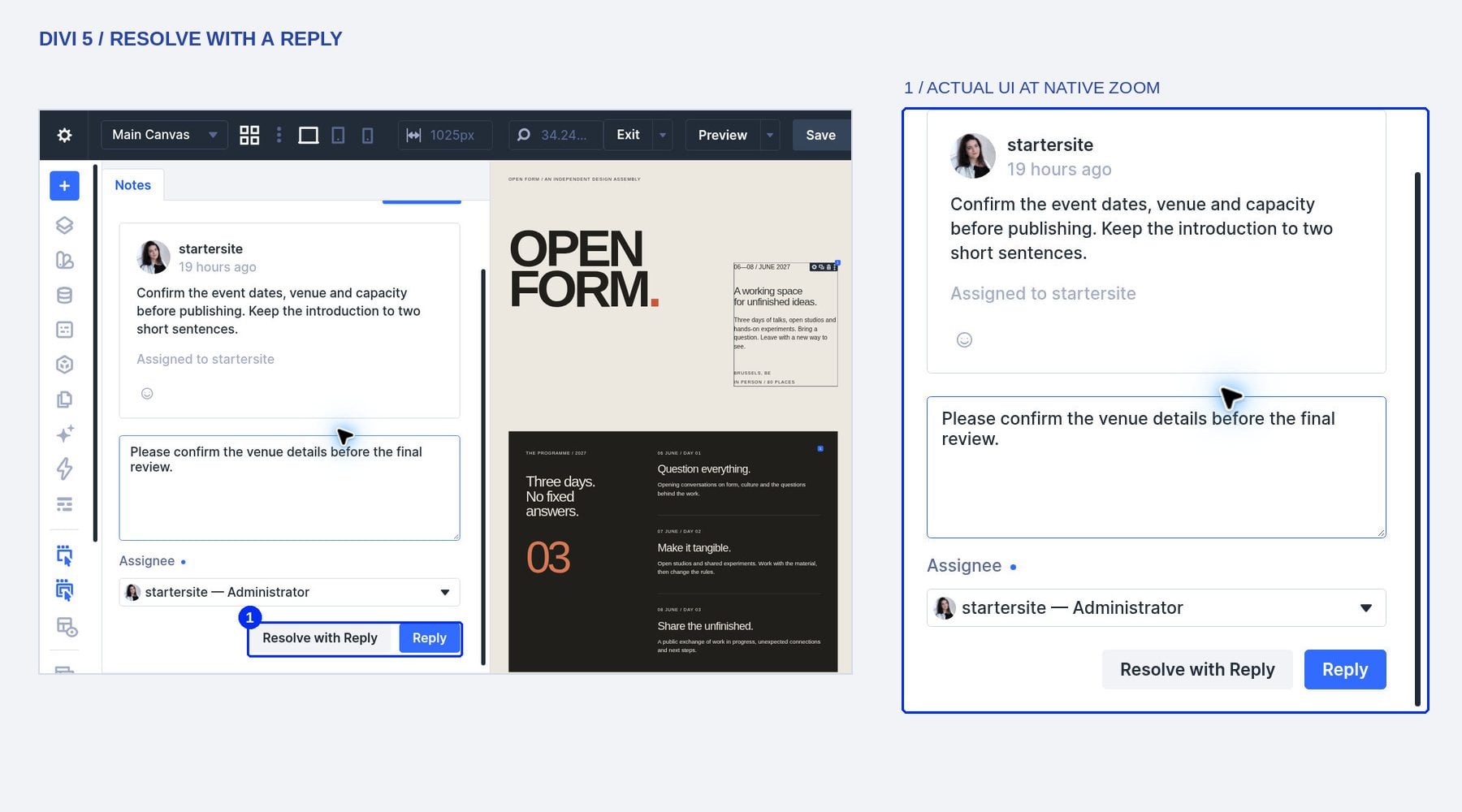
If you have finished the asked paintings, describe the outcome within the answer box and make a selection Unravel with Answer. This posts the reaction and closes the duty in combination. The separate Answer button leaves it open, so make a selection according to whether or not additional paintings stays. Describe the alternate you made or the test you carried out so any other reviewer can perceive why the duty is whole.
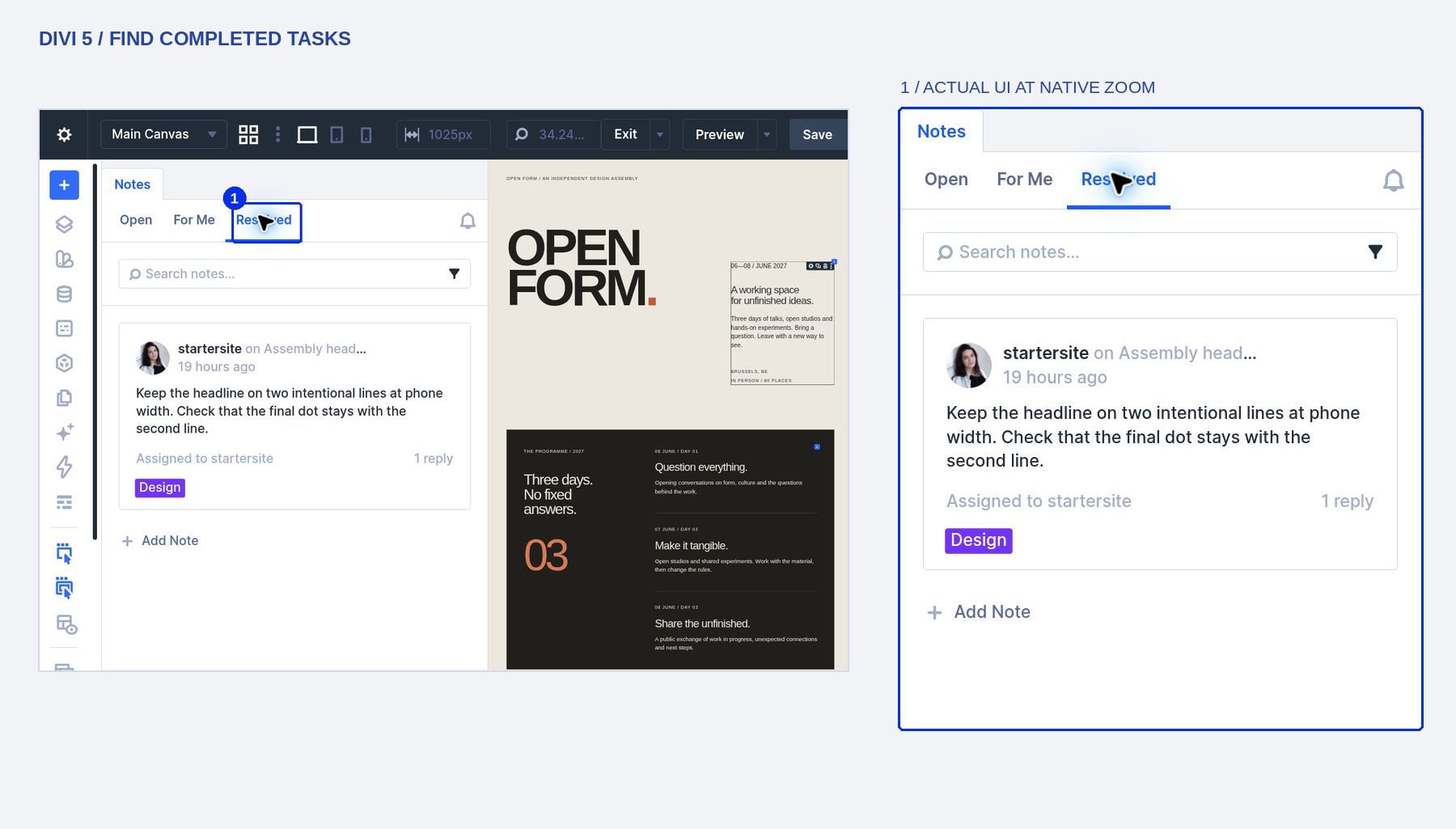
In finding The Finished Activity
Use the again keep an eye on beside the component identify to go back to the Notes record, then make a selection Resolved. This view helps to keep finished notes with their replies. Our headline job is resolved, however the Content material and Accessibility requests stay open till their very own assessments are whole.
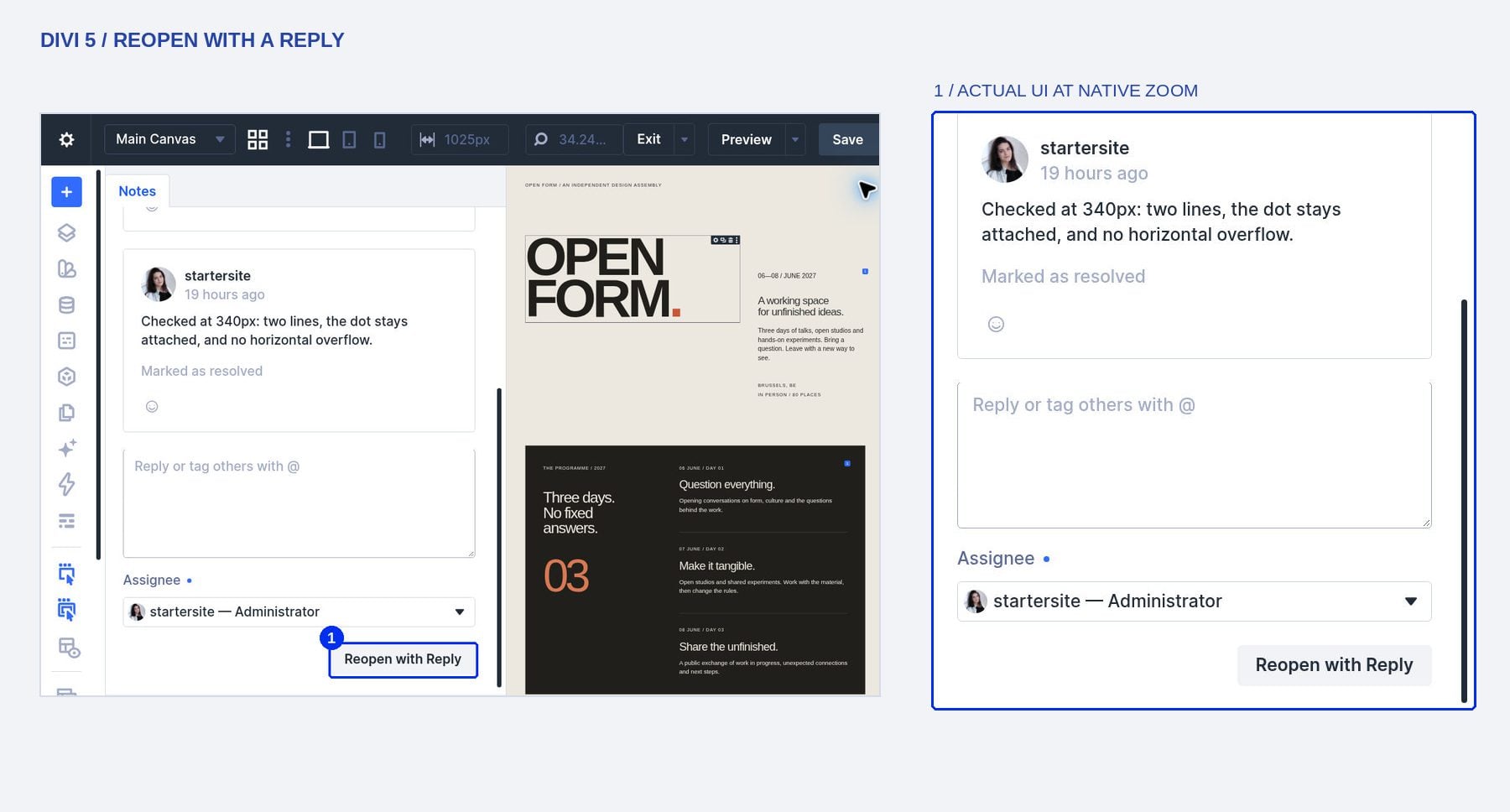
Open the finished job to learn its historical past. The unique request stays along the reaction and its answer standing. Our Design answer information a test at a telephone width of 340 pixels, together with headline wrapping and horizontal overflow. Preserving that rationalization within the thread shall we a later reviewer see what was once checked with no need to reconstruct the dialog.

Reopen The Similar Dialogue For Practice-Up Paintings
If the duty wishes any other revision, use Reopen on the most sensible of the thread. You’ll be able to additionally input a proof within the answer box and make a selection Reopen with Answer to deliver the duty again into the open record with that context. Reusing the dialogue preserves the sooner request and reaction in a single position.
5. In finding The Comments You Want To Paintings On
Get started With For Me
Select For Me when you need to concentrate on open notes assigned to you or citing you. This view is helping separate your evaluate paintings from the broader queue. Within the instance, the Content material request seems as a result of it’s assigned to the present reviewer. If a request is lacking, go back to Open and test its project prior to assuming it was once got rid of.

Seek The Notes And Their Replies
Input a related phrase in Seek notes… to slim the present record. Select a phrase from the request or a answer. Our instance searches for a phrase within the event-details request and returns the Content material dialogue. Transparent the hunt textual content prior to shifting to any other job if you wish to repair the entire record for that view.

In finding And Follow A Class Clear out
Open the clear out keep an eye on beside Seek notes… and sort Content material in Get started Typing. Select the Content material consequence below Class. The picker additionally has teams for assignee and creator, so in search of a class is helping you find its choice with out scrolling in the course of the complete clear out menu.
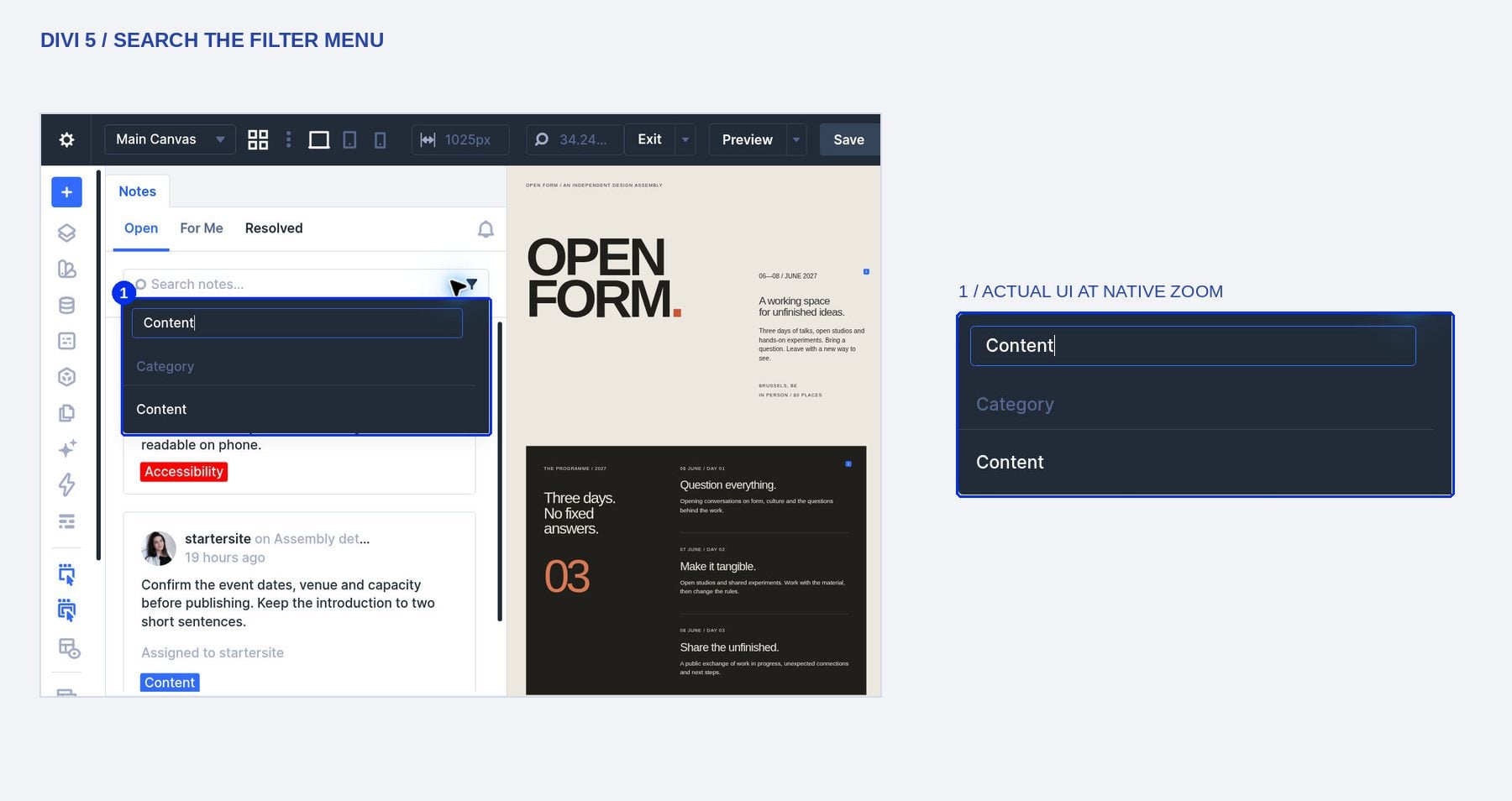
The chosen class now seems within the clear out keep an eye on, and the record displays matching notes. Take away it the use of the small shut icon beside the class identify when you need to develop the consequences once more. Understand that the energetic view, seek textual content, and filters paintings in combination: clearing simplest the class is not going to expose unrelated notes whilst a restrictive seek continues to be energetic.

6. Select Your Notification Personal tastes
Make a choice The Occasions That Will have to Ship E-mail
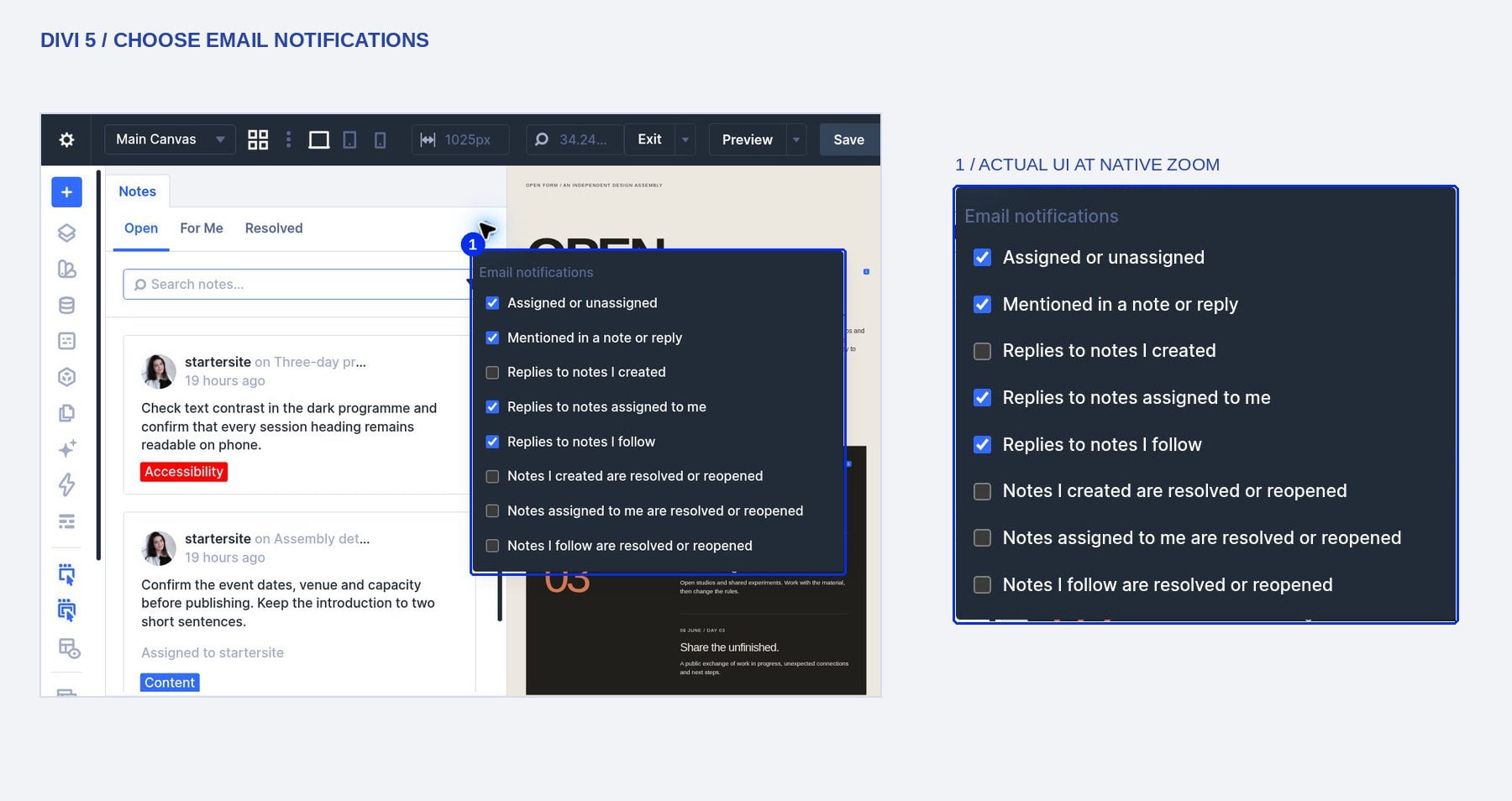
Click on E-mail notifications within the Notes panel to open the personal tastes menu. Its checkboxes quilt assignments and mentions, along side replies and determination updates for notes you created, keep on with, or are assigned to. Permit the occasions you need to obtain and depart the opposite checkboxes unchecked. Those personal tastes keep an eye on which process requests electronic mail; supply makes use of the web site’s electronic mail setup.
Mute An Particular person Dialogue
If you wish to silence one dialog, open its Be aware movements menu and make a selection Mute Notifications. This gives keep an eye on over that individual dialogue with out converting your whole electronic mail personal tastes. The similar menu additionally displays the thread’s following motion. Stay those controls break away resolving the duty: lowering notifications does now not identify that the asked paintings has been finished.

7. Save And Take a look at The Evaluate Prior to Leaving
Save the web page after attaching your notes and completing any format adjustments. As soon as saving completes, reopen or reload the builder and test the evaluate queue. Ascertain that the open notes nonetheless establish their meant parts, and use Resolved to search out finished discussions. On our instance web page, the Content material and Accessibility requests retain their module objectives after saving and reloading, whilst the Design dialogue helps to keep its recorded reaction.
Stay Your Subsequent Design Evaluate In Divi
With Divi Notes, you’ll stay comments hooked up to the weather you’re reviewing in Divi 5. Get started with a particular request, assign the duty, and use the dialogue to elucidate the paintings and report the outcome. Unravel it when the paintings is whole, with the dialog to be had on every occasion you wish to have to revisit it.
The put up Everything You Need To Know About Divi Notes seemed first on Elegant Themes Blog.



0 Comments