

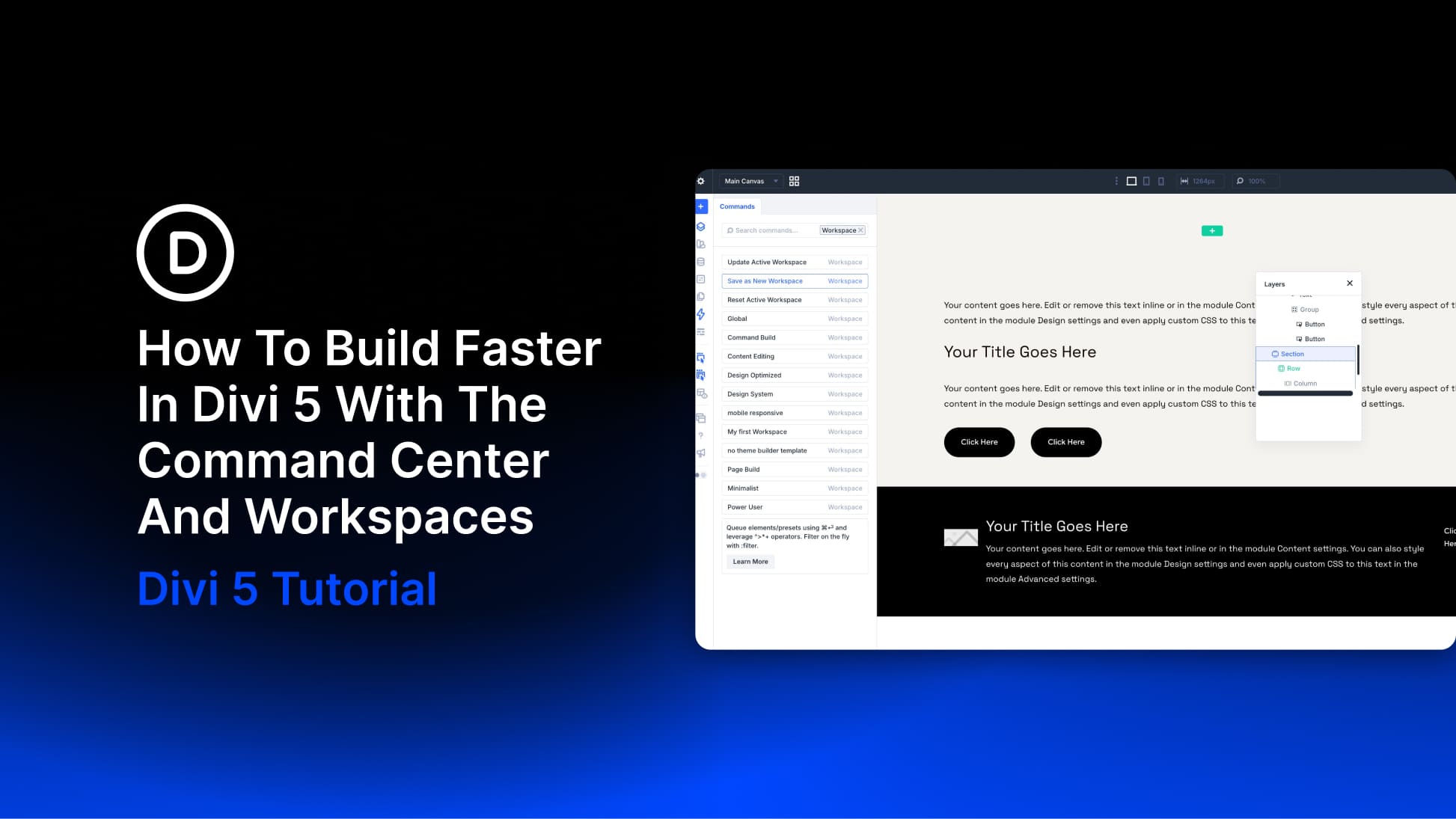
Development sooner within the Divi 5 Visual Builder way spending much less time opening panels and repeating the similar setup. The Command Center handles movements you’ll be able to title, similar to including modules, making use of presets, and opening settings. Workspaces save the panel association you utilize to hold out the ones movements.
We will be able to use them in combination to construct a hero segment: stay Layers visual whilst including its construction, then transfer to a Workspace with more space for styling. You’ll be able to reuse each setups for your subsequent web page.
How The Two Equipment Paintings In combination
Open the Command Middle with Cmd+Okay on Mac or Ctrl+Okay on Home windows. Sort an motion, choose the matching end result, and press Input. Under, Cmd/Ctrl way Cmd on Mac or Ctrl on Home windows.
A Workspace saves your builder personal tastes and panel association, together with which panels are open, the place they dock, and their sizes. Switching Workspaces restores that setup with out converting the web page content material.
For this workflow, we use two stored preparations:
- Command Construct: Stay Layers open to choose components and take a look at the place queued instructions position them.
- Command Taste: Shut Layers and widen the settings panel for adjusting the weather you’ve got added.
The Command Middle permits you to transfer between them via typing their names. It additionally opens the settings and equipment you wish to have inside of every setup.
1. Save Your Command Construct Workspace
Open a clean web page within the Visible Builder and make a selection to construct from scratch. Get started via docking the settings panel so it opens beside the canvas. In Workspace Settings, set Settings Modal Default Place to the left or proper sidebar.
Subsequent, press Cmd/Ctrl+Okay, sort layers, choose the end result, and press Input. Dock the Layers panel and go away it open. Whilst you upload a number of components thru one command queue, the tree permits you to take a look at their nesting with out opening every part at the canvas.
With the panels organized, reopen the Command Middle and run Save as New Workspace. Input Command Construct within the Workspace Identify box and click on Save. You’ll be able to go back to this association on every occasion you wish to have so as to add or reorganize web page content material.
2. Construct The Hero Construction With Instructions
Variety controls the place new modules cross. Use the Layers panel to test your variety earlier than opening the Command Middle:
- With a module decided on, the brand new module is going beneath it in the similar container.
- With a row decided on, including a module creates a brand new row to carry it.
- With a piece decided on, including a module creates a brand new segment and row to carry it.
- With not anything decided on, Divi makes use of a module within the viewport because the insertion reference. Make a choice a component explicitly when placement must be predictable.
For the hero, we want a row with a heading, supporting textual content, and a Crew containing two buttons. Queuing shall we us upload comparable components with out reopening the module picker for every one.
Press Cmd/Ctrl+Input to queue a component or preset and stay the Command Middle open. Press Input to run the queue. The > operator nests the following part throughout the earlier one, and *2 provides two copies of a component.
Make a choice the empty segment and open the Command Middle. Sort row, choose the matching part command, and press Cmd/Ctrl+Input. Then sort > heading and press Input. Divi provides the row with a Heading module within.
Make a choice the heading, reopen the Command Middle, and run textual content so as to add a Textual content module beneath it. With that Textual content module decided on, construct the button container:
- Sort staff and press Cmd/Ctrl+Input.
- Sort > button and press Cmd/Ctrl+Input once more.
- Sort *2 and press Input to run the queue.
The Crew accommodates each buttons, supplying you with one part to choose when arranging them in combination. Take a look at the Layers tree earlier than proceeding. Change the modules’ placeholder content material together with your heading, supporting reproduction, and button labels and hyperlinks.
If you wish to have to insert one thing above an present module, choose it and prefix the brand new module command with ^. As an example, ^ textual content provides an eyebrow line above the chosen heading.
3. Transfer To Command Taste For Styling
With the construction in position, give the settings panel more space. Shut Layers, widen the settings panel, and run Save as New Workspace from the Command Middle. Identify this association Command Taste and click on Save.
As soon as each Workspaces are stored, switching stages takes one command. Press Cmd/Ctrl+Okay, sort Command Construct or Command Taste, choose the matching end result, and press Input. Use Command Construct when including extra construction, then go back to Command Taste for settings changes.
In Command Taste, choose the button Crew and open the Command Middle. Sort format and make a selection the end result underneath Settings. Set Structure Route to Row to put the buttons facet via facet. The command opens the related choice staff for your docked panel; you continue to make a selection the environment price there.
Practice stored kinds the similar means. Make a choice the primary button, open the Command Middle, sort its preset title, make a selection the matching preset, and press Input. Repeat for the second one button. This skips opening every button’s preset dropdown and looking throughout the record.
The presets should exist already for your web page. Use transparent names you’ll be able to keep in mind, similar to Number one Button and Secondary Button. If you wish to have to create them, apply our guide to presets in Divi 5.
For long run additions, the + operator applies a preset inside the part queue. Queue button with Cmd/Ctrl+Input, then sort + adopted via your stored button preset title. Make a choice the preset and press Input so as to add a styled button. So as to add two, queue the preset with Cmd/Ctrl+Input, sort *2, and press Input.
4. Use Instructions For Settings And Responsive Exams
Keep in Command Taste whilst refining the hero. With a component decided on, reopen the Command Middle and sort the choice staff you wish to have, similar to spacing or border. Make a choice its Settings end result and press Input. The docked panel opens at once to that staff, skipping the tabs and scrolling.
You’ll be able to additionally change your selection from the keyboard. With the canvas centered, Left Arrow selects a dad or mum, Proper Arrow selects a kid, and Up and Down transfer between siblings. Go back center of attention to the canvas earlier than the usage of those keys for navigation; within a textual content box, they transfer the cursor.
Reopen the Command Middle for every of those exams:
- Run telephone to check out the hero on the telephone breakpoint, then desktop to go back.
- Run hover state to edit supported hover settings at the decided on part. Run default state while you end.
- Run variables to open the Design Variables supervisor if you wish to have every other reusable price.
If a seek returns a number of in a similar way named instructions, slender it with a class clear out. :settings limits effects to choice teams, :preset to presets, and :view to view instructions. Ascertain the highlighted end result earlier than urgent Input.
Whilst you end, run save and preview to save lots of your adjustments and check out the web page earlier than exiting the builder.
Stay Your Workspaces In a position To Reuse
In the event you transfer panels whilst running, run Reset Energetic Workspace to revive the stored association. If the brand new association works higher, run Replace Energetic Workspace to stay it. Those instructions arrange the builder setup; they’re cut loose saving your web page edits.
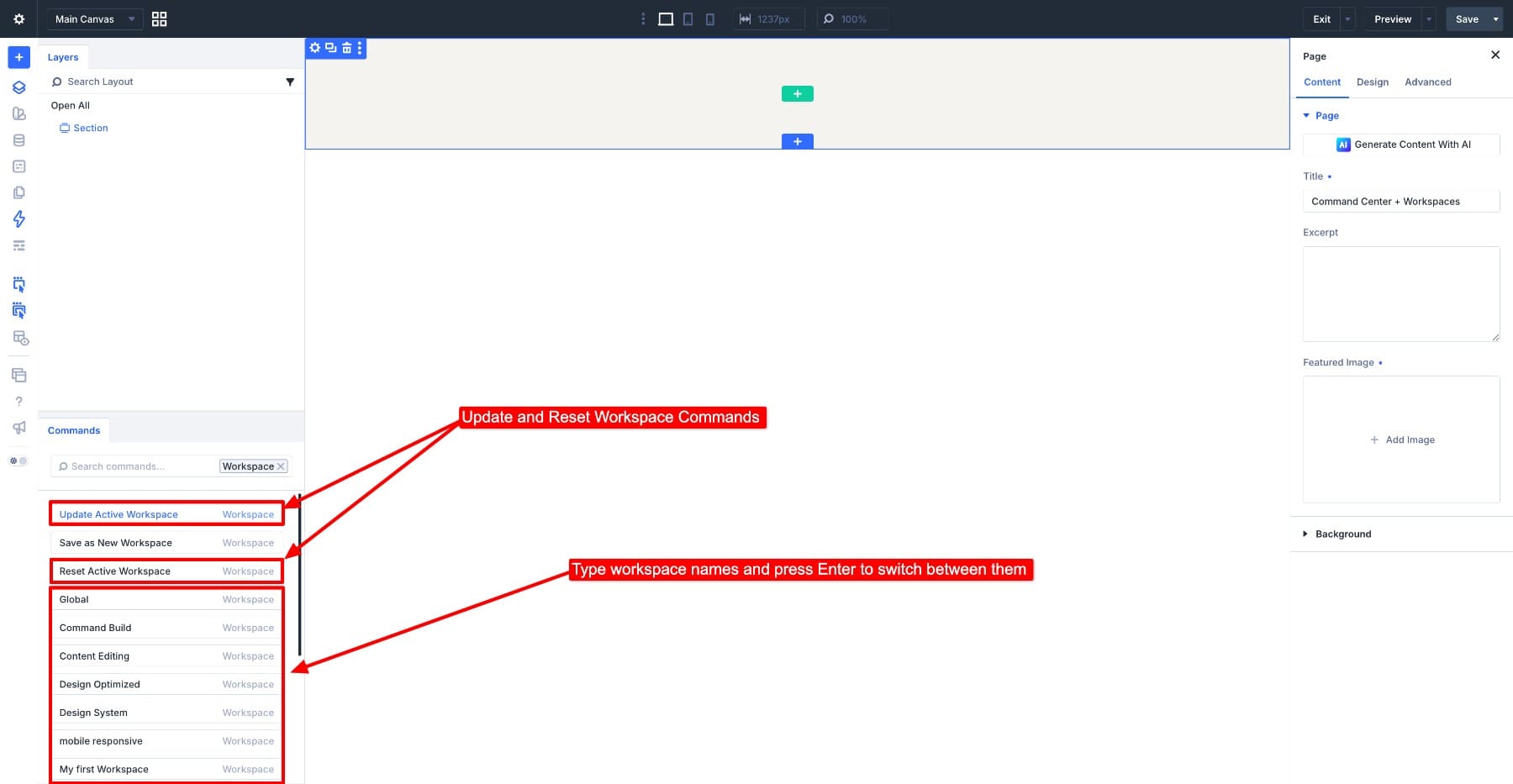
Use the mouse for changes you wish to have to pass judgement on visually, similar to spacing, colours, or dragging modules into a unique order. Instructions are helpful while you already know the motion or environment you need. If you’re nonetheless in search of it, browse the panel and be told its title for subsequent time.
Get started with those two Workspaces and the instructions you repeat maximum. Stay Layers to be had whilst development, transfer to a much broader settings panel for styling, and use presets to use reusable designs. At the subsequent web page, each your builder preparations and stored kinds are in a position to make use of once more.
The put up How To Build Faster In Divi 5 With The Command Center And Workspaces seemed first on Elegant Themes Blog.



0 Comments