

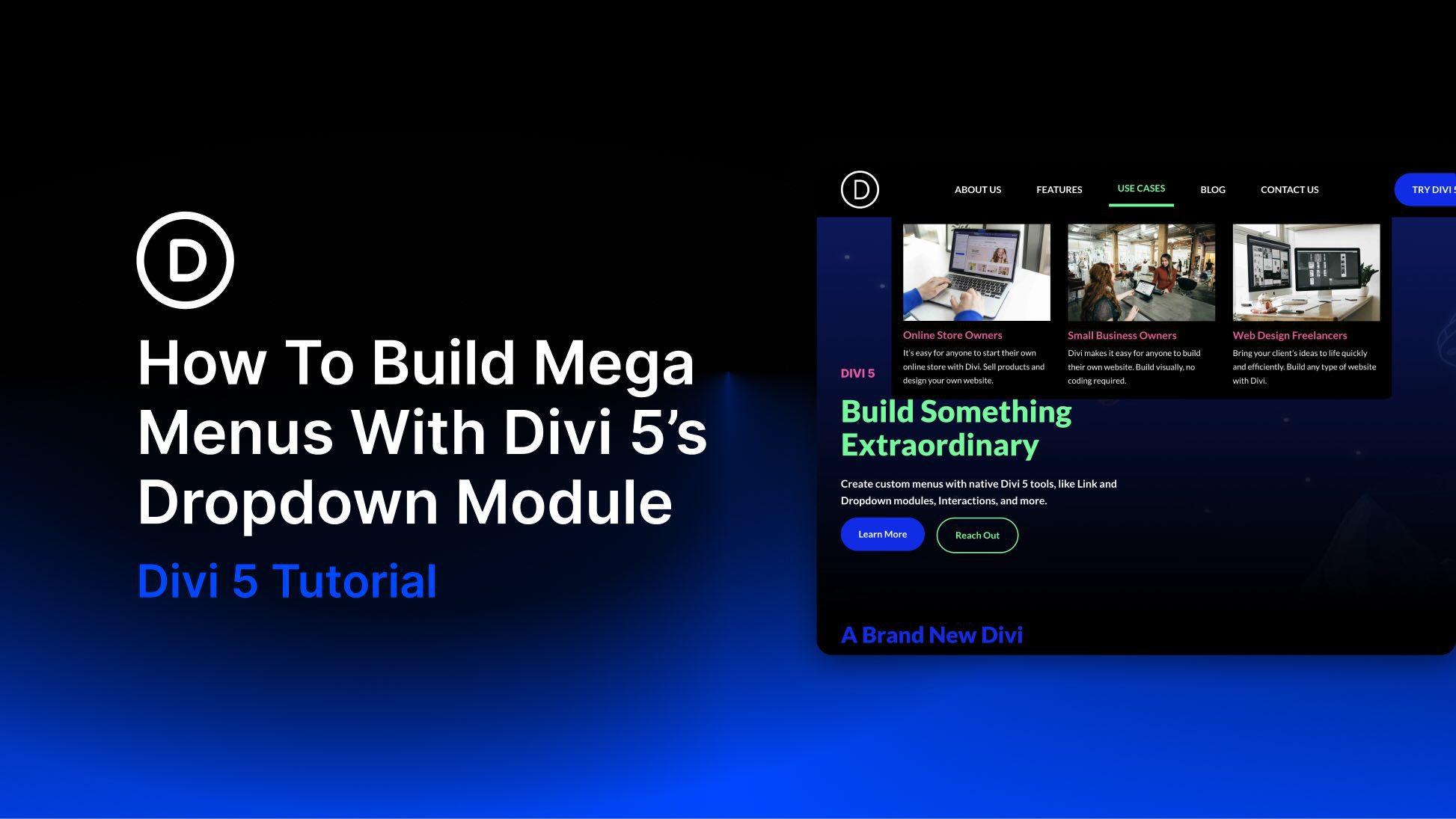
Divi 5 will provide you with a a lot more versatile method to construct navigation than older Divi workflows. With the Link and Dropdown modules, plus options like Canvases, the Loop Builder, Interactions, and visibility settings, you’ll be able to create customized dropdowns and mega menus at once inside of Divi with out depending on third-party plugins or customized code.
On this put up, we’ll stroll via a step by step solution to constructing a customized mega menu in Divi 5, together with a separate cellular model.
Let’s get began.
What Is The Dropdown Module?
The Dropdown module in Divi 5 is a devoted container for constructing dropdown menus and mega menus. Whilst you position a Dropdown module inside of a mum or dad component, equivalent to a Hyperlink module, Divi connects the dropdown’s habits to that mum or dad component. That implies the Dropdown module can paintings as a part of a navigation merchandise as an alternative of feeling like a separate floating format.
Subscribe To Our Youtube Channel
It is a main trade from older Divi menu workflows, the place extra complex dropdown layouts incessantly intended depending on the usual Menu module, the Theme Customizer, or customized code. In Divi 5, the Dropdown module will provide you with a versatile space the place you’ll be able to position Teams, Rows, Columns, Hyperlinks, loops, and different modules to create the precise submenu format you wish to have.
For easy navigation, you’ll be able to upload a couple of Hyperlink modules throughout the Dropdown to create a blank submenu. For extra complex layouts, you’ll be able to construct out a couple of columns, featured content material, icons, or looped content material to create a complete mega menu.
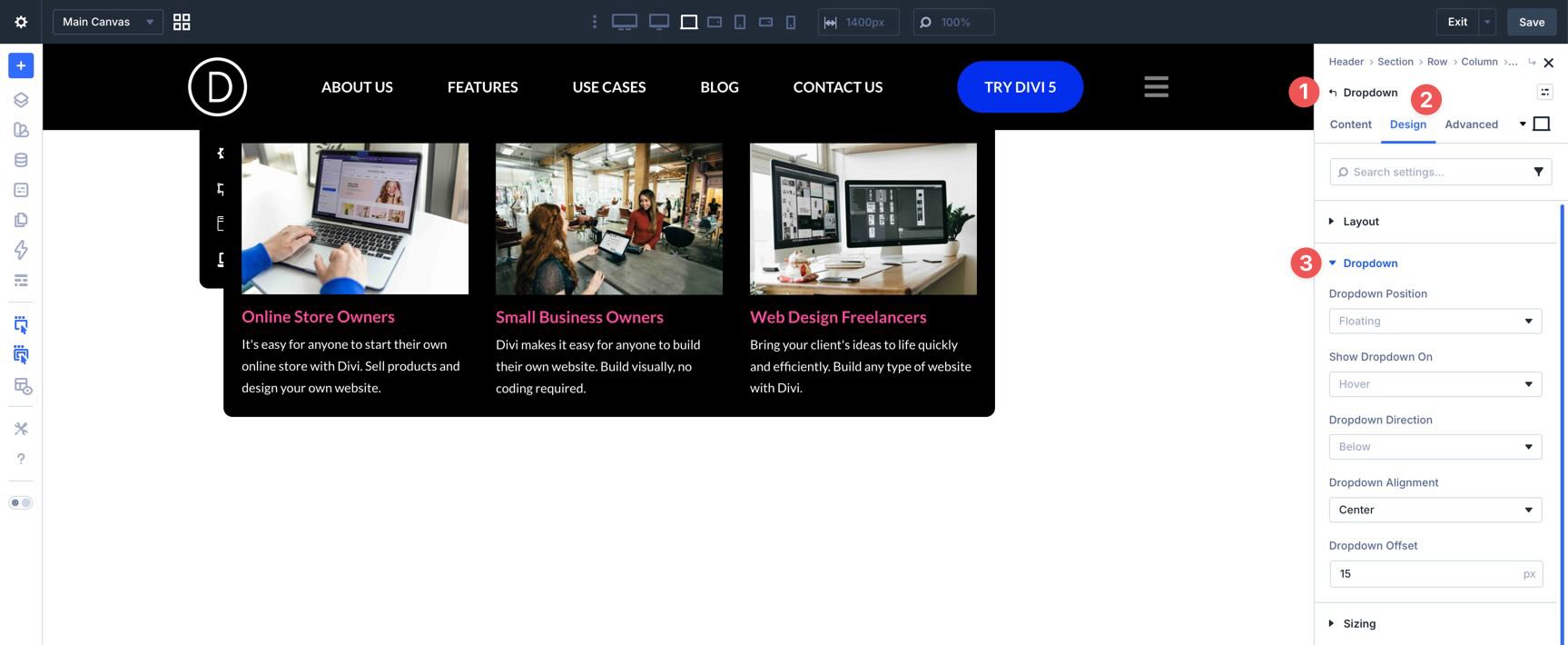
The Dropdown module additionally will provide you with direct keep watch over over positioning, alignment, offset, format route, and cause habits, which makes it a lot more uncomplicated to tailor your menus throughout the Visible Builder.
The result’s a menu-building workflow this is extra visible, extra versatile, and far more uncomplicated to customise than the older all-in-one method.
How To Use Divi 5’s Menu Options In combination
Divi 5’s menu gear paintings best possible while you bring to mind them as separate constructing blocks. For some menus, the Hyperlink and Dropdown modules are sufficient. For extra complex navigation, Canvases, Interactions, Loop Builder, and visibility settings mean you can extend the construction with out leaving the builder.
Right here’s how each and every piece suits into the method:
Hyperlink Module
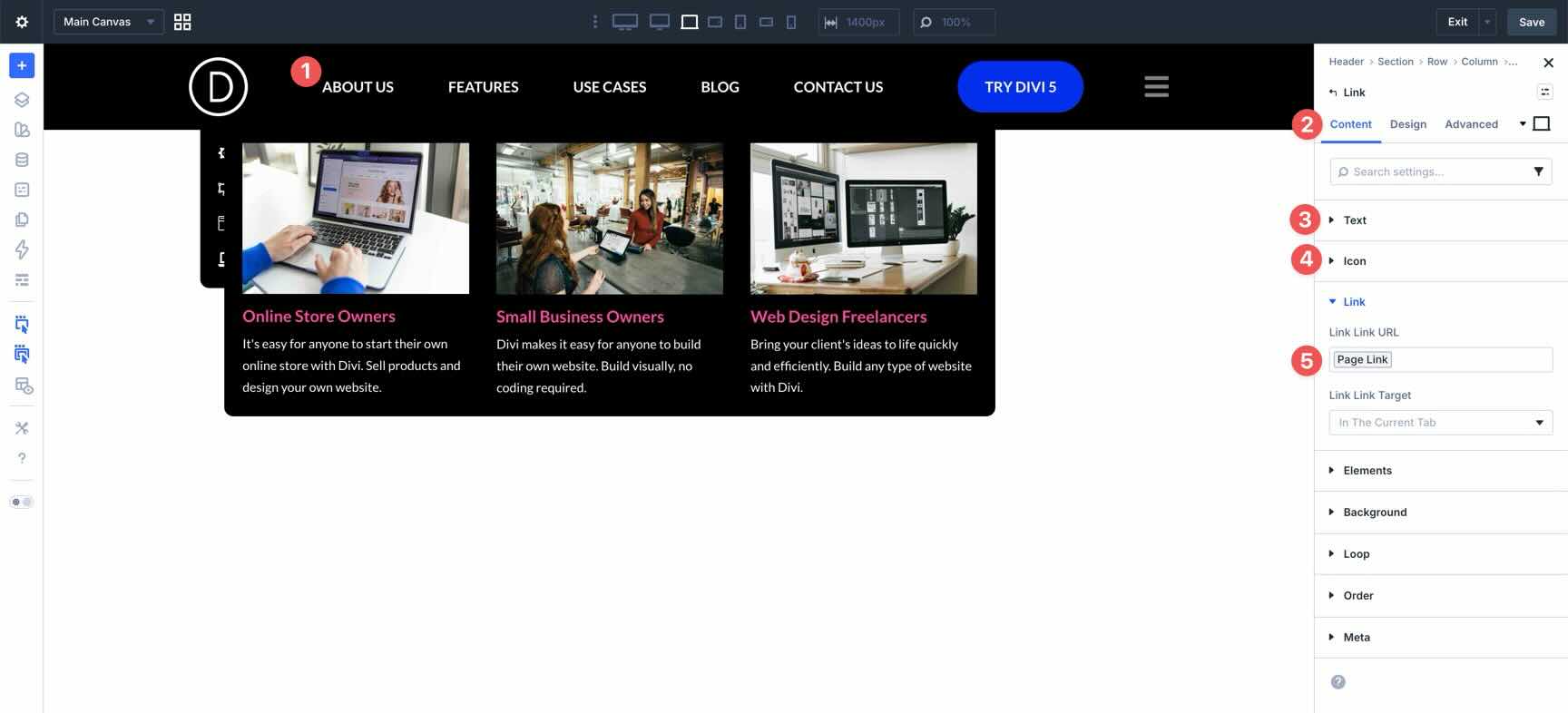
The Hyperlink module acts because the navigation merchandise itself. You’ll be able to use it for static hyperlinks, dynamic web page hyperlinks, and menu-based pieces. It’s the start line for many customized menu buildings in Divi 5.
Dropdown Module
The Dropdown module is the submenu container. You set it inside of a mum or dad component, in most cases a Hyperlink module, after which construct the submenu content material inside of it. That content material can also be as easy or as advanced as you wish to have.

Canvases
Canvases mean you can create indifferent layouts that reside outdoor the primary web page construction. They’re particularly helpful for such things as cellular menus, off-canvas menus, slide-ins, and overlays. On this instructional, we’ll use a Canvas to construct a separate cellular menu reasonably than forcing each menu stories into one format.

Interactions
Interactions deal with the habits round your menu. The Dropdown module already covers the elemental opening and shutting habits for same old dropdowns, however Interactions grow to be helpful when you need to release a cellular menu, cause a Canvas, or cover and display parts at particular breakpoints.

Loop Builder
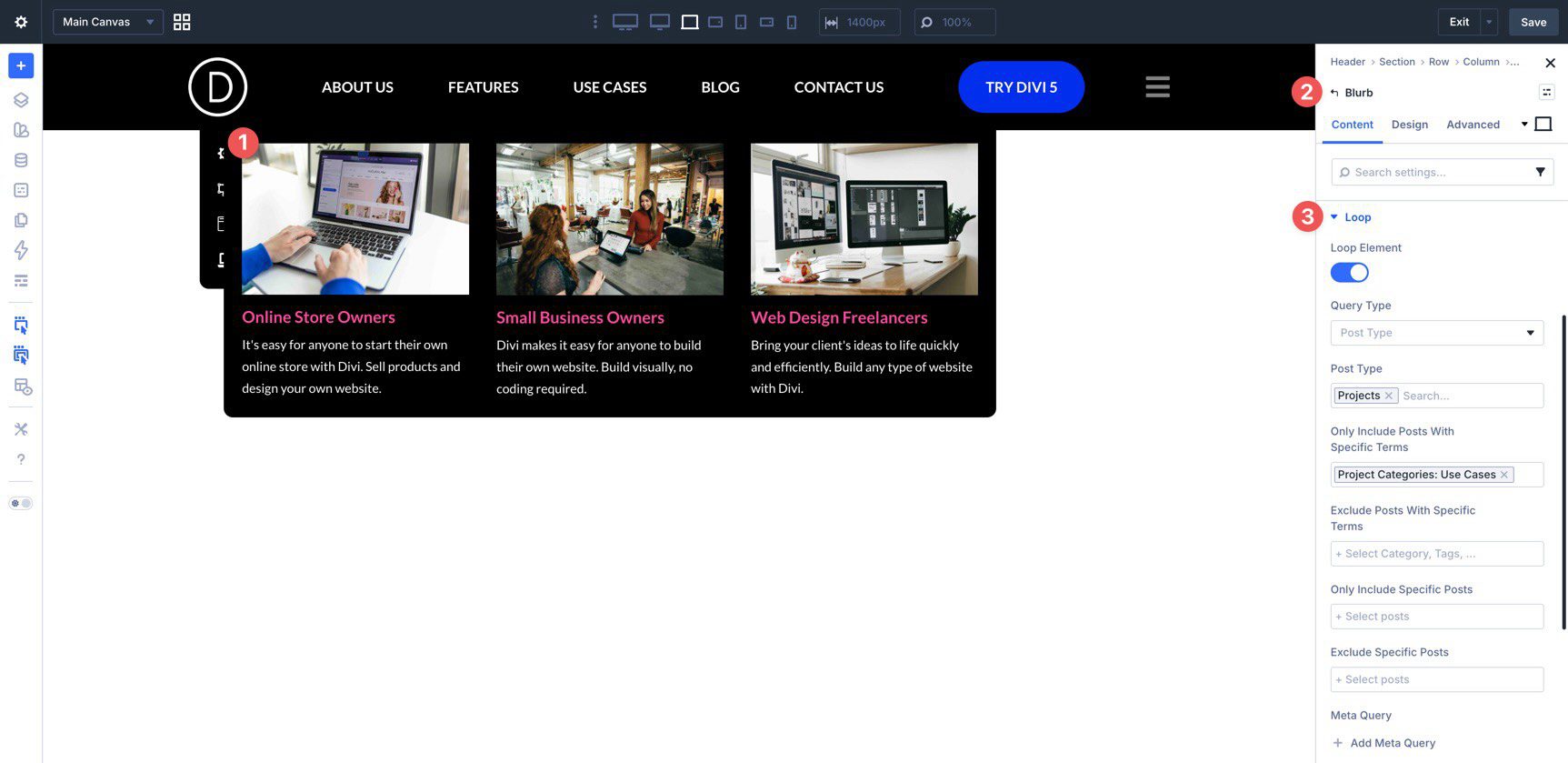
The Loop Builder makes a menu dynamic. Within a Dropdown or Canvas, you’ll be able to use loop-enabled modules to tug in posts, initiatives, merchandise, pages, or different content material mechanically. That makes it imaginable to construct a submenu that updates itself as content material adjustments to your website online.
Visibility Settings
Visibility settings assist keep watch over what seems when and the place. They’re helpful when you need to cover desktop menu parts on smaller monitors, stay a cellular menu hidden till caused, or simplify which items are energetic at other breakpoints.

Whilst you mix those gear, you’ll be able to construct the entirety from a easy dropdown to a multi-column, content-driven mega menu with a separate cellular enjoy.
How To Construct A Mega Menu With Divi 5
Now that we have got the core items in position, we will construct the menu. By way of the tip of this instructional, you’ll have a desktop header with customized dropdowns and a separate cellular menu inbuilt a Canvas.
Step 1: Create The Desktop Header
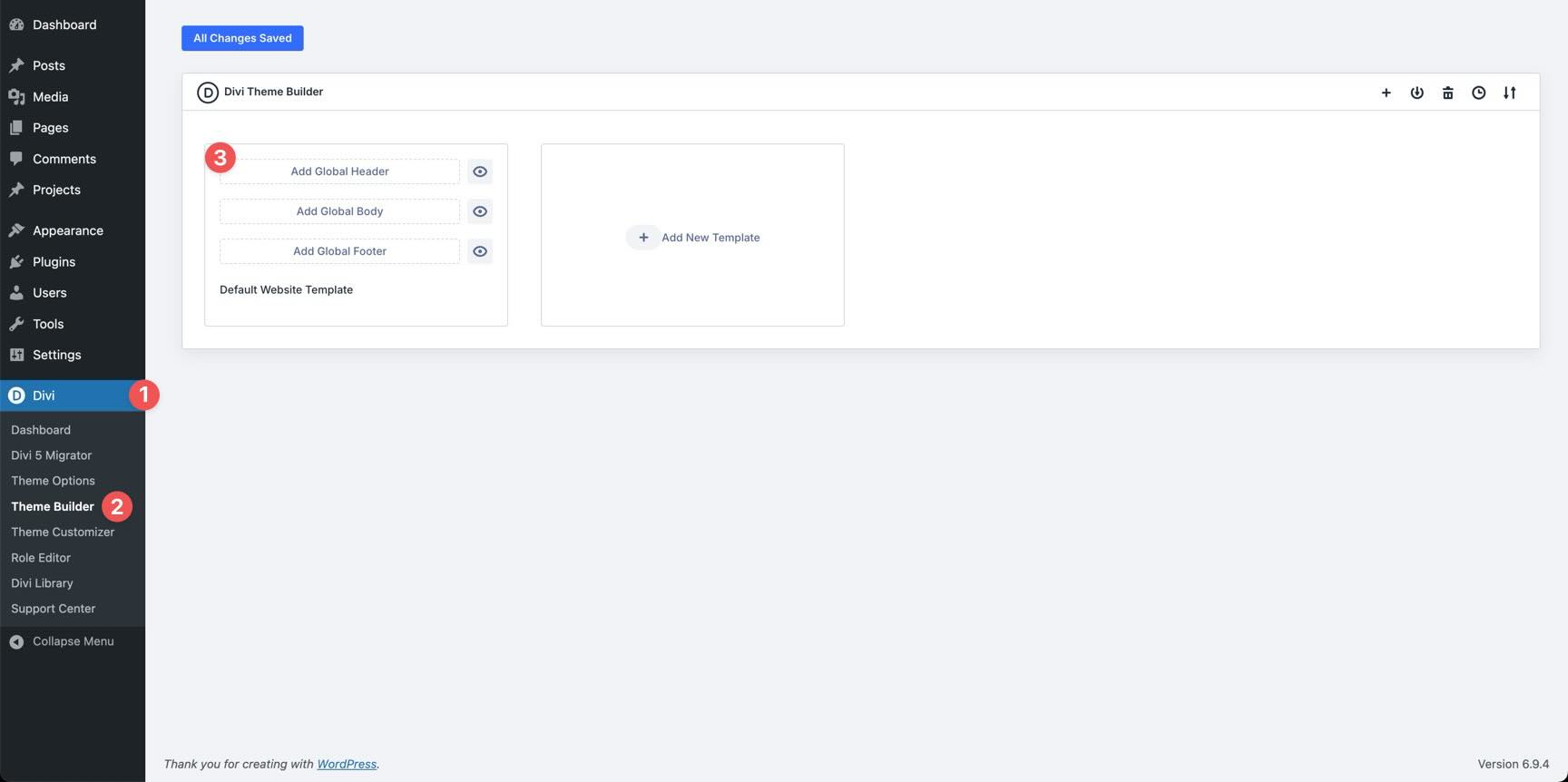
Get started by way of developing a brand new International Header template within the Theme Builder.
When the Visible Builder a lot, choose the Segment and upload a Background Colour within the Content material tab. Then transfer to the Design tab and upload 15px of padding to the peak and backside.

Subsequent, open the Complicated tab, extend the Place settings, and set the Z Index to 999. This is helping stay the header and dropdowns above the web page content material after they open.

After all, open Scroll Results and set the segment to Persist with Best.

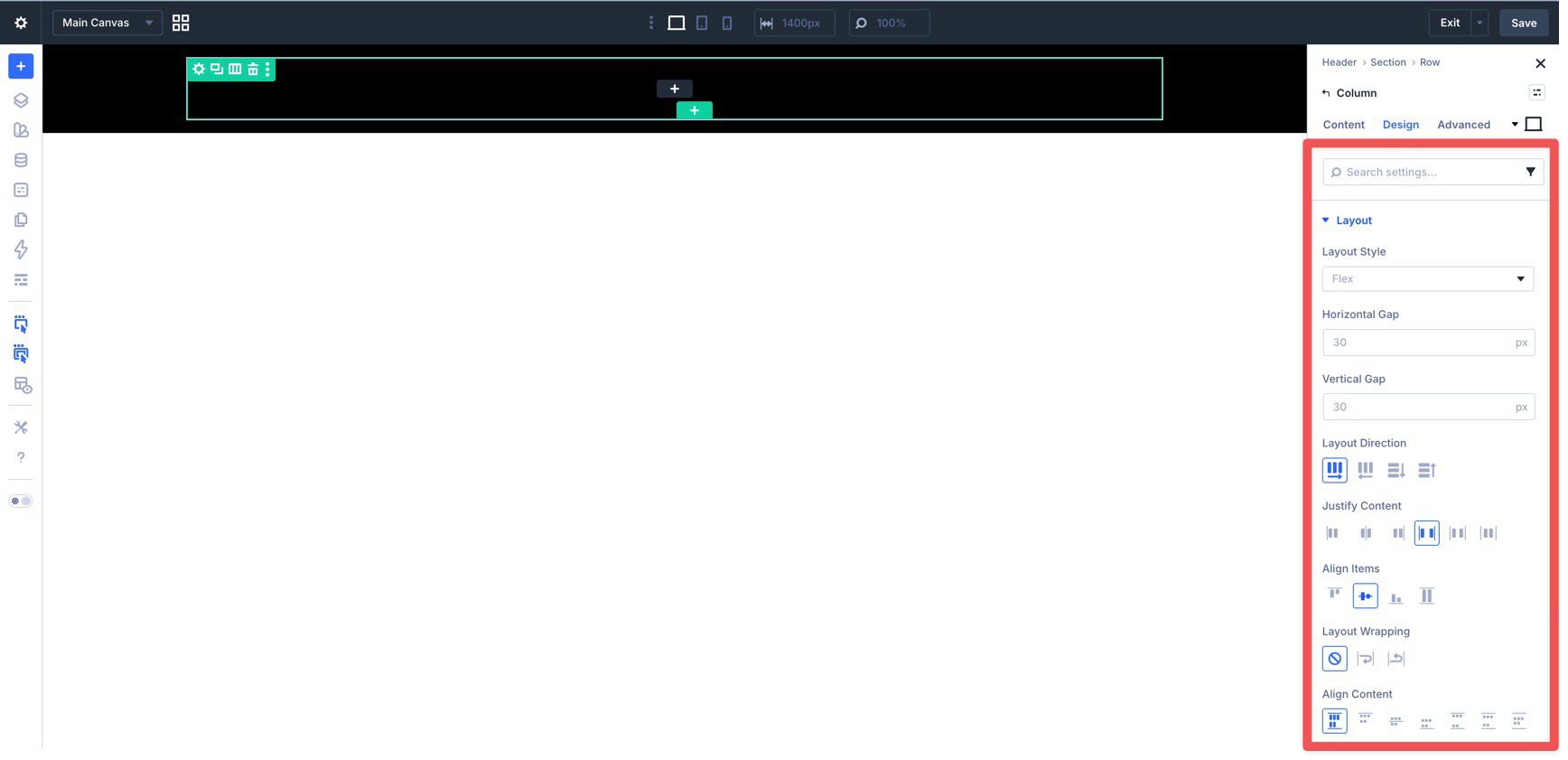
Now upload a single-column Row to the segment and edit the Row’s Column settings.

Within the Design tab, extend the Format settings and set Format Path to Row, Justify Content material to House Between, and Align Pieces to Heart. This will provide you with a blank horizontal header format with room for an emblem, navigation, and supporting parts.
Get started by way of including an Symbol module on your emblem. Use the Sizing settings within the Design tab to regulate it throughout breakpoints. Use the Customizable Responsive Breakpoints characteristic and the Responsive Editor to fine-tune its dimension for various gadgets.
Earlier than transferring on, return to the Content material tab and assign a dynamic homepage hyperlink to the brand.
Upload A Team Module
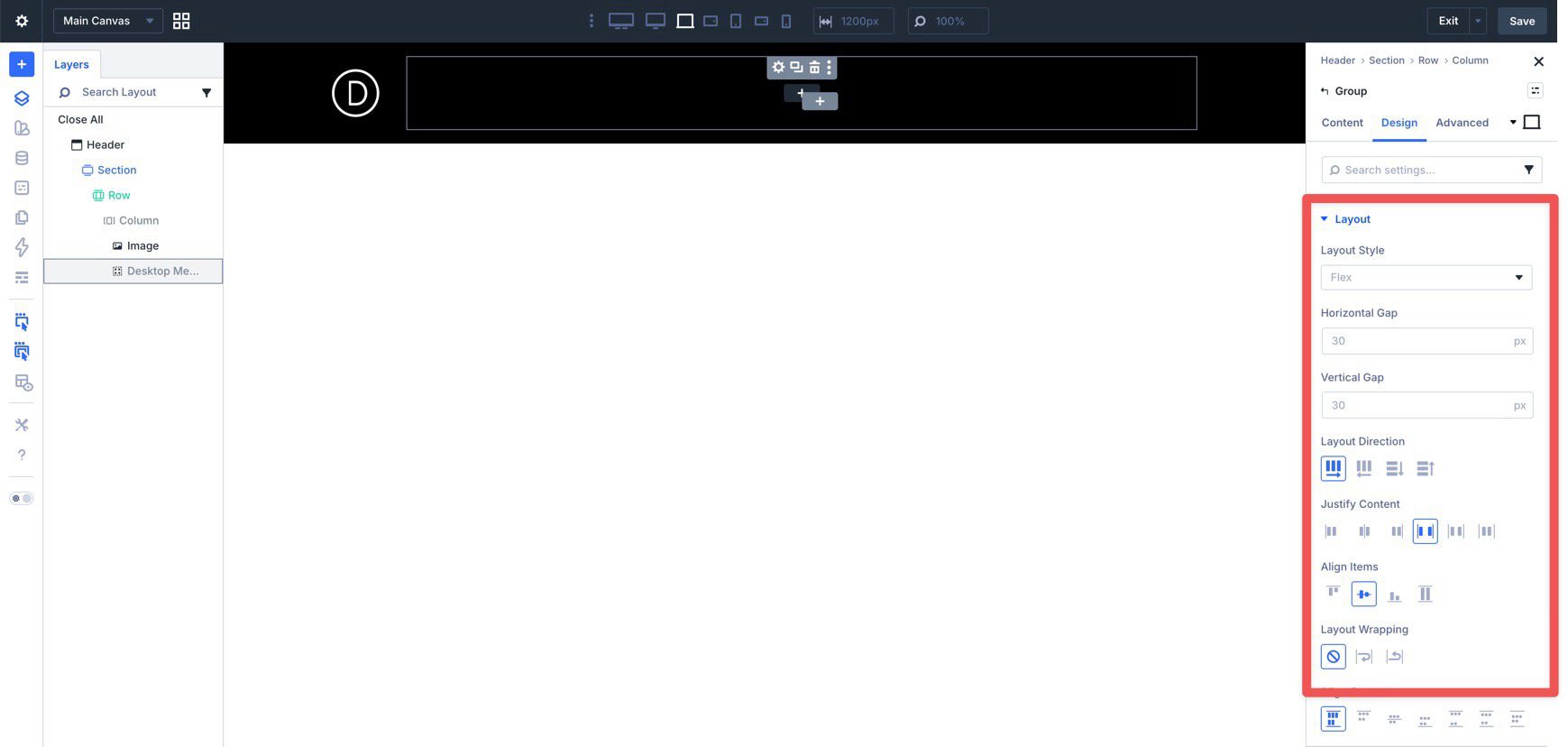
Subsequent, upload a Group module to the row to carry the desktop navigation hyperlinks. This will provide you with a cleaner method to set up the desktop menu as one unit, particularly while you later come to a decision what must seem or disappear at smaller breakpoints.
Within the Team’s Design tab, extend Format and set Format Path to Row, Justify Content material to House Between, and Align Pieces to Heart.
Upload Hyperlink Modules
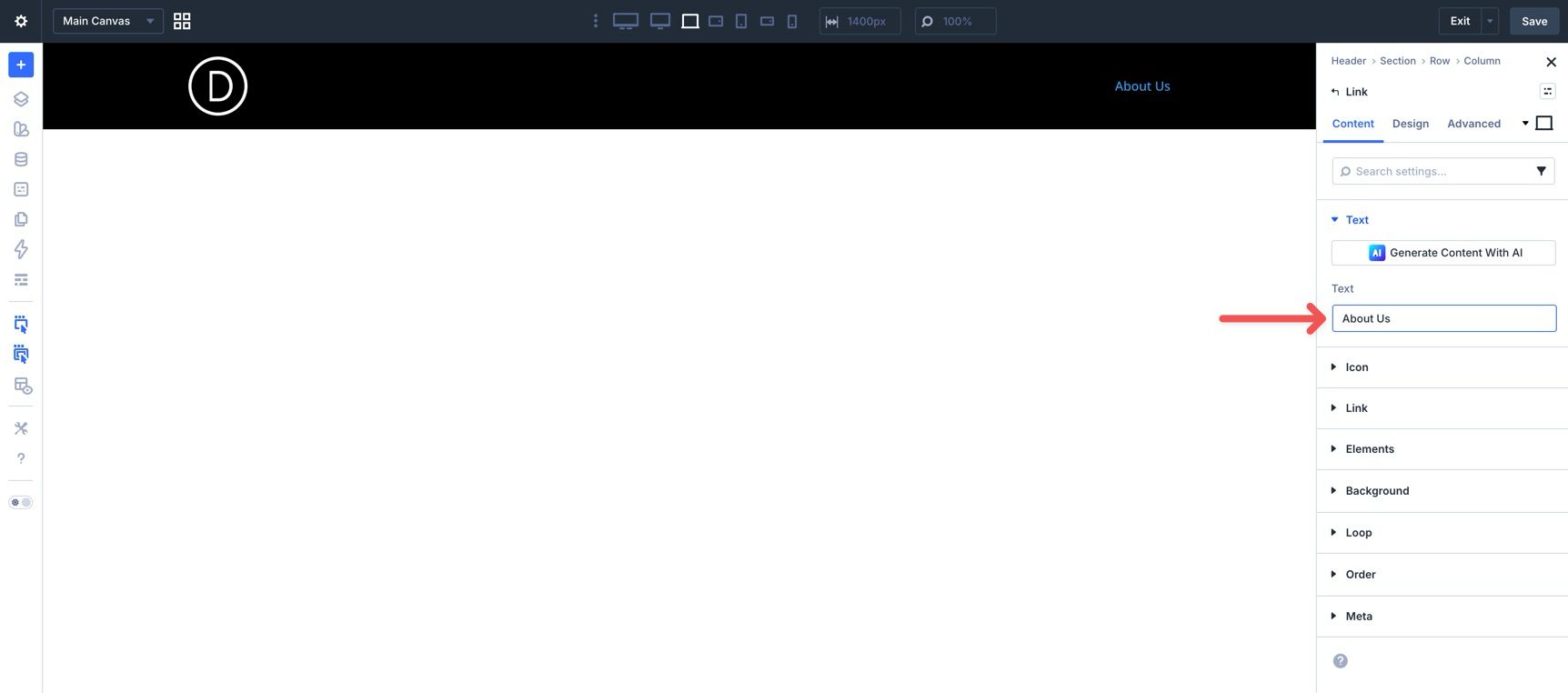
Now get started including your navigation hyperlinks. Upload a Hyperlink module and input a label within the Textual content box.
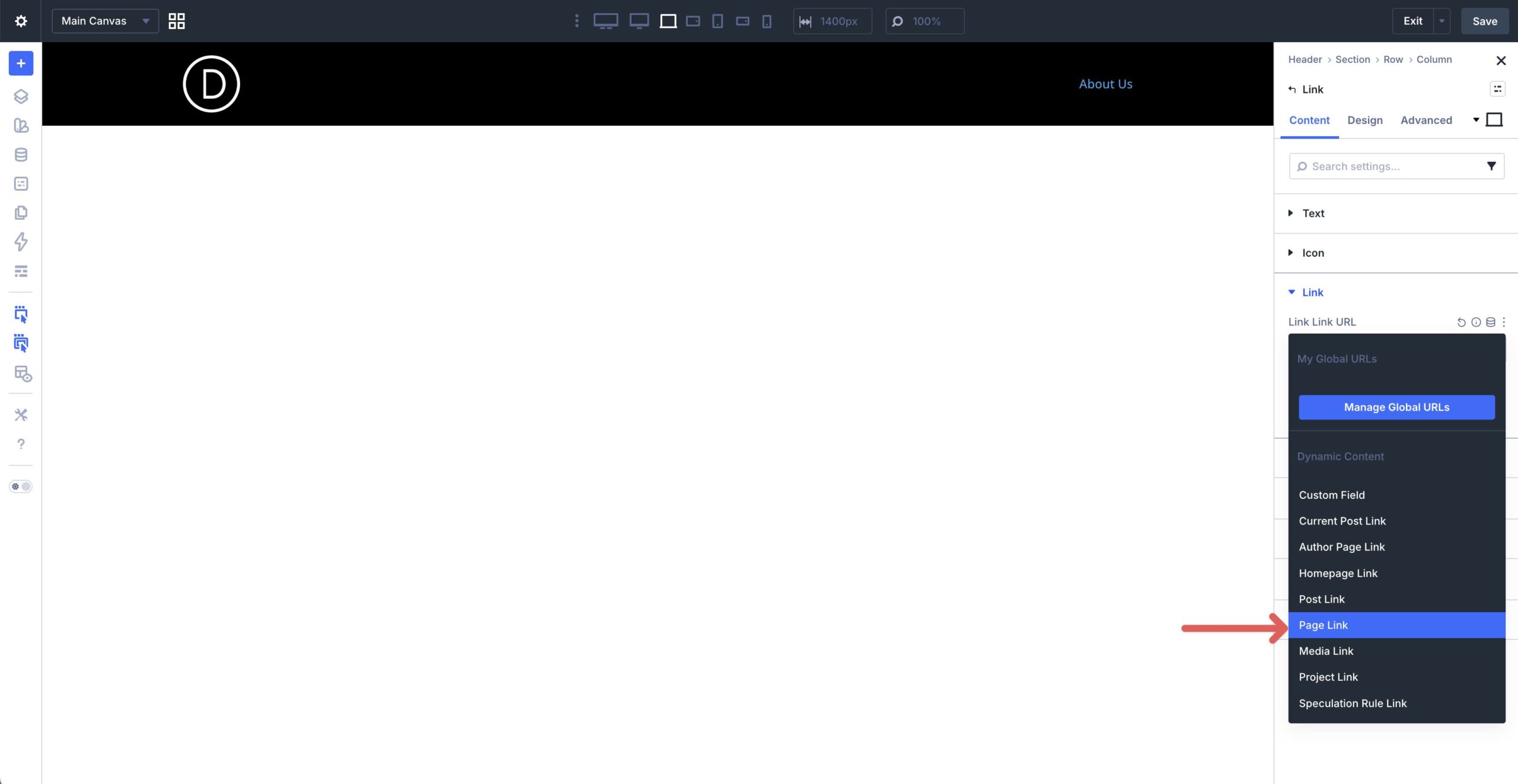
Enlarge the Hyperlink settings and use the dynamic content material icon if you wish to assign a dynamic Web page Hyperlink.

When the modal seems, select Web page Hyperlink.
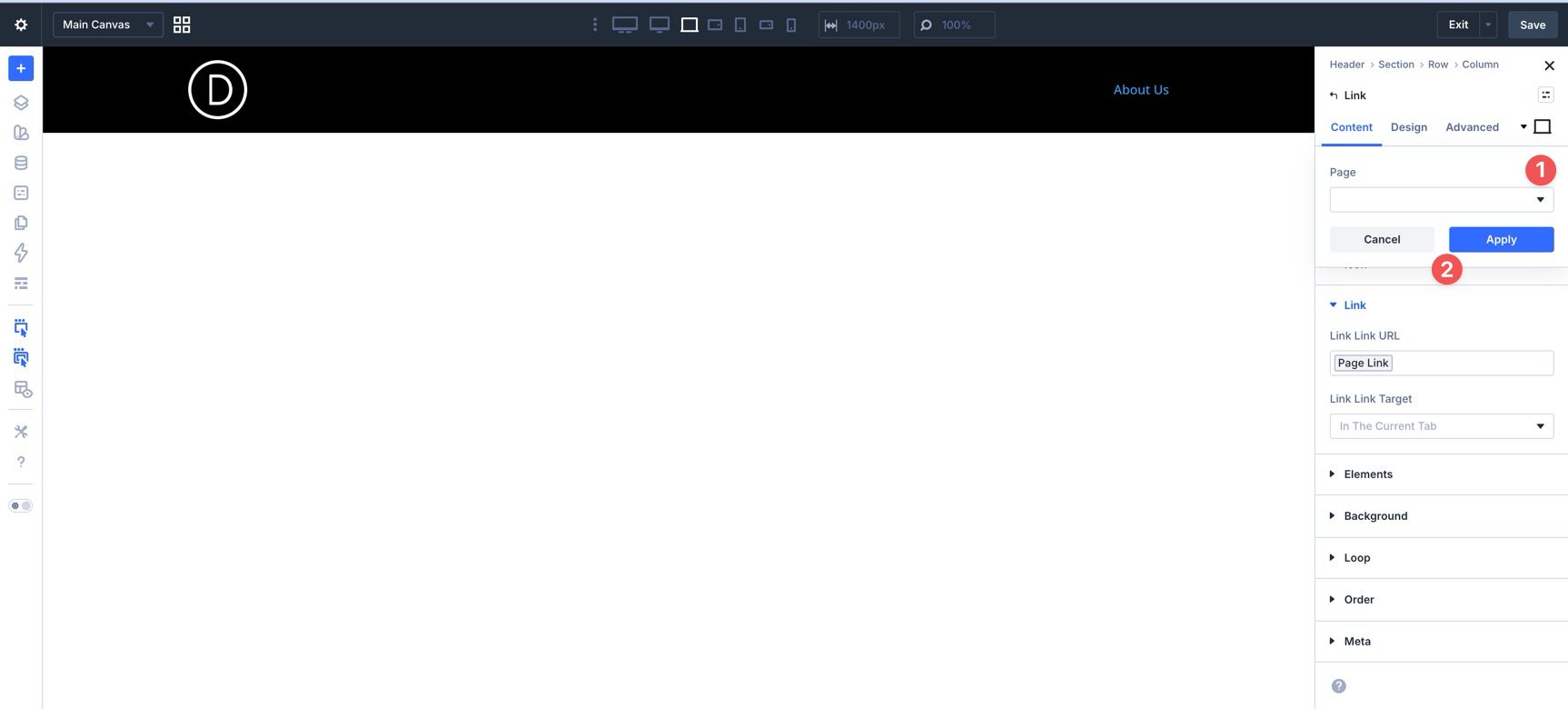
Use the web page selector to select the precise web page, then click on Follow.
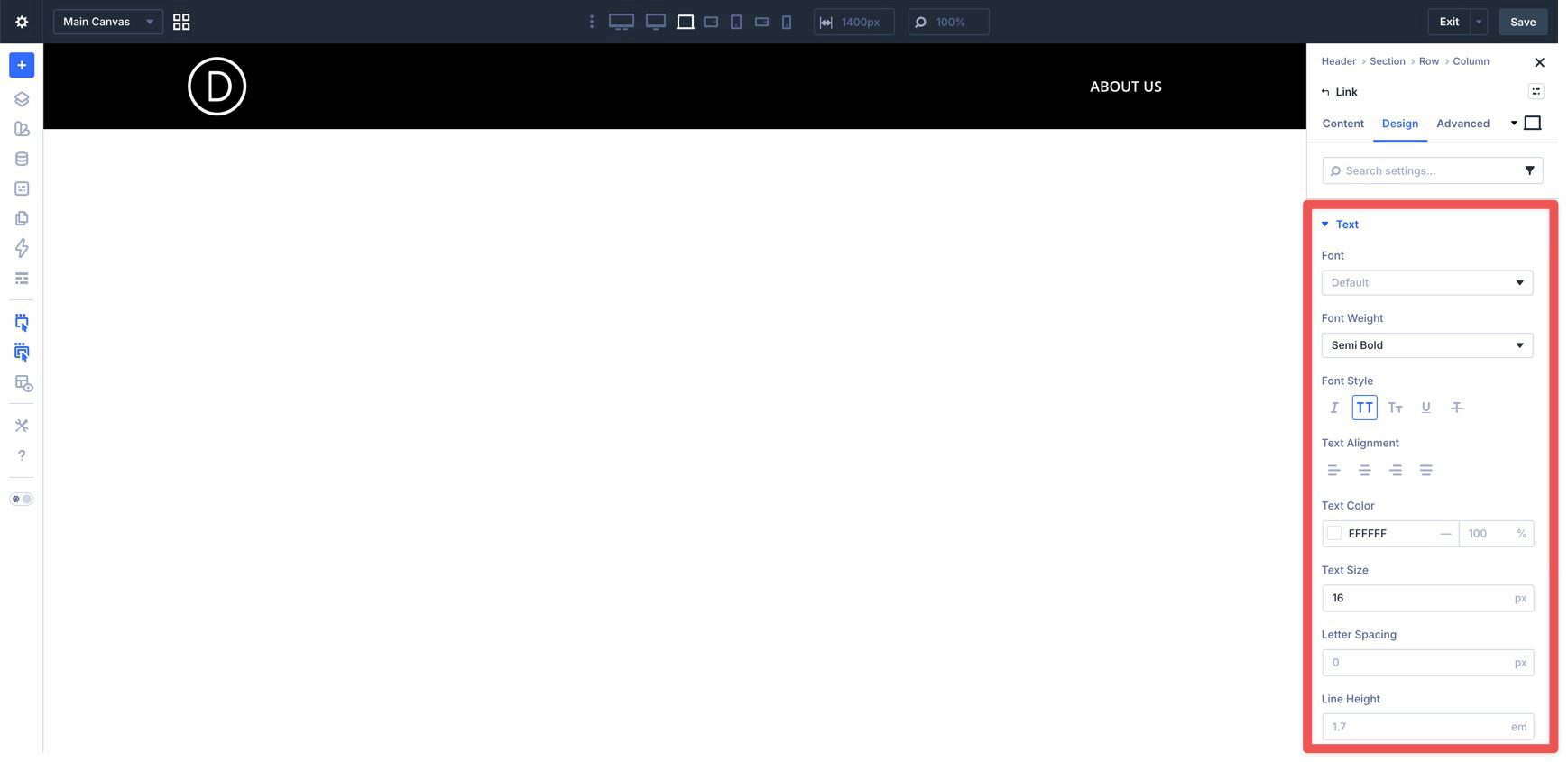
Transfer to the Design tab to taste the hyperlink, together with font, weight, taste, colour, and textual content dimension.
Use Divi’s hover controls if you need the hyperlink look to switch on hover.

Set a hover Colour and Border if desired.

Whilst you end styling the hover state, transfer again to the default desktop state ahead of proceeding. That assists in keeping your long term edits from being carried out simplest to the hover model.
As soon as one Hyperlink module is styled, replica it to create the remainder of your top-level hyperlinks, then replace the textual content and vacation spot for each and every one.
Upload Further Header Modules
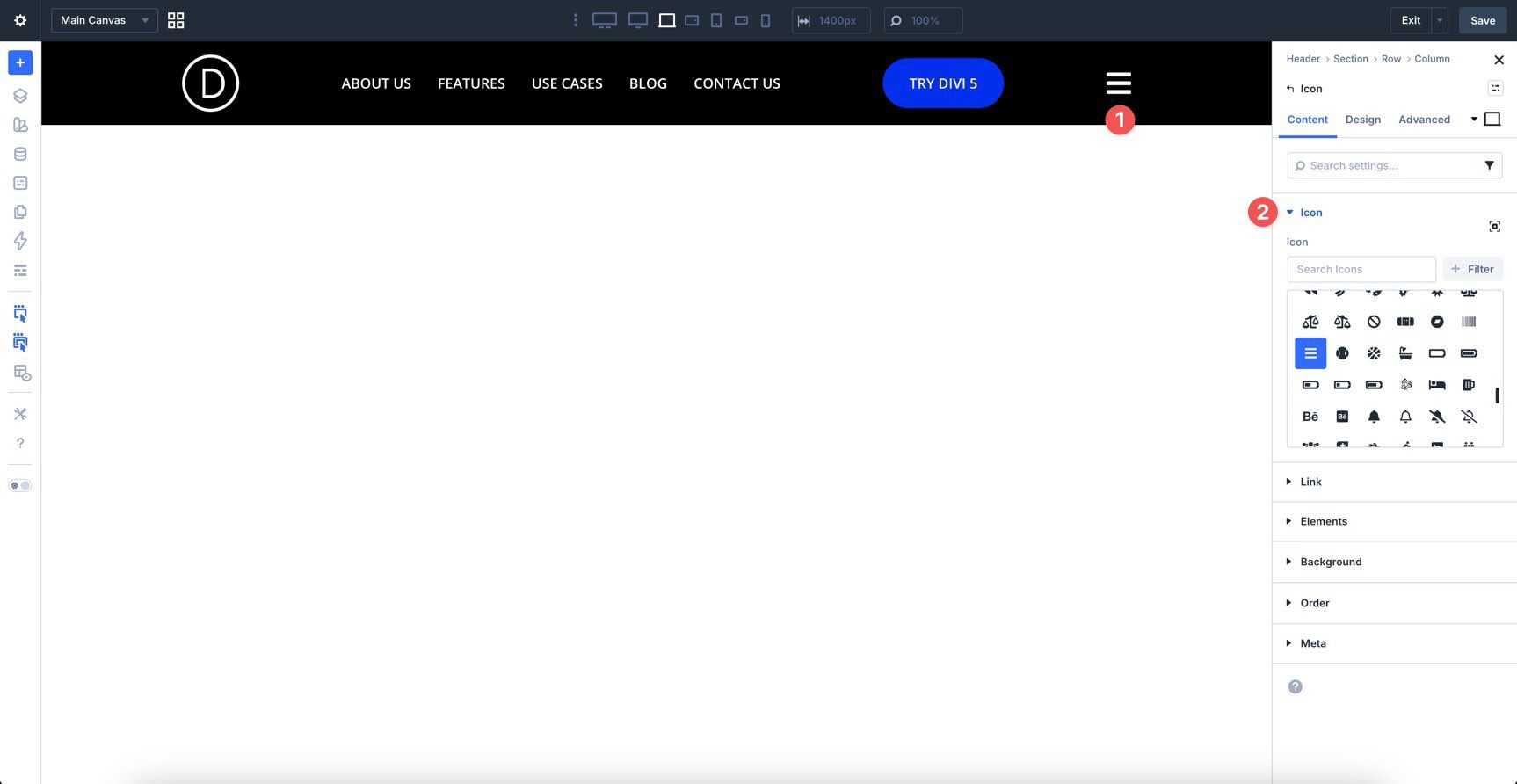
To complete the top-level header, upload a Button and an Icon module. The Icon will act because the cellular menu cause later, so select one thing recognizable, equivalent to a hamburger icon, and elegance each modules to compare the remainder of your header.
Step 3: Construct The Dropdown Menus
With the top-level navigation in position, we will now construct the real dropdowns. On this instructional, we’ll create one conventional dropdown fabricated from hyperlinks and one content-driven submenu that makes use of the Loop Builder to show fresh Initiatives.
Upload A Dropdown Module
Get started with the second one menu merchandise. Open its Hyperlink module, pass to the Parts space within the Content material tab, and click on + Upload Part.

Choose the Dropdown module from the module picker.

Within the Dropdown, upload a Team. Then upload a Hyperlink module inside of that Team.
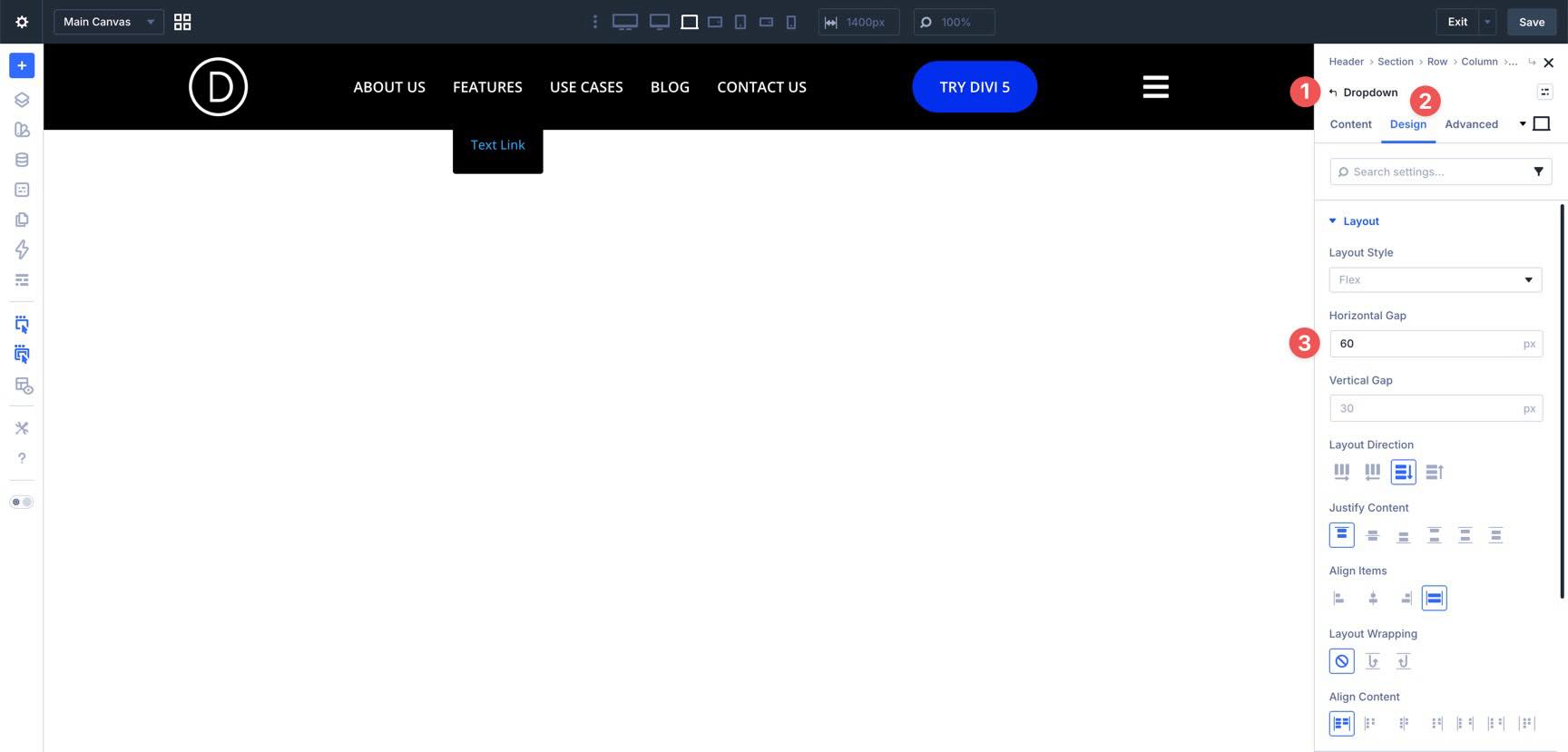
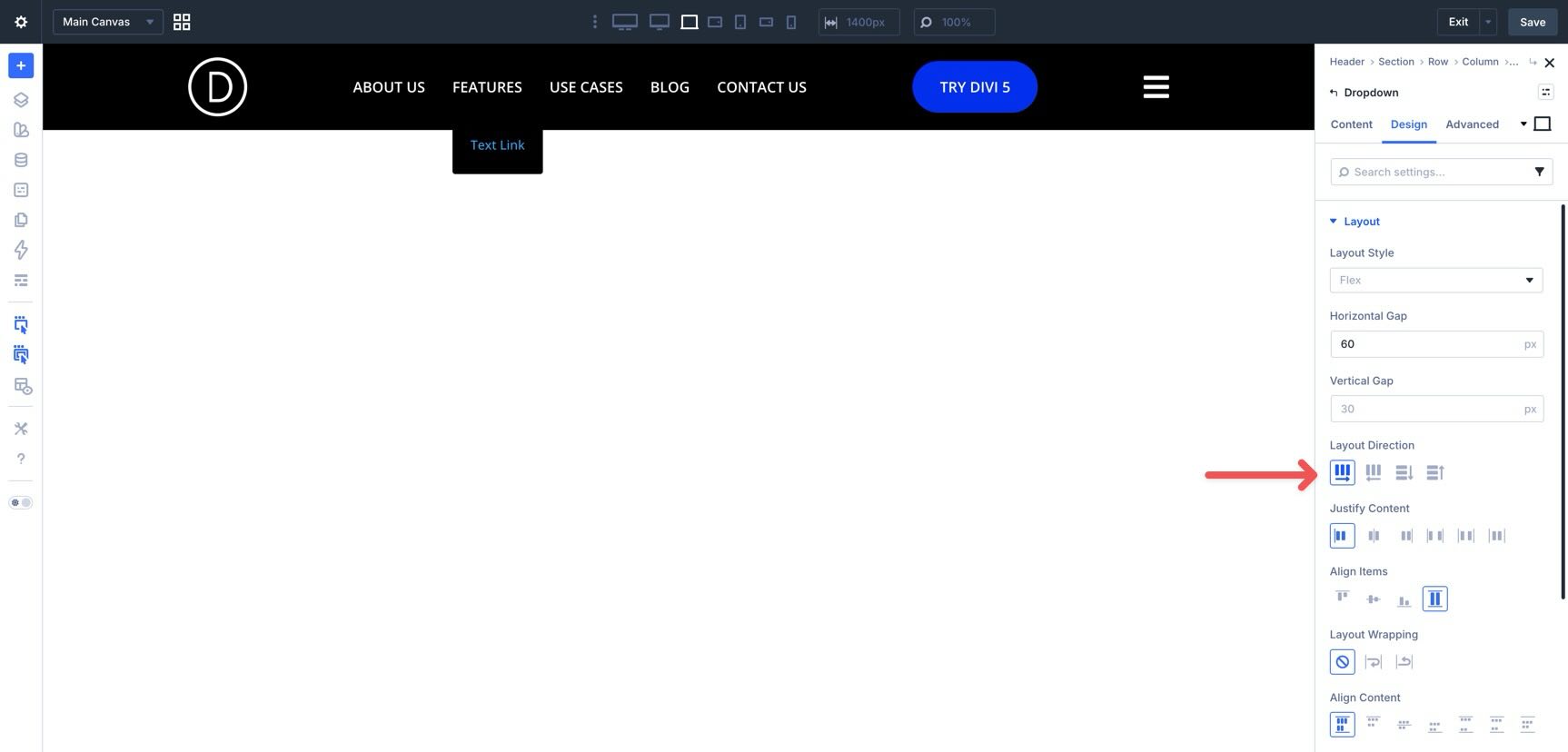
Earlier than configuring the interior Hyperlink module, taste the Dropdown itself. Open the Dropdown module and pass to the Design tab. In Format, set the Horizontal Hole to 60px and the Format Path to Row.
Then open the Dropdown settings and set Dropdown Alignment to Heart and Dropdown Offset to 15px.

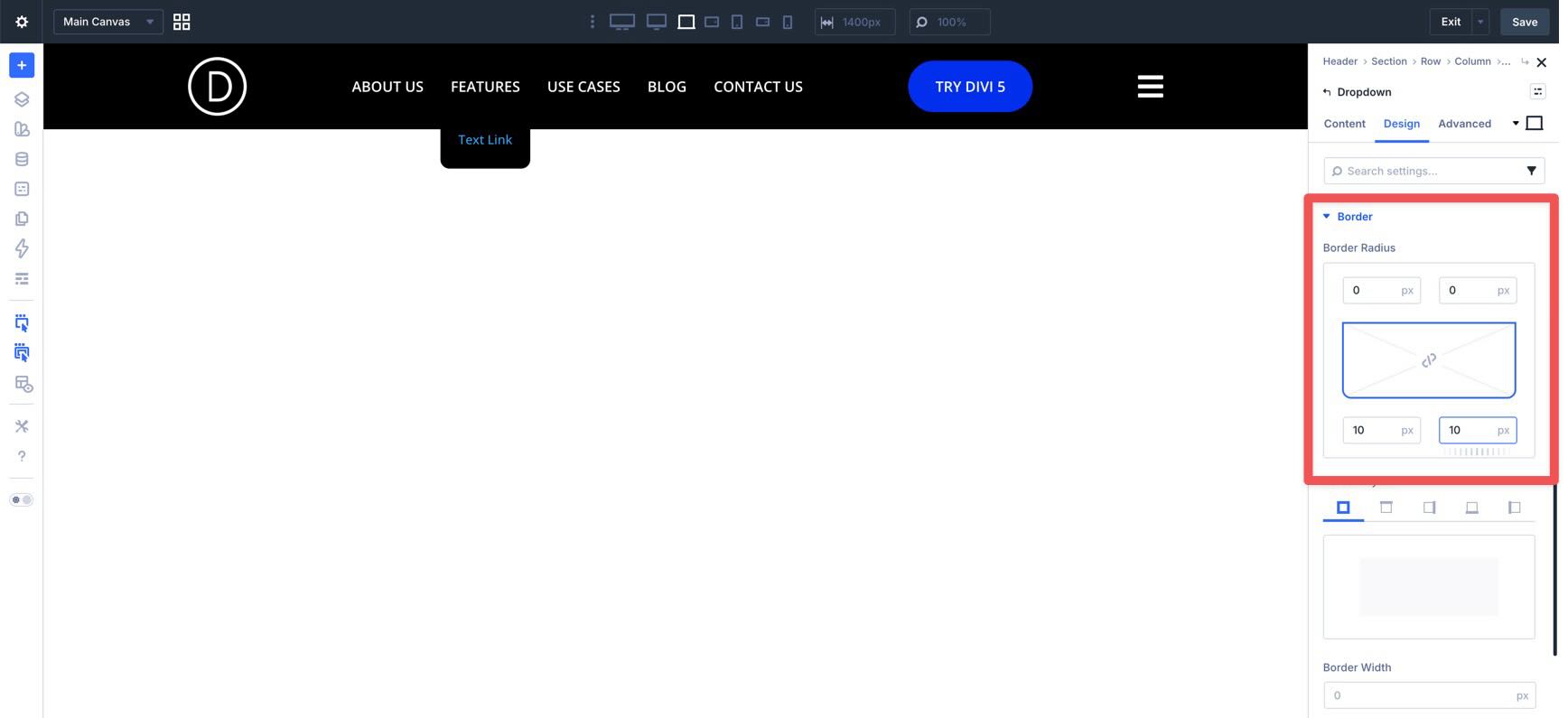
After all, open Border and assign a 10px border radius to the ground corners.
Taste The Team Module
Now open the Team throughout the Dropdown. Within the Design tab, extend Format and set the Vertical Hole to 15px.

Taste The Internal Hyperlink Module
Choose the interior Hyperlink module. Upload a textual content label and assign a web page hyperlink or different vacation spot. If you need an icon subsequent to each and every hyperlink, select one within the Icon settings.
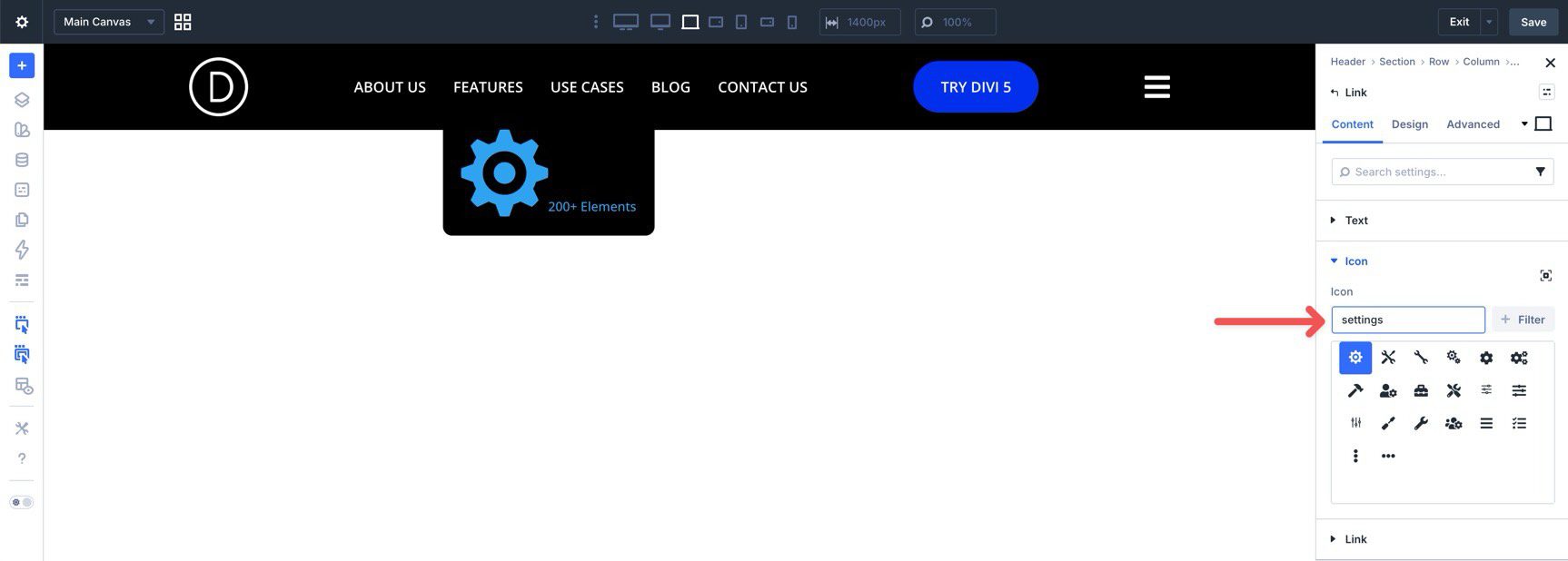
Within the Design tab, taste the icon with a colour and dimension, then upload a proper margin to split it from the textual content. If you need the icon colour to switch on hover, use the hover controls there as neatly.
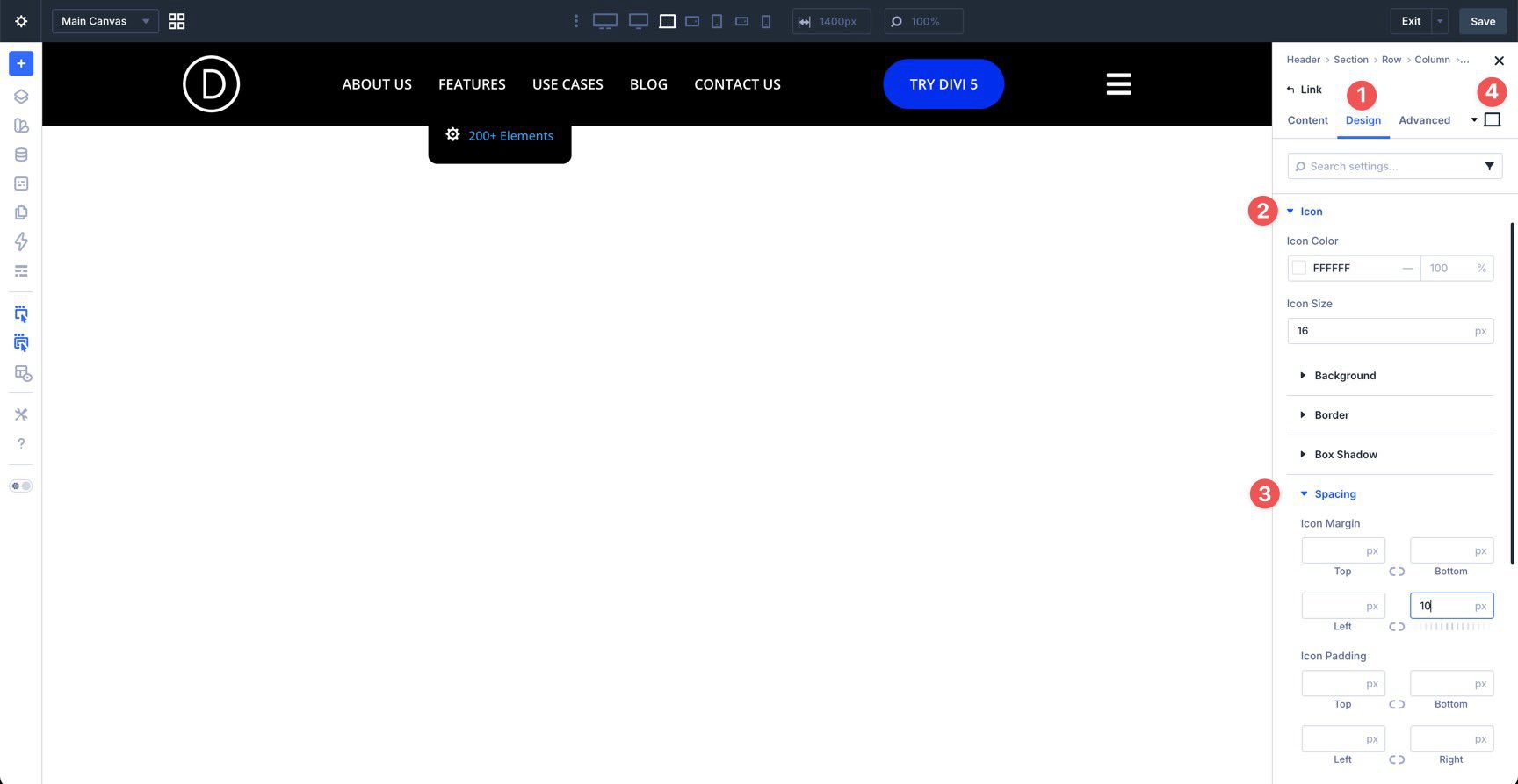
Then taste the hyperlink textual content within the Textual content settings.

As soon as the primary interior hyperlink is styled, replica it as repeatedly as wanted.
Then replace the textual content, vacation spot, and icon for each and every merchandise. After that, replica the Team itself if you need a couple of vertical hyperlink stacks inside of the similar dropdown. The ones Teams will sit down subsequent to one another, developing the mega-menu impact.
Step 4: Upload A Undertaking Loop To Some other Dropdown
Subsequent, we’ll create every other submenu that makes use of the Loop Builder to show the 3 most up-to-date initiatives. The similar thought works for posts or different put up varieties too.
Make a selection the top-level Hyperlink module the place you need this submenu. In its Parts space, upload every other Dropdown module. Follow the similar core dropdown settings you used within the earlier step:
- Format Path: Row
- Dropdown Alignment: Heart
- Dropdown Offset: 15px
- Backside Border Radius: 10px
Now upload a Blurb module throughout the Dropdown.
Within the Blurb module’s Content material tab, open the Loop settings and permit Loop Part.

Set the Put up Sort to Initiatives. In the event you simplest wish to display pieces from a definite class or time period, use the time period clear out there as neatly.

Taste the Blurb within the Design tab so the name and excerpt are compatible the remainder of your menu design.

Map The Dynamic Fields
Now map the Blurb fields to loop-based dynamic content material. Within the Blurb’s Content material tab, use dynamic content material at the Name box and choose Loop Put up Name.

For the frame content material, choose Loop Excerpt.

In Symbol & Icon, use dynamic content material to select Loop Featured Symbol.
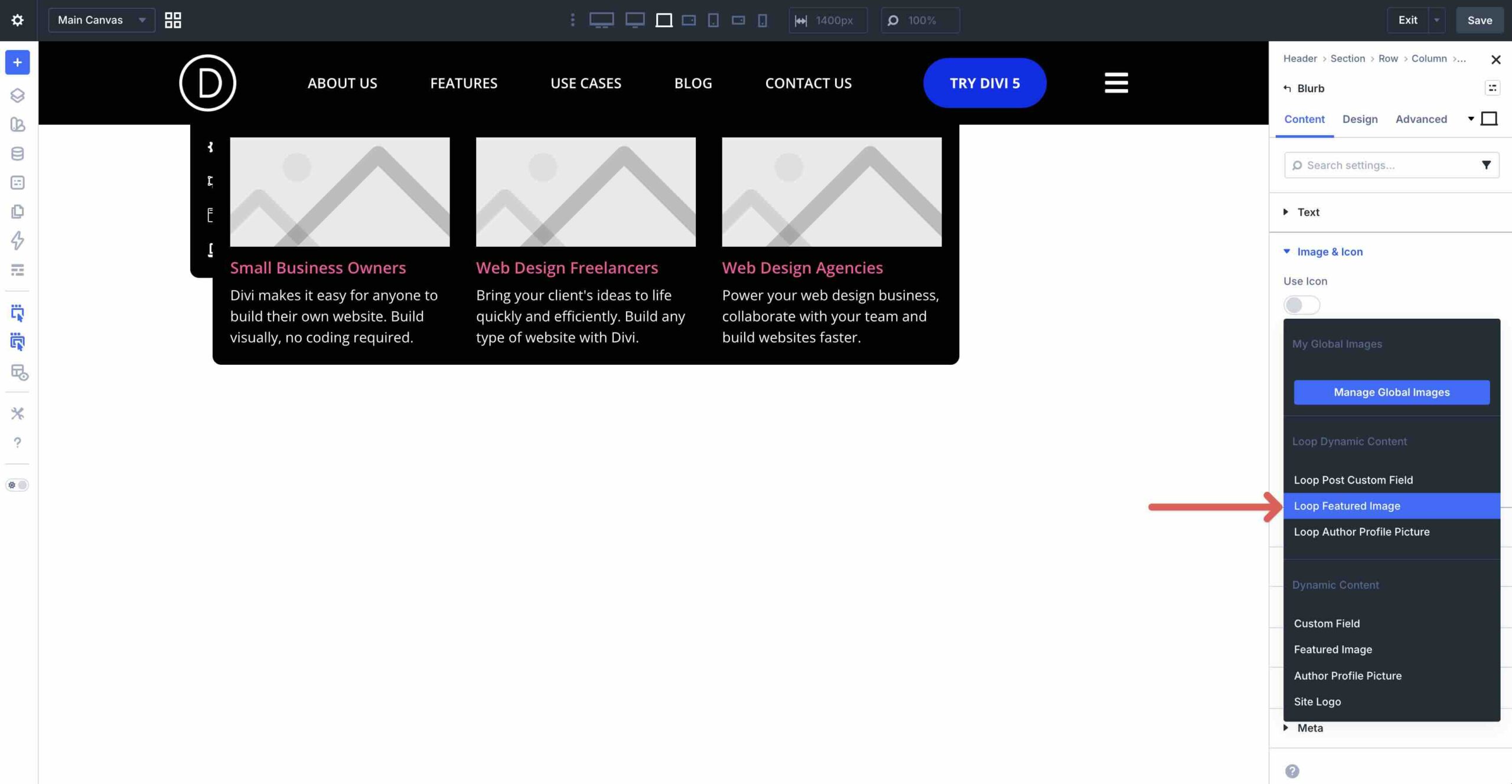
After all, within the Hyperlink settings, map the Module Hyperlink URL to Loop Hyperlink.

Save the template ahead of transferring on.
Step 5: Construct The Cell Menu In A Canvas
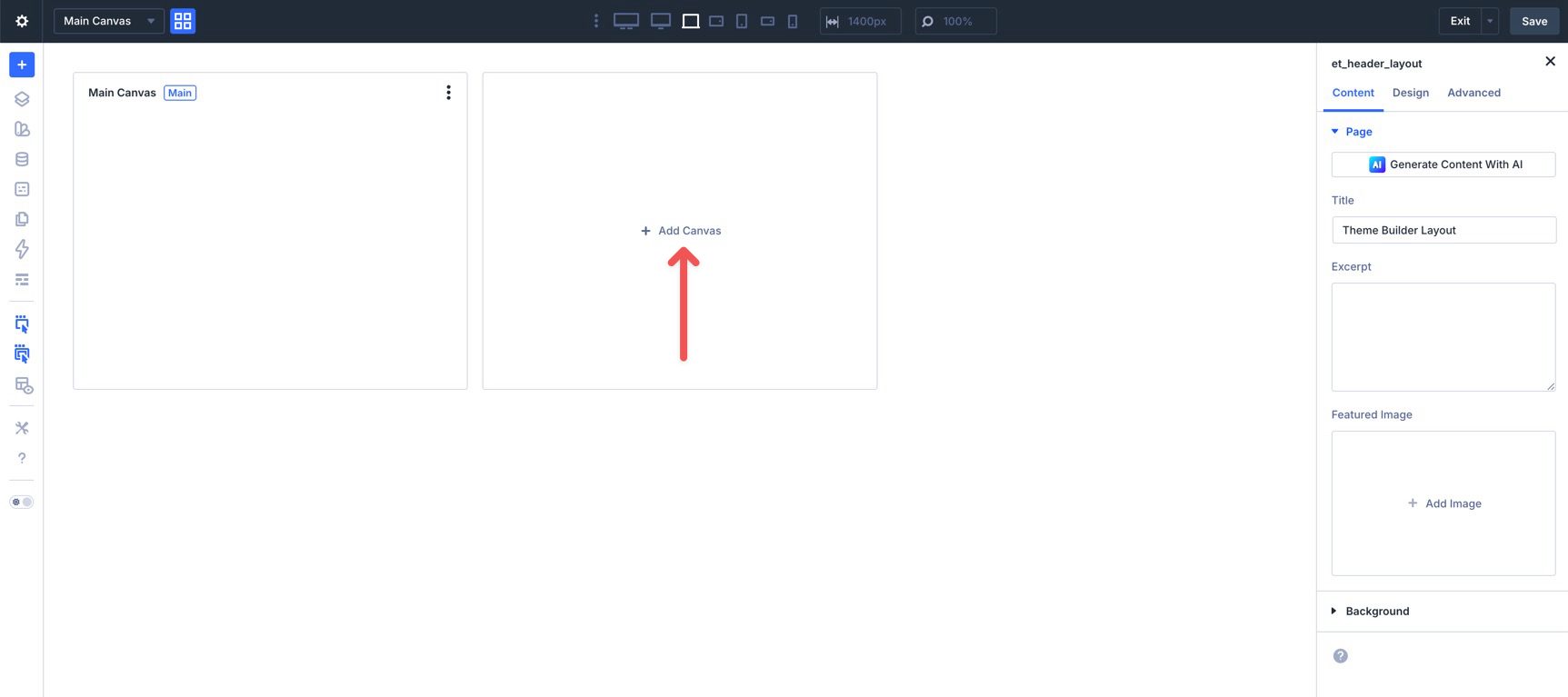
For the cellular model, we’ll use a Canvas so the menu can reside one after the other from the desktop header. Get started by way of clicking the Canvas Grid View button within the builder toolbar.

Click on + Upload Canvas.
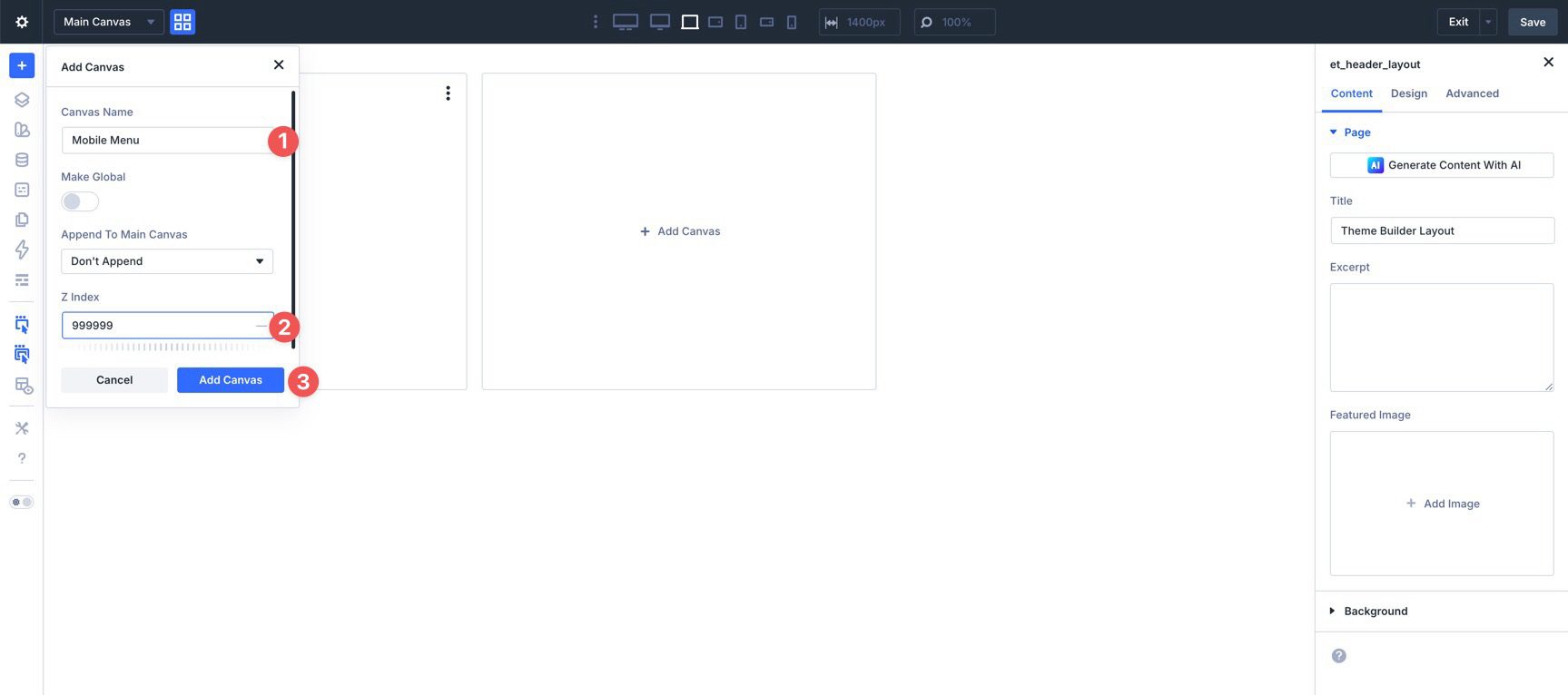
Give the Canvas a reputation, set its Z Index to 999999, and click on Upload Canvas.
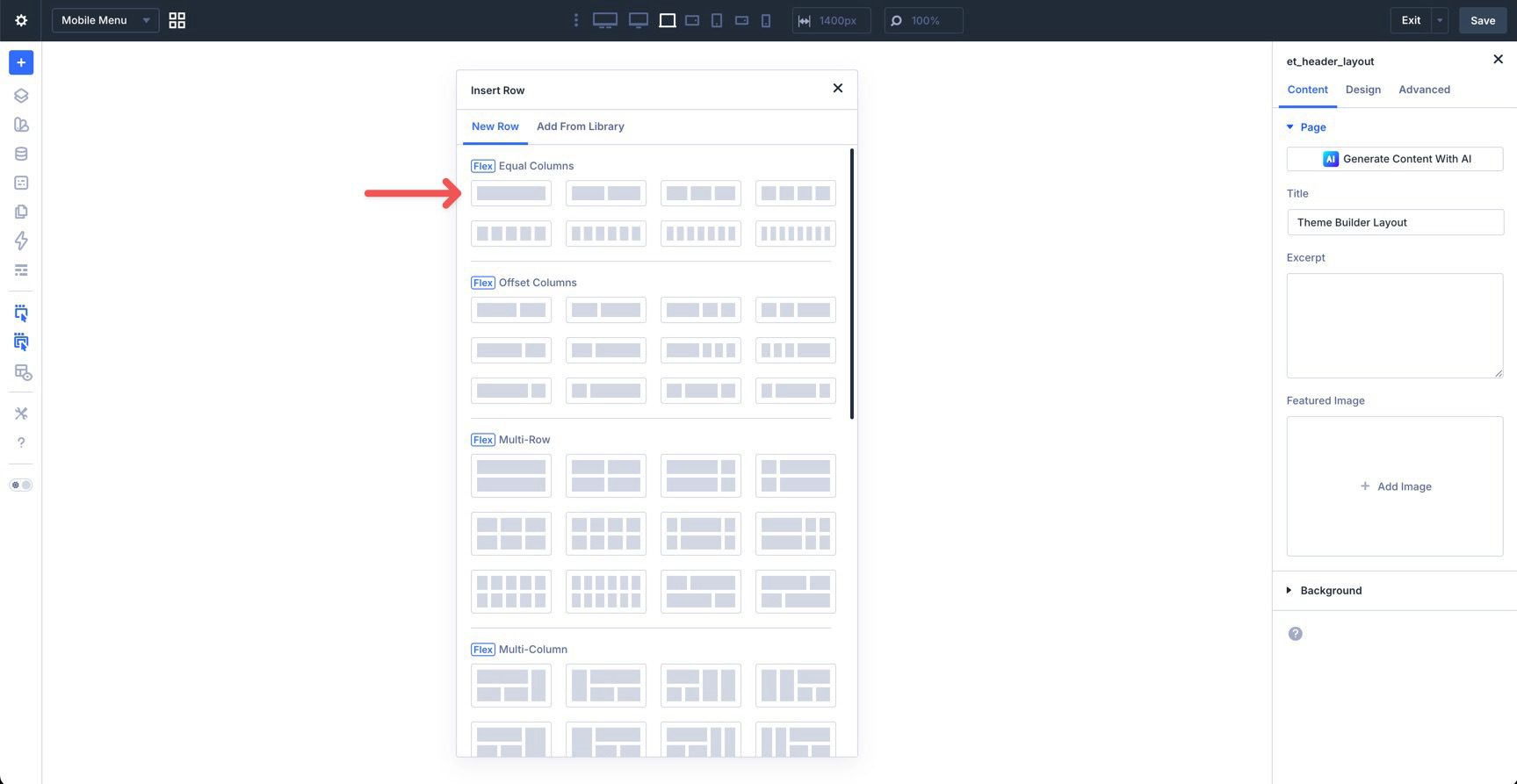
The builder will recommended you so as to add format construction. Make a selection a single-column Row.
Earlier than including modules, configure the canvas format. Choose the Segment, assign a Background Colour, and upload 15px of peak and backside padding.

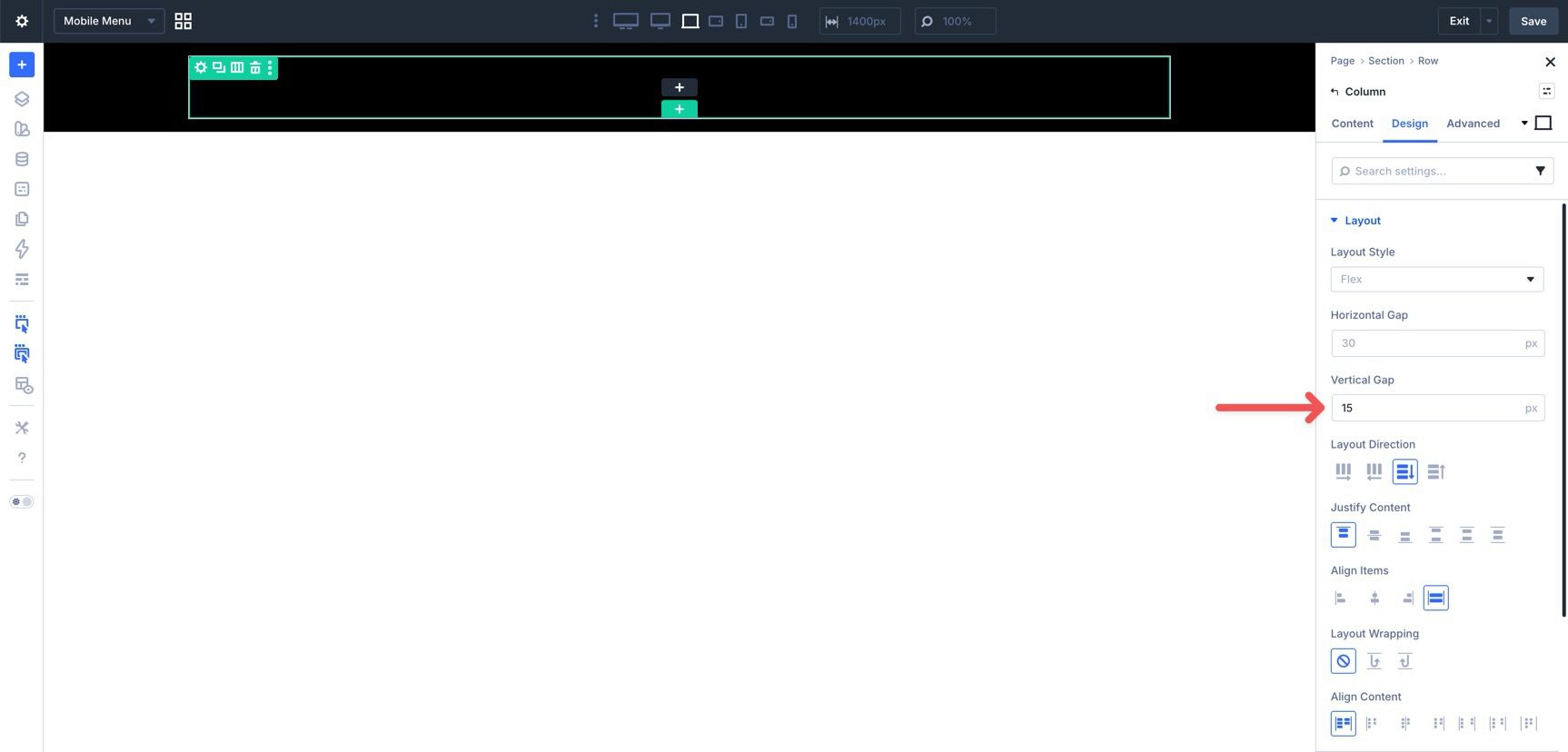
Then edit the Row’s Column and set the Vertical Hole to 15px.
Upload Modules To The Cell Menu
Upload a Hyperlink module to the column. Set its textual content and assign a vacation spot, then taste it to compare your cellular design.
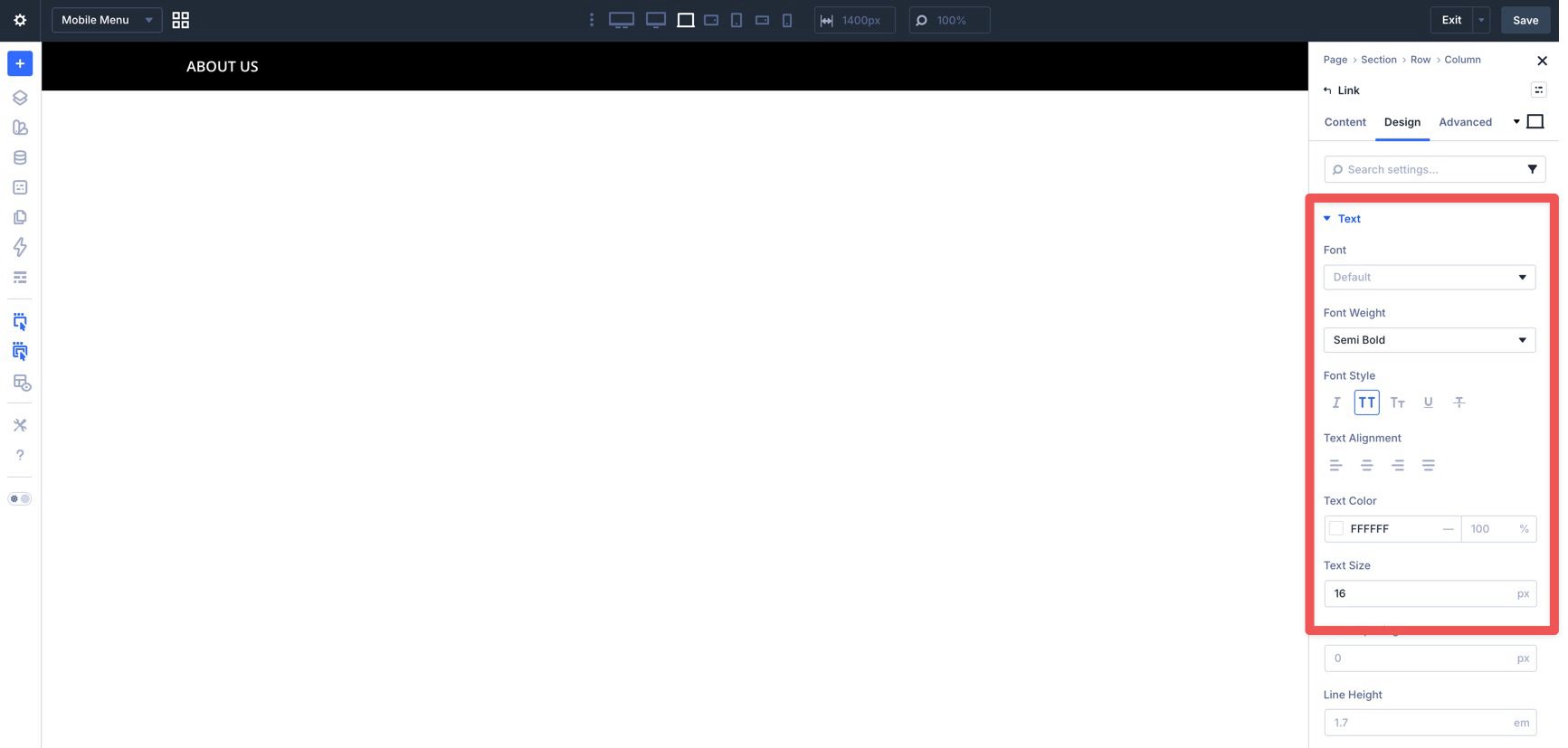
Reproduction the Hyperlink module to construct out the top-level cellular navigation. Replace the textual content and vacation spot for each and every merchandise. For menu pieces that are supposed to extend to show extra choices, it’s incessantly higher to not assign a vacation spot to the top-level cause itself. That stops unintended redirects when the person is attempting to open the submenu.

For a kind of expandable pieces, upload a Dropdown module within the Hyperlink module’s Parts space. Taste it with a border radius and peak border if desired.

Then open the Dropdown settings and set Display Dropdown On to Click on. This is in most cases the simpler cause on contact gadgets.

Upload as many interior Hyperlink modules as wanted and elegance them to finish the submenu.

Repeat this procedure for any further cellular submenus.
Upload The Backside Buttons
To complete the cellular menu, upload a Team underneath the hyperlinks and position two Button modules inside of it. This type of buttons will act because the shut cause for the cellular menu.
As a result of expanded dropdowns might make the canvas more difficult to paintings with, the Layers View can also be the best way to position this Team at once underneath the hyperlink listing.
Set the Team’s Format Path to Row and Align Pieces to Heart.

Now taste the 2 buttons. At this level, the cellular menu canvas must be absolutely constructed.

Save the canvas ahead of transferring on.
Step 6: Upload The Interactions
With each the desktop header and cellular canvas constructed, the final step is to glue the entirety with Interactions and visibility settings.
Cell Menu Interactions
Get started within the cellular menu canvas. Choose the second one Button module within the backside Team and pass to the Complicated tab. Open Interactions and upload a brand new interplay.
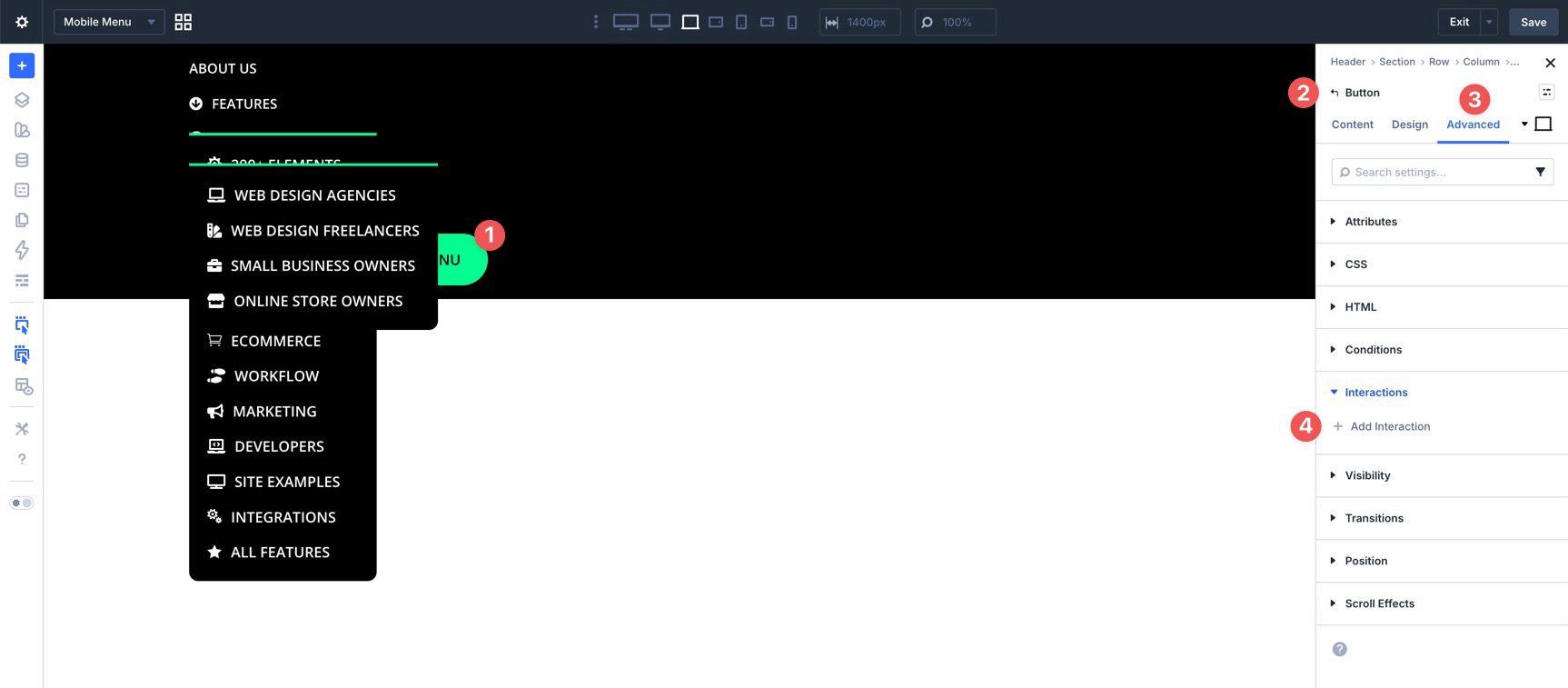
Make a selection Click on because the cause.

Give the interplay an Admin Label, set the impact motion to Disguise Part, and select the canvas segment as the objective. This makes that button shut the cellular menu.
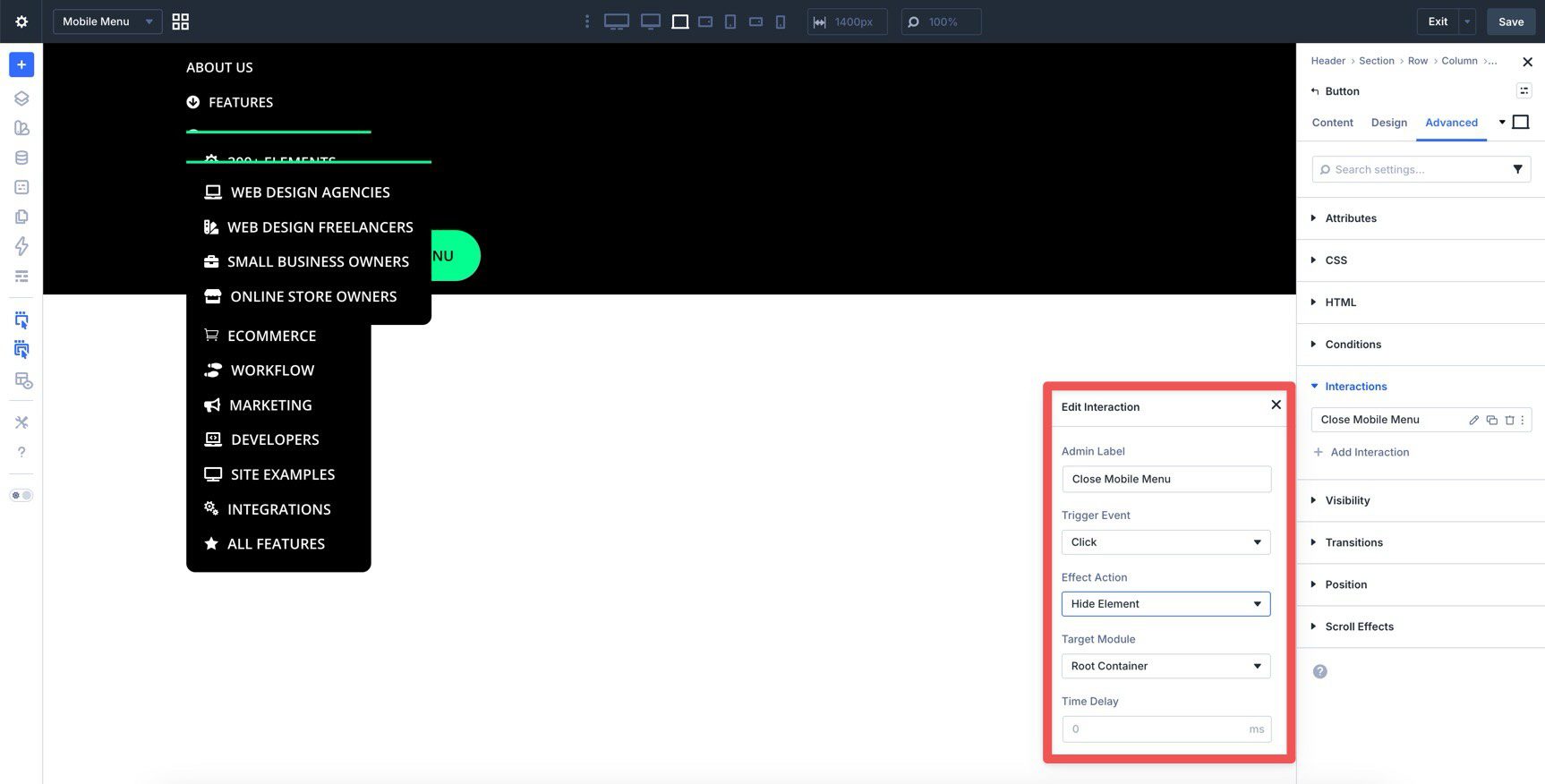
Now choose the canvas Segment and use its Visibility settings to stay it hidden by way of default till it’s caused.

Save the canvas and use Canvas Grid View to go back to the primary header.
Desktop Header Interactions
Now come to a decision how you need the desktop navigation to act on smaller monitors.
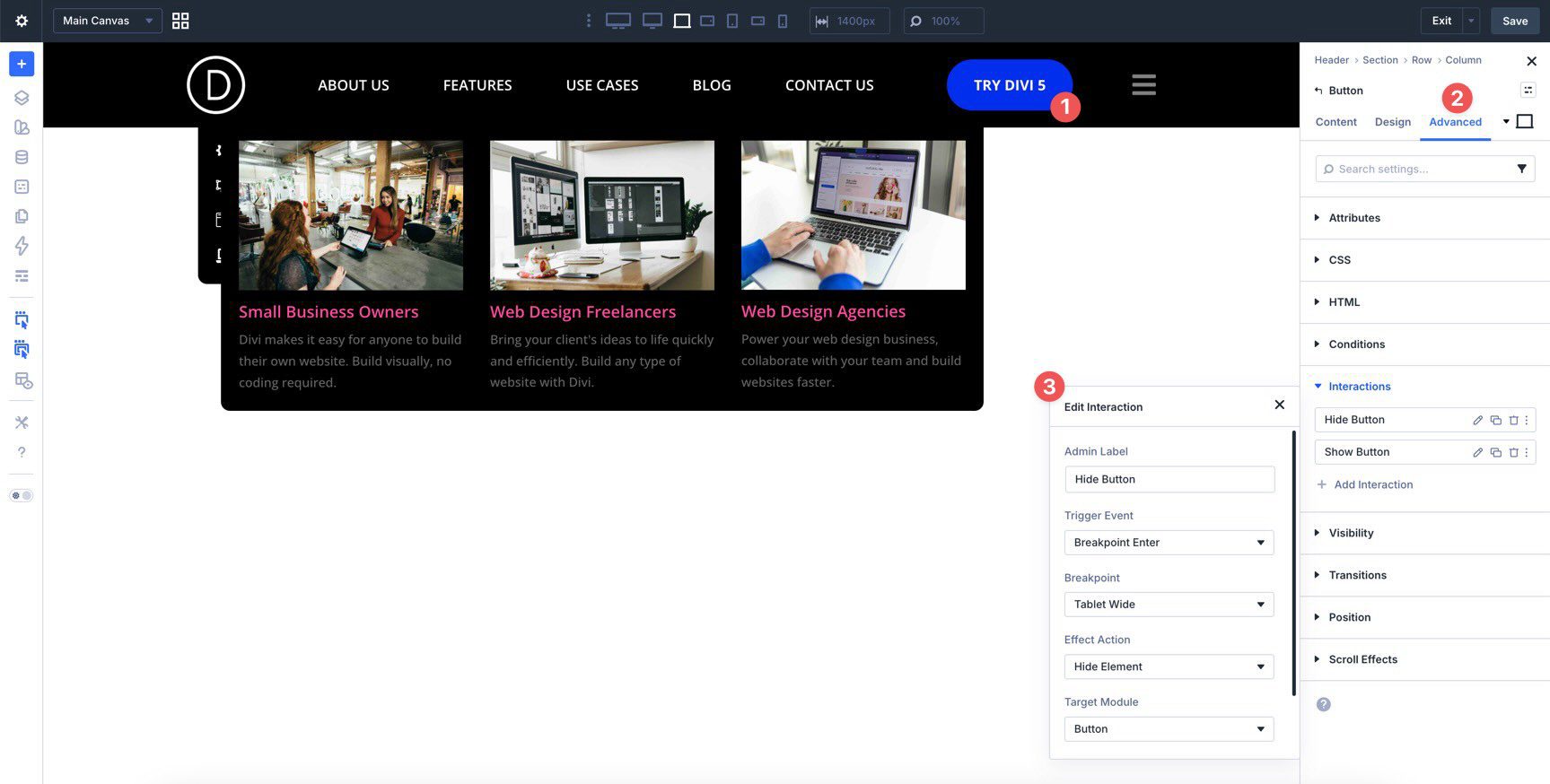
For the desktop hyperlink Team, you’ll be able to use both breakpoint-based interactions or more effective breakpoint visibility controls. If the objective is simplest to cover the desktop nav at pill and underneath, visibility settings are incessantly the cleaner choice. If you need the display and conceal habits tied to resizing occasions, breakpoint interactions are the simpler are compatible.
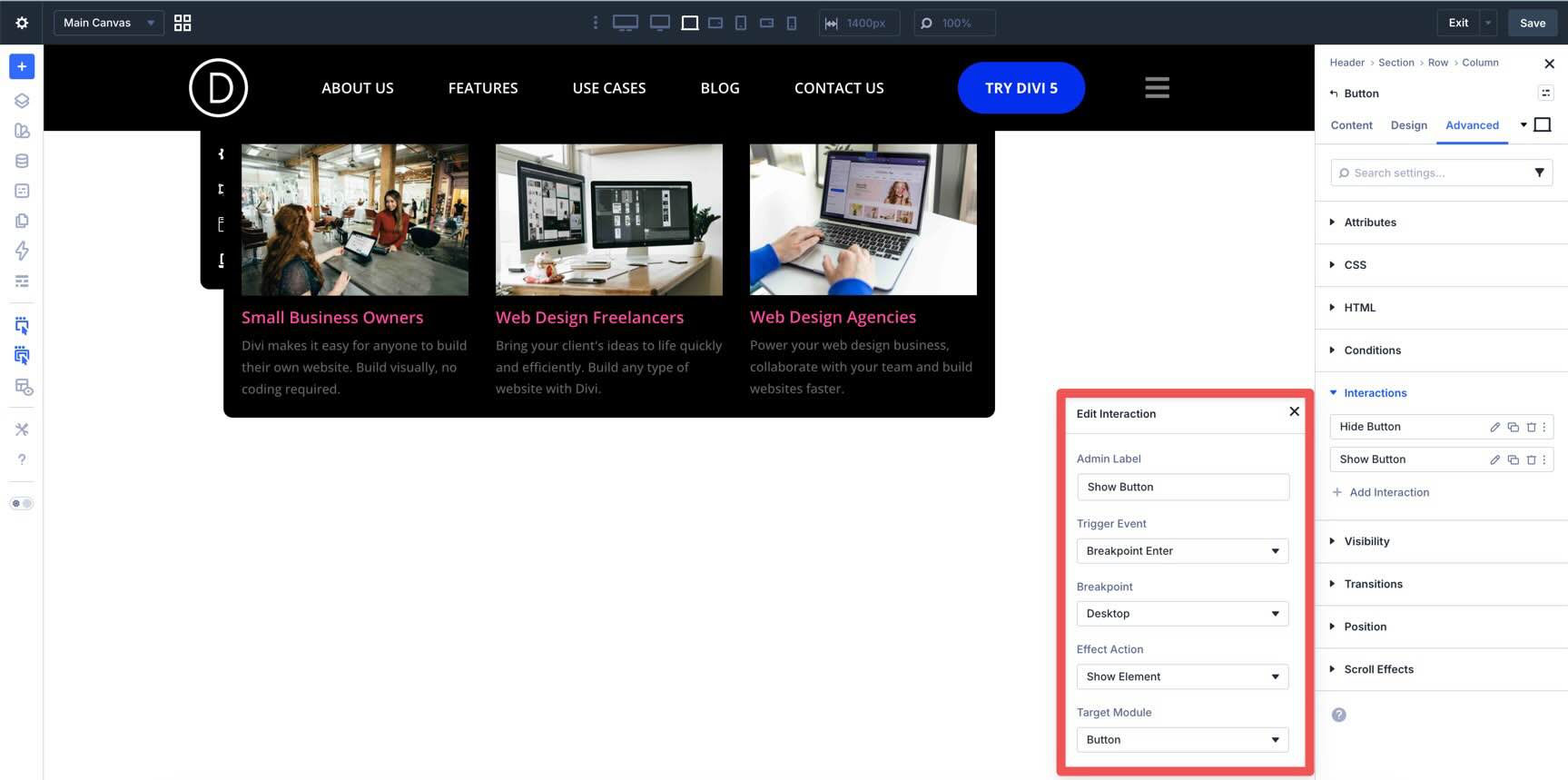
To apply the interaction-based direction used on this instructional, choose the Team that accommodates the desktop hyperlinks and upload a Breakpoint Input interplay set to Disguise Part at Pill Large.

Then upload a 2d Breakpoint Input interplay set to Display Part at Desktop so it reappears when the format returns to the desktop breakpoint.

Repeat the similar two interactions at the desktop Button module in the event you additionally need it hidden on smaller monitors.
After all, choose the hamburger Icon in the primary header. A very powerful interplay this is the Click on cause that finds the cellular menu canvas segment.
You’ll be able to then use both breakpoint visibility settings or breakpoint interactions to stay the icon hidden on desktop and visual simplest at the smaller display screen sizes the place the cellular menu must take over.
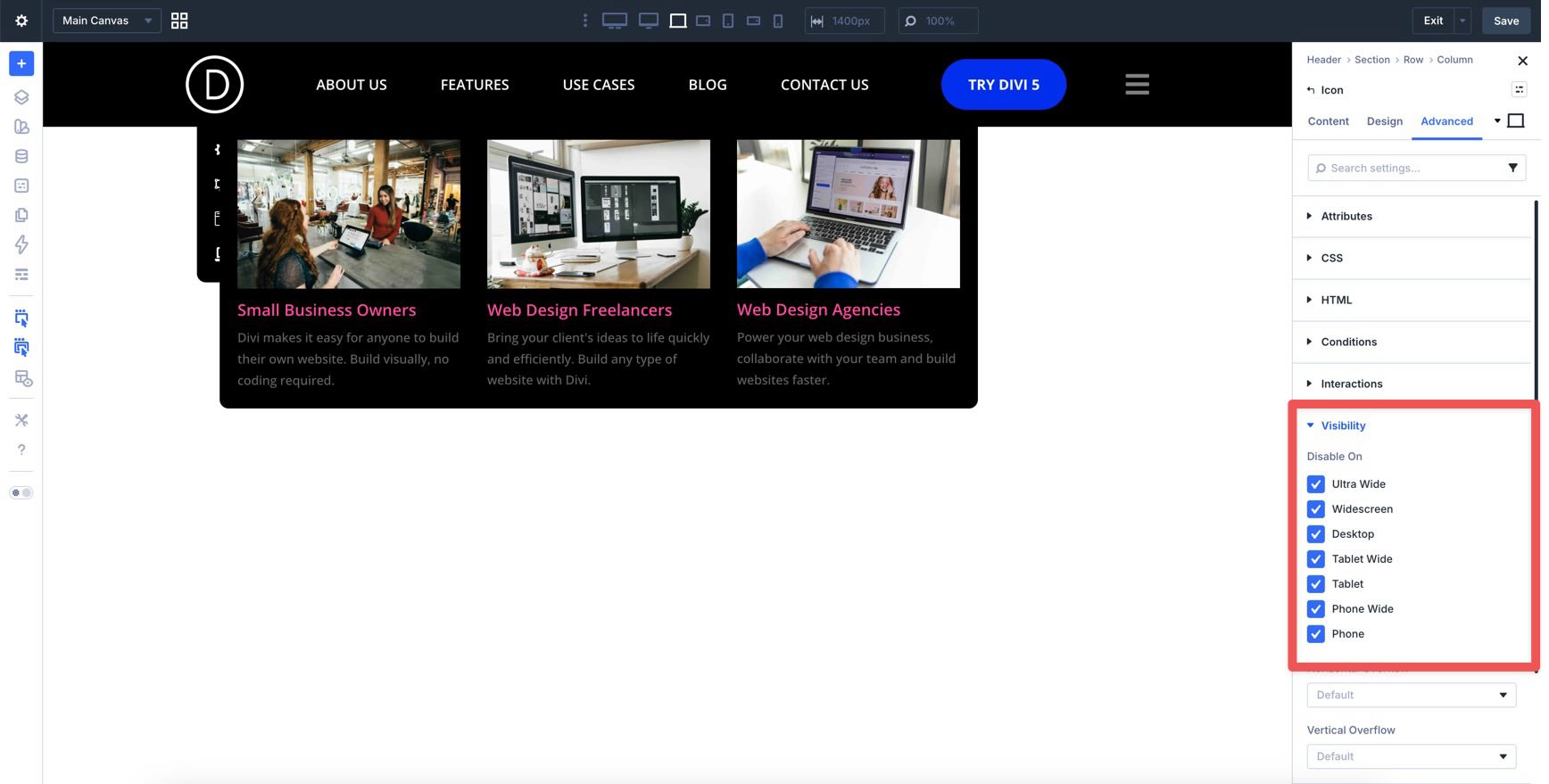
At this level, you will have a operating desktop mega menu and a separate cellular menu canvas.
Construct Customized Mega Menus With Divi 5 Lately!
Development a customized mega menu in Divi 5 is a lot more versatile now since the Hyperlink and Dropdown modules paintings along Canvases, Loop Builder, Interactions, and visibility settings. As a substitute of forcing the entirety via a unmarried conventional menu construction, Divi 5 permits you to construct the navigation development that matches your challenge.
Whether or not you need a easy dropdown, a multi-column mega menu, a dynamic content-driven submenu, or a separate cellular overlay, those gear provide you with a visible method to construct it throughout the Visible Builder.
Obtain the most recent unlock of Divi 5, get started experimenting with customized menus, and adapt this construction to suit your personal website online’s navigation.
The put up How To Build Mega Menus With Divi 5’s Dropdown Module seemed first on Elegant Themes Blog.


0 Comments