

Protective a internet web site consistent manner dressed in the equivalent logo voice, design possible choices, and construction conventions into each new process. Repeating those instructions in every AI urged supplies artwork, in particular whilst you’re development quite a lot of pages for the same client.
Divi AI Brokers will let you save that steering as Regulations inside the Divi 5 Visual Builder. You’ll define necessities the agent should practice, choose when they practice, and reference other Regulations or site content material subject matter. Right here’s simple the way to set them up and keep them useful as your site develops.
From Specific particular person AI Tasks To Hooked up Workflows
When Divi AI introduced in August 2023, it offered text and image technology into the Visual Builder. Code technology followed, expanding what you must create without leaving the internet web page.
Those apparatus later expanded to generate layouts and full web websites. Instead of starting every section manually, you must use AI to create a kick off point and continue enhancing it in Divi.
The creation of Divi AI Brokers brings the ones workflows proper right into a conversational interface. You describe a task, and the agent can take a look at the internet web page and use Divi-specific apparatus to make changes all through a few parts.
For example, you’ll ask it to refine a hero section, standardize typography, alternate repeated color values with Design Variables, or regulate responsive spacing. It would in fact moreover create pages, arrange menus, time table posts, and artwork with Theme Builder templates.
Regulations give the ones requests a shared set of instructions. Alongside the rapid process, the agent has steering about how you need the site designed, written, and organized.
How Regulations Be in agreement Care for Consistency
The agent can take a look at your present internet web page, then again its content material subject matter and settings don’t give an explanation for every design answer. A decided on color could be intentional, a brief placeholder, or a worth you need modified with a Design Variable. Regulations will let you make those preferences particular.
You might save instructions about logo voice, which presets to reuse, simple the way to determine parts, or which color variables to make use of. This steering remains available previous an individual conversation, reducing the need to repeat it in each urged.
Regulations knowledge the agent’s artwork; they don’t put into effect settings like a preset or robotically substitute present parts while you save them. Continue reviewing the result, particularly when a task involves exceptions in your standard necessities.
Regulations vs Directions
Regulations describe how the agent should approach its artwork. Directions are reusable turns on you choose to run for routine tasks.
| Regulations | Directions | |
|---|---|---|
| Nature | Passive. Loaded robotically faster than every session. | Vigorous. Saved turns on you purpose from the chat when you need them. |
| Serve as | Governs how the Agent behaves all through all conversations. | Runs a saved multi-step process on name for. |
| Superb for | Brand voice, design variables, construction conventions, naming necessities. | Accessibility audits, responsive cleanup, content material subject matter evaluations, design device sweeps. |
| Setup | Write once. Always on from that point forward. | Write once. Purpose from the chat on each instance you need it. |
For example, a Rule might tell the agent to use present color variables when styling parts. A Command might ask it to review a internet web page for hardcoded colors and alternate them with suitable variables. The Rule supplies the convention; the Command starts the obligation.
Brand necessities and naming conventions in most cases belong in Regulations. Repeatable jobs, similar to accessibility evaluations or responsive cleanup, make useful Directions. You’ll use every within the equivalent workflow.
Growing Regulations For Divi AI Agents
Get began with one instruction you ceaselessly repeat. Give it a clear identify, describe what the agent should do, and choose whether or not or now not it applies widely or best to sure tasks.
1. Open The Rule Editor
Open Divi AI Agents from the AI Agent icon inside the Visual Builder toolbar.

Throughout the chat’s composer toolbar, click on on Regulations. This opens the Regulations panel, where you’ll browse saved instructions or add a brand spanking new one. The toolbar moreover provides get right to use to Directions, Apparatus, Context, and record attachments.

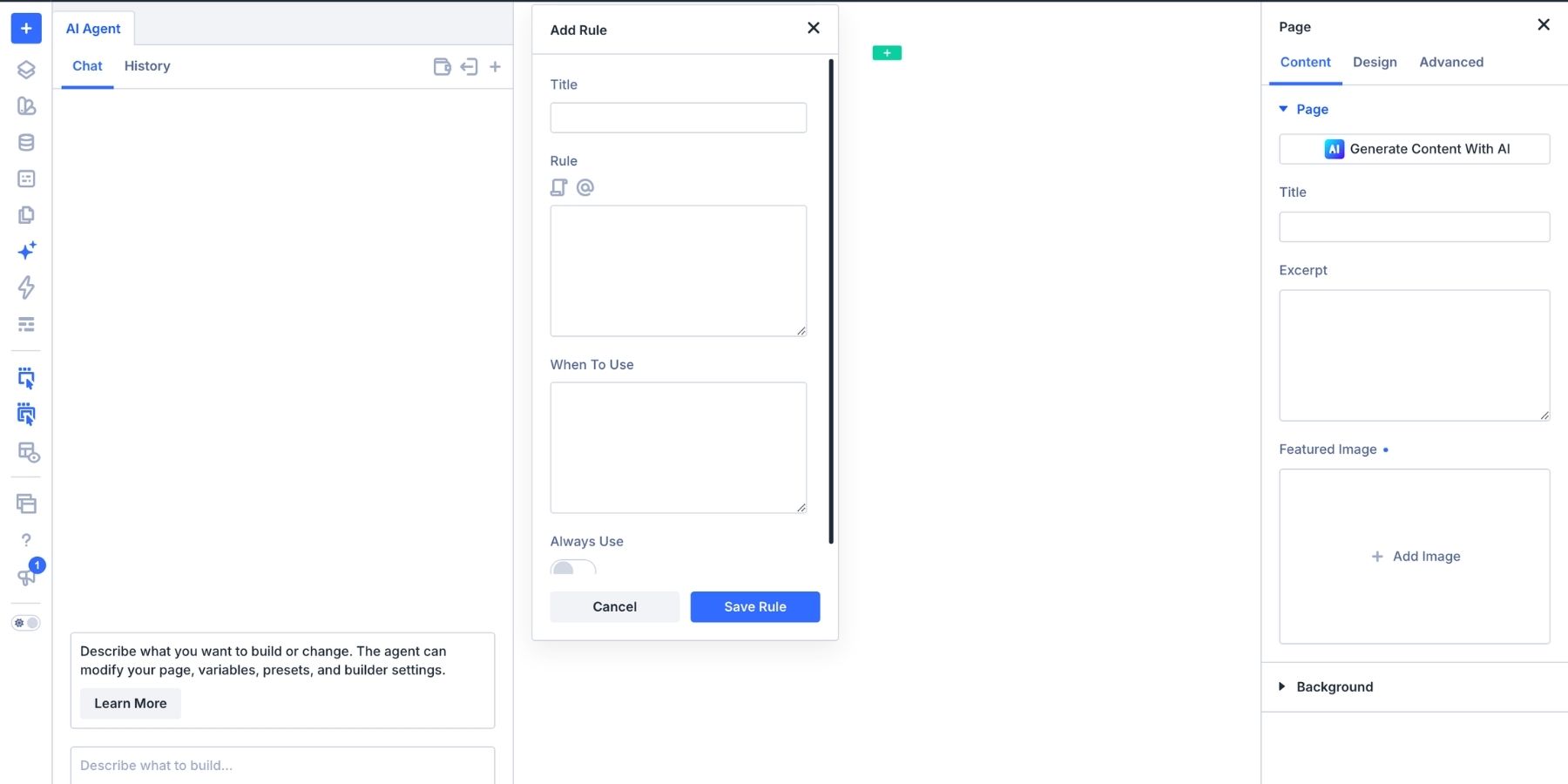
Click on on Add New Rule. The editor signifies that you’ll enter a reputation and instruction, then control when the Rule should practice.
2. Give It A Identify And Write The Instruction
Enter a short lived, recognizable determine inside the Identify field. In this example, we use Brand Voice for the reason that Rule defines how the agent should write copy for the site.
Throughout the Rule field, describe the writing style you need. Be explicit about tone, sentence duration, word possible choices, and calls to movement somewhat than simply asking the agent to “write on logo.”

The example above asks for a warmth, direct, and confident tone, with fast sentences and paragraphs under 3 sentences. It moreover specifies words to avoid, asks the agent to handle readers as “you,” and favors clear, action-focused headlines and button labels.
The ones details turn a in depth want into steering the agent can practice when writing or enhancing content material subject matter. Adapt them in your non-public logo somewhat than treating the example as a not unusual writing same old. Keep each Rule interested in one subject. Save typography or button styling instructions separately so that you’ll find, substitute, and blend them further merely later.
3. Make a choice When The Rule Applies And Save
Use When To Use to give an explanation for the situations during which the Rule is said. For example, enter “when development or enhancing landing pages” or “when styling primary CTA buttons.” This provides the agent context for deciding when to use the instruction.

Turn on Always Use for steering that are supposed to practice all through your artwork on the site. Elementary logo or naming conventions may fit proper right here. Instructions explicit to a internet web page type or part are upper suited to a clear When To Use description.

Click on on Save Rule. The saved instruction turns out inside the Regulations panel, able for the agent to use consistent with its applicability settings.
Take a look at a small process lined by the use of the Rule, similar to styling one primary button. Evaluate the result in opposition to the instruction and refine any wording that leaves room for an accidental interpretation.
Managing And Combining Regulations
As your site develops, you may need to substitute necessities, combine equivalent instructions, or degree the agent to an present design. You’ll do this from the Regulations panel without rewriting every Rule from scratch.
Nesting Regulations
A page-specific Rule may need steering from quite a lot of other Regulations. For example, a product internet web page instruction might reference your logo voice, typography, and button conventions alongside its non-public construction prerequisites.
Use the Regulations icon all through the Rule editor to open the picker and choose a saved Rule.
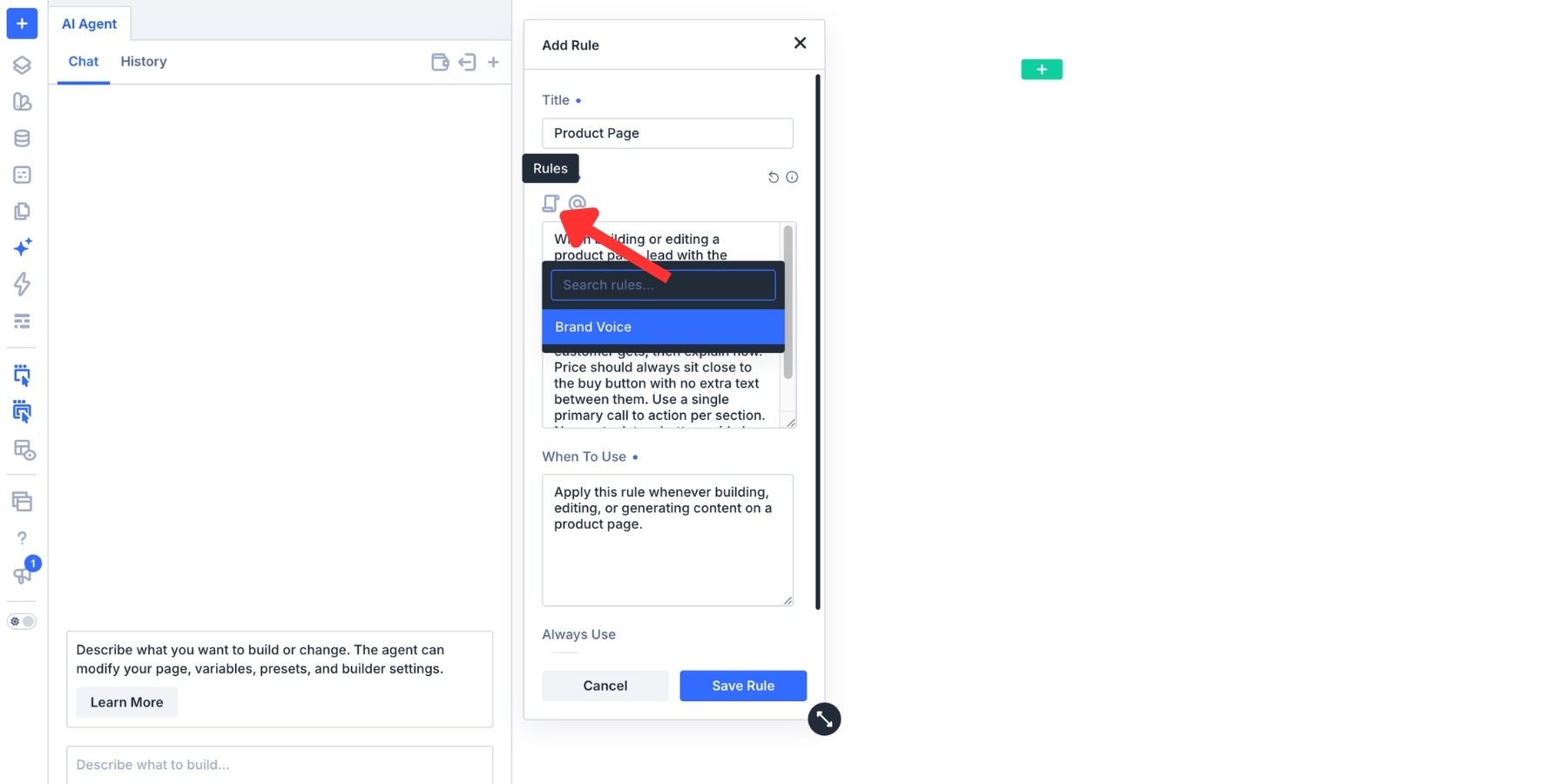
The selected Rule turns out as a reference tag, similar to #Brand Voice or #Button Types, above the instruction field.
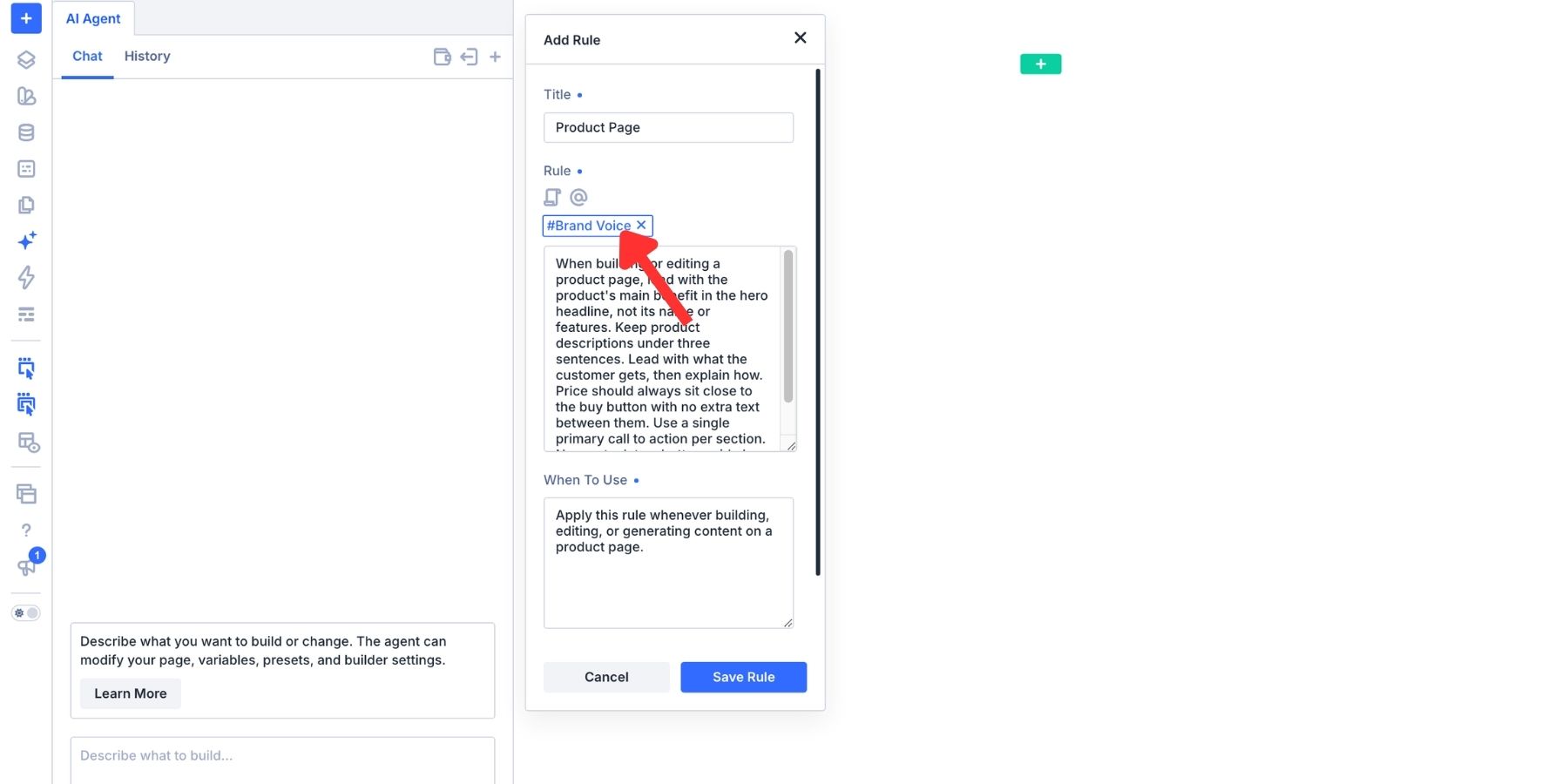
This lets you combine centered instructions without copying their text into quite a lot of places. Exchange the referenced Rule when a shared convention changes, somewhat than maintaining separate diversifications of the equivalent steering.
Keep the mixed instructions suitable. If a product internet web page needs a distinct button treatment, give an explanation for that exception clearly as an alternative of leaving two conflicting instructions for the agent to interpret.
Together with Context To A Rule
The @ icon inside the Rule editor opens the Context picker. Use it to reference similar site content material subject matter alongside your written instruction. The picker confirmed proper right here incorporates parts, Design Variables, Canvases, and Apparatus.

Make a choice the item you need the agent to test with. It sort of feels that as a tag above the Rule field.
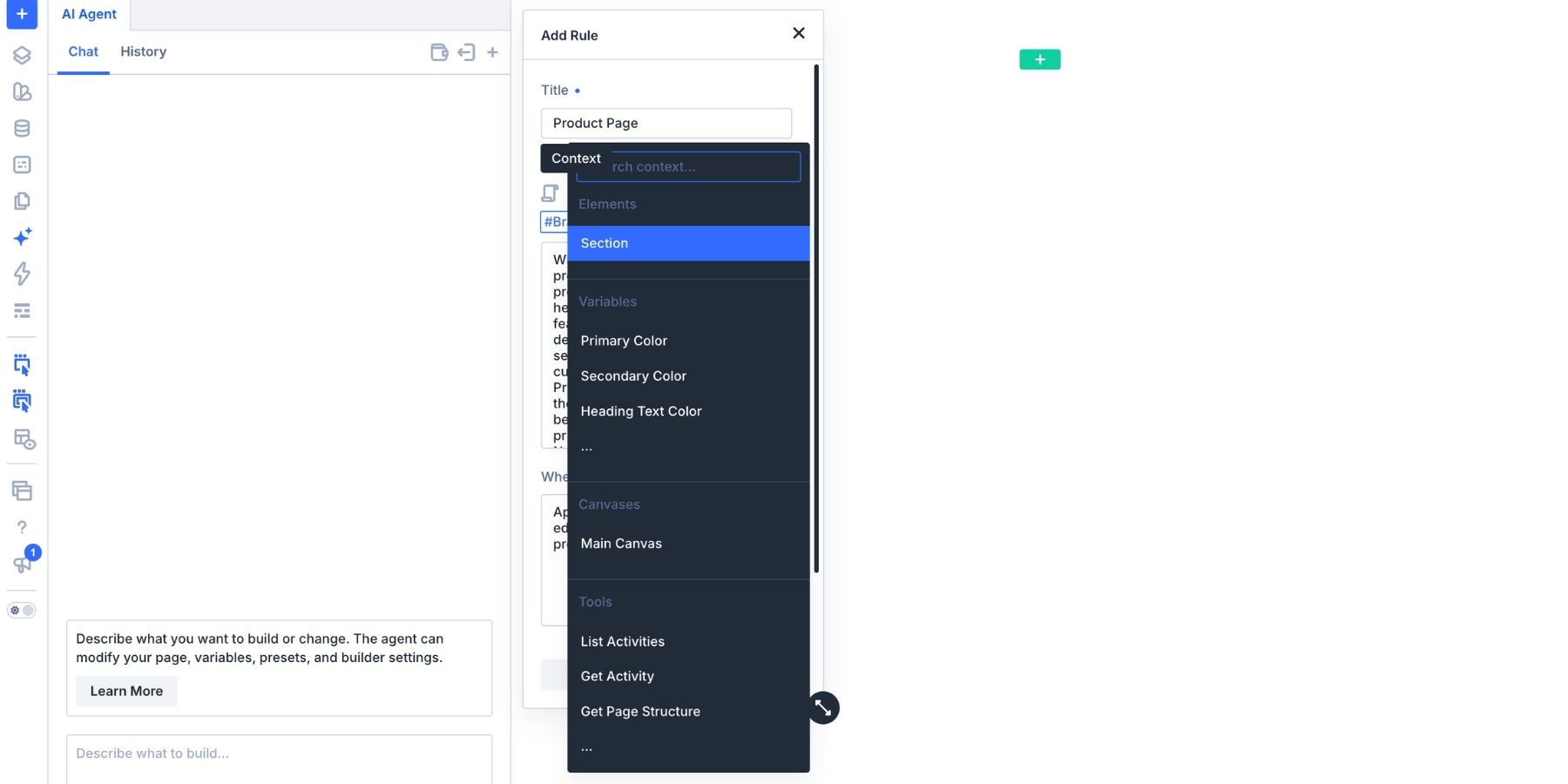
For example, “are compatible the existing heading style” is further useful while you moreover reference the heading you suggest. The instruction explains what to check, while the reference identifies the availability the agent should take a look at.
Be explicit regarding the relationship. You might ask it to use the reference heading’s typography while protecting each heading’s text and semantic level. This provides the agent a clearer process than a fundamental request to duplicate the heading.
When reusing a Rule in other places, check out that its attached Context continues to be similar. A page-specific example might not be the suitable reference for every construction.
Editing, Duplicating, And Deleting Regulations
Open the Regulations panel from the composer toolbar. Use the quest field to go looking out an instruction, then hover over it to turn the controls for enhancing, duplicating, and deleting it.

Use the apparatus icon to edit a Rule. Exchange the instruction when a client changes their logo voice, a variable is renamed, or a design convention evolves. Evaluate its applicability settings and references at the equivalent time.
Use the copy icon when a brand spanking new Rule shares numerous an present instruction then again needs its non-public variation. Give the copy a certain identify and change When To Use so its purpose is plain. If only a small exception is sought after, referencing a shared Rule may be easier to care for than copying it.
Use the trash icon to remove steering you now not need. Faster than deleting a shared Rule, evaluate any Regulations that reference it so those instructions keep whole.
Give Divi AI Agents A Consistent Starting Stage
Regulations in Divi AI Brokers will let you save the conventions behind your internet web site, from logo voice to preset possible choices, in order that they’re available when the agent works on similar tasks. Get began with the instructions you repeat most incessantly, keep them centered, and add references where an present design explains your intent upper than text alone.
As you utilize them, refine the wording spherical exact results. A small set of clear Regulations can cut back repeated briefing and have the same opinion Divi AI Agents artwork further carefully in conjunction with your design device.
The post Learn how to Use Divi AI Brokers Laws appeared first on Chic Subject matters Weblog.




0 Comments