

A spacing gadget becomes easier to deal with when its values have a clear courting. A panel would perhaps need two instances your standard padding, while the gaps between its contents need phase that amount. Nested variables allow you to keep those relationships connected in Divi 5.
You’ll be capable to moreover assemble a fluid heading measurement from shared limits or deliver in combination reusable text from smaller pieces. We’ll use a workshop layout to find each manner and show what happens when a provide worth changes.
What Are Nested Variables In Divi 5?
A nested variable incorporates a reference to every other variable inside of its worth. The provision holds the original wisdom; the variable that references it supplies a courting or combines it with other content material subject matter.
As an example, a bunch variable named Base House can dangle 24px. A second variable, Panel Padding, can reference Base House and multiply it by way of 2. Panel Padding then produces 48px anywhere you follow it. Alternate Base House to 32px, and that padding becomes 64px.
The distinction is where you store the relationship:
- Use a provide variable immediately when a variety of settings should percentage the equivalent worth.
- Use variable math in a atmosphere when a calculation belongs to that specific field.
- Create a nested variable when you want to name and reuse the calculated or combined worth.
Our nested variables, variable math, and variable combos replace brings the ones workflows together. The examples underneath focal point on amount and text variables, the use of a single layout so their effects are easy to look at.

Download The Example Layouts
Choose from two internet web page layouts inside the download. With the starter, you’ll be capable to exchange fastened values with variable relationships yourself. The finished layout accommodates the nested variables and their connections to the design.

To watch in conjunction with the starter layout:
- Create a brand spanking new internet web page in WordPress and make a choice the Blank Internet web page template to stick the example free of a header and footer.
- Save the draft, then open it with the Divi Builder.
- Open the Internet web page Menu at the peak left of the builder and make a choice Import.
- Choose the starter JSON from the extracted download. Leave Exchange Provide Content material subject matter made up our minds on on this new, empty internet web page, then click on on Import Layout.
- Save the internet web page and keep the Visual Builder open for the following examples.
The ones are page-level imports, so use the builder’s internet web page menu reasonably than the Divi Library importer. The finished file moreover accommodates 9 global variables; the starter does not require them.
Assemble Attached Spacing With Amount Variables
Get began with one provide worth and two equivalent sizes. Inside the example, Base House controls the introduction’s padding, Panel Padding gives the blue column more room, and Small Hollow spaces the modules inside of each column.
Create The Provide Variable
Open the Variable Manager from the builder’s left sidebar. In case you’re new to the gadget, our Design Variables creation explains how reusable values art work during portions and presets.
- Building up Numbers inside the Variable Manager.
- Click on on Add Global Amount.
- Give the variable the identify Base House.
- Set its worth to 24 and its unit to px.
Use a undeniable identify if your internet web page already has a variable for every other spacing gadget. The ones variables belong to the internet web site, so their names should make sense previous the prevailing internet web page.
Create The Derived Spacing Variables
Add every other global amount and identify it Panel Padding. Its worth will come with a reference to Base House followed by way of a multiplication.
- Clear the new variable’s initial worth.
- Click on on its Dynamic Content material subject matter insertion button and make a choice Base House from the volume variables.
- Place the cursor after the inserted chip and kind * 2.
- Add a third amount variable named Small Hollow.
- Insert Base House in its worth, then type / 2 after the chip.
Keep Base House as a variable chip in every expressions. Typing its provide worth would produce a suite calculation and not using a connection to the availability.
Click on on Save Variables, then check Observe Changes when triggered. With Base House at 24px, Panel Padding produces 48px and Small Hollow produces 12px.

Observe The Variables To The Layout
Open Layers from the left sidebar and magnify the section and its first row. Open the settings for the blue schedule column. Deciding at the column in Layers helps keep away from opening a Text Module inside it as an alternative.
- Cross to Design > Spacing inside the column settings.
- Inside the first Padding field, use the dynamic content material subject matter picker to choose Panel Padding.
- Observe that variable to the perfect, bottom, left, and right kind padding fields. Use the linking controls for matching pairs where at hand.
Every aspect now references the equivalent derived variable. The settings show its identify, while the column uses the following 48px worth.
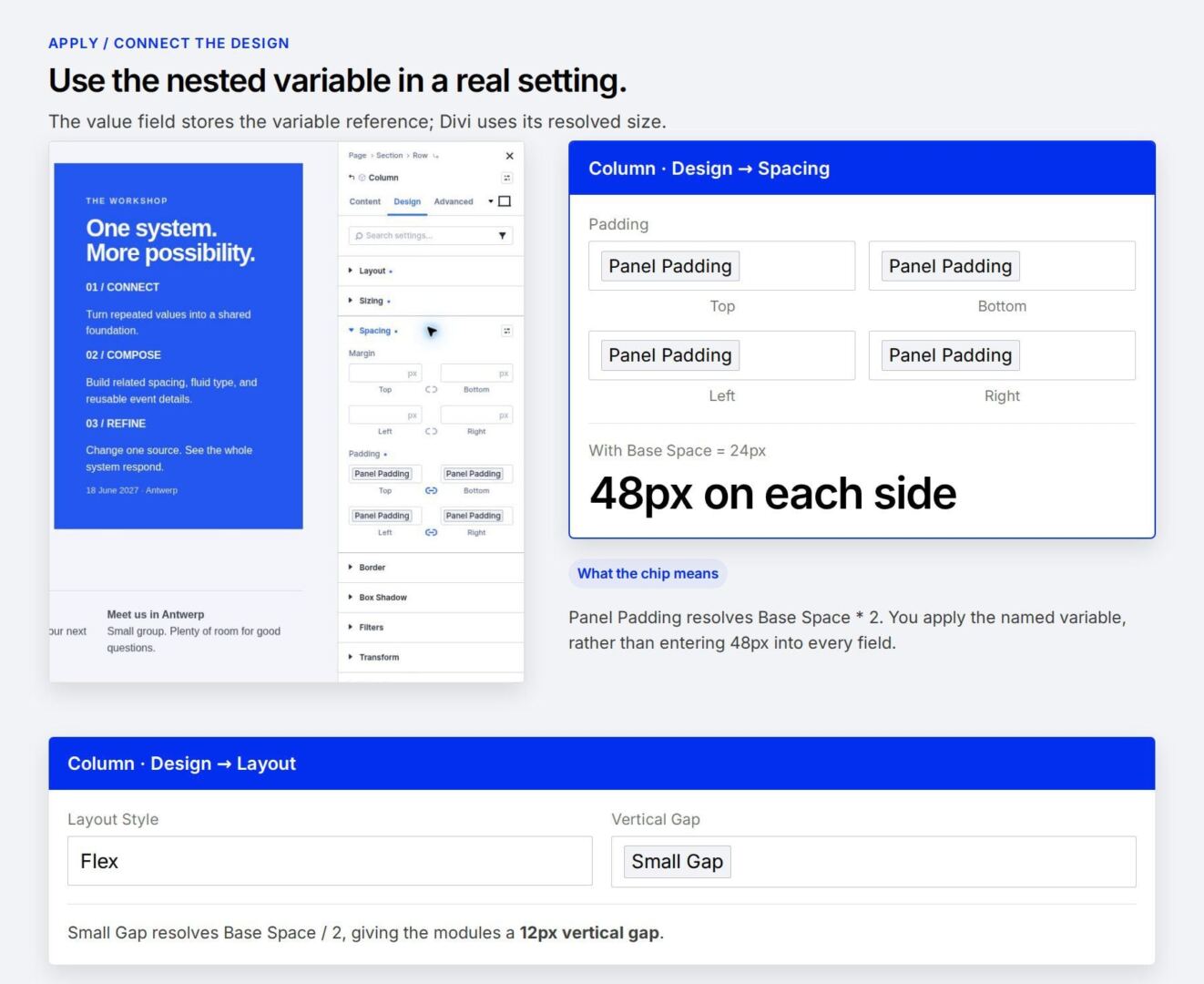
For the spacing between modules, open Design > Layout in that column and make a choice Small Hollow for Vertical Hollow. The equipped columns use the Flex layout style. Observe Base House immediately to the introduction column’s padding in the event you occur to’re reproducing all of the example’s relationships.
Alternate The Provide And Check out The End result
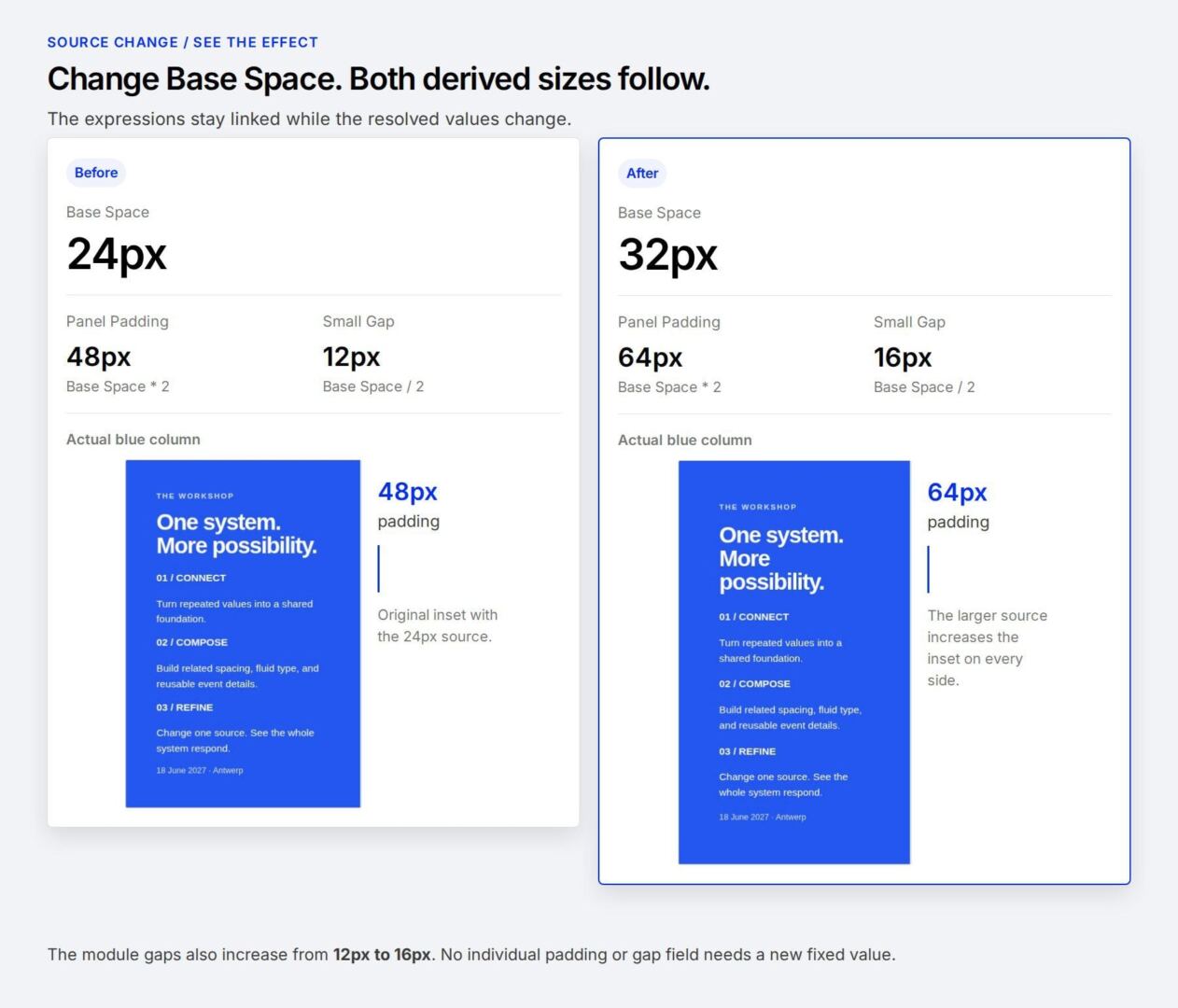
Return to the Variable Manager and change Base House from 24px to 32px. The introduction padding becomes 32px, the blue column’s padding becomes 64px, and the module gaps change into 16px.
The derived expressions stay intact throughout that adjust. You’ll be capable to modify all of the spacing without converting the values in each connected atmosphere. Restore Base House to 24px if you want to continue with the equipped layout’s original proportions.
Nesting moreover works during the CSS functions available through Divi’s Complex Gadgets. A useful example is a fluid heading with a shared minimum and maximum measurement.
We’ll use 3 amount variables:
- Heading Minimum: 36px.
- Heading Maximum: 76px.
- Fluid Heading: a clamp() expression referencing every limits.
Create Heading Minimum and Heading Maximum inside the Numbers team of workers, as you most likely did with Base House. Then add the third amount variable and identify it Fluid Heading.
- Open Fluid Heading’s unit selector and make a choice clamp.
- Inside the function’s worth field, insert the Heading Minimum variable as the principle argument.
- After that chip, enter a comma, 5.2vw, and a few different comma.
- Insert Heading Maximum as the entire argument.
- Save the variables and follow the changes.
The clamp selector supplies the function spherical those 3 arguments. Inside the fee field, you’ll see the two variable chips with 5.2vw between them.
The main and supreme arguments decide the scale limits. Between them, 5.2vw provides a hottest measurement that changes with viewport width: 5.2% of that width. The browser helps to keep the outcome throughout the two limits.

To use the outcome, open the primary Heading Module and transfer to Design > Heading Text. In Heading Text Dimension, insert Fluid Heading during the dynamic content material subject matter picker.
Check out the title in desktop, tablet, and speak to previews. At a big viewport, the maximum would perhaps restrict the scale; on a narrow show, the minimum would perhaps take over. Between those limits, the viewport worth controls the heading’s measurement.
To verify the connection, in short lower Heading Maximum to 44px while viewing the desktop layout. The heading can’t broaden previous that restrict. Restore 76px shortly. A transformation to the maximum will best control the visible outcome when that restrict affects the prevailing viewport measurement.
Bring together Reusable Text With Nested Variables
Text variables can combine shared details into a larger reusable worth. Our workshop uses a date and web site together in every the introduction and the schedule panel.
Create The Individual Details
Inside the Variable Manager, magnify Text and click on on Add Global Text. Create a variable named Fit Date and enter the workshop date. Add every other named Fit Location and enter the town.
The example uses 18 June 2027 and Antwerp. Each and every are atypical text values: the date stays as entered until you change its provide.
Assemble The Mixed Text Variable
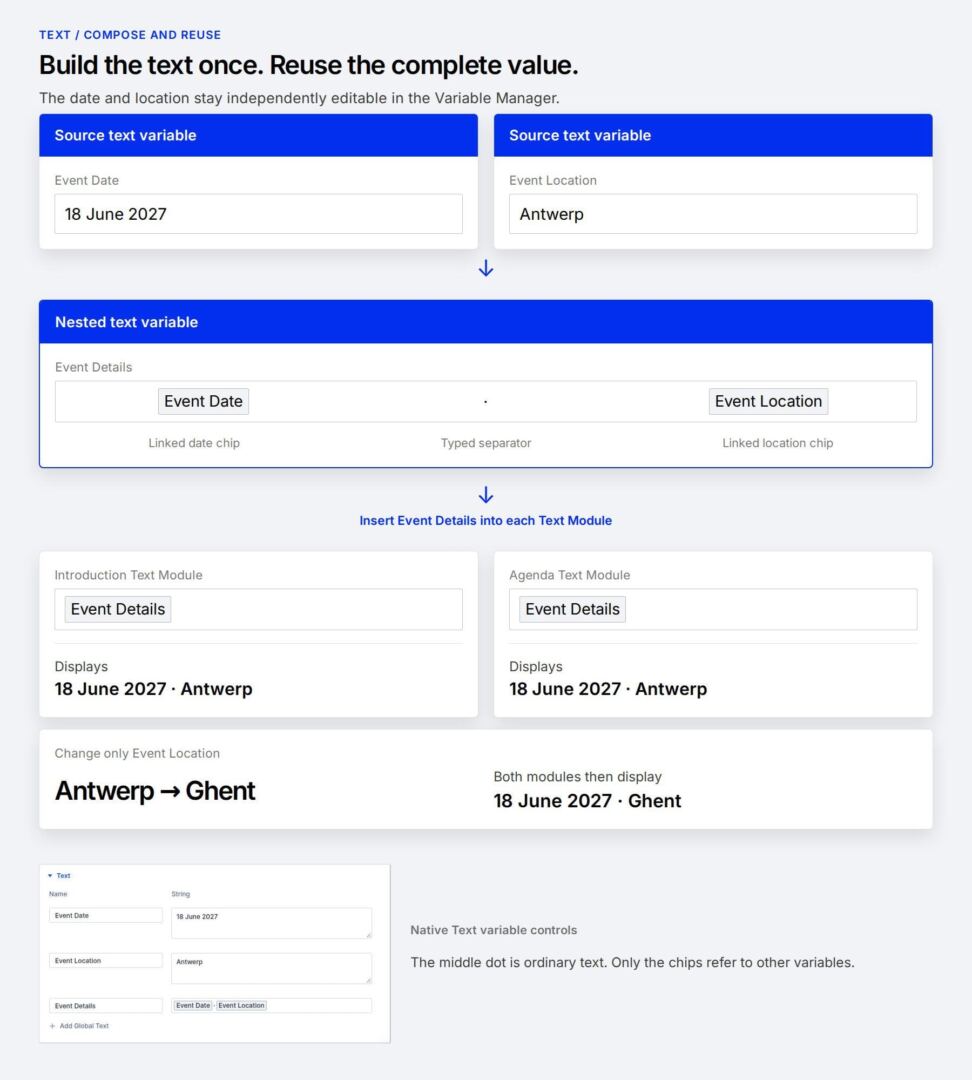
Add every other text variable and identify it Fit Details. Assemble its worth from the two provide belongings:
- Place the cursor inside the empty worth field.
- Open the dynamic content material subject matter picker and make a choice Fit Date.
- After the chip, type a space, a middle dot separator, and a few different house.
- Open the picker over again and insert Fit Location.
- Save the variables and follow the changes.
The date and web site keep separate chips, with an atypical text separator between them. Fit Details combines those pieces into one worth you’ll be capable to reuse elsewhere.
Reuse The Mixed Value
Open the Text Module used for match details underneath the introduction. Underneath Content material subject matter > Text, exchange its fastened date-and-location line with the Fit Details variable the use of the dynamic content material subject matter control. Repeat this for the corresponding Text Module inside the blue schedule column.
Now business Fit Location inside the Variable Manager. Changing it from Antwerp to Ghent updates every Fit Details cases on account of they reference the equivalent composed worth. Restore the original location whilst you’ve finished checking the outcome.
You’ll be capable to moreover combine variables with words immediately in a module’s text field. The distinction is reuse: create Fit Details when that exact same combination belongs in numerous places. Keep surrounding words inside the module once they belong to that specific piece of content material subject matter.
Insert And Organize Individual Variable Chips
Every chip represents one provide throughout the field. You’ll be capable to continue typing spherical it, add every other provide, or business that incidence without converting all of the worth.
For keyboard insertion, place the cursor where a provide belongs and kind {{ in a supported field. Divi opens the variable picker at that position. Search for the availability, make a choice it, and continue improving around the inserted chip.
Click on on an provide chip to open its alternatives. The menu implies that you’ll make a choice every other provide, Detach From Variable, or Remove Variable.
- Select every other provide to switch that chip’s reference while retaining the encircling content material subject matter.
- Detach From Variable to stick the prevailing worth at that incidence and damage its live connection.
- Remove Variable to remove that incidence from the sector.
For Fit Details, the ones controls belong to the individual date or location chip. Bettering a chip inside that global text variable affects the composed worth anywhere it’s used. Bettering a chip inside one module changes that module’s content material subject matter as an alternative.

Keep Your Variable Relationships Easy To Handle
A useful nesting gadget should keep understandable whilst you return to it later. A few behavior have the same opinion keep the connections clear:
- Identify variables by way of function. Base House and Panel Padding describe their roles further clearly than numbered names.
- Keep arithmetic important. Multiply or divide a spacing worth by way of a certain amount. When together with or subtracting lengths, use appropriate CSS values and include the desired gadgets.
- Keep clamp limits sensible. The minimum should are compatible small screens, and the maximum should pass neatly with the design. Check out the actual heading at a variety of widths.
- Keep away from spherical references. A provide should not depend on a variable that in spite of everything problems once more to it.
- Check out the connections previous to saving. Global variable changes can have an effect on other pages. Check up on the dependent values, save the variables and internet web page, then reload to verify the outcome.
If a atmosphere stops following a provide, check out whether or not or no longer it however incorporates a variable chip. A detached worth, a suite selection, or a separate responsive override would perhaps provide an explanation for why that atmosphere behaves differently.
Assemble Further Attached Designs With Divi 5
Nested variables let a few shared choices data the details of a design. Get began with one spacing courting or a reusable text combination, then magnify the gadget where those connections save art work. Uncover Divi 5 and use variables to stick your next design easier to control.
The put up The whole thing You Want To Know About Nested Variables In Divi 5 gave the impression first on Sublime Topics Weblog.




0 Comments