

Necessarily essentially the most frustrating part of running a WooCommerce store is staring at a purchaser add a product to their cart most simple to fade at the final second. You most likely did the laborious artwork of getting them on your internet web site, alternatively you fail to see the sale.
When consumers go away your products sitting in an open tab, they often get distracted and forget why they wanted them throughout the first place. This leads to a over the top cart abandonment value that leaves money on the table.
I love to counsel solving this by means of together with a ‘Cart Reserved’ timer. This easy instrument supplies consumers a steady nudge by means of letting them know their items are safe for a limited time.
In this knowledge, I’ll show you simple the best way to use a cart timer to reduce abandonment in WooCommerce.

Speedy Summary: So that you can upload a cart timer to WooCommerce, allow the ‘Cart Reserved Timer’ module throughout the Service provider Professional plugin. You’ll be capable of then set a timer duration and choose an ‘Expiration Movement’ like clearing the cart to stick your inventory moving and your customers focused.
Listed here are the topics I can quilt in this educational:
- Why Use a Cart Reserved Timer in WooCommerce?
- Step 1: Set up and Turn on the Service provider Plugin
- Step 2: Exchange to the Vintage WooCommerce Cart
- Step 3: Permit the Cart Reserved Timer Module
- Step 4: Configure Your Reservation Regulations
- Step 5: Styling the Timer to Fit Your Logo
- Step 6: Trying out the Service provider Enjoy
- Bonus Easy methods to Scale back Cart Abandonment in WooCommerce
- Steadily Requested Questions About WooCommerce Cart Timers
- Further Sources for WooCommerce Shops
Why Use a Cart Reserved Timer in WooCommerce?
I used to think that growing urgency was once as soon as just a pushy promoting trick. Alternatively, after I started talking to people who promote on WooCommerce, I noticed that it’s in truth a really environment friendly approach to overcome consumer hesitation and save you dropping product sales to minor distractions.
When a shopper sees a faithful timer counting down, it creates some way of urgency that encourages them to grasp their credit card and entire the purchase right kind then and there.

Together with a reservation timer helps in a large number of tactics:
- Reduces ‘Tab Parking’: This can be a now not atypical habit where consumers care for your cart like a short lived bookmark while they read about prices on other internet sites. A timer encourages them to finish the transaction now as a substitute of leaving that tab open indefinitely.
- Enforces True Scarcity: By way of routinely clearing the cart when the timer expires, you find yourself on your consumers that the point in time is authentic. They’ll need to make a buying choice now slightly than using the cart as an enduring bookmark.
- Builds Professional Believe: This mirrors the high-end checkout revel in used by airlines and price tag firms.
- Will build up Conversions: The timer routinely handles the ‘nudging’ for you, which can lead to additional product sales even when you’re no longer actively running for your on-line retailer.
As an alternative of manually chasing down out of place product sales, this small business automates your checkout process. Proper right here’s simple the best way to set it up for your internet web site.
Step 1: Arrange and Flip at the Service provider Plugin
Faster than we commence, be certain that you already have the WooCommerce plugin installed and full of life for your internet web site, as Provider supplier will depend on it for the cart timer to artwork.
I specifically decided on the Service provider toolkit because it’s an all-in-one WooCommerce enlargement instrument. It supplies dozens of modules to support a internet primarily based store’s capacity, which is far faster than putting in place quite a lot of different plugins for every small feature.

Because of Provider supplier Skilled acts as a complicated extension to the unfastened core plugin, you in truth wish to arrange two plugins for this to artwork. Provider supplier Skilled supplies the extra Cart Reserved Timer feature you will need for this educational.
First, you need to position in and switch at the loose Service provider plugin directly from the WordPress plugin repository. Because of ‘carrier supplier’ is a now not atypical word, the easiest way to go looking out the most productive one is to sort ‘aThemes Provider supplier’ into the hunt bar.
Next, you need to acquire the Service provider Professional plugin from your account area and arrange and activate it for your WordPress internet web site.
Must you haven’t carried out this forward of, our knowledge on easy methods to set up a WordPress plugin shows you exactly simple the best way to search for unfastened plugins and upload most sensible magnificence zip files.
Upon activation, it is important to enter your license key to unlock the highest magnificence modules. Simply head over to Provider supplier » Settings on your WordPress dashboard and seek for the ‘License’ field.

You’ll be capable of to seek out this key on your gain welcome e mail. Alternatively, you’ll log in on your aThemes account, move to the licenses segment, and click on at the essential factor (🔑) icon to reveal and copy your unique amount.
Merely paste that key into the settings field for your internet web site and click on at the ‘Activate’ button, and likewise you’ll be capable of get started out converting those hesitant customers.
Step 2: Trade to the Antique WooCommerce Cart
Must you now not too way back installed WooCommerce, your store is most certainly using the new WooCommerce cart block by means of default. Alternatively, the Provider supplier timer requires the antique cart construction to turn correctly.
Faster than you allow the Cart Reserved Timer module, you need to quickly exchange the block for your Cart internet web page. Don’t worry, this most simple takes a few seconds.
First, move to Pages » All Pages on your WordPress dashboard. From proper right here, hover over your ‘Cart’ internet web page and click on at the ‘Edit’ link.
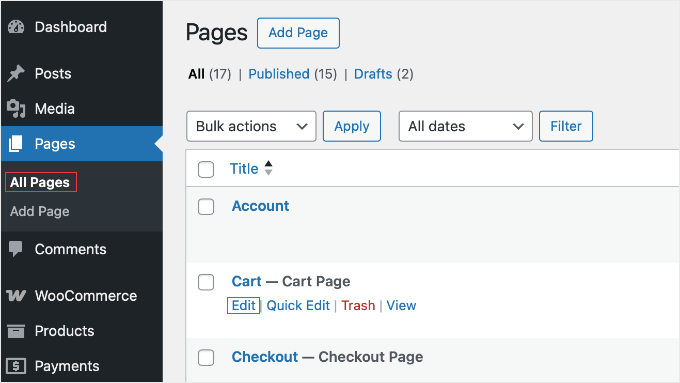
Once you may well be throughout the WordPress content material subject matter editor, you need to delete the default cart. Given that WooCommerce cart is made up of many locked inside blocks (like ‘Cart Line Items’), the easiest way to remove all of the factor is by means of using the Tick list View.
Simply click on at the Document Assessment icon (it kind of feels like 3 staggered lines) at the best left of the editor visual display unit. This may occasionally most likely open an inventory of all of the blocks for your internet web page.

Find the principle ‘Cart’ block in that document, click on at the three-dot menu next to it, and make a selection ‘Delete’ to remove the entire block from your internet web page.
Don’t worry, this most simple removes the visual construction. It does no longer delete your WooCommerce products or store knowledge.
Next, click on at the ‘+’ block inserter icon so to upload a brand spanking new block on your internet web page. Search for the ‘Antique Cart’ block and click on on so to upload it on your construction.
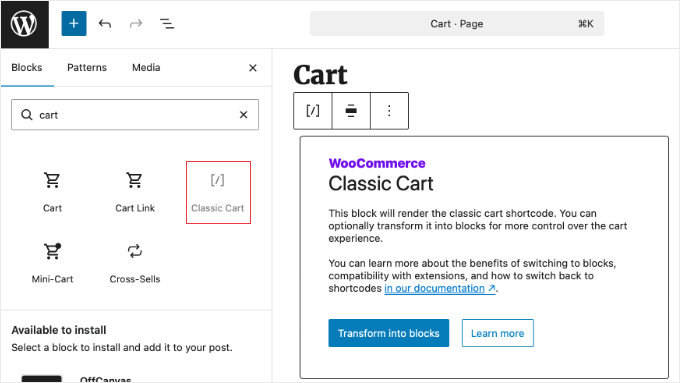
This can be a built-in WooCommerce fallback block that acts exactly similar to the former shortcode. As quickly because it’s for your internet web page, click on at the ‘Exchange’ button at the best right kind of the visual display unit to save lots of a whole lot of your new cart internet web page.
Step 3: Allow the Cart Reserved Timer Module
Now that your cart is ready, it’s time to turn on the timer. Head over to Provider supplier » Modules on your WordPress admin sidebar.
This visual display unit shows an inventory of all of the conversion tools integrated throughout the plugin, well taken care of into categories. You should scroll down until you in finding the ‘Scale back Cart Abandonment‘ segment.
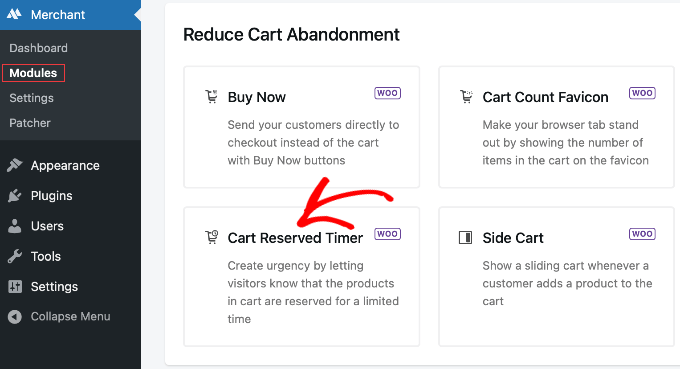
Proper right here, you will see the ‘Cart Reserved Timer’ listed. Simply click on on on the module to open its specific settings internet web page.
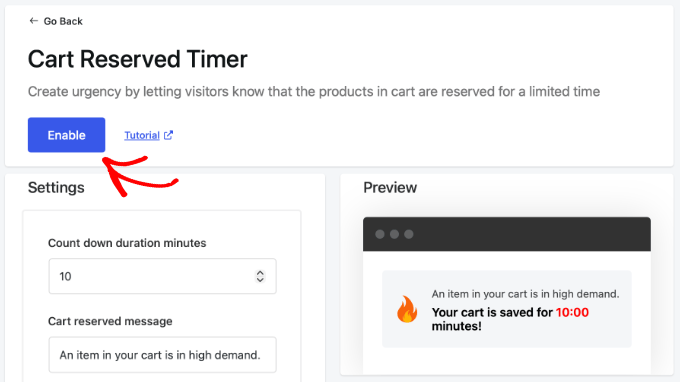
At the very best of the visual display unit, you will see a toggle switch. Cross ahead and click on at the ‘Allow’ button to turn the feature on in your store.
Step 4: Configure Your Reservation Laws
Now that the module is enabled, you’ll set the rules for the way in which your countdown works. You’re going to grasp a handy preview pane at the correct aspect of the visual display unit that updates in real-time as you make changes.
First, you should enter your amount throughout the ‘Depend down duration minutes’ field.
I came upon that 10 minutes is the really helpful sweet spot. It provides enough time for a purchaser to go looking out their wallet without dropping that sense of gentle urgency.

Skilled Tip: If you’re operating a flash sale with very limited stock, I love to counsel shortening the timer to 5 minutes. This higher energy works upper when items would in all probability in truth advertise out while a purchaser is browsing.
Next, you’ll personalize your ‘Cart reserved message’. I advise using a nice header like: ‘Hurry! We’re conserving these items for you!’ to make the patron truly really feel valued.
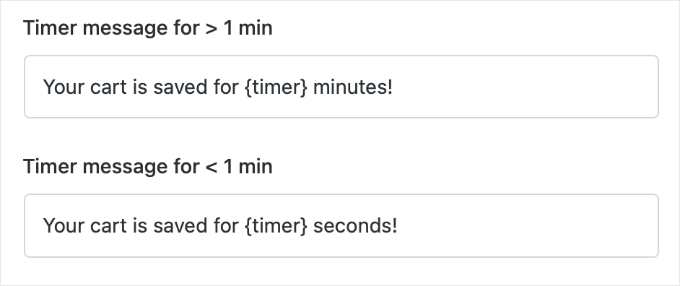
Then you definately indubitably have two fields to customize the ticking clock: ‘Timer message for > 1 min’ and ‘Timer message for < 1 min’. This lets you build up the urgency of the text for the reason that clock runs out (e.g., changing ‘Minutes ultimate’ to ‘Seconds ultimate!’).
Be sure you go away the time-rendering tags in the ones fields so the live clock shows as it should be.
After all, seek for the ‘What to do after the timer expires?’ dropdown. This tells the plugin what to do when the clock hits 0.
Must you promote in style pieces that advertise out quickly, I extraordinarily want the ‘Clear Cart’ selection. This makes sure that if a shopper walks away, their cart is cleared, which encourages them to complete the purchase throughout the point in time slightly than using the cart as a short lived bookmark.
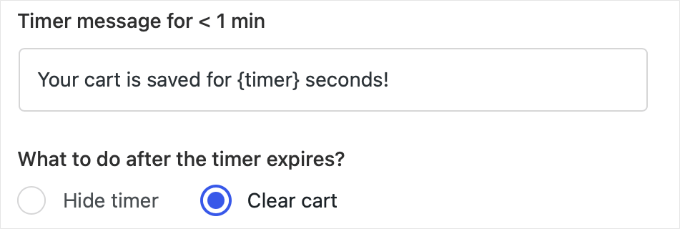
If the shopper tries to check out after the timer hits 0, then their cart may well be empty, they usually’ll wish to add the items over again.
Step 5: Styling the Timer to Are compatible Your Brand
You want the timer to look like a natural part of your store slightly than a clunky addon. Provider supplier makes this easy by means of providing you with built-in design tools.
You’ll be capable of get began by means of opting for a visual cue from the ‘Select an icon’ atmosphere. Using a simple clock often works very best.

I love to counsel adjusting the ‘Background Color’ so it sticks out from the rest of your internet web page while however having a look superb along side your WordPress theme design.
I spotted that using a high-contrast color, like a relaxed purple or orange, merely grabbed the shopper’s attention and significantly better clicks on the ‘Checkout’ button.
You’ll be capable of watch the preview pane at the correct to appear exactly how your color possible choices look.
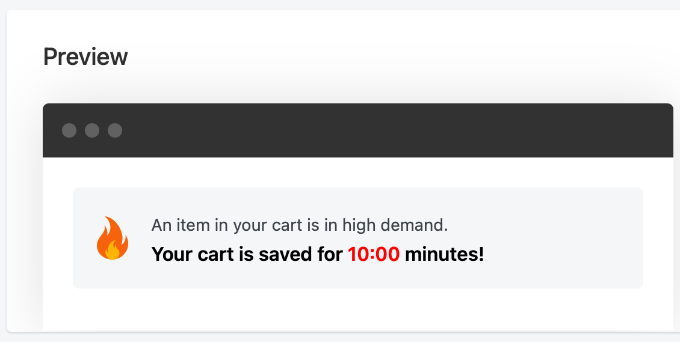
This easy visual business makes sure the message grabs the patron’s attention without having a look like junk mail. While you’re happy with the design, you’ll want to click on at the ‘Save’ button at the best of the internet web page to lock on your settings.
Step 6: Testing the Provider supplier Revel in
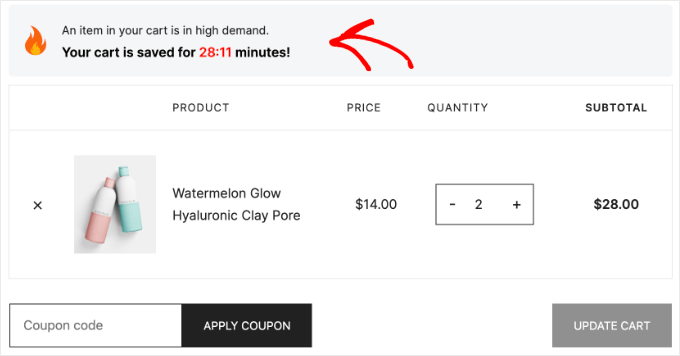
Faster than you believe the duty carried out, you need to appear exactly what your consumers see. You should open your internet web site in an ‘Incognito’ browser window and add a few items on your cart.
You should see the timer appear immediately for your Cart internet web page. This makes sure that the nudge of urgency is clearly visible to the patron right kind once they’re reviewing their items.
After all, you should check out your store on a physically smartphone. Be sure the timer bar is modest to appear and doesn’t quilt up important buttons like ‘Place Order’ or ‘Checkout’.
Testing on a real phone is the only approach to make sure your construction is modest to use for the masses of 1000’s of people who retailer on mobile gadgets. In the event you verify apparently great, your new automated recovery system is live.
Bonus Simple the best way to Reduce Cart Abandonment in WooCommerce
Together with a reservation timer is a wonderful get began, alternatively it’s only one part of a complete recovery plan. To in truth increase your profits, you should take a look at different ways to catch customers forward of they disappear.
Listed here are a few other environment friendly how you can get well out of place product sales:
- Go out-Intent Popups: Use a tool like OptinMonster to come across when a shopper is about to leave and offer a bargain to stay.
- Recovery Emails: Remind consumers about their forgotten items using automated emails.
- Push Notifications: Use a tool like PushEngage to send a browser alert to nudge hesitant consumers once more on your store.
- Visitor Checkout: Allow customers to buy products without growing a brand spanking new account.
- Visible Cart Icons: Be sure your purchasing groceries cart is noticeable on every internet web page so consumers don’t forget their items.
You’ll be capable of see all of the showed strategies I make the most of to increase my shops in my knowledge on easy methods to get better WooCommerce deserted cart gross sales.
Often Asked Questions About WooCommerce Cart Timers
Must you however have problems, listed below are answers to one of the most most now not atypical questions I get about WooCommerce cart timers.
1. What’s a cart reserved timer in WooCommerce?
A cart reserved timer is a conversion optimization instrument for WooCommerce shops. It shows a live countdown clock to consumers, letting them know their items are in short saved.
This creates a psychological sense of urgency, which helps reduce cart abandonment fees and can build up basic product sales.
2. Does a WooCommerce cart timer artwork on mobile gadgets?
Positive, the Service provider cart reserved timer is completely responsive.
The countdown routinely adjusts its construction to fit totally on smartphones and tablets without blocking off the WooCommerce checkout buttons.
3. Will together with a reservation timer slow down a WordPress internet web site?
No, the Provider supplier plugin is built for potency. It most simple slightly a bit of the crucial timer script for your specific WooCommerce cart and checkout pages, making sure the rest of your WordPress internet web site stays fast for standard browsing.
4. Can store house owners disguise the cart timer on specific WooCommerce products?
Not too long ago, the Provider supplier Cart Reserved Timer module applies globally to the entire WooCommerce store. This makes sure you provide a continuing, predictable checkout revel in for all consumers for your internet web site.
5. What happens to the WooCommerce inventory when the timer expires?
Now not anything else happens on your actual inventory, because of usual WooCommerce does no longer snatch or reserve stock when an products is just sitting in a cart.
Alternatively, will have to you made a decision at the ‘Clear Cart’ movement throughout the Provider supplier plugin, the items are routinely removed from the shopper’s cart when the clock hits 0.
This enforces the cut-off date and method the patron should add the items all over the place over again within the tournament that they however want to acquire them.
6. Does the timer reset if a purchaser supplies every other products to their cart?
Positive, the timer starts over every time a brand spanking new product is added to the cart. This provides your consumer enough time to stick browsing your store without the clock running out while they take a look at additional items.
Additional Resources for WooCommerce Stores
I’m hoping this educational helped you add a cart reserved timer on your WooCommerce store.
Now that you simply’ve put this automated recovery system in place, listed below are some other helpful guides to stick bettering your online store:
- Learn how to Get better Deserted Cart Gross sales in WooCommerce – A deep dive into the most productive tools for cart recovery.
- Very best WooCommerce Sliding Facet Cart Plugins – See simple the best way to make your cart additional available in the market to consumers.
- Learn how to Create a Customized WooCommerce Checkout Web page – Discover ways to remove friction from your final checkout step.
- Very best WooCommerce Upsell and Move-Promote Plugins – Discover simple the best way to build up your cheap order value.
Must you appreciated this text, then please subscribe to our YouTube Channel for WordPress video tutorials. You’ll be capable of moreover to seek out us on Twitter and Fb.
The post Forestall Dropping Gross sales: Learn how to Upload a WooCommerce Cart Reserved Timer first seemed on WPBeginner.




0 Comments