

You’ve clicked appropriate right into a module to modify some text. Now you need to edit the one next to it, in order that you close the settings and click on on into the neighboring module. You then definately repeat the process for the third module in that row.
Each edit requires opening settings, making changes, ultimate out, and finding your next function. Divi 5 rethinks this workflow absolutely, providing you with additional techniques to move via your content material subject matter that truly really feel natural and keep your momentum going. And with the most recent unlock, those navigation improvements now prolong previous individual portions to internet web page regulate, previewing, and faster get right of entry to to page-level controls. Let’s take a look at what’s changed.
See Your Entire Internet web page Building At A Glance
Sections stack up, rows multiply, and faster than long, you’re scrolling all through the canvas merely to hunt out one module buried 3 levels deep. Divi 5 tackles this with a collection of visual apparatus inside the left toolbar, each offering a singular approach to be informed your internet web page building without shedding your home. Proper right here’s what they do and when to use them.
The Layers Panel
The Layers panel provides you with a nested file of every section in your internet web page. Sections, rows, columns, and modules all show up in order, indented to duplicate how they take a seat down inside each other. Open it from the left toolbar and your entire internet web page building turns out in one panel, no scrolling all through the canvas sought after.
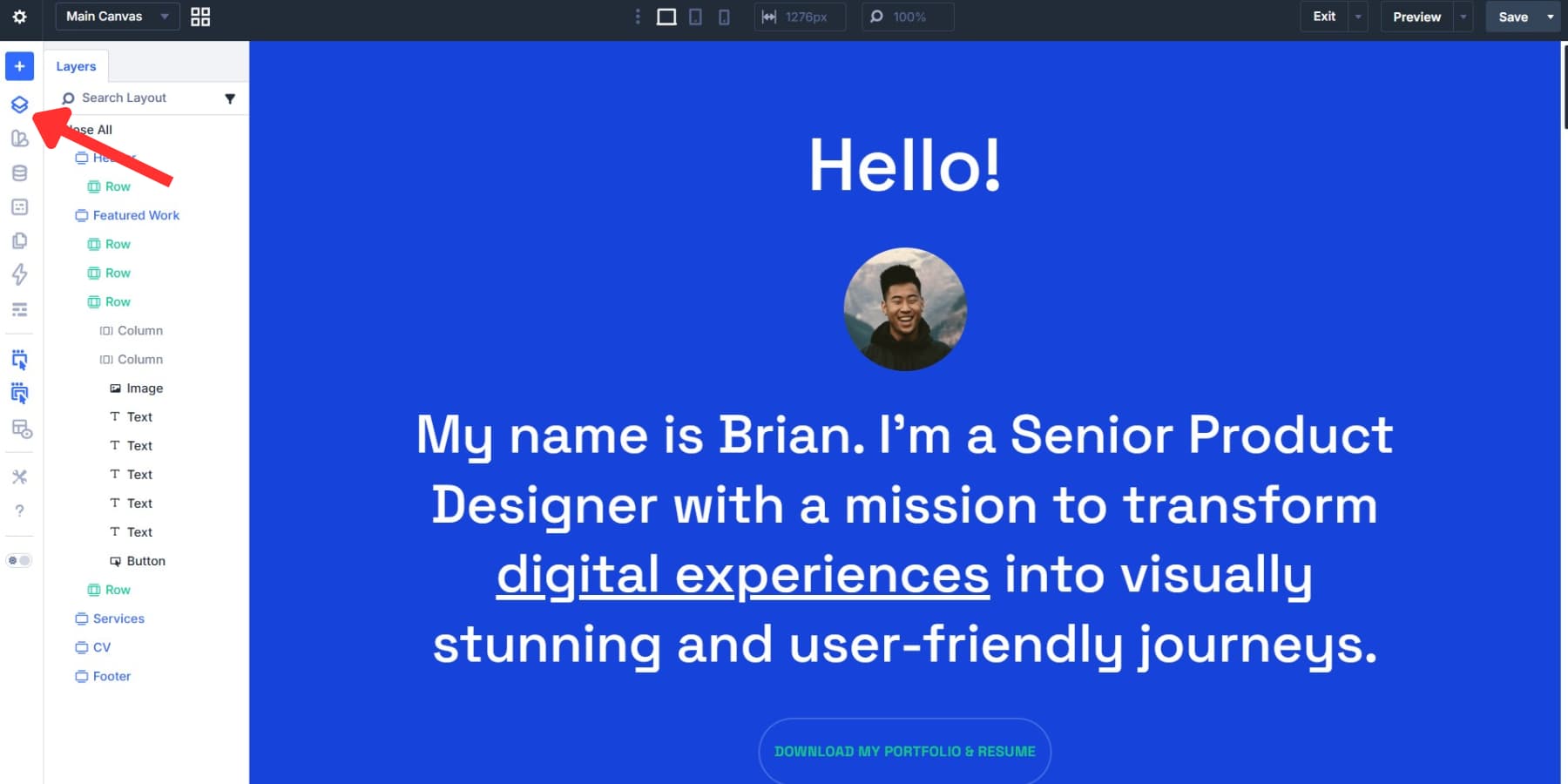
On pages with such a lot going on, this will likely repay fast. Say you built just a little with nested rows and a module personnel buried inside a column. Finding that module by means of clicking spherical on the canvas takes time. Inside the Layers panel, you understand it immediately, click on on it, and its settings open on the suitable. You didn’t have to touch the canvas the least bit.
You’ll moreover collapse and magnify boxes directly inside the panel, which assists in keeping problems tidy when your file gets long. On a internet web page with 40 or 50 modules, that alone saves a surprising time period.
Wireframe Mode
Wireframe mode strips your internet web page once more to its bare building. Colors, images, fonts, and effects all disappear. What’s left is a flat outline of your sections, rows, columns, and modules, each one confirmed as a categorized block. To seek out it inside the left toolbar, suitable next to the other navigation apparatus.
Pages with heavy backgrounds, overlapping portions, or full-width imagery will also be arduous to be informed in brief. You lose observe of where problems get began and end. Switching to wireframe mode cuts out that noise in order that you’re having a look at construction, no longer the rest.

Reordering sections or catching structural problems takes a fraction of the time.
There’s moreover a case for using it faster than you style the rest. Assemble your building first in wireframe mode, get the hierarchy suitable, then get began together with visuals. Choices about content material subject matter float are clearer when there’s no finished design distracting you from them.
Divi veterans will recognize this. It carried over from Divi 4 and however does what it has always finished well.
X-Ray Mode And Movement Icon Modes
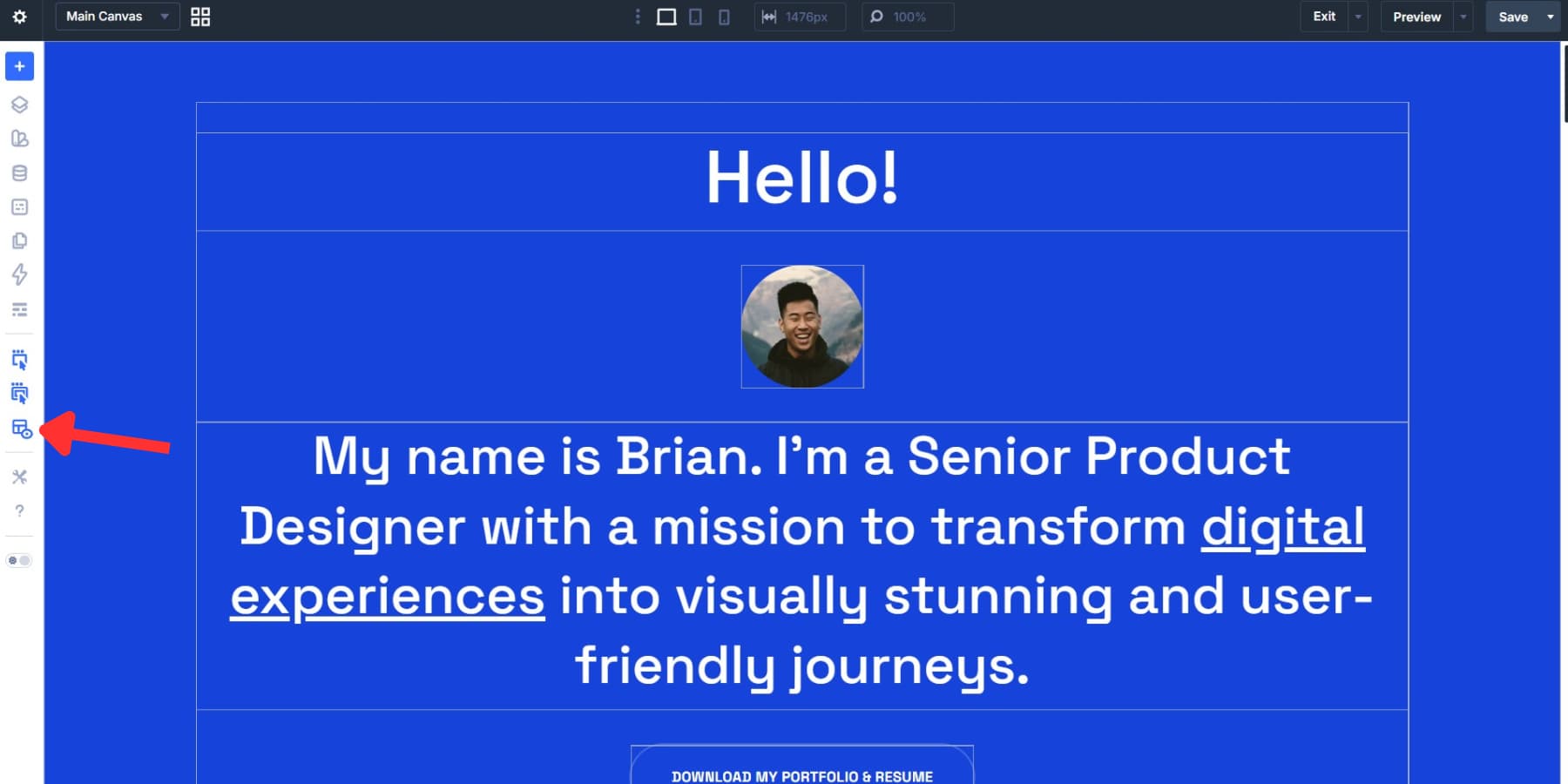
X-Ray mode draws a visible border spherical every section in your internet web page. Sections, rows, columns, and modules all get outlined instantly. It’s a snappy way to see how your construction is in truth stacked when backgrounds and full-width images make the bounds arduous to spot. Toggle it from the left toolbar, and it stays on until you turn it off.
The Movement Icon modes take a seat down inside sight within the an identical toolbar. Movement Icons on Hover controls whether or not or no longer edit, copy, delete, and switch icons appear when you hover over a module. Turn it on, and the controls show up suitable on the section. Turn it off, and the canvas stays cleaner, which some designers make a choice when reviewing a construction without unintentionally triggering something.

Guardian Movement Icons on Hover works the an identical approach, alternatively for father or mother boxes, that implies sections and rows. With it on, hovering a module can also flooring controls for its father or mother boxes. That problems most when you need to act on a row and one amongst its child modules within the an identical editing transfer, without clicking from side to side between them.

Moving Between Guardian And Child Portions Instantly
You’re inside a module, settings open, and the father or mother row needs a quick adjustment. In a different way you’re editing just a little and want to soar instantly into a child module without ultimate out and clicking once more into the canvas. Divi 5 assists in keeping you suitable where you’re and lets you switch all through the hierarchy without breaking stride. Proper right here’s how it works.
Breadcrumbs
At the top of the settings panel, a breadcrumb trail displays exactly the position you’re: Internet web page, Section, Row, Column, Module. Each level is clickable. Choose the Row label, and the row settings load immediately, no canvas clicking sought after. It’s a small issue that saves a lot of back-and-forth on pages with deep nesting.

Content material subject matter Drill Down
Going up is inconspicuous. Going down used to indicate ultimate settings and clicking each child section in turn. The Content material Drill Down menu, came upon at the end of the breadcrumb trail, supplies the missing a part of that workflow by means of letting you step downward into child portions from your provide selection.

That suggests you’ll be capable to switch from just a little appropriate right into a row, then appropriate right into a column, then appropriate right into a module without backing out of the settings panel. On layouts with nested structures, that saves a lot of unnecessary clicking and helps you stay oriented all of the time.
Divi 5 moreover allows you to switch via your content material subject matter tree with the keyboard. Left and suitable go back and forth between other people and youngsters. Up and down switch between adjacent portions inside the an identical container.
That’s value calling out as more than a hidden shortcut. Combined with breadcrumbs and Content material subject matter Drill Down, arrow key navigation provides you with an entire way to walk your internet web page hierarchy without relying on actual canvas clicks. On dense layouts, that can be the fastest and most right kind way to function the suitable section you wish to have.
Clicking Your Approach To Sooner Edits
A large number of assemble time disappears between edits. You to find an element, open its settings, close out, scroll to the next one, and repeat. Divi 5 addresses this with a collection of apparatus that shrink the distance between seeing something and changing it, whether or not or no longer you’re tweaking one module or making the an identical substitute all through fifty. Proper right here’s what each one does.
The Speedy Actions Menu
Correct-click any segment, row, or module in Divi 5, and a context menu turns out with the actions you reach for plenty of. Reproduction sorts, paste sorts, copy, delete, and add new modules. All of it, suitable there, without touching the settings panel.

Style copying is where this becomes necessarily useful. Say you frolicked getting a button module having a look exactly suitable: custom designed colors, specific padding, a particular font weight. As an alternative of recreating that manually on every other button, you right-click, copy the style, then paste it onto each function section. Ten seconds of work quite than ten minutes.
It moreover reduces panel switching. Actions that used to indicate opening settings, scrolling to the best selection, confirming, and closing out now take a single click on on from the canvas. For repetitive tasks all through a internet web page with many modules, that support in steps supplies up fast.
The menu works on all 3 container levels, in order that you’re now not limited to modules. Correct-clicking a row or segment displays the an identical shortcut possible choices for those portions, too.
Bulk Editing With The Inspector, Lengthen Attributes, And To seek out And Alternate
The Speedy Actions menu handles single portions well. On the other hand pages with 30 or 40 modules desire a greater means. Divi 5 provides you with 3 apparatus for that: the Inspector, To seek out And Alternate, and Lengthen Attributes.
The Inspector is your audit device. Open it on any section, and it collects design values all through your selection so that you’ll be capable to spot inconsistency faster. Colors, fonts, spacing, presets, and other modified values transform easier to test once they aren’t scattered all through multiple tabs. It’s a formidable starting point when you’re running on a internet web page you didn’t assemble or haven’t touched in months.
To find And Exchange is additional surgical. You know what needs changing, say a hex color, spacing price, or font atmosphere, and you wish to have every instance of it modified inside a designated scope. Correct-click the sector, enter your exchange, set your scope, and run it. All the factor takes about ten seconds, even all through dozens of modules.
Prolong Attributes flips the route. As an alternative of searching for provide values, you’re pushing new ones out. Style one section exactly one of the simplest ways you wish to have it, then prolong those sorts, content material subject matter values, presets, or other attributes to matching portions all through your internet web page. Get one CTA button suitable and replicate it in every single place and not using a wish to the contact each one by means of hand.
The three apparatus duvet slightly numerous editing eventualities, and we put together a complete breakdown of when to make use of each and every one.
Getting To Places Sooner With Speculative Preloading
Most of the wait time you’re feeling in a internet web page builder happens at the transition problems. Opening the builder, switching pages, stepping once more out to the doorway end, those seconds stack up all through an entire day of work. Divi 5 tackles this with Speculative Prerendering, and the payoff is inconspicuous to notice.
It truly works by means of using possibly navigation intent as an indication. As a holiday spot becomes a lot more most likely, Divi can preload or prerender it so the next view feels so much faster by the time you click on on.
That is appropriate to getting into and exiting the builder, and along with apparatus identical to the Command Center when you’re navigating to another holiday spot inside your web site.
Speculative Prerendering is on by means of default. If server helpful useful resource usage is a concern, you’ll be capable to turn it off underneath Builder Settings inside the left sidebar.

Price figuring out: the Speculation API in this day and age works in Chromium-based browsers similar to Chrome, Edge, and Opera. Safari and Firefox don’t have any longer carried out it however, so shoppers at the ones browsers won’t see the benefit for now.
Settings Search And Filtering
Divi modules are stuffed with settings, and Settings Seek & Filtering provides you with a faster way to get to exactly what you need. A search bar at the top of the settings panel allows you to type any keyword and soar instantly to matching possible choices, no tab switching or scrolling required.
The filter possible choices move further. You’ll filter by means of settings type, similar to colors, sizes, font families, or font weights. The modified filter is particularly useful: it displays only the settings you’ve already changed, in order that you get a clean view of exactly what’s been touched.
That’s value such a lot when you’re running on a construction someone else built.
Getting Problems Completed With Command Center
The Command Middle is a keyboard-first way to do just about anything in Divi 5. Get right of entry to it from the left toolbar or press Cmd+Good enough, type a command, and run it. Together with portions, opening modals, jumping to a decided on settings selection personnel, switching view modes, and navigating to another internet web page in your web site all run via the an identical input.
Where it is going to get specifically useful is command queuing. Hold Cmd+Return to stack directions without executing them however. Type blurb > personnel > button *2, add a preset to the queue, then press Enter. Divi builds all the nested building with the preset carried out in one move, no clicking all through the module library or settings panel required.
The “:” operator assists in keeping the file manageable as it grows. Type “:modal” and the results filter to modal directions only, in order that you get to the best one without scrolling earlier similar names.
Organize Pages And Preview Without Leaving The Builder
You’re mid-build, the entire thing’s clicking, and then something at the web site level needs attention. In order that you move out. By the time you’re once more inside the builder, the momentum is lengthy long past. Divi 5 assists in keeping additional of those tasks within the an identical place you’re already running. Proper right here’s what that looks like:
Introducing The Internet web page Manager
Switching between the builder and the WordPress dashboard to keep watch over pages breaks your center of attention every time. The Web page Supervisor fixes that by means of striking your internet web page file directly inside Divi 5, to be had from the left sidebar without leaving the builder.
Together with, opening, duplicating, deleting, or jumping to another internet web page takes a couple of clicks from that panel as an alternative of a whole go back and forth all through the dashboard.

There’s moreover a search bar at the top, so on a web site with 20 or 30 pages, you’re now not scrolling via a prolonged file to hunt out the best one.

For any person building multi-page web sites, this problems more than it could sound. The former workflow supposed shedding your home, taking a look forward to the dashboard to load, then finding your way back into the builder. Now that detour is lengthy long past. You finish a internet web page and switch instantly to the next one while staying within the an identical running setting.
The All New Preview Mode
Most builders make you open a brand spanking new tab or load an entire front-end preview to look how your internet web page in truth turns out without the builder UI. Divi 5’s Preview Mode skips all of that. Click on on Preview inside essentially the most good bar, and every UI section disappears: the sidebar, the toolbar, the settings panel, all of it, leaving merely your internet web page one of the simplest ways a buyer would see it.

Getting once more into edit mode takes a keystroke or a click on on. On Mac, Divi is helping Cmd+Period, and the builder moreover exposes the an identical shortcut inside the UI for various ways. That’s fast enough to check your art work after small changes without breaking your float.
The dropdown next to Preview moreover allows you to generate a WordPress preview link, providing you with a front-end view of your internet web page outside the builder when you wish to have to share or inspect it that approach.

New Top Bar Alternatives
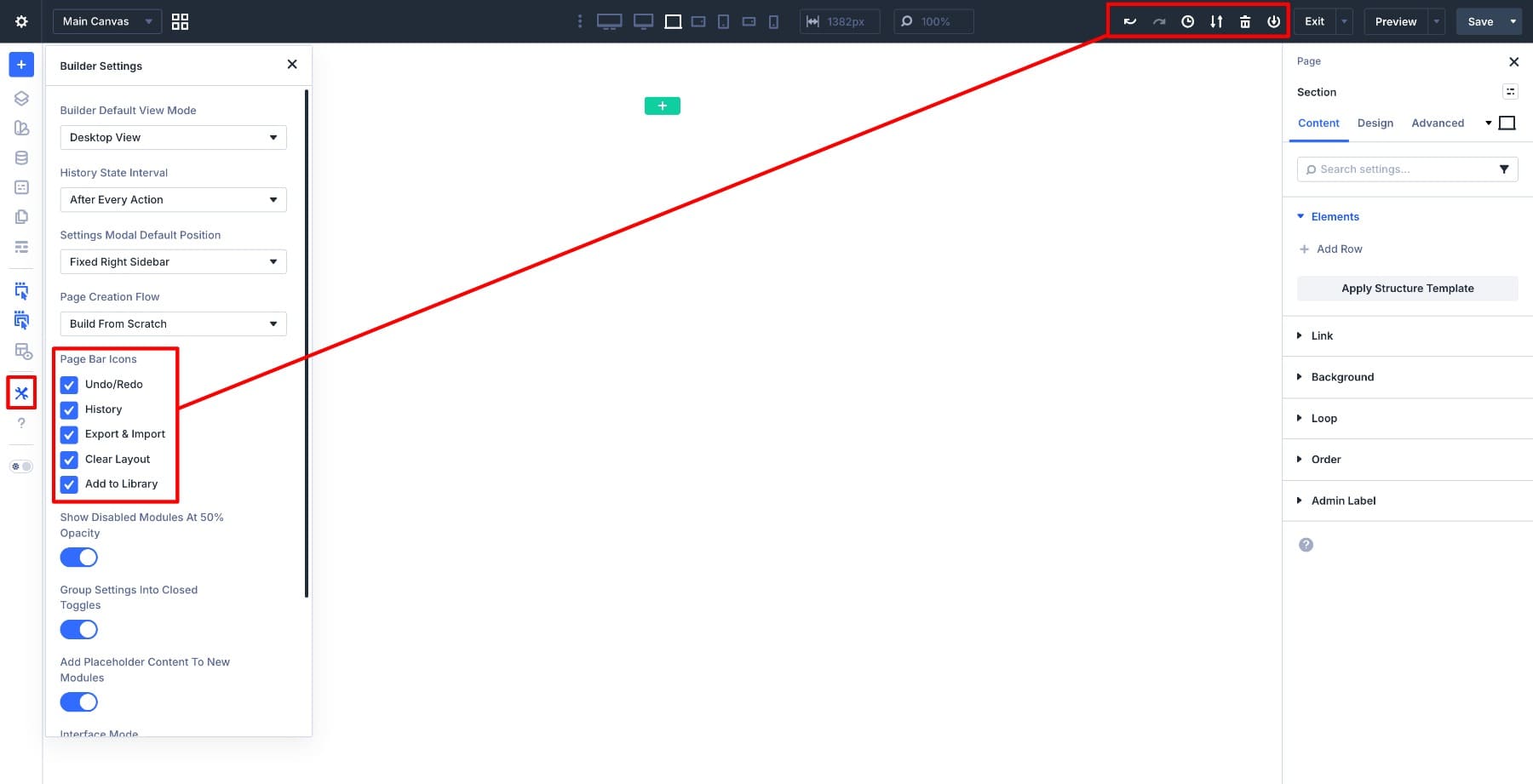
You’ll moreover understand that the absolute best bar turns out different. Divi 5 now uses a consolidated page-level menu that gathers internet web page controls into one place, making those actions easier to hunt out and reducing clutter across the interface.
That menu moreover exposes keyboard shortcuts for core actions, which helps you be told them naturally as you’re hired. And will have to you’re bouncing between a few pages throughout a assemble, the simply in recent times opened pages file provides you with a quick way back without digging via menus or reopening the dashboard.
Within the tournament you select the older look, you’re now not locked in. You’ll restore visible icons all through the internet web page settings panel and hide the ones you don’t use. So even this new top bar setup is built around the an identical idea as the rest of Divi 5’s navigation apparatus: faster get right of entry to with a lot much less friction, alternatively however underneath your control.
Get began Construction In Divi 5 These days!
Sooner builds don’t come from running tougher. They come from a builder that forestalls preventing you at every turn. Divi 5 cuts out the friction that used to break your center of attention a dozen events consistent with internet web page.
In Divi 5, the Layers panel, wireframe view, X-Ray mode, breadcrumbs, Content material subject matter Drill Down, and keyboard navigation all permit you to understand your construction and switch via it precisely. The Speedy Actions menu, Inspector, To seek out And Alternate, Lengthen Attributes, and Settings Search & Filtering make edits faster should you get where you’re going. And now, with Internet web page Manager, Preview Mode, and the new top bar possible choices, that exact same philosophy extends to the internet web page level too.
All of it supplies up to a noticeably smoother way to assemble. You spend a lot much less time looking out, ultimate panels, switching contexts, and reopening pages, and overtime designing. Get Divi 5 in recent times and notice the difference in your next problem.
The submit Successfully Navigate Content material in Divi 5 (New Shortcuts & Content material Drill-Down) appeared first on Chic Issues Weblog.



0 Comments